Optimize your LinkedIn Profile in 30 seconds // evyAI.com tutorial
Joe Apfelbaum shows how to rewrite your LinkedIn profile in 60 seconds using Evvy AI, a Chrome extension powered by GPT-4. The tool rewrites headlines, About sections, and generates personalized comments and messages. He optimizes live profiles and explains pricing starting at $29 a month.
Chapters
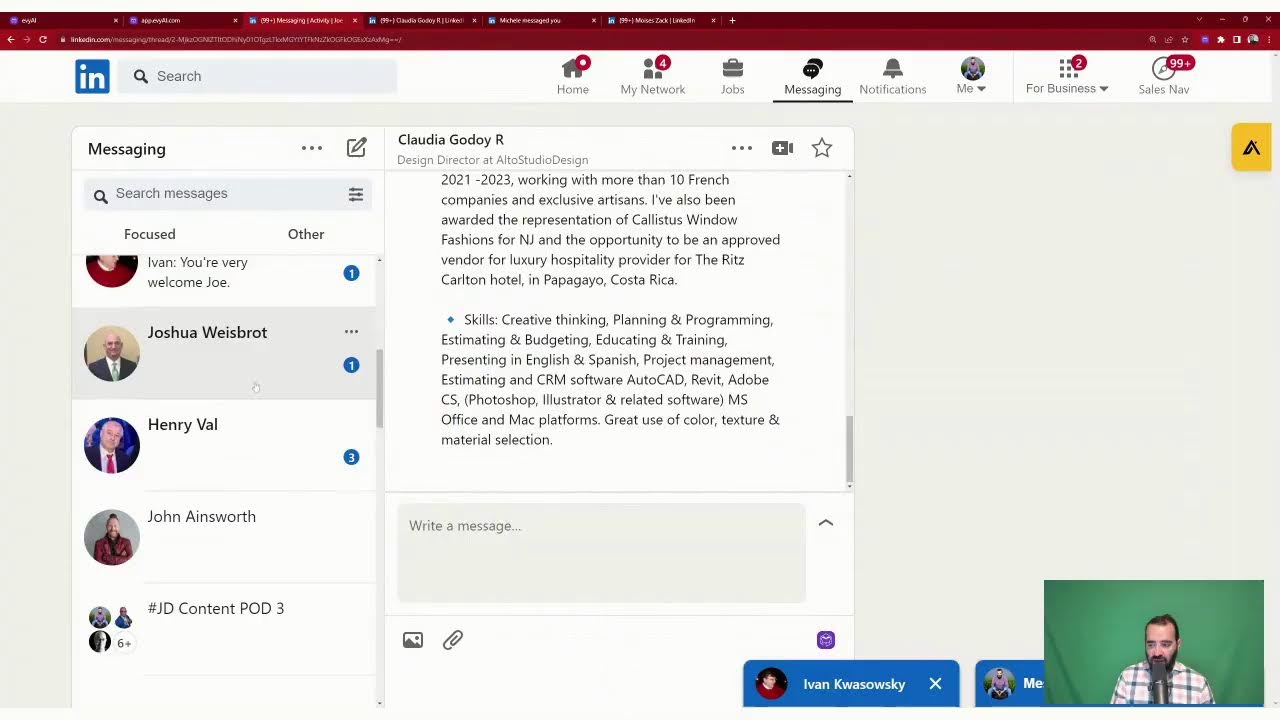
intelligence in just 30 seconds. It really doesn't take a long time to start optimizing your LinkedIn profile if you know exactly what to do. There's a lot of ways to be able to optimize your profile with artificial intelligence. You can use chatbots like ChatGPT, you can use Evvy AI. I'm gonna be using a tool called Evvy AI today, and I'm gonna dig in right now to show you exactly how that works. But I want you to know That to optimize your LinkedIn profile, it's really not rocket science to do this. And I'm gonna walk you through the process of how I do this right now. Let me dig in. If you're logging in live, put in your LinkedIn profile or say optimize me in the chat so that I can see that you're alive, see that you're there, and I will potentially pick somebody from the comments to actually optimize their profile. So go ahead and do that now. I'm gonna stop sharing my screen for a second and quickly introduce myself because you may have no idea who I am. Hey everyone, my name is Joe Apfelbaum. I'm the CEO of Ajax Union. I ran Ajax Union for 15 years, a B2B digital marketing agency, and I'm really passionate about helping people learn how to leverage LinkedIn. I've trained over 1,000 companies in the past 3 years through our company Evergreen Networking, teaching them how to use LinkedIn. There are many different strategies, and I actually have 52 amazing hacks. But today I wanna make sure that your profile is optimized for the new year. Every single year at the beginning of the year, I make sure that I go into my profile and it actually has my goals in it. This past year, my goal was to train 1,000 people on how to leverage artificial intelligence for business development. Next year, I'm gonna help 1,000 people with my software, Evvy AI, helping them be able to master LinkedIn, spend less time, make more money, have more conversations, and build more relationships. using AI together with LinkedIn. So let's dig right into my LinkedIn profile and let me show you exactly what you need to do to optimize your LinkedIn profile in 30 seconds. But tell me where you're dialing in from in the chat. I'd love to see that. All right, let's dig right in. I'm gonna share my LinkedIn screen with you so that you can see exactly what I'm looking at right now. So right now, this is my LinkedIn profile. Hopefully you can see my LinkedIn profile. I'm gonna show you how to get to your LinkedIn profile. If you see the Me button on the top right, There's a little dropdown. You can click on View Profile right there. When you click on View Profile, you see your own profile. Now my profile's loading right here with a little video because I'm going live. I'm live right now. And if I scroll down, I'll see my first name, my last name. I'll see my little verification badge, my little icon that has my pronunciation, my pronoun, shows the company I work with, my education. This shows my headline. This here, this area here is called a headline. This is a top voice badge you can use by giving people advice on LinkedIn. These are my hashtags. If you turn on creator mode, you can set up to 5 hashtags that you talk about. This is my custom URL. So if you want to try out ChatGPT for LinkedIn, you can go click on my custom URL. Here's my location. Right now I'm in Brooklyn, New York. Eventually I'm going to be in New Jersey, so I'm going to change this to New Jersey. And then over here are my followers and here are my connections. Now, if you click on the more button here, you're going to see a lot of different options. If you're looking at your own profile, the options are going to be different than if you're looking at my profile. And this little purple icon here gets added. It's called save profile. If you're using our tool, Evvy AI, which is our AI that I'm going to be using today in order to optimize your profile. Now, if you scroll down here, you're going to see a featured post. This featured post over here is my LinkedIn Live that I recently did where I walked people through how to get clients with LinkedIn. It's about an hour long, this video. I highly recommend that you watch it. This is my business networking one sheet. I recommend that you go to this business networking one sheet and you give it a like, leave a comment, and get one of your own. You need to have a business networking one sheet in order to be successful with it when you're networking. So make sure that people know what referrals you need. And this little post here basically walks you through that and shows you an example of that. And if you want more examples of other people's one-sheets, we have over 1,000 clients that have built their own one-sheets and we have a lot of examples on our website. Now, if you scroll down over here, you're going to notice that I have activity. So in my activity, you're going to see different posts. By the way, give this a like so that I can see that you exist here. Give it a heart or a little light bulb and also leave a comment, say, optimize me, and I'm going to pick somebody from the comments. Now, if I just click on the comments over here, it's gonna load the LinkedIn Live that's going on right now. And I may not be able to see everybody's comments. I do see Joy asked me to optimize hers. I'm gonna pick Joy. I'm gonna control-click on Joy so she opens up in a new window, but you'll see the repost button on the bottom left corner here. So I want you to click on that repost button so more people can see this because I don't have much time before my trainer gets here from Chicago. He's coming through Zoom, and I need to go train with him. I need to do push-ups and sit-ups and squats and so on. So I'm gonna end this in about 10-15 minutes or so, but I want to try to get as many profiles optimized as possible. So make sure that you hit that repost button so that I can go ahead and optimize your profile and help you be able to do that. Okay, so hit that repost button and write optimize me in the chat, and also let me know what you do for a living. Maybe you're in mortgages like Moises is in mortgages. I'm going to open up Moises as well. Let me know what you do for a living and where you're located. Okay, let's go. Let's get right into it. If I go back to my profile, I'm going to click on me again, and then I click on view profile. See that? I click on view profile and I scroll down to the section where it says activity. The proper way to see everybody's comments is to click on the show posts link on Under the activity box, you see it says show posts, show all posts. I click on that and now it shows me all my recent activity, all my recent posts. So if I scroll down over here, I can give myself a little light bulb like I asked you to give me. And then if you scroll down over here, you can see actually all the comments. And if you wanna see the most recent ones, you click the dropdown under the comment box and you click on more recent, and you'll be able to see every single recent comment that people left and so on. So thank you so much, Joy. Thank you so much, Moises. So I'm going to go ahead and start optimizing these profiles and show you how that works. But first, let me log into my account. I'm going to go into evyai.com. That's evyai.com. I'm going to click on login, make it really, really easy. It's going to log right into my account. Now on the left side, you're going to see it says home, saved profiles, post writer, and profile optimizer. I'm going to click on profile optimizer. I'm going to choose my goal. I have different goals for my profile optimization. I can do marketing services, networking engagement, brand building, lead generation? Tell me what your goal is in the chat. Is it thought leadership? It might— for Joy, I'm imagining it's thought leadership because I see she's on stage over here. She's based in Stamford, Connecticut. So I'm going to just copy information from her profile here. And what I probably want to do is I probably want to set a timer to see how long it takes me to do this. So I'm going to actually set a 1-minute timer. I'm going to find my clock over here. I'm going to type in clock. Okay, I'm gonna open up the clock app over here. I'm going to, um, click on this little thing here so we have a little timer here. Let me see if I can make this bigger here. I think I may just have lost Joy here. Let me go back to Joy. Okay, so now we have the timer and we're gonna get started. I'm gonna hit play on the timer. We have 59 seconds to make her a profile. So I'm gonna copy information from her. I'm gonna paste it in here. I'm gonna give it a professional tone. She seems pretty professional over here. Now I'm gonna copy her about section right over here. You see that? I'm gonna copy her about section here and I'm just gonna paste it over here. Just like a little bit of about. Again, I pasted it. I didn't think much into it. I'm also gonna copy some information about her current role. So I'm just gonna take her current role. I can have multiple roles if I want, but in this case, I'm just gonna paste information about her current role right in here. And actually it doesn't allow me to do that. Because she has too much information there. So I'm just gonna generate over here and just see what happens. Okay, so it took me about 40 seconds to try to copy and paste some information into this tool over here. And now let's see how much more time we need in order for the AI to actually generate her optimized profile. So look at that, it optimized her entire profile just like this. It has some background information and we just did that, boom, in 59 seconds. Now we just have to copy and paste. We have different options for what we can do for her headline. So Joy, this is your headline over here, okay? So we already, this is done, okay? We optimized your about sections. Right now your about section is one big blurb. We converted this one big blurb into this, into some background information, a certified professional TEDx speaker, internationally sought-after keynote speaker. You're a powerhouse in the world of motivating speaking since 2019. And what we do, leadership, positive change, remote building. You see it added all these nice little emojis, how we do it. As the go-to expert and blah, blah, blah, 30 universities. So you might say, Joe, how do I get access to this tool? It's very simple. You go to evviai.com/upgrade, and I'm going to give you guys a special deal today. So we have 3 different options. You can get the free version and try it out. You can pay $29 a month, which is $360 a year. Or right now you can get a really good deal, which less than 50 cents a day, you can get access to the AI tool. We're going to be increasing this price significantly soon. So I highly recommend you grab this deal and you grab it for the year. I'm going to drop this link inside the chat so that you guys have this over here in case you guys want to upgrade. This is the upgrade link that you guys can access this tool, and you'll also get a smarter GPT. So in this case, you'll get access to GPT-4, where GPT-4 will give you a much better about section that's much more organized. So whereas GPT-3 will give you something that looks like this, GPT-4 might take a little bit longer, but it's going to give you a much better result in terms of what you get. The, the output of GPT-4 is much smarter than the output of GPT-3. So highly recommend getting the upgrade. It does cost us 10 times more. That's why we have to charge a little bit for the GPT-4 model. So try it out, see if it works for you. The other thing that you can do with this tool here is that you're able to go And by the way, if you guys want me to optimize your profile, write optimize me. I'll optimize profiles in the replay as well. So if you're watching the replay, hit replay, um, and I'll be happy to optimize your profile as well. There's other things that you can do with this tool. So for example, if you go, uh, into the feed and you see, for example, Jordana just posted something over here and I want to leave a comment for Jordana, I just click on the little Evvy AI logo here. I change— I maybe make it conversational. I choose GPT-4. I have my persona set up for Joe Apfelbaum. And Joy, I can set up a persona. I can do the AI training for you as well if you'd like. So it says, Jordana, your insights and powerful gratitude and the role overall satisfaction are spot on. Okay, cool. So I'm going to do that. I'm actually going to tag Jordana as well, and I'm going to post this comment over here. It's a very nice comment that really gives her that conversational approach, and I'm building a relationship with this founder of this coaching company. which could potentially be a client for me as well. And now I can go ahead and even save her profile into my Evy AI account. And then of course I could, uh, you know, just start leaving comments, building relationships with her, and so on. This is how I stay top of mind with my network on a daily basis. So again, you go to your profile, click on View Profile, and once you have Evy AI installed, you're able to just go into your About section, press Edit, And you can do this directly from here. You don't need to go into the app, but if you have the Chrome extension, you can click on the little pencil sign in the about section, and then you can click on the purple icon here and you'll get a dialogue box. And inside that dialogue box, again, you can search brand building, lead generation, marketing services, thought leadership, and you can choose your tone, you can choose your persona, and then boom, you can just use GPT-3.5 or 4 and optimize your profile directly in LinkedIn. Now, I don't have access to your LinkedIn to be able to click on this little pencil, Joy, so I couldn't do that. But I highly recommend that you go ahead and optimize your own profile and test out the difference between GPT-3.5 and GPT-4. Now if you guys want me to optimize your profile, go ahead, leave a comment, say optimize me, and I'll run the timer one more time to see who else wants to be optimized. So it looks like Esther wants to be optimized. I'm gonna click on Esther and I'm going to click on Claudia And I'm going to optimize these profiles right now. So I'll just show you how quickly this is. So I'm going to go back here. So in my homepage, I'm able to see all the different things that I've done. In my saved profiles page, I'm able to see all my clients and I can filter by, for example, people that have over 30,000 connections. And then I could start dropping comments on these people's profiles. As you can see, I'm control-clicking on see recent activity and it's opening up in a new tab. And this allows me just quickly to go to their recent activity From a list. And so I can just start dropping comments on their profiles without actually having to go ahead and spend the time to wait on the feed for my strategic clients to come in. I could just click on those links and boom. So it says, excellent point, Liam. I believe sponsored posts will become prevalent on LinkedIn, but it's crucial to maintain a balance. Okay. So I press post and now I go to the next person. Darren. Darren says 72% of top working places, blah blah blah. So I'm going to go in here. I'm going to generate a cute little comment about for Darren, an analytical comment. Hey Darren, thanks for sharing the points. Important to take advantage of the learning and development companies offer. I learned the hard way of ignoring to slow down growth. Is your suggestion blah blah blah? I love your suggestion. It's a game changer. Have you used LD stipend yet? Okay, I'm gonna press post, and now I asked him about his own L&D stipend. Okay, now this guy Rob, again, over 30,000 connections over here. The problem with Rob is he has over 30,000 connections, but he doesn't really have anyone commenting here. So Rob, your expertise in award-winning biz is valuable. Looking forward to your insights and learning from your experience. So in this case over here, I'm going to tag him, and I'm going to remove all this extra, all this extra stuff here. And I'm just gonna tag him just like that. Okay, so as you can see, I tagged him. Again, building relationships with people, it's about leaving comments for them, and this is a great way to do this using this tool. But if I click on Profile Optimizer and I go to Esther, for example, and I copy— again, let me hit the timer. You ready? Get set and go. Well, let me restart it. I'm gonna hit restart. I'm gonna hit go. All right, so I'm gonna copy Esther's contact information right from here. You see that? I just copied her name, her information. I'm going to click on Profile Optimizer, and then I'm going to go get some information from her About section over here. So her About section doesn't really have a lot of info here, so I'm just going to copy and paste some information from here, and I'm going to paste it right in here just like that. Now I do have another 1,000, um, characters that I could include, so I'm going to include some information about her current role, Director of Marketing. I can copy and paste information from our company, or I can just literally copy and paste information from right over here. So I'm just gonna copy and paste information from here, Ctrl+C. I'm gonna paste it right in here and I'm gonna press generate. And what that's gonna do is it's gonna take about 10 seconds or so, take all this information into account and write me a little about section for her LinkedIn profile. Now, I, the reason I love doing this very, very quickly over here is because it doesn't, I'm gonna pause this over here. It took about, 58 seconds to do this, including the copy and pasting. The reason this is much better is because this really breaks down your profile in a way that will help you significantly. Because if people don't know what you do for a living, it doesn't work. So if you want me to optimize your profile today, write optimize me. I'll later connect, you know, connect with me. I'll send you the details of this. I'll actually send you the information that I got over here because I have access to all this information. But I'm curious to know if you feel like this is powerful, if this is something that you would kind of try for yourself. Of course, you can get the free version, but I recommend upgrading to the premium annually, which is less than 50 cents a day to reply to posts, leave comments, and so on. There's a lot more that you could do. Let me do Claudio's as well over here because Claudio asked for this. So Claudio, again, same thing. I just copy and paste the information from your profile. Let me go back to app.eva.ai. I'm going to click on— and you can copy and paste this out. So for example, for Esther, I can press copy. I can go to Esther right over here. I can click on message and I can just copy and paste the information right here. So I just sent her this information that she can include in her profile. You see that? I just sent Esther all this information. Okay, now I'm gonna close Esther's profile here. I'm gonna go to Claudia again. I'm gonna reset the timer. I'm gonna hit go and I'm gonna just copy and paste this information. So you see, I'm gonna copy from here, Ctrl+C. I'm going to go to home, click on profile optimizer. I'm gonna paste it right over here. You see that? She's my first-degree connection. I don't need to include that. I'm going to go back to her profile. I'm going to go to her About section to see if she has anything. If someone doesn't have something in their About section, you could always grab it from their website. So I'm going to copy this information. She has a lot of great info in her About section. I can take a little bit more information over here from her experience here. So I see she does— she's an interior designer. So I'm going to copy and paste this information from her interior design company. And now I'm going to pay paste. Now I'm going to press GPT-4, which takes a little bit longer. So whereas the other one took maybe 5 seconds or 10 seconds to produce the about section, GPT-4 might take 30 seconds or it might take a minute and so on. And so realize that it's going to be higher quality and more sophisticated, but it is going to take a little bit longer. So we're going to cross the minute mark and it's not going to finish yet. Okay, I'll reset it right now. I'll reset it and do it. So let's see how much longer it takes. to actually produce the GPT-4 version of the about section for Claudia. Because, you know, a lot of people, they don't realize the difference between GPT-3.5 and GPT-4. And one of the most popular questions that we get asked is, Joe, do I need to pay for this? Do I need to pay for a subscription to OpenAI, to ChatGPT? And the answer is, if you have a subscription to Evy AI, we use their API, their application interface. So you don't need a separate subscription to ChatGPT to be able to do this. Okay, so this took an extra 20, 30 seconds. So instead of it taking, um, you know, an extra 25 seconds to be able to produce this, um, and it's a little bit more, a little bit more sophisticated. So I'm going to copy this out over here. I'm going to send this to Claudia as my little gift here today for you, Claudia. So thank you for commenting. If you want me to optimize your profile, I'm happy to do it. And then you'll see the way this is organized nicely. And then we can repurpose this. So if I want to create a persona from this, I can copy that and paste some of that information into the persona creator. And you'll be able to see here, once you have a persona, you can then start writing content. So if I want to write content, for example, I go click on Post Writer and I want to introduce her, right? I want to make an introduction. I want to introduce myself to the world. I can click on Personal Story. I can paste her information over here and I can select a persona. I can click like happy, generate, and then I can create a really solid LinkedIn post on your behalf, Claudia. And I'm going to be creating lots of LinkedIn posts. So if you want to be able to see how I create 100 LinkedIn posts using my AI tool, again, you don't even need to use the Chrome extension, but I do recommend upgrading and getting that Chrome extension from evyai.com. You just go to evyai.com, you click on add Evy AI to Chrome. And then you can do this yourself. You can leave comments, you can reply to direct messages. This is, this is what I love doing. I love replying to direct messages on LinkedIn. So if I click on messaging over here and I see over here, people are hitting me up. I have lots of different people that are constantly hitting me up. So I click on these 3 little dots over here. I don't know if you guys can see this, but there are 3 little dots. I'm just going to refresh my messaging over here, um, and see what people have been sending me. Yeah. So I sent this to Claudia just now, but if I click on these 3 little dots and I click on InMail, You'll see that I've been getting people that send me, um, that send me InMails. I get all different types of InMails, uh, from people. So for example, this person over here, it says, are you looking for GPT services for your clients or whatever? So I can click on this thing and I could just write, um, not interested, right? I'm going to write thank you but not interested. However, I'd like you to check out my tool. I'm just going to be authoritative and I'm going to press generate. It's going to read his DM And in a very nice way, it's going to say, Albert, thank you for reaching out. I appreciate the offer, but I'm not currently interested in GPT services. However, I'd like you to check out my tools. I'm going to press go and send, and I just sent him a nice reply. So he hit me up, but I sent him a very nice reply using Evvy AI. So that's, that's a really easy way to be able to use this tool to help you be able to get where you need to go and be more successful. So highly recommend you check that out. In terms of the, the intro post that I just created for Claudia, this is a really high-quality intro post. Again, just a few seconds. I have a post and I'm going to— if you guys want to see the video, let me know that you want to see the video of how I create 100 different posts on LinkedIn in a matter of minutes, not hours, not seconds, but just minutes. I can create that. So I just sent that to you, Claudia. Let's see, Moses says, you rock. Thank you so much for the kind words, Moses. Really appreciate you guys. Thank you for stopping by here today. I have to go work out now with my trainer, but if you want to see more of these videos, I'm happy to do more of them. Go to my profile to the featured section. I spent an hour yesterday on this video here that I really walk you through how to do it. And if you want to upgrade, just go to evviai.com/upgrade and then go grab that deal that I just mentioned. Once again, thank you so much for joining me here today. Really appreciate you. If you want to learn how to be able to generate comments with AI, posts, create posts, write recommendations, send out messages, optimize your profile, create connection notes, This is going to save you a ton of time. So make sure that you send this video to somebody, tag people, and also repost this so more people can see this. I want to encourage you today. I want to encourage you to take some action and send some messages to your connections. The key to building relationships is having conversations. Most people are just not having conversations on LinkedIn. And so let me know what you do for a living in the comments. Let me know how I can help you. Let me know what your goals are. Let me know if you want me to optimize your profile. And after I finish working out, maybe I'll go ahead and do that. Thank you very much for watching, and I'll see you next time.
More from Joe


How to Beat the Algorithm: Remove Hidden Watermarks & Scale Content with evyAI









AEO & GEO: SEO's Future Explained! Master Answer & Generative Engines! #shorts