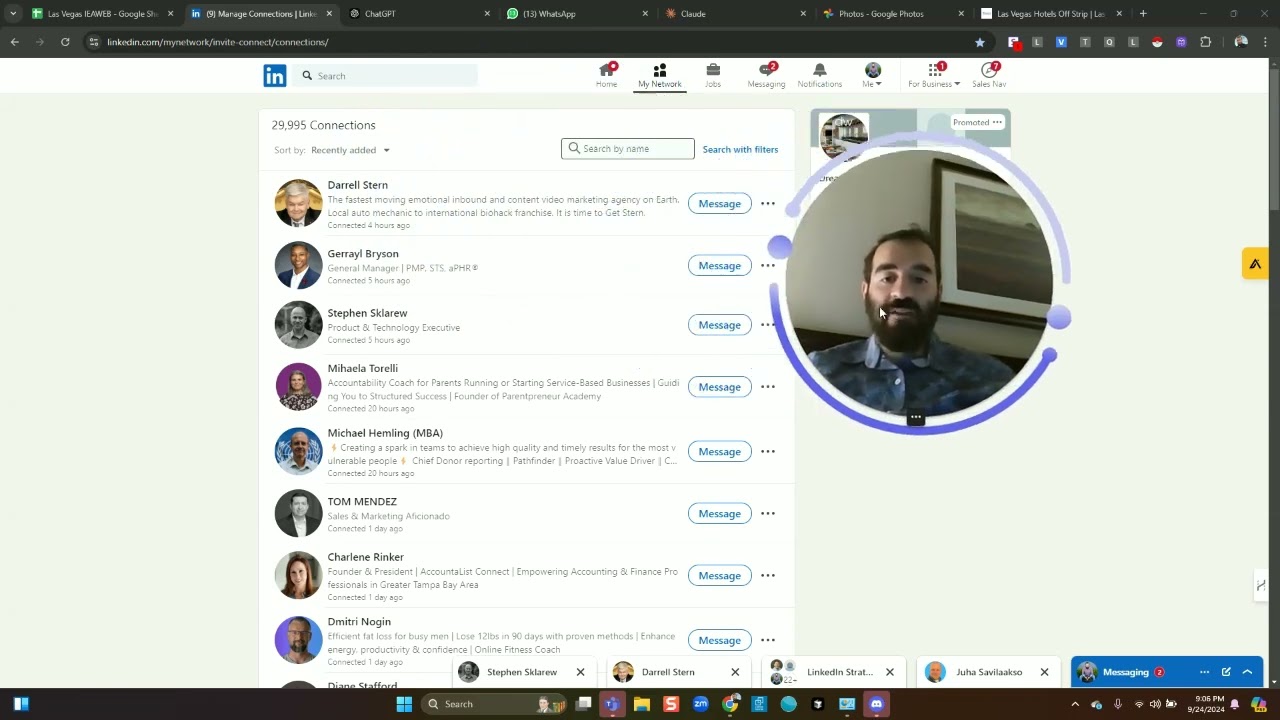
Joe Apfelbaum shows how to remove LinkedIn connections without opening profiles, avoiding notifications. LinkedIn caps connections at 30,000, and he demonstrates using the Connections page to search and disconnect via the three-dot menu. Send a message first to keep the conversation thread accessible after removal.
Chapters
Hello, this is Joe Apfelbaum, CEO of Ajax Union and Evvy AI, and today I want to show you some really cool things that I discovered here on LinkedIn on how to remove connections. So for example, if you click on My Network right on LinkedIn, on the top center of LinkedIn, and you go all the way to the left here, you'll see it says Connections. When you click on Connections, it takes you to all of your connections. So my problem is that I have too many connections. I can only have 30,000 connections. However, If I check to see how many people I'm connected to right now, it's almost at 30,000. It keeps going up to 30,000, and I have about, say, 1,000 people that are waiting to connect with me on LinkedIn. So I need to go through my connections. Now, typically the way that you remove a connection is that you go to somebody's profile. For example, maybe I'll go to this person's profile, and if I want to remove the person on LinkedIn, I would have to go through a whole process of pulling up their profile. And the problem is you have only a certain amount of profiles that you can pull up, and it takes— you can see it takes a long time for the profile to pull up. Then I have to click on the More button, and then I have to click on Unfollow or Remove Connection over here, and that's a whole process. And there's a limited amount of people that you can do. So instead of doing that, you can go to My Network, and then you could first of all take a look at how many connections I have. I'm going to click on Show All Invitations over here just so you get an idea. of how many people are waiting to connect with me on LinkedIn. And I'm happy to connect with people on LinkedIn. Just because I have 1,126 people that are waiting to connect, it doesn't mean I'm not going to connect with people. You see, she's a fractional CMO. I'd love to connect with her. And by the way, you can actually message all the people that are waiting to connect with you right here through this page here. This is the only place where you can actually message people that are waiting to connect with you. And so there's so many people here. That are waiting to connect with me and build a relationship with me, and I don't have space for all these people that want to connect with me. So I have to remove some of the old connections. So I recently discovered a hack on how to remove connections from LinkedIn without loading their profile. So there's no profile view. They don't even know that you viewed their profile. So this is also a problem that a lot of people have. is that they don't want the person to see that they viewed their profile. Then they're gonna go look and they'll be like, oh, I'm no longer connected. So it's gonna be kind of weird. So if you wanna remove somebody without notifying them, this is how you do it. You go to this page, which is linkedin.com/mynetwork. You see on top it says /mynetwork/invite-connect/connections. You see that on top? Then you search for the people you wanna remove. So let's say, for example, you wanna remove all the people that are named, say, Alex. Okay, so you just search Alex and it'll pull up all the Alexes. And I'm going to pull up— I see I have many, many Alexes. I scroll down to all the Alexes and you can decide which Alex you want to remove by simply looking at their profile and identifying if there's something here, you know, maybe the marketing director for Hudson Fusion Media, and— or maybe this person, Alexis Dean, the founder of Dovetail Summit, which doesn't have an image. Usually if somebody doesn't have an image, it might be an issue, or this person has a logo as an image over here. So I'm going to go into this person, Alexander Eider. I'm going to click on message just to see what conversations we've had in the past. Even before I want to disconnect, I want to see, and I see that we had a conversation last in 2024— in 2019. I have his email over here. We had a whole conversation. So I'm just going to send him this message here. That's the default message from LinkedIn. Long time How are you doing? How's it been? We haven't touched base in a long time. So I'm going to find another Alex that I want to maybe remove. I'm going to see over here. I'm going to go down media expert. This guy, Alex Gorovich. It says he's a media expert. I don't know what that even means. I see that I messaged him many times here and he has never responded to me even once. So I'm going to say it's been some time since we last connected. I'm going to say, you might, you might not be using LinkedIn. Check out my AI called Evvy AI when you get a chance. Okay. I'm going to say www.evya.com. All right. That'll be the last message I send him. Now I want to remove Alex. So how am I going to go ahead and remove Alex? I'm just going to go to his profile without going to his profile. I click on these 3 dots. These are 3 secret dots, and I click remove connection. And so I just created space to remove this connection without even going to his profile. I sent him a message. Now, once you remove the connection, you're not going to be able to send a message anymore unless you already sent the person a message, and then you can continue the conversation in your inbox. And so I'm going to show you what that looks like real quick. So I'm going to hit remove connection. Are you sure you want to remove Alex? Don't worry, he won't be notified by LinkedIn. You're not even going to do a profile view, which I love. This is like crazy stuff. So I just removed him from my connections. Now, if I go to my messaging, you can see he's still in my messages. So because I first messaged him before I removed the connection, I can keep this conversation going even though we're not connected, which I love. I love that. So you connect with somebody, you have a conversation with them, then you disconnect and you can keep having that conversation with them. Now, if you do want to get their contact information before you disconnect, then you do want to go to their profile. For example, if I want to disconnect from this guy named Joel, I can go to his profile, I can click on his name first before I disconnect, and then I can click on contact info, and then I could load his contact info, copy his contact info into my CRM, and then from there disconnect. Because once you disconnect, you can't have their contact information. And so I highly recommend that you first capture their contact information And some people, they don't have any contact information. Like this guy Joel doesn't have it. I actually have all his contact information already because he gave me his business card at a conference recently, but I'm not going to disconnect from him. But that's the idea. Anyway, I want to thank you very much for being in my life. Thank you for using Evy AI. You could see Evy AI on the right here. So I'm going to hit save profile. You can also save people to Evy AI, and that'll save all the information from their profile. Right into Evy AI, which will allow you to be top of mind with them. Click on the little dropdown. You can click on see recent activity. You can see all of the recent posts, and then with a click of a button, you can then start leaving comments. You can send them messages. You can send them connection notes if you want to connect with them. You can write posts with Evy AI. There's so much that you can do with Evy AI. It's extremely powerful. So I highly recommend that you use this tool to stay top of mind with your network. But if you're looking to remove connections, I just showed you a killer way to be able to start removing connections on LinkedIn. Thank you very much for watching this. Hope you enjoyed this. If you did watch this video and you got value from it, do me a favor, click that like button. Make sure that you leave a comment. Just write value or I got value, great video, something like that so that I know you watched it. And then also on top over there, click subscribe. So this way I get you as a subscriber and you can watch my future videos. I'd love for you to subscribe to this channel or follow me on LinkedIn. Thank you very much for watching this. My name is Joe Apfelbaum, and I am the CEO of Evvy AI, the AI for LinkedIn, which helps people be able to be more successful on LinkedIn. So if you go to my profile and you'll check it out, you'll see I have a demonstration video right on the front and center of my homepage under the section called Featured. And I'd love to have you check out my profile and let me know what you think. Thanks again for watching this, and I look forward to talking to you very soon. Boom.