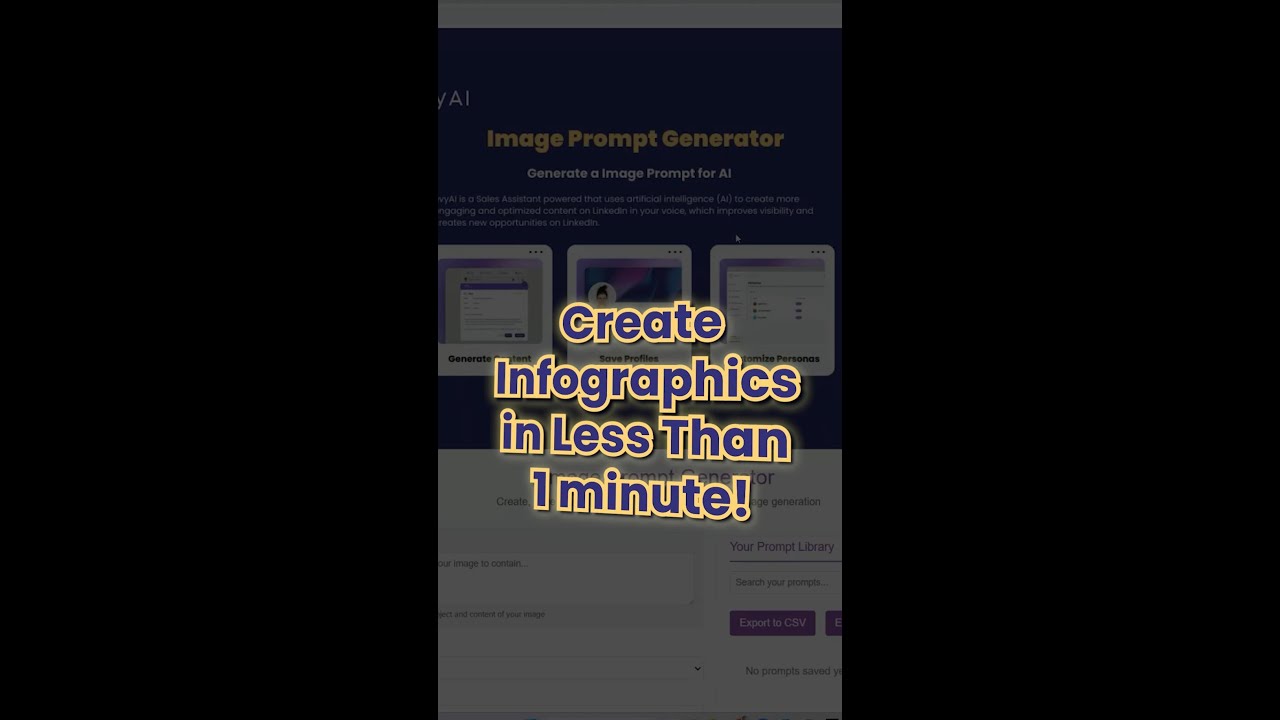
Joe Apfelbaum uses evyAI Pro's Image Prompt Generator to build an infographic by voice. He specifies format, dimensions, style, colors, fonts, layout, and audience, then feeds the prompt into Advanced 4.0 to generate the final image.
Chapters
One of the benefits that we make available to Evy AI Pro users is called the Image Prompt Generator. I created this infographic this morning using our prompt generator. So how does this work? You have to first write, describe your content. So I click on the microphone on the bottom right inside Evy AI, and I say something like, create an infographic that describes— I'm gonna press the up arrow. It's gonna go into here. So the format is process explanation. The next thing is the dimension for LinkedIn. The style will be corporate and professional. The color scheme, pastel palette. The typography is playful mixed fonts. Layout, Z pattern reading flow. Visual elements, custom iconography set. Branding, no branding. And then of course professional and corporate. And then audience, marketing professionals. Call to action is save for future reference. Prompt name is how technology works. I'm going to call it that. Generate prompt. I'm just going to use the Advanced 4.0 image creator and you're going to see it's going to just create an image based on these factors.