Update a Blog Automatically with a LinkedIn Page - 135 LinkedIn Live 2024 with Joe Apfelbaum
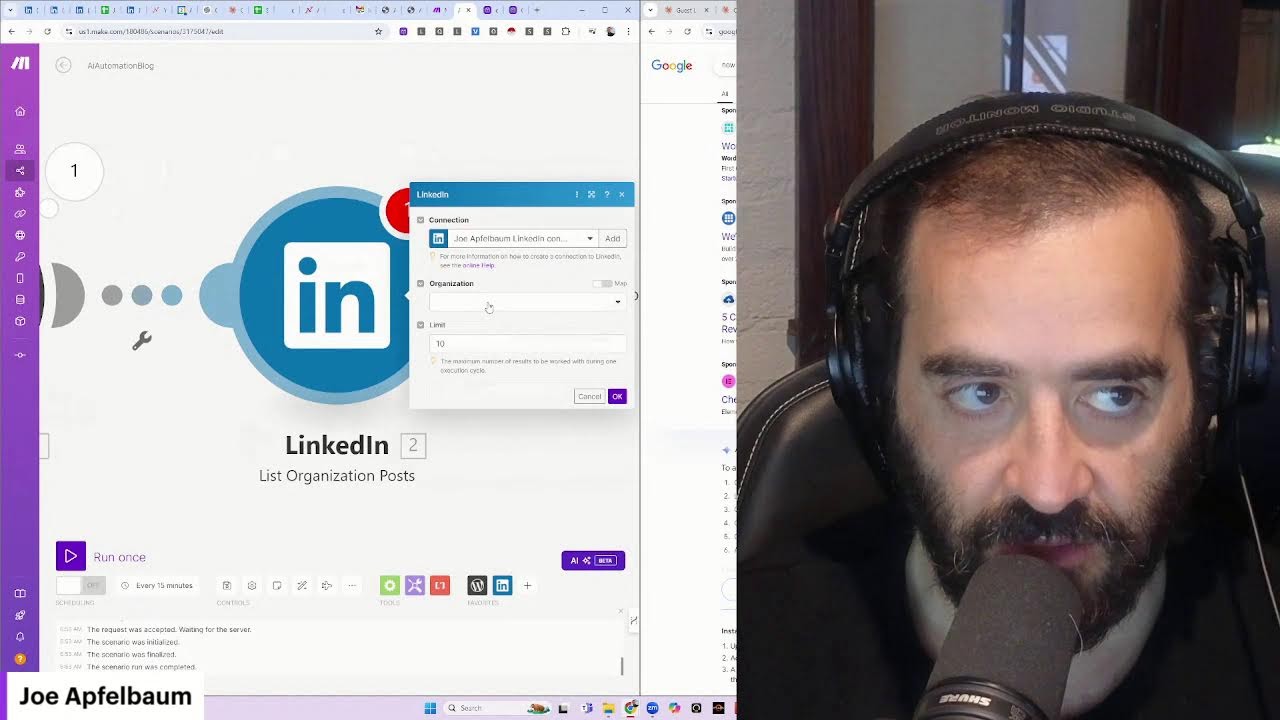
Joe Apfelbaum builds an automated WordPress blog that pulls posts from LinkedIn company pages, rewrites them with AI, and publishes them on schedule. He uses the Make Connector plugin to link WordPress to make.com, then demonstrates publishing a post generated by Evie AI in minutes.
Chapters
I literally just designed this website using artificial intelligence in about 5 minutes. Not only did I design it, I also wrote all the content for it. I set up a blog. I bought a WordPress with 100 different websites that I can assign. I got a free domain and I called it aiautomationblog.com. You can check it out. Now what I want to do is I want to connect this To a tool called make.com. So if you haven't heard of make.com, it's a no-code automation tool that allows you to connect 1,500 different tools together. And I teach how to do this in our community, school.com/ai-automation. So let me show you, and then I'm gonna tie it all to LinkedIn because, you know, I'm the, I'm, I'm obsessed with LinkedIn these days. All right. So the first thing is I log into the backend and I'm hosting it using a website, um, hosting tool called Hostinger, which I, I paid like $100 and for like 2 years I have 100 WordPress websites with an AI builder, which is crazy. Anyway, so I'm gonna, I, I went into make.com and it tells me create a new connection, add your WordPress API. Um, and I'm actually gonna patch in my Make engineer right now. Let me get my WordPress up. Let me switch to here. Let me patch him in into Zoom. Recording in progress. All right. Continue recording. And mix minus is on. Can you hear me? Dimitri, you there? Okay, great. All right. So I'm going to add my Make connector here. I'm gonna— of course, of course I can share my screen. Let me share, share. Okay, can you see my screen now? All right, cool. All right, so now I'm gonna click on Install Now. So what I'm gonna do is I'm gonna install this plugin, and that plugin will allow me to have— I guess it says Activate. So I'm gonna click activate and then it'll let me activate the, I guess the funnel. I mean, not the funnel, but the make.com, be able to connect this with this, you know, like with make.com because I need an API key. So let me, let me go into make.com. I'm gonna hit activate real quick. Okay. Now I have the plugin. Installed. It's called the Make Connector plugin. I'll show you guys what the plugin looks like over here. It says Make Connector plugin safely connect your site to make.com to work with custom metafields through REST API. You see that? But it's created by this company called Salonis, which do I trust Salonis? Oh, it's the same company. They updated 3 days ago. It looks like they have a lot of 1-star reviews here, which I don't love. It's a visual platform that lets you build, design, and automate anything from simple tasks to complex workflows. Add your WordPress users to a CMR marketing tools like Salesforce, ActiveCampaign, Mailchimp. Create new WordPress posts from incoming webhook data, Google Forms responses. That's cool. What I want to do is I want to monitor a LinkedIn page and and then take content from that LinkedIn page, rewrite it, and post it as a blog post. What do you think of that? And create an image and everything and upload it to WordPress. How cool would that be? Sounds cool, right? Okay, so let's try, let's try to do that. First, we're going to need to get the API key. So let's, let's get the API key. It says installation. Installation is activate the plugin in the plugins menu, then go Create an, in the admin menu. Okay, so once it's activated, oh, I see it on the left over here, look. On the left it says Make. So it says upload the folder to wp-content/plugins, activate the plugin, add a new item called Make appears in the admin menu, and there you can see your API key, and there you can connect your WordPress to make.com, and you could also select the custom fields you wanted to be visible in the REST API. The plugin allows you to safely connect WordPress site to Make, and it also gives you the possibility to work with custom metafields, like creating and updating the REST API. The plugin does not send any data to make.com service itself. It only simplifies the connection process and allows you custom fields to be included in the REST API responses. That's cool, right? All right, so I'm gonna click on this right now. It might show my API key, so I'm gonna slide it over to the left here just to kind of Protect the actual API key. See, I do have the API key here. I'm going to copy it and now I'm going to paste it into— I'm going to paste it into make.com and hit create new connection. I'm going to put in the API key here. Um, and my WordPress website, I guess, would be not this, I guess, would be— let's see where it is. Um, would be, I don't know, save settings. This token, creating a new connection, custom API fields, custom taxonomies. I don't even know what the URL would be for this. What do you think the URL is? Do you think it's just mywebsite.com/json? Although we try to remove it, let's try. I'm going to minimize. I'm going to actually get out of this here and go back to settings. It's probably this. Create a new connection. Okay, so it's this slash wp dash json, right? Because it says wp dash json here on the bottom. Dash json, and then. The API key would be what I just had here. Where is it? Make, copy this token, paste it here, hit save, create connections. Creating a connection. Okay, now it's called My WordPress Connection. I want to change it to be called something else. Can I click on connections and just change it? You're on save changes in a second. scenario. I'm going to hit save. Save anyway. Title. What would the title be? So this is to create a new post. I'm going to say test. Test content post. Okay. Save. Okay, I guess that's where the variables go in, right? Um, let me click on connections. Let me go to WordPress. Let me go to my WordPress connection. Let's edit this to ai-automation-blog.com. Okay, so verify, verifying. Okay, that worked. All right, so guys, I'll quickly show you what I'm doing here. So over here under connections, I added this new connection here. I didn't put it publicly, so you can't really see— so you couldn't see what I did. And I just called it AI Automation Blog. I put in my API key there, and then I verified that it worked, and it's verified. Now I'm going to go to my scenarios. I'm going to take my most newest scenario. I don't know, why doesn't it show the newest scenario here when I— I'm going to Refresh. I'm going to click on new scenario. Why doesn't it show the WordPress one here? Any idea? Yeah, yeah, I could— WordPress, it's here, but it's not the newest one even though it says the newest one here. Any idea why? It's not cached yet. I did save it. I, I, well, there are other ones that are not active that you can, that you can search. Uh, maybe, oh, maybe because all the active ones are prioritized first. Yeah, you're right, you're right, you're right, you're right. All the active ones are prioritized first and then After that, you get all the newest ones that are not active. Okay, you're right, you're right, you're right, my good friend, you are right. So I go down to the ones that are not active. Oh, I could— I can sort by inactive scenarios. Okay, got it. All right, so I'm here. This is the one. Ctrl+0. Oh, all right. So this is, this is my scenario, create a post. So if I go in here And I create a post. I put in the title of my post, New AI Automation Post, and the content, In this AI automation post, I am testing to see if the integration works. And then post, the type would be post because you can have different types of content. You could do templates, navigation menus, font families. There's a lot that you can send there. So we're going to do a post and then I don't know what excerpt means. I guess text, date, slug, status, format, parent category, tags, author, and then featured media. I guess you could have featured media. And then we have show advanced options, which allows you to put in a password, comment status, open or closed, if you can comment, ping status, open or closed. These are all things related to WordPress. Okay. So should we test out running this scenario and see if it actually works? And then author, Joe at Ajax Union. We have different authors. Um, I'm gonna hit save here. I'm gonna go into WordPress real quick. So it's, this is the WordPress. Let's see. This is, this is the actual template that we created. We're in templates, in design. This is the AI created all this stuff over here in design. This is a WordPress. I don't even know how I even got there. how I even got to that place. It kind of just took me there by default. Um, but if I click on posts, these are all the different posts. So there's only a post called Hello World. I want— what I want to do is I want to click on users and I want to create a new user and I'm going to call it AI Automation Bot or something, you know, like I want to create a new, a new WordPress user called AI Automation Bot. And then when I create it, it'll be something like a made-up author, you know what I mean? Like instead of it being me, it could be a— for now I'll just leave it as me or on or no author or whatever, but I would love to do that. Let's just look at what a post looks like. I'm gonna hit leave. I'm not gonna add a new one. Let's see what this post looks like in real, in real world. I'm gonna hit view. This is what this post looks like right here. Uncategorized. It has my domain here. And so if I wanted to add a new blog post here from make.com, I would just activate this. I would right-click on this, hit run this module only, and it'll just create a new blog post. So let's refresh. Let's go here, refresh the blog. And supposedly there was supposed to be a new post here, but it's not here. Home, Explore, Blog. All right, maybe you put it in draft mode or something. Let's go to the website. Let's refresh this. Uncategorized, Read More. Um, let's close this. I'm logged in, so I should be able to see dashboard pages, posts, all posts. Okay. So look at that. We have a new one and it put it in draft mode. That's cool. So it did not make it live. So I guess when it throws posts in, which is not a terrible thing, it just throws it in draft mode. I wonder if we can throw it in instead of throwing it in draft mode, we can just throw it in live mode. You think you can do that? Oh, status. Okay, so if I wanted to put it in the, in the publish, I could just publish it live. Wow, that's pretty trippy. I wonder what it would look like if I actually made that post Live. Should we make it live just to kind of see what it looks like? Sure. Or should we publish something live? Yeah, I'm gonna hit publish just to kind of see what it looks like. Hit publish, view post. Okay, that's what it looks like. New automation post. All right, so now what we're gonna do is we're gonna go and create a post using, say, Evie AI. So we're gonna go to Evie AI, we're gonna hit login. I'm gonna log into Evy AI. We're gonna go to the post writer and we're gonna say the value of using AI automation to update your blog. Okay, I'm gonna hit generate and it's gonna write a title for the blog. It's gonna write main points, a call to action, and add some hashtags to the blog. Okay, so I did that. I'm gonna hit copy and I'm going to go to make.com and I'm just gonna put it in here like this. In a world where content is king, keeping your blog updated can feel— but what if I told you AI automation could be your secret weapon to your journey? AI automation, the secret weapon to your journey. Secret weapon. AI automation could be your secret weapon. Okay, so that's the title of the blog. Um, we're going to change this to AI Automation Blog. As the CEO of AI Automation Blog, I'm passionate about seeing how AI can transform blah blah blah blah blah blah. If you found these insights, click repost. Okay, so now what I'm going to do is I'm going to do publish. Where's status? Publish. And we're going to make it live. Publish. I'm going to press okay. We're gonna hit save here. Now what we're gonna do is we're gonna right-click this and we're gonna run this module only, which will publish that blog post and make it live. Do you think it did it? But we, we made it live, so it's live on the blog, but it's not showing up on the blog blog, you know? We're gonna have to figure that out. I'm gonna click on tips, home. Let's go back here. Let's refresh this. I'm going to click on categorized. Oh, look at that. We have it here live. In a world where content is king, keeping your blog updated can feel like an endless race. But what if I told you that AI automation could be your secret weapon to your journey? As CEO of AI Automation Blog and passionate advocate of leveraging technology, blah, blah, blah. That is trippy. That's trippy. Let's see if this is actually live. It says it's on a preview, but let's check if it's actually live on the actual domain. We're going to go to posts, view all posts, and we're going to go to the actual live. How do you see the actual live version of this? Because it's automation preview. Where is the actual? I gotta figure out how this little thing works over here. So the domain for this. Oh, because I'm here. I'm not in the domain. Look, I'm I'm on this domain here. I'm not in the actual domain. You know, I'm logged into slash preview dash domain. I'm not logged into the actual domain, you know what I mean? I probably have to log out of this and log into the other one. Uh, let me see, I'm gonna go here and change the domain to aiautomationblog.com. Okay, that worked. Okay, it still works, it's just showing me the preview when I'm in there. AI automation could be your secret weapon. So it's live on the website, aiautomationblog.com. And now, okay, so now what we're gonna do is we're gonna, now that it's in make.com, we can set make.com to automatically update this blog every X amount of minutes from a specific company page on LinkedIn. So that'll be the next step. So the next step is pull up the LinkedIn API. And then we're going to find a list organizations posts. We're going to find a specific organization that we want to monitor for their posts to rewrite their posts. Go ahead. Just share your next one. Got it. Thank you. Got it. Thank you. All right guys, we got to wrap up this LinkedIn Live. Um, but what we're going to, What we're gonna do in our next session is we're gonna go to LinkedIn, find a company page that we really like that has really good AI automation content, and then we're gonna rewrite that content and put it on the blog. We're gonna find several, several LinkedIn organizations and then kind of maybe, um, alternate between the different organizations, pull up their latest post, write a blog about it. And then publish it to the WordPress website. Dimitri, you think that's cool? So we don't have to come up with the content, you know, cuz that would be annoying to come up with the content every time. Let me, let me, yeah, coming up with the content is the hardest thing, but if someone's already working really hard to come up with the content, you might as well rewrite it. AI automation. Let me just try to see if we have people that are company pages. AI Automation, 100 followers. AI Automation Community. I'm going to control-click on a few of these. AI Automation Agency, AI Automation, AI Automation Agency, Everyday AI Automation, AI and Automation. So I have a bunch of them, a bunch of company pages. Post. There is one called ChatGPT. Did you ever see that one? ChatGPT. There's ones like ChatGPT News or whatever. Um, companies, 9,000 followers, generative AI tutorials and prompts. Look at this one over here. Follow San Francisco Generative AI Tutorials and Prompts. Okay, so how do you get the ID of this company page in order to put it into— let's see, send a message. No, learn more. Okay, so they have a beehive, that's what they're doing. View in Sales Navigator. Okay, that's how you get it. You see the company ID is up here? So when you view the company in Sales Navigator, you get the company ID. So now we're gonna drop the company ID into here. Oh, it only lets you see your own content? There's a way to see somebody else's content. I'm gonna hit cancel. This is not that. Delete this module. Add another module. The LinkedIn API definitely lets you review a— oh, get organization posts. I think that's what it is. Not list. Get post ID. I want organization ID. Oh, this is the post ID. Yeah, but for company pages you can see— for— yes, that's definitely that. But I have viewed other people's organizations with this. Get organizations image posts, list organizations posts. There is a way to see another organization's posts with the regular, with the regular API. I have to, I'll go look for it. All right, it is 9 o'clock, so thank you very much, and I will see you guys again soon. Everybody, like, guys, let me know if you want to learn how to do this. We're going to be teaching this inside our AI Automation Community at school.com/ai-automation.
More from Joe


How to Beat the Algorithm: Remove Hidden Watermarks & Scale Content with evyAI









AEO & GEO: SEO's Future Explained! Master Answer & Generative Engines! #shorts