Get ready for DataSelf/Tableau training by downloading the sample workbook from dataself.com, opening it in Desktop, and publishing the SA Sales Demo data source to your server. Then create a new workbook in Edit mode to follow along with the instructor's examples.
Chapters
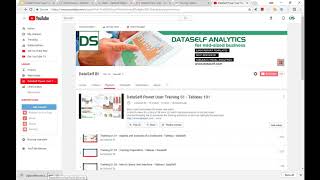
Let's talk about the training preparation. Why do you need preparation? Well, I highly recommend you to practice what I'm going to be covering. We pretty much learn by doing things by practicing it. So this preparation is to enable you to follow along these exercises and do them by yourself. So you practice them. There are two main ways that you can practice these techniques. One is by using one of your production data sources in Data Self analytics, and the other one is by using our sample database. And if you use our sample database for training, you'll be able to exactly replicate what I'm going to cover. I recommend you use our sample database, but first I'm going to show how you can start using one of your own production databases as a starting point. So let's cover that. First, go to your data self web server, click the home button. So you got to log in and you're going to come to this home button where you can see projects, workbooks, views and data sources. Click Data Sources and you may be able to only see one or several. If you have access to the essay sales, use it. Because my training uses a sample essay sales. If you don't have access to it, anyone will work for the basics. But if you do, you pick essay sales. You can click here, go to Actions and choose new workbook or click this three dotted and choose new workbook and you can go to the next step. Before we go to the next step, I'm going to show you how you can use our sample so you can replicate things exactly as I'm going to be doing. To replicate mine, you can find on the dataself.com if you go to Resources and training videos, you'll come to this page and this link here you can download a sample data source. You can also go to this YouTube playlist. You need to come to this section. You have to click the more button here to extend the link and you click this workbook. And by doing that you will download this workbook that you will need the Data Self desktop client in order to upload it into your tableau server. If you do not have Data Self desktop or a tableau desktop, you should seek a user that has it to do this step for you and the user who have the desktop version. What they'll do is they will open this downloaded workbook. So I'm going to just click on it and by clicking on it it will launch the Data Self desktop or Tableau desktop. With the sample workbook. The user with a desktop will have to log in to your tableau data Self server. Sometimes that will happen automatically. If it doesn't, you have to come to server, click Sign in and choose the URL of your data self server, enter the credentials of the user and you log into it. So log into the tableau server through the desktop application and then mouse over this SA sales demo. Right click on the name and choose Publish to Server. And then I recommend putting a default project in the name here. Clearly say, let's say put number one and input training at the end. So it is clear that this is not one of your production data sources, but is a training data source. So rename it like this, click Publish and this will post this data source into your tableau server. And then now when you go back to your tableau server or data self server in your data sources again, go to the home and when you see projects, workbooks, views and data sources, refresh data sources. And if you sort them now I just see the one that I just created. And now we are ready to go into the training, which is I can click the three dots, choose New Workbook, or if you're not going to have the sample data source, just pick any of your data sources available, click the three dots and choose. You have to have permission as well and choose New Workbook. What I'm going to do, if you want to follow exactly my examples, is by taking the data source I just uploaded, click the three dots and choose New Workbook. And now we are into the Edit mode of the power user interface where I'll be covering the techniques to build your new reports from scratch and dashboards from scratch in the next video.