Learn how to set up relative date filters in Tableau by dragging invoice date to the Filters shelf and selecting Relative Date from the dropdown. The demo shows how to filter by this year, quarter, or month, and how to build year-to-date analyses by filtering months to a cutoff point like August and collapsing to year level.
Chapters
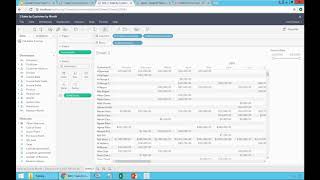
Let me duplicate this report again. Not again, but duplicate it. I'm going to remove the filters. Filter out, Filter out. So I'm back to the whole history. I'm no longer filtering my query, just as I had initially. But now I want to filter by what is called relative periods, which is very popular. So I'm going to drag and drop again invoice date into my filter shelf. Now, instead of using the pill here, I'm going to go to the filter on the right, click the arrow pointing down here and choose relative date. What happens is now this report is using relative periods. What is that? It's a date filter looking at today's date. So if I expand by clicking the arrow point down again, I have different time buckets. I'm going to choose years and by default it will show this year, whatever the year is. So if you look, all 2017 data is here. If you look at this quarter, which we're currently in the third quarter, I'm going to click quarters and it's going to show this quarter. And there it is, the third quarter of 2017. If you choose month, guess what? We're in September. It will show September. What if you want to see the previous month? What if you want to see the last three months, two months, whatever months you want. Relative dates are very popular. It's one of the most used date filterings in this framework. So be sure to understand how this works. Just going to show quickly again and remove it. I'm going to add it back in the invoice date into my filters. I go to the right arrow pointing down, choose relative, click and then select what time bucket and select the options within the time bucket and off you go. This report now will always show sales this year, regardless of what year you are in. Or let's say, let me go back to this quarter just to make it a smaller report. So this report will also show this quarter. So I'm going to say sales by customer this quarter. That's it. Now, what I'm going to talk about next is let me take the original report and duplicate it and I'm going to drag it to the far right. Actually, I can drag it all right. And in this report, what I want to do is a year to date analysis. Let's say I want to see sales through August for the last three years. How can I do that? I'm going to show you a couple of ways. One is I'm going to add invoice date and then I'm going to choose month and I'M going to remove the last four months. So what I have here is for all my and I'm going to collapse the year. I'm going to remove the well, by the way, if I show 2016, it goes through August and then it starts 2017 and then it goes through August and then it starts 2018. So I'm filtering data to only show data through August. Now if I collapse at the year level, what happens is this report is showing me by customer, by year sales accumulated per year through August. So this one way to do a year to date analysis is using a combination of filters and collapsing things to a level where if you look side by side, right now we're filtering through August. Or maybe if I want to filter through June, let's say you just uncheck those boxes and now I'm filtering on a user dates through June, the last, you know, these three years.