Learn to filter DataSelf invoice data by date ranges like year-to-date and month-to-date, which automatically update from fiscal year start. Then add non-date filters like salesperson ID and company by dragging fields to Tableau's filters shelf.
Chapters
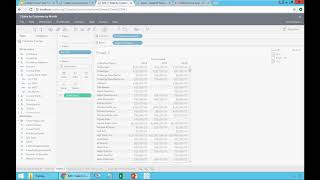
Another way to do the same thing is I'm going to duplicate and in this case I'm not going to filter using this approach, I'm going to remove it. But I'm going to use a functionality available in the data self data source, which is called the invoice date fields. Invoice date fields are specialized time buckets that you can do to analyze specific ways to spin time filters. It could be to date periods, it could be rolling periods. There's a lot of possibilities. In this example, if I bring invoice year to date to my filters, just drag and drop. What we'll do is it will show you on the right two options. You can see year to date or after year to date. These fields are coded behind the scenes in a way that they will aggregate all transactions from beginning of your fiscal year, whatever it is. Could be January 1st, could be any day when you start your fiscal period through the last data self data refresh, let's say as of yesterday. So if I uncheck after year to date, what I'm doing in this example is removing all transactions, let's say after September 20th, today is September 20th. So by removing this at year to date, I'm automatically removing all transactions from September 20th through the end of this year and only leaving the transaction at the beginning of the year. So automatically, every day this report will refresh year to day basis. We have year to date, we have quarter today. We can month, month, a day. So we can use this filter to do those very precise comparisons in different periods to see if you're growing or not since the same period, let's say last period or the same period last, last, last year. All right, the last thing that I want to show you for filtering. So I showed you three ways of filtering dates, date buckets, by relative date and by to date periods. Now I'm going to show you how to filter by something else. So I'm going to double click and duplicate my original sheet. And now suppose I want to filter this by salesperson. I can come here, find let's say salesperson ID and I drag and drop into my filters. What happens is I'll have on the far right the filter showing all salespeople available and say, hey, I don't want to see. I only want to see for one salesperson. And I select and now it will only show the sales of this salesperson to these customers in this year. So you just have to pick what data structure you have from the left drag into your filters. Let's say, hey, I also want to divide a filter by company. I drag company to my filter shelf and now I also have the right all the companies available. And you just keep on picking and choosing and you're filtering your data. So adding filters is very straightforward. Drag and drop. And you can put as many as you want to slice and dice your data in a very specific approach.