Learn how to subscribe to Tableau dashboards for scheduled emails and set up alerts that notify you when metrics hit a threshold. The alerts feature, new in version 10.3, lets you define when a chart value triggers a notification, and recipients can manage their subscriptions directly from the email.
Questions this video answers
Version 10.3.
Every Friday at 4pm.
Chapters
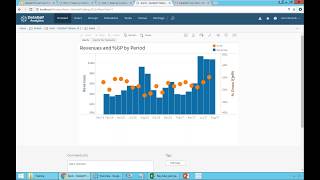
Now let's say that I'm looking at this dashboard and say, boy, I want to receive this dashboard every week, every month, every day. I don't want to go to the portal, I want to receive in my inbox. How can I do it? Well, there is the subscribe button. You click the subscribe button and if it's disabled in your data self, contact your data self administrator because this can be enabled. So you click subscribe, you select how often you want to receive this dashboard. Let's say every Friday 4pm you click subscribe and off you go. Every Friday 4pm you receive in your inbox this dashboard with the latest information. And if you click on it, you go right back into this portal. So you can slice and dice it if you want to. In this, if you want to, you look in this report and you can edit it. If you want to change it, you can click the edit button and you're going to change it. So now I'm back into the edit mode and I have all the capabilities that I was showing you before. Now what if you don't want to receive on a schedule basis, but you want to receive as an alert, meaning when something changes? Only when something changes, when I receive a notification by email. This is a new feature only available on version 10.3. I'm going to show you how it works. So this is just a sample chart. Any chart that has axis you can set up alerts. So suppose I want to receive an alert every time that a gross profit percentage would go above 55%, let's say, how can I do it? I come to this chart, I click the axis that I want to have an alerts built and I click the alerts icon and then I say, hey, every time this goes above 60%, let's say, and right now the whole line moved to the 0.6 level. Or maybe if you want to do 58% or 55%, whatever it is. So you select the threshold. Is it above or is it below? You define the condition, you define the name of the email, you define how often you want to receive it. Let's say only when it happens and then I don't care. And who's going to be receiving? Maybe me and Jodo. And that's it. You create the alert. Now every time that the percentage will go above or below the threshold, you receive an email like this in your inbox and then it will tell you, you know, the red is in this case is above what went above the threshold. And you can say, hey, you can forward this email to someone else. Hey Bob, what happened with this problem? And Bob, maybe Bob has data self and say gee, I need to receive this alert as well. What Bob needs to do is simply get in that email he received and say add me to this alert. That's it. You don't need to call it. You don't need to call anyone. It's very self service. What if you don't want to receive any more? You click Remove me. What if you want to change change the criteria, you click edit and right on the spot you can change to 55%, 80%. Whatever it is, this alerts capability is very empowering and very self sufficient. Folks, we are pretty much wrapping up the webinar before you go. We're not going to have time for Q and A unfortunately, but.