DataSelf alerts notify you by email when your metrics hit thresholds you set. The demo shows how to create an alert in three steps: select your axis, click the alert icon, and choose your condition. You can manage recipients and edit alerts straight from the email.
Chapters
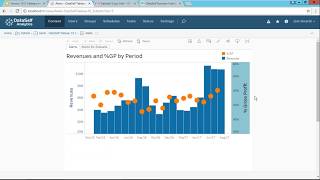
Alerts with data self analytics and tableau. What are alerts? Alerts is when users want to receive a notification when a certain metric meets a certain criteria. For instance, when profitability goes a certain percentage or when a product quantity on hand goes below a certain threshold, send an email showing what happened so people will act on if it doesn't meet the criteria, send nothing. So one of the most important features of alerts in our new product, in our new feature is being self service. Meaning today business changes very rapidly and you need to empower users to be able to manage their own alerts. So users not it, but users can actually create their own alerts. They can change, edit it, delete, subscribe, or it can actually create alerts in bulk to send to many users. So being very self service, being very easy to use is very critical because again business changing rapidly and you need to empower people to do that. So let's take a look. It's very easy to build. Alerts is pretty much a three step process. Select an axis, click the alert icon and choose the sending condition. Let's see it. I'm switching to data self analytics or tableau Server. It's a regular dashboard, very regular, nothing special. In this case we have revenues in blue bars and then gross profit as these orange circles. And suppose when I create an alert that when Profitability goes above 54% I receive an email. So what I just have to do is I click gross profit axis, I choose the alerts icon, I'm going to select the condition above equal below 1 knots. I'm going to choose above or equal to 0.54. When I change the criteria, I can see behind the scenes that the red line went to 54% and above it is the reddish color. What is going to be the subject of the email that I receive? I'm going to call GP percentage and when should I receive it? I can select different schedules including the first time. That is true. And then who's going to be receiving myself and you can add anyone else that is part of the use them in the system. That's it. I just create an alert as long as I have access to the web server. You know, it can be a publisher user, a power user, interactor viewer user, doesn't matter. I can create my own alerts, I can create alerts for other people, manage them, edit and so forth. Now while this criteria is not met, I don't receive any email. Once the Percentage goes above 54% I will receive an email like this. It's exactly A snapshot of the report or the dashboard that I have. It shows all the latest information including the criteria and the percentage and all the details. Now when I receive this email, let's say, oh okay, I no longer need this alert. I can quickly click this link and I am removed from the alert. Or if I forward the email to another user and that person says, wow, I also need to receive this alert in the future, that person can simply click this link and it automatically is added to the alert list. No need to involve it. It's just completely self service. Any user can do that. And if a user receiving the alert needs to edit the criteria of the alert, if they have the rights to on the email, they click edit this alert. It goes right back to the portal to the same reporter dashboard and it opens the edit alert and I can change the criteria to whatever that I want. Again, self service. Any user that has access to the system with the right user rights can create and manage their own alerts. Very empowering. I know many alert alert tools out there that are very IT driven. So every time a user needs something to be changed or a new alert to be created, they have to call someone else and wait. This is very empowering. Anyone can do it if they have the right user credentials, the right user access. Now let me show a little bit more sophisticated example. I'm going to open another dashboard that has more information. In this case I have the same revenues and gross profit but by different business units. Suppose I'm a user that have access to all this information, but I only care about ABCW and I want to create an alert that when the revenues go goes above 3 million that I receive an alert. So if I click the revenues axis and I click alert button in this case, the tool by default creates an alert out of the whole data set on this chart. So not only for ABCW but is across all different business units. No, I don't want to do that. I only want to abcw. Do I need to call it? No, this is very self self service. What I'm going to do is I'm going to click on ABCW and choose Skip only. This is just a regular functionality of the framework not to do with alert. So far in here I'm going to tell hey, I want to create this view to be my view for future references. So I'm going to click here to say this is going to be the ABCW gross profit. So there's a new saved customized view specifically for the abcw. Now I can click revenues and click the alert and set up my criteria. Let's say $2 million and that will be if I create the alert. I'm going to call abcabcwgp and once I create the alert now next time this criteria is met I receive an email. Very self service. I hope you have enjoyed this video. By the way, we have more links below here on the PowerPoint as well as on the YouTube. Feel free to explore those other options to learn more about our alerts. Thanks for watching.