Step-by-step guide to manually restore the Ultralight data warehouse SQL Server backup using SQL Server Management Studio when automatic restoration fails. Copy the .bak file to the SQL Server host, restore it into a database named DW, then re-run DataCell ETL with a specific unchecked option.
Chapters
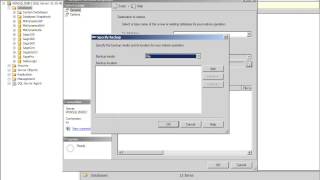
Restoring the ultralight data warehouse Manually follow this procedure. When Data cellptl isn't able to automatically restore the Microsoft SQL Server backup file for the ultralight data warehouse template, most likely where you stopped was you were at this wizard trying to restore the data warehouse and then the system failed. The restoration failed, most likely because the SQL Server instance is on another server, or maybe some other issues. When that happens, first thing you do is you cancel the etl. So get out of it. And then you have to take. You have to find the backup file to restore. So you go to the data cell folder, whatever you have installed it. Double click Project. Expand the project that you're working with, go to the backup folder, and this is the SQL Server backup file you're going to restore. I'm going to show this procedure. If you know how to do it, you still have to go to the end of this video because there are more information about this process. But now I'm going to show how you can restore this file. If SQL Server is on a different computer, you have to copy this file to that computer. Then over there you open Management Studio and connect to the instance where the SQL Server backup will be restored. You right click on Databases and choose Restore Files and File Groups. Then you choose from Device. And now you're going to be pointing. Click Add. Here you're going to be pointing to the folder where that file is. So I'm going to go and find which is in this case in my local computer. You select the file, click ok. Here, check this box and type down this name with the same case sensitive on this box DW plane and click ok. This will restore the SQL Server backup to the SQL Server instance. So this is the Ocelli data warehouse being restored. Then you're going to run again the data cell vtl. In this case, I'm going to run from this folder, Double click it, confirm. Login. So you're back to where you were before. Now you're going to enter here the credentials to connect to that particular SQL Server instance. But very importantly, this box must be unchecked. So uncheck this box. This name should be the same name as you restore the backup on the instance and click Finish. These procedures should be successful. Like in this case, once you click ok, you should be able to see a browse table, a project name here that you're connected to the SQL Server instance that you're connected to the database that you connected to. If you click on one of these tables, you should be able to see data. And now you can go back to the prior video to continue with your installation process. Thank you for watching this video.