Walk through installing DataSelf ETL on a machine with SQL Server already running. The video covers running the setup, entering a template code, signing in with default credentials, configuring your SQL Server instance, and verifying the restored data warehouse.
Questions this video answers
dba (lowercase)
dba (lowercase)
plain
plain
DW Plane
Chapters
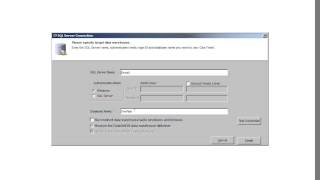
Data Self Analytics Deployment Part 1 Data Self ETL Installation Please read this page in detail before you move on with the video. To save time, I'll move on. This is the typical Data Self analytics architecture. This video covers the Data Self ETL installation which assumes SQL Server is already installed. The SQL Server ultralight data warehouse will be created and also templates will be installed that will be used for the complete solution. We're going to be using this SQL Server instance in this video and let's do it. So I assume you already have downloaded the ETL setup file, so just double click it to get started. When you get the flash screen, click Next. You may change the installation folder and click Next and click Next to start. If you get the user account control, click yes and wait. If you get to this screen, you can click Close or just wait because another step will be pop up as part of the installation. And this is the next step. Here you'll enter the template code that you have received from your reseller or from dataself. In this case I'm going to use the plain template code and typically this is downloaded from the Internet, so just click Next and wait. Depending on your Internet speed and how large the templates are, this may take several minutes. Just wait until all the next steps take place to do the next procedure. It. Once you get data cellptl open and you get the user identification prompt, just enter dba lowercase and password is exactly the same, DBA lowercase. You may check this box so you don't have to re enter that information again. Click OK and this is the connection information to the SQL Server instance that you're connecting to. So you put here the SQL Server instance name and you should change the authentication accordingly. We recommend that you do not change the database name. This is going to be the data warehouse name and if you do change, you should know the implications of that. If your SQL Server is not on the same box, you actually have to use another procedure covered by another video. But if the SQL Server is on the same box, then you just need to configure these parameters. You can click Test to check it and click Finish once you're done. If you get an error at this point, two things may have happened. One is you may have to close the ETL and try again. Sometimes that's all that it takes. And if that doesn't work either, then you also have to follow the procedure on the other video, which is pretty much restoring the data warehouse manually instead of through the etl. In our example, it was successful. So I'm going to click OK and once you see this table it means the ETL has been installed. You're looking at the default project which in this case is called plain. I'm looking at the SQL instance which was local in the database of the data warehouse is called DW Plane. If I go to SQL Server and restore the databases now, I should be able to see the new data warehouse just restored. To see if the ETL is properly connected, just open the first table here. If you see data, it means so far everything is good. If you close the etl, how can you reopen it? Well, you can go to all programs open DataCell ETL or you can go to the desktop and double click the icon over there. Or you can also go to the folder where you installed dataself ETL and run dataself exe and I'm going to do that right now. I'm going to confirm the user account control, confirm the credentials and I'm right back into it. Thank you for watching the video.