This is a step-by-step installation tutorial for the DataSelf Analytics web server (video transcript). It walks through extracting the installer, running the wizard, choosing installation folders, activating/registering the product, and configuring authentication (local vs Active Directory) with distinct recommendations for production versus demo/proof-of-concept setups. The transcript ends with guidance on creating the initial administrator account and launching the server monitor.
Chapters
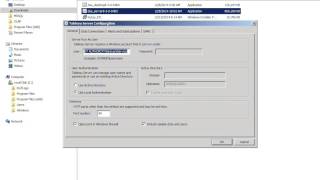
Data Self Analytics Web Server Installation Please read this page in detail before you move with the video. To save time, I'll move on I assume that you already have downloaded the installation file for the web server. Be sure you have downloaded the complete file. Once you do that, double click it to start, enter the extract password available from the packing list and click ok. I'll pause the video until the next step. If you get user account control prompts, click yes. Once you get to the splash screen, click Next. You may change the installation folder if you want to, click Next and wait until the next step. Here the installer verified if you met the system minimum requirements if you're installing for a production server, you have to be sure the minimum requirements are met, and sometimes you have to have even more horsepower than that. If it's a proof of concept or a demo, it's usually okay to have less than the minimum requirements, which is my case here. So move Go to Next and we recommend keeping the same Start menu folder name as is. Click Next and click Install and wait for the next step. Once you get this page, click Next and wait until the next step of the installation. Once you get to the activation page, we highly recommend that you activate the product right away and the license key should be on your packing list. It's much easier to do it now than later, but for now I'm going to use the trial version for this demo. Then we also recommend that you register the product now. That helps with support for the video. I'll skip that step and then wait for the next step once you get to the Tableau server configuration page. If you're just using this for demo or proof of concept, pretty much what you have to do is uncheck this box and click ok. If it is a production server, you have to do more things. One is be sure that the user that will run the web server is an admin user that has reading rights from the Data Warehouse SQL Server database. So be sure to use a user like that here. The other important decision is how will the user authentication be? You can use a web server local authentication all users will define here with the security. Or you can use Active Directory. If you have Active Directory and all users will be in Active Directory, it's usually a better option and if you choose that option you have to select put here the domain name and put any nickname on this box and be sure to check this Enable Automatic logon. Important is you can only make the selection once. Once you decide this, you can no longer change unless you have to do a whole reinstallation again, so be sure to choose this properly. Aside from that, pretty much everything should be set Again, be sure to uncheck this box regardless of the installation to not add sample data and users these other tabs Tab tabs are for more sophisticated installations that are not going to be covered in this video. So once you make the configuration this page, click OK and wait for the next step. Once you get the confirmation that settings have been saved, click OK and wait for the next step. At the end of the installation, the tableau the Data Self Analytics Server web server will pop in your default browser. If you have used Active Directory authentication, you'll get a little different page. This page is to add the first administrator account. So if you have Active Directory, be sure to add a active Directory user that will be the main administrator as a starting point for the web server. If you did not use the Active Directory authentication, then you enter here manually any name and we recommend using administrator and a password. And click Add user. So that's how it will look as a plain blank sheet kind of Data Self analytics web server. If you minimize this, you'll get this Launch the Data Self Analytics Server monitor. If it is for production, yes, leave it checked and launch that monitor. If it's for proof of concept of testing, you can uncheck. So click finish and that's pretty much the installation of the web server. Thanks for watching the video.