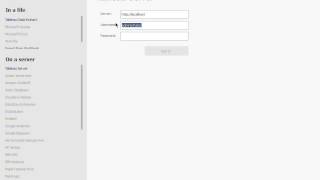
A short instructional video demonstrating how to open the DataSelf Analytics Desktop application and connect it to data on a Tableau Server. Steps include launching the app via desktop icon or Start menu, selecting 'Connect to Data', choosing 'Tableau Server', entering the server URL and user credentials, selecting the training data source (typically 'Sales'), and opening a measure (e.g., 'Sales' or 'Amount Sales') to verify the connection. The video advises repeating the steps before training and contacting support if issues occur.
Chapters
Data Self Analytics Desktop this video will show you how to open it and how to connect to your data. Please be sure to go through this procedure before your first Data Self Analytics Desktop training. So to open Data Self Analytics Desktop, you can do it very easily if you find an icon like this on your desktop. If so, just double click it. If you don't find this icon, go to Start all programs and under the Data Self you should be able to say to find Data Self Analytics Desktop, you can click that one and this will open the desktop application, which should look something like this. Then next you click on Connect to Data and then go to the On a server, click Tableau Server Here. On the server you should manually enter or copy and paste your Tableau server address or URL into this box. Here you'll be entering your username, which may be your domain username like you used to log to your Windows or username provided by your IT and then enter your password. Click Sign In. When you go to the next screen, you're going to see a list that may have only one or several data sources. You'll pick the one that will be used for training, which typically is the essay Sales. So click on that one and wait and then you should be able to see something similar to this list on the left here with the essay sales that you selected. If you got this, try to double click this amount Sales or simply Sales. Just double click it and then you should be able to see a bar something like this. If you were not able to do any of these steps, contact your support. If you have been able to do them all, you'll be ready for training. And it's highly recommendable that you do the steps again right before training because the training will have exercises that will require you to be where this is right now. Thank you for watching this. If you need further help from us, here's our contact information. Thank you.