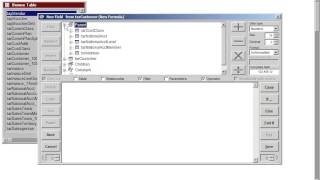
DataSelf AI walks through the Formula Wizard Expression page: how to select data types, find fields from your current table plus parent and child tables, and write function expressions in the bottom editor. The right panel lets you pick data types; the top shows available fields and constants.
Chapters
This is the formula wizard expression page. You have on the right here the data type and you can change to a different data type if needed. The bottom white area is where you create the actual function expression. In the top panel is where you can find the fields and values to be used in your expression. Typically here you'll find your table name, which is in this case my customer table. So you have it here and if you expand it you'll see the fields available from the customer table. In this example you may have or not a parent section and parent section will give you access to tables which are parent tables from your current table. And you may also have or not have a true table children section that gives you access to tables that are child from your customer table. In this example you will always have a constant entry here that gives you access to character fields, date fields and numeric fields. And you can also have access to system date fields from this expression. So overall you have to pick fields from some of these lists here, add your expression and then apply functions and you can watch the other videos to learn how to do that. And that's it.