Learn how to use Data Self Analytics to find errors in sales data. Filter to last year, compare company totals against your ERP reports, then drill down through months, days, and invoices to pinpoint the problem. Screenshot both systems and send to support.
Questions this video answers
"QA Essay Sales"
Last year
support@dataself.com
Year → Month → Day → Invoice header → Product
Chapters
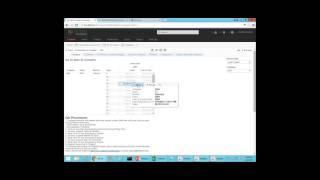
This recording is to show you how you perform the quality assurance with Data Self Analytics. So you'll get your you have to open a web browser such as Chrome, and then go to the URL provided by Data Self. Then you'll use your Windows login credentials here, username and password, and click Sign in. Then on this list you find the QA Quality Assurance project and click on it. Then you're going to find the particular workbook to do the quality assurance. In this case, I'm going to click QA Essay Sales. And then here you should go one at a time. Let's click first on company. So what you'll see when you click on the first one is you'll see a little report showing your sales and cost of sales by company. If you have more than one company, usually in the last year. So this should be last year and you can change that amount using the filter on the right. But we highly recommend starting the procedure with last year. So go for last year here. And then the idea is you follow the description on this area here. But the idea is you run a report from your source system, let's say in this case from your erp, to see your sales, the total sales last year by company in this example. And then when you look if they match, great. You go to the next tab to test it. If they don't match, you start the QA procedure to find discrepancies. So let's assume that when I ran my report for my company cad, it matched, but for the SOA it didn't match. So what I do is I click one of these amounts that did not match. So I'm going to click on the sales, I'm going to say keep only this one, only one. If you have seven that don't match, just click. Just select one of them and click keep only. So now we narrow the report only for one of, in this case companies that is not matching. Okay, now the procedure tell us to expand from years to months. So you put the mouse over the header and you should see the plus signal sometimes. If it doesn't, you should take the mouse out, click somewhere else in this blank area, go back in, and then this plus signal should pop in. Once it does, just click on it. And now the tool will expand and show you all the months in prior year. Now you run a report again against your source system, in this case showing by this company in this year sales by month in this example. And then you can try to find if there's one month or more with discrepancies Once you find one of them, let's say February, just one of them, click the number that has a discrepancy and choose keep only. So now we narrow down the report to a particular month. Now we're going to expand month and go today's level. So this will be showing in this case sales by month in February. Now you run another report against your source system to show the same information sales for this company this year, this month, by day and find again a discrepancy. Choose one discrepancy. In this example I want to choose this one and click keep only. Now we're going to be expanding from this to the invoice header level. Run a report that shows the same information and once you find a discrepancy one invoice, click and choose keep only. And finally expand to the product level. And then usually when you compare this with your report, you're going to find exactly what, in this case, what invoice line item is having a discrepancy with your report. You take a screenshot of this from dataself, you take a screenshot from your report and then you send to supportataself.com and from there we should be able to figure out what's going on. Typically, once you find one discrepancy, you should no longer move forward because sometimes once we fix that particular discrepancy, all others will be taken care of as well. So once you report to data self 1 discrepancy, wait until we tell you what's next. Once we tell you we have fixed it, you should come back and run the same report that showed discrepancies before. And let's assume there is no more issues with this particular company tab, then you move to the next tab customer. And here is the same idea. This report shows, in this case sales by customer. So for this year it shows total sales by customer. You should run a similar report from your source system. If you find discrepancies, you do the same procedure. Click it, Drill to the month, Find discrepancy, click to the day, Find discrepancy, click to the invoice number, Find discrepancy, click to the product. And that will help us know exactly where the discrepancies are. The idea is that you have to go through all of these tabs and and once no more discrepancies are found, or maybe some discrepancies are okay, then that's the point where the QA process has been completed. Now, if you think that a certain discrepancy is okay. Please let us know what the discrepancy is and why you think it's okay. Because sometimes it is okay. Sometimes maybe not. And we'll be able to help you decide if that particular discrepancy is okay or not. Okay. I hope you found this video informative. Thank you.