How to publish a Tableau data source to a server. Find your TDS file, back it up with a date stamp before editing, save changes to the data source, create a .tde extract for performance, then publish it with refresh options.
Questions this video answers
September 18, 2015
Tableau Data Source
Tableau Data Extract (.tde) — a compact copy of the data prepared for fast reporting
YearMonthDay (YYYYMMDD)
Chapters
How to Publish Data Sources to DSA Web Server this video will teach you how to create an extract from a data source file that you can publish to DSA server.
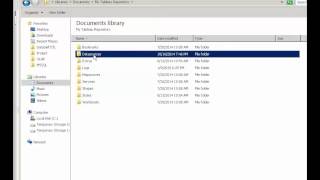
The first step is to go into the folder where you installed your TDS data source file.
These are some of the reporting packages available. For this example, we'll go to SA Sales Analysis. Once we open it, we'll see folders of Reports and also Quality Assurance, which is for testing reports and master data sources, which is where we're headed for the data sources we want to change or publish. What you want is the one that says SA Sales, not the header. Usually people just use the SA Sales data source. If you're going to make a change to this data source, say such as adding additional fields, it's important to make a backup copy before you do so. To do this, just copy, then paste it. Then rename the file by adding the current date today in the format of year month and then date. Leave it there as a backup copy. Do this every time you change to the data source for versioning control. By the way, the file extension TDS stands for Tableau Data Source. If you're just going to publish this and not make any changes, you don't need to make a backup necessarily. But it's still a good idea. Now open the data source file that you have not changed the name of by double clicking it here, you'll see the data source name up at the top along with the data of the dimensions below.
If you need to make any changes to the format or structure of the data dimensions that you see here, now's the time to do this. If you have made changes to your tds, you will want to save it back to your server. Right click on SA Sales or the data source name that you're on. Go down to add to saved data sources. Okay, I already have it saved, so I will click yes to save and then replace it. Click on yes and it is now saved again. We need to publish this so that all users and all reports can use this. It is our recommended professional practice to not connect directly to the SQL view. So to increase security to the database as well as improve performance of reporting, we create an extract of the data. To create an extract, find the data source name in the top left corner of your screen. Right click on that data source name and go down to create Extract, click that, then click the extract button at.
The bottom, change the path and save the extract to the documents. My Tableau Repository Data Source it doesn't really matter where you Save it, because the final extract will be saved on the tableau server, but it's a good idea to have a backup that will create what's called a tde, a tableau data extract, then click the save button. Very good. It will now create the data extract, which will serve as a temporary file for storing data. It may take a few seconds to several minutes for this procedure to complete, depending on the amount of data. A data extract combines both the data into a compact form that has calculations and indices and prepares it for fast data reporting, which is very useful for processing large amounts of data in reports later. The data extract is actually a copy of the data that we want to publish to the DSA server. So we will be refreshing this copy of the data on a regular basis, usually daily. You need to publish it immediately from within DataCell's desktop. To publish this extract, right click on the data source itself, called Publish to Server. For this example, you need to publish it to the server. You need to sign into the server first. Be sure to save it to the default project in the default folder. Make sure that the name of your TDS is correct of the data source the way that you want it, and follow a naming convention. For this example, we'll change it to SA Sales. This way, all the reports that are written for it will all work later. When it's the same name, you'll want to refresh it, so consult your administrator for help with that and have that available ahead of time. You can select to have an automated refresh that happens on the server, or you can refresh through a batch file after this process is done. And now you will publish it to Tableau Server. There are other interesting things that you can do, so check out these other series of our videos. Thanks for watching.
Sa. If you have made changes to your tds, you will want to save it back to your server, so go down. Right click on SA Sales or the data source name that you're on. Go down to add to saved data sources. This will bring you to where you last saved it. You need to find it. I'm finding where mine was saved. Yours will be in a different spot obviously. Okay, I already have it saved, So I will click yes to save and then replace it. Click on yes and it is now saved again to the same data source you had before.