Tips & Tricks - Filtering, Part I
13 Sept 2016 · 2 min
2:19
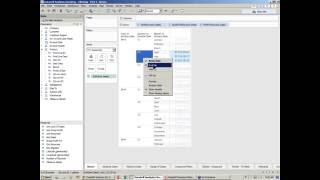
Quick walkthrough of point-and-click filtering in DataSelf AI. Right-click any value, select Keep Only or Exclude, and drill down from years to months to individual line items.
Quick walkthrough of point-and-click filtering in DataSelf AI. Right-click any value, select Keep Only or Exclude, and drill down from years to months to individual line items.
So first of all, let's show a very simple ways to do filtering. There are two main ways. First of all, let me build a quick query here showing sales by periods. So suppose you're looking at your sales by year, by quarter and by month, or any kind of query. One of the simplest way of filtering your information is just by pointing and selecting only one piece of the information. Let's say if you only want to see let's say 2013 data, you can put the mouse on that particular 2013 right click and choose Keep Only. So that's one of very kind of intuitive way of filtering something. Click right click on something. Choose View only. Let's say 2014 right click keep Only or you can exclude that particular product from the report. So point and click, right click and choose Keep Only or Exclude is one of the very popular, very intuitive ways of filtering. And that works at any level of your report. Doesn't matter if you're looking at dates, groupings. It could be let's say customer group and, and then customer or territories, product lines. You just point to the level. Let's say I only want to see the first quarter. I point to the first quarter, right click and choose Keep Only. So the report will keep first quarter for everything else. And that applies to any level. If you go to the month level, let's say February and Keep Only. So now you have only February. And if you go to the actual number, right click and choose Keep Only. In this case you will only see that particular line. So I'm going to Keep only for 2013 Q2 April when I click Keep Only. I selected only that particular line and now I could drill down further into that information. So just pointing and clicking in selecting Keep Only. It's a very natural, simple way of doing filtering.