A Simple 15 Minute Setup for ClickUp [Project Management Tutorial]
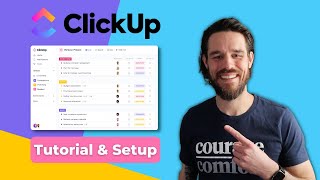
Matt Ragland walks through setting up a ClickUp project sprint in 15 minutes. He builds task lists with subtasks, creates dependencies between tasks, schedules deliverables on the calendar, and sets up time tracking with ClickUp's native timer and Toggl integration.
Chapters
In this video today, I'm going to be showing you how to set up a project sprint in this new project and task management tool that I've been using called ClickUp. I've been using ClickUp for a few months to collaborate with my new coworkers in the creative agency that I started, and what I found was an incredibly powerful tool for making sure you're getting the right work done and the right amount of time. Now, what I'm going to do in this video is show you a very simple way for getting started. ClickUp is, like I said, incredibly powerful, and there are so many features in it, so I don't want you to kind of get lost in the wow factor of it all. I want you to be able to get started with something really quickly and simply and discover what type of tools and features you want to use as you go along. The example that we're going to use in this video is setting up a project sprint. So if you want to know the essential elements of a successful project sprint and why it can help you get more done in less time, make sure you check out the video that I shot a couple of weeks ago.
I'm also going to link to it in the description below.
There are two things that ClickUp does incredibly well that I want to call out for you before we even get into the tutorial, so you can be mindful of them as I show you what to do. The first is that ClickUp does task management really well. So you can create lists of tasks, and I really loved this, you can assign people to those tasks, obviously, but you can create subtasks and dependencies on other tasks. So for example, if I'm setting up a webinar to teach you a concept like the productivity flywheel, Well, I shouldn't set up the webinar landing page before I have the webinar set up in Zoom. So as I'm going to work on this landing page task in ClickUp, I'll also see that it has a dependency of like, hey Matt, you need to make sure that you actually set up the webinar in Zoom before you can effectively call this webinar landing page task complete. The other thing that I love about ClickUp, and all of you have been following this channel for a while, will appreciate this. Is it has an integrated time tracking tool. So when you are working on a task, you can click a button, super easy to start tracking your time spent on that specific task. And what I love about this is over time, you'll get better at seeing these types of tasks actually took me, say, 1 hour or 2 hours. So the next time you go to block and protect time for this type of task, you will know I should protect 2 hours for this. Not just say like, okay, I'll be able to get it done in 30 minutes. And overall, I will also be able to track time for that specific deliverable or the goal that I want to achieve that week. It'll also help me see overall, I can run a report to see this is how long, how many hours I actually spent on this project. Now you don't have to go as deep into time tracking with this as I have done, but it is super helpful. And again, it helps me in the future better predict and project how much time I'm going to spend reaching this goal that I've set for myself. I hope you're excited to go through this tool and template tutorial with me in ClickUp.
I'm going to show you everything that you need to do.
I'm going to show you all the things that you don't necessarily need to pay attention to right now so that you can have a successful experiment of running your project inside of ClickUp. Let's go ahead and get started.
What I want you to remember as we get started in ClickUp is just to begin with a simple task list. This is at the heart of everything that you'll do in ClickUp, and we use it as the starting point for the type of brainstorming and pillar project development that I'm going to show you how to do in this video. So, as we look at the screen here, actually, I'm looking at the screen here. The, the camera is off to the side a little bit, so it will feel like you're sitting next to me as we go through this. But as we look at the screen, What I can do is just go ahead and add in as many tasks as I need to. So it could be like set up the sales page in Podia. So I can add in as many of these tasks as I need to. Go ahead and just again, make a big brainstorm list of every task you can think about doing in ClickUp for the project that you want to complete. It doesn't matter how many tasks there are. It doesn't matter how mundane or simple they may seem, go ahead and drop them into ClickUp so that you can have a record. You can start to build a process for yourself and for others if you ever bring new people in to work on these projects with you. Now, the next thing that you're going to do, and what I've already done, is you're going to start to look at these tasks and decide what are kind of the key results that I would need to achieve each week. To bring me to a successful completion of my overall project or of the goal that I want to achieve. And so this is where you can see that I have the deliverables. So outline all lessons was originally just a task that I put in there. But the more that I thought about it, and I considered like, okay, what is something that I would want to achieve by the end of the first week that would help set me up for success, would show me that I'm on the right track. It's a key result in the verbiage of objectives and key results if you're familiar with OKRs. But then the next thing that I'm going to do, if I click this little down arrow, you can see that what I've done is I have added in subtasks. So these were originally like primary tasks in ClickUp, but what I've done is I've dragged them underneath as a subtask for the deliverable of outline all lessons. Now this is important because what this allows me to do is create a hierarchy of tasks. So now I know the number 1 goal that I have for the first week, this first deliverable to outline all lessons. Now I'm going to create subtasks so that I can see these are the things that I need to get done. So for example, like protect, protect time to brainstorm the lessons, make sure that I'm filling out a little bit of information for Lesson 1, Lesson 2, Lesson 3, etc. You'll also note, and I just want to make it clear here is that I haven't put absolutely everything in here. I just want to give you an idea, a starting point, a template that you can start working on. So let's take a step back and think about the big picture of what's happening here. You're going to make a brainstorm list of every task that you can think of, and then you're going to start to identify what are the key results or the weekly deliverables that act as the milestones to make sure that you're on track for a successful completion of your project. Now, the other thing that I really like about ClickUp, even if you're just using it for yourself, is the ability to create dependent or blocked tasks. And so what that means is if you come down here and you look at the create webinar for the launch, now this is maybe not a full-on deliverable for me, not something that I need a whole week to do, probably can get done as like a task in the launch deliverable of the project. But if I click on this right here, I can also see that I have 3 subtasks for Create Webinar: Set Up the Webinar, Create Landing Page in ConvertKit, and then Set Up Reminder Emails in ConvertKit. You can see that there is a blocking dependency and a waiting on dependency. So what that means is, as I set up these 3 tasks, I can't effectively create the landing page or the reminder emails if I don't have a signup or a live Zoom link to send people. And so this task of, say, set up reminder emails in ConvertKit cannot be completed until the Zoom webinar is set up. So once I set that up and it's closed, the other thing that I can do— you can see those little yellow waiting on dependencies are gone now.. But what I can do is, you know, create the landing page in ConvertKit. I could also, I can also see these relationships right here. So waiting on setup webinar in Zoom. The other thing that I could say is I could add a new relationship of dependency blocking of, let's see, set up reminder emails in ConvertKit. Because technically, if people don't sign up to the landing page, they can't get the reminder email. So technically, this is also blocking set up reminder emails in ConvertKit. But let's just say I have that completed. So let's go ahead. Actually, let me take a step back real quick, because now if we look at this again, you can see that set up reminder emails in ConvertKit also has a wait, that yellow waiting on dependency right here. So it was waiting on me to set up the webinar in Zoom and waiting on me to create the landing page in ConvertKit. So if we come back out right here, and we click on this, set to close, you can see that waiting on dependency. I could go through and I could complete this task as well. So I really like how you can create subtasks and how you can create dependencies depending on whether you're waiting on something to be completed or if the task that you're working on is blocking the completion of another task. Just by knowing these steps that I've shown you in the first few minutes, you can create an effective project plan inside of ClickUp.. But I want to show you a couple other features that you could use right from the beginning to stay on track, to understand how much time you're using, and to make sure that you have an effective plan for the project itself. And the first thing that we're going to do is we're going to click up here on the calendar. And you can see right here that deliverable number 1 is tracking across the week of February 28th to March 4th. And I can do that even if I just click into the task, and I could do this from the list view as well. So you can see here that I can set a start date and a due date. And what this allows me to do, if we go back to the calendar view, is it shows that this deliverable is to be worked on the entire week. Okay, so outline the all lessons acts as kind of a top-level, again, key result or deliverable for the week in its entirety. And then what I can do, if I click back into this deliverable, I can scroll down and I can, I can scroll down and see my subtasks. And you can see this one in particular, protected time to brainstorm lessons. If I go back to my calendar, I can see that 3:00 PM on Monday, February 28th, I'm protecting time to brainstorm the lesson. So I can go in, I can see that this is related to the top-level deliverable. And once I'm done, I can just mark that as complete. Okay, so what this allows me to do is see, like, again, that top-level deliverable for the week. And then I can click into this, and if I want to, I can add specific due dates for each of the subtasks that will help me to complete the weekly deliverable that helps me get closer to a successful completion of my project. There's one other thing that I want to show you how to do in ClickUp that I find incredibly useful, and I talked a little bit about in the intro, but it's how to track your time in ClickUp. And I have also integrated Toggl with this, but you can do it entirely in ClickUp itself.. But if we come into, say, let's go back to the Create Webinar for Launch. Now I've completed a couple of subtasks with this, but even if I'm just working on the big picture task of Create Webinar for Launch, I can come right up here, look right in the task itself and click to start tracking the time. This way, like I said in the intro, I can understand how long creating a webinar takes, even if I want to drill down to like Okay, creating webinar for the launch takes this long, setting up the landing page and ConvertKit takes this long. That way, next time I need to create a webinar, I know that I need to block about an hour to get it done. If you're like me and you're also using Toggl for time tracking, it integrates very well with ClickUp. All you'd have to do is click on this little button instead, and you can see the hover tag says for Toggl. So let me move my face around real quick. You can see right below that. Well, you can see down here that the time is tracking. And so I can see, like, literally in real time how long I've spent on this particular task. The last thing that I want to tell you about is you can use ClickUp for more than even just your task management. You can also use it to create docs. So I mentioned the course blueprint outline. That is one of the tasks that I was going to do at the beginning of Week 1 for that first week deliverable, you can create a doc. All you have to do is click here and you can create a new list, a new doc, a new folder, and this is where I can brainstorm the outline. I can do a lot with these docs right here. So you can also embed Google Docs. I've used that for different clients because that's how we collaborate. But if I'm just using it for a personal project, I could create all of my docs in here, whether it's for a specific lesson, an outline. I could also just have general project notes. Like you're saying up, no, up. So right up there is where you can add in your project notes.
I want you to remember two things as you're creating your own project sprint inside of ClickUp. Number one is that ClickUp is a very powerful tool with a ton of features, and I don't want you to get too overwhelmed or too stuck trying to figure out every little thing in the software before you actually start doing the work. When you are doing the work, you will start to see new features that you find useful And you'll start to kind of have some good questions to ask about other things that you're trying to figure out, because there are a lot of things you can do in terms of automations and workflows and capacity and just seeing the overall health of the project. But for right now, I just recommend you making those lists, setting those subtasks, and tracking your time. And that leads into the second part of what I want you to focus on is I do want you to work on tracking your time inside of ClickUp. For your project. Again, this helps you build experience, expertise, and future expectations for how long different tasks or projects take. This way, the next time that you go to set up a new project in ClickUp, you will have a better understanding of how long something takes, and you can better plan out your project sprint and say, this needs to be 4 weeks, or it could be 6 weeks, or this might actually be a 12-week project that I'm setting up for myself. But I promise you will feel less stressed and more productive because you have a better expectation of how long this thing is going to take.
Thanks again to ClickUp for sponsoring this video.
Remember, you can get started with your own ClickUp account totally for free just by clicking the link in the description below. I hope you enjoy using ClickUp as much as I have for setting up these project sprints and tracking my time to make sure that I'm using the right amount of time for the things that matter to me. If you have any questions about how to use it, make sure that you leave a comment below and I will make sure to check it out and answer you as soon as I can. Thanks so much for watching. I'll see you in the next video. Bye.
More from Matt


Journal reading 📖 Reflectjons on how I’m living & how it aligns with the vision I have for my life.
You don’t have to listen to me. But you do have to be intentional about the systems in your life.