Can this app make you more productive and creative?
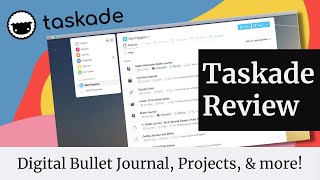
Matt Ragland reviews Taskade, a collaborative task app with templates for bullet journals, Kanban boards, and mind maps. He shows how to organize content creation workflows, set due dates and @mentions for team collaboration, and use the web clipper to capture ideas directly into projects.
Chapters
Hi everyone, my name is Matt and welcome back to my YouTube channel. On this channel, we do productivity videos mostly about a Bullet Journal, but sometimes we do these kind of productivity tool app reviews, and that's exactly what we're doing today. So, you've seen me talk about some of these apps and tools in the past, but the one we're going to be focusing on today is a really cool new tool. I guess it's not really that new, but it's one that I don't see as many people using, and it's called Taskane. Now Taskade is super cool because it is really simple. It's very collaborative. It has video calls even if you want to use it for your team, and it has a really great brainstorm, like mind map feature that I love using for like playing out different ideas for projects. My daily email project that I completed last month, I did all of that work in Taskade. So it's a really cool way to put together different ideas. Again, you can collaborate with the team. I want to show you exactly how to use this. And how to get started with it. The first use case we're going to start with is a digital bullet journal, and I think that it's an excellent way to recreate a digital bullet journal. And so that's what we're going to start with. This is a longer video because I'll really get into some of the nitty-gritty of how to use it. And so I have different timestamps for the different sections and things that you can check out. So make sure you watch all the way through, look through for the timestamps for things that you're interested in, and enjoy this video. Before we get into the review, I do want to make the disclosure that this is a paid review of Taskade. I'd already been using it a little bit and playing around for different, you know, brainstorming tasks and using the mind map. But then I got in touch with John, who's the founder of Taskade, and we talked about doing like a full big review of it. And so he spent an hour with me, he walked me through everything, I was really impressed. And so I wouldn't do a promotion of a video or of an app like Taskade unless I really thought it was valuable, worth your time, and especially something that you could use right away in your daily productivity. So it's important to me, obviously, and, you know, legal for me to make that disclosure about the paid nature of this video. But like I said, I only promote and review things that I think are really cool and are valuable to you. So keep that in mind as you watch. I think you're really going to enjoy this. Check out the timestamps Let's go ahead and get into it.
One of the things that I love about Taskade is how easy it is to get started with. I know with a lot of other tools, they can feel really overwhelming from the beginning because it's like, I guess I can do so much, but I don't even know where to start. One of the fun and really useful things about Taskade is how quickly you can get started. So I want to go ahead and show you now my camera's here, looking at the computer here, but I wanted to be able to talk back and forth with you and really show you how I'm using this.. But let's go ahead and start with the basics. Start with something that is very near and dear to both of our hearts, all of our hearts, which is the Bullet Journal, because I've really liked how you can create a digital Bullet Journal in Taskade. So let's go ahead and just start this up. We're going to click on New right up here in the top right. And now I don't want to bury the lead here, or like, I want to give you as many like quick tips as I can. So what I can actually do is if we click up here on More, is we can come in and they have an amazing template library. So I'm gonna show you a couple of different ways that I would do this, but let's, you know, just for the sake of what we're doing right now, let's just type in bullet journal. So this is featured, it's one of their most— John, the founder of Taskade, told me this is actually one of their most popular templates. So we're going to copy this project in. We can add to, copy this project to like Matt Ragland, to Taskade for me. There we go. And let's just make sure, oh, you know what I did? I did something wrong. We're going to click on use template. There we go. Creating project from template. So you can start from scratch if you want to do this, you know, all on your own. But here we go. So bullet journal, BuJo spread design, study planner, you know, whatever. So just get rid of all that. Bullet Journal. Personally, I'm gonna make this Notebook. And, oh, by the way, like, with these emojis right here, I think, yeah, I could click right here and do an emoji. And I'm just gonna type in Notebook. Do it right there. Select Planning. There we go. So, you could get this template set up and started really quickly. So, you can see goals, tasks, schedule. You can color code a lot of these things. If you want to do it as, like, a like an agenda as well. But this is a way to get started really quickly with it. I'm not going to exercise with that person, but let me go ahead and show you how I would set up my own Bullet Journal. Okay, so now I'm gonna start this other one that I created. One of the things that I always recommend people do is have a, like, master task list that they can use in their Bullet Journal, because it can, like, early on with your Bullet Journal, feel frustrating to be rewriting things. Well, this is, this is where, like, digital, digital apps like Taskade make it so much easier because you don't have to rewrite them. So let's go ahead down here. I'm going to add a block, and this is going to be a check, and I'm going to call this, you know, Master Task List. So I could, you know, just start right here, like, publish new planning video. So I'm just going to start adding these things in. I can also indent, so I can start to like have a template like this. You can also create your own templates, which I love. So I could be like title, thumbnail, and screens, tags. And actually just did publish this one, so it's right there. So I can check this off, and I've obviously done all these things if they've been checked off. And one of the things that I want you to note here is if you look off to the right side of the screen, you'll also see that there's an ongoing, like, you know, notifications on things that have been changed. So especially if you're collaborating with other people, this is really useful to see, like, latest changes. If you're looking at this even on, like, Google Docs, you'll just see, like, last changed, but it's kind of vague. You have to kind of dig in. It's very clear on Taskade, which I like. Now I can, I can toggle this down and just kind of hide it off to the right. But let's just say, like, I had that new publishing video I need to— I'm just writing down things that I have already done or know that I have to do today. So, book room, room that I'm in right now, for recording. There we go. Book room for recording. And just keep going. So, outline the example project. I can put in as many to-dos here as I want, obviously. So, have all of these in as my checklist. The other thing that I can start to do if I wanted is I could treat each project as a week. So even if I wanted to say, like, due dates— if I wanted to say, like, this week's bullet journal, if I wanted to break them up into weeks, I could say it's due on the 7th, if I want, by myself for planning. And then I can start to— if I wanted, I could add Blocks, I could add a new block for, say, Monday. And I could do a few different things here. I could say, like, you know, goal for today. And then if I want, I can indent. And when I indent, I can start to add in, like, more of these checks again. So, goal for today, publish new video. Now, you may say to yourself, Matt, you just rewrote that thing. And yes, it's true. And what I could do So goal for today was to publish a new video. I could also like drag this down. I could drag it all the way in. There we go. And I've got publish new planning video here and all of the tasks below it. So I could start with my master task list for the week. And if you watched my like goal action plan video last week about like how to plan for your week, this could also be like What is my— what's my GAP, my goal action plan for the week? So publish a new video, your goal for today, publish the new video. So there are lots of different ways Taskade is really flexible for how you move these things around. So even though this started as my master task list for the week, when I'm going like day by day, I can also like drag, drag these things in. As well. So I'm gonna just drag it down to move right here, and now it's all set. So I'm— it makes it really easy to move tasks or different things from one area of like the page, the project, the— this is the list view right now that you're looking at— and put it into another, like another area of it, like I did from Master Task List down to Monday. Now another thing I can do, let's go ahead and add a block. We'll treat this as— we'll treat the days as paragraph blocks, but like I said, you can be really flexible. It will mean that when you're starting a new block that like the first level of content has to be like a paragraph, but you can always indent and go to the next one. I could say like call. On Tuesday I have a call at 12 PM with Lorna. So that's my assistant. So I really like this. I don't want you to, I don't want you to miss this, is that you can do like really effective @mentions in Taskade as well. I think this is really cool. And so, you know, now Lorna is going to be— now Lorna is going to be included in this project just because I mentioned her. I can also come up here beforehand and like click, you know, invite her and she can be editor, admin, fully manage the project, whatever I choose. Let's just go ahead and add her in there. So now you can see her little ghost is up there. So now I know call at 12 PM with Lorna, that's all set.. And I can also start to say like, make sure that I'm doing additional edits on the task in video. So now I can indent, and I can start to add in these to-do items as well. So the first, as you can see, like the first level is that, you know, is written paragraph, but I can indent and add tasks in here as well. Conversely, like you saw up here for the master task list, this whole block could just be checkboxes. And if I look down here, like the different blocks, I can add bullets, I can add numbers, paragraph, or checkboxes. So, those are the main blocks right there. It makes it really quick and really easy to get set up and get started. So, I could start going through my Bullet Journal this way. The other thing that I could do, especially if I wasn't treating this as a, like, do every week kind of Bullet Journal, then what I can do is I could say like Monday, March 1st, and I can keep going on with this. And I could also, I could kind of treat it more as like a, like, what have I done most recently, and kind of adding on that way. And so once I've done everything for March 1st, I can click over here and fold up that entire day. So I could have actually like put Tuesday on top of it. There. And so now I can just keep folding these up and making it really tight and compressed. I could also just do it the other way as well. So I could be going from the top, from today, and then going down. Another thing that I could do here that I'm really interested in is if I add another in here, I could start to treat these as collections for my Bullet Journal as well. So could be, you know, this could be something like collections, video ideas. So I could start to brainstorm out different video ideas. We just start adding in these ideas, let's just say, as bullets instead. So I'm going to have a, you know, what's wrong with planning idea. What's wrong with planning the hero's journey. And productivity. So I could start to call— I could start to have a collection of video ideas, and then once they're ready to go into the master task list, I can drag this up. There we go. And it automatically, because this block type is a to-do list, it automatically, it automatically will convert itself into a to-do. Now another thing that I could do is, let's say I wanted to start planning these, and I could do this in the collection. I could also do this just in as I move it up, is I could say, all right, I want this video to be ready by the end of the month, or let's say in a few weeks. So let's look at March 22nd. Now you can see that this is situated and ready to go. The other thing that I can do here, let's roll this back out. Actually, let's go into Tuesday so I can unfold this. Is I can also say for tomorrow I need to get more details on video editing. So now I could also like mention Lorna on this and say, you know, research video editor agencies. I can also turn this into a— into a check— to a box check. And then I can also say I need to, you know, outline video editor requirements and specs. And again, I can add a due date on this right here, like we want to have this figured out basically by the end of the month. So right here, so you can already see there are a lot of things. This is a little bit further down the path. And so even if I'm like putting this into my bullet journal, what I can also do is I can have a project. I'll show you this next. I can have a project for like my YouTube videos. So one of the things that I can do is create a hashtag right here and say, you know, YouTube. So you can create these hashtags that allow them to be instantly searchable just by clicking on them. So you can see here on the Bullet Journal, like, master task list, I can have it, like, just ongoing day by day, like a Bullet Journal normally is. I can also have, like, these blocks that act as collections as well. Now, one of the things that I tend to do with collections is that I don't— I mostly just use, like, my collections in a Bullet Journal for brainstorming, for, like, additional— for initial ideas. Like I've showed you right here. What I'll do and what you can also do is you can then move these into a different kind of like specific project or area of responsibility. So if we take the YouTube example, then I'm actually going to create another new project here, and we're going to call this— we're going to use the project board template, and this is really, really simple. Let's go ahead and tidy this up a little bit. Right here. There we go. And we're going to say like YouTube channel. Now this is like the basic— this is like your first like information, like board or the first information board on everything. So I'll just like put in some basic information right here. What I'm really spending the majority of my time on here is like each one of these is going to act as as, say, actually, this is going to be, you know, brainstorm ideas. And then this is the filming stage. And then since we've already got our friendly rocket there, let's just go launched. And then I'm going to add a block. We'll make this— we're actually going to make this a bullet. And this will be, you know, what's in editing. But what I can do here to show that an idea is moving through the process is I would start here with a brainstorm idea, like let's just say, heroes, journey, and productivity. So that's a brainstormed idea. What I can also do is I can come down here and create an indented list, and even this indention could be a bullet. Okay, so that's just a couple of things. What I can do now is when I have enough in the brainstorm for this idea, then I'm going to like, okay, I'm gonna start filming it. Now all I have to do is just drag it over. So I drag it over. I can keep adding these things in. Again, I could add, you know, publish date like here. I could also add particular, if I needed to, like if these were other to-do tasks, I could add in other to-dos, or sorry, other due dates. For specific, like, indented items. So like kind of those subtasks, if I needed to do that. These are just notes in this example. So I start filming, and then once it goes into editing, and then of course, once it's launched, I go ahead and just drag it all over there. And then like, this isn't the right YouTube link, but I could drop any YouTube link right there. Once it's all, once it's all set and ready to go. So you can see how I've taken like one idea from, from brainstorm all the way through to launch. Now that's in like the board view. This is like a Kanban Scrum style. I can easily change these views really quickly as well. So if I wanted to go into list instead, then I can see like that same thing. So like what are, and you recognize this from the Bullet Journal setup, but what are the brainstorm ideas that I have? Great. I already have these in. Once it's ready for that, I just drag it down into filming and then drag it into editing and then drag it into launch. I could also set up templates to make some of these recurring tasks like title, thumbnail, tags show up easily so I can copy and paste them or duplicate them. A couple other things, and we'll talk about— I'll talk about this in a moment as well, but there's the mind map, there's the kind of action, which is kind of like a list just with more lines. At least that's the way I kind of look at it, but it does kind of If I was to add something down here, then it just, yeah, that's, that's mostly what it is. I don't use this as much. I find myself gravitating a lot towards either list or board, or this is my favorite thing. I think the, the one thing that Taskade just does period, not, I mean, does it really, really well, but like Notion, I mean, I haven't used Asana in a long time, but Notion, Roam, All the others, Trello, they don't have a mind map feature, which still just kind of blows, blows my mind, no pun intended. And so I could, I don't know if it would work as well for this. Yeah, this doesn't work quite as well for the project that I have right here. So let's just go back to board. But if you were trying to put together like a content, you know, a content development or content phasing, you saw the video that I did a couple of weeks ago. About spreads for a creator. Like, this is, this is basically it. Like, when is it created? What stage is it in? That stage section of the video, this is exactly it. And it is so much easier to do in a tool like Taskade than it is in a bullet journal. So just something to know, something to recognize. This is really easy to do. And like I said, if especially once you start working with a video editor, then you one of the, you know, hopefully one of the things that comes in right here is just like, send, I'm just gonna say add editor, even though I don't have one invited to the project right now. But, and then, you know, they can say back in here, first round is done. There we go. And I just go watch that. And we go from there. Really, really useful way to get started really quickly. The other thing that I want to show you is a couple, well, is the mind map because I love it. And a way thinking about like, how can I actually mind map my different like productivity, my productivity power-ups and the tools and the skills that I know I have from a productivity standpoint to make this work really well in Taskade and kind of set up a roadmap for myself. So let's do one more. Let's go ahead and start with New right here. We're gonna click on Mind Map. So one of the things that I like about mind mapping is I like to use it to create these mind maps of how I can solve a particular productivity problem or goal. Like, how can I use the skills that I have to approach this challenge that I have? So let's go ahead and like tighten this thing up, and we're going to say like, what if I wanted to create like 10 YouTube videos? So if my goal, maybe it's your goal, is create 10 YouTube videos, well, what do I need to be able to do in order to create— what skills do I need to deploy in order to actually like get these things done? Well, there's a few. So let's just say at the, at the beginning is that I need to have ideas. So this is kind of a mind map unto itself. So this one will be a little bit more expansive than maybe some of the others, but I need to have ideas for content. And then I need to be able to know when am I going to time block creation right there. And let's add, let's add one more block and we'll just, you know, keep the bullets going. And the other thing that I need to be able to do is like, you know, basically use a goal-setting framework. So ideas for content, time block creation, and then goals for completion. Because in order to create YouTube videos, one, I have to have ideas for content. Two, I need to be able to It'll be really useful if I can time block the creative time that I need to actually get this done. So what I'm doing right here is I'm saying the thing that I want to do is create 10 YouTube videos. So what kind of productivity power-ups or what, you know, tools do I need to grab from my kit of productivity skills in order to get this done? Well, I need to have ideas for the content, so I need to be good at idea generation. I need to time block so that I make sure that I'm focused on like, okay, this is the time that I have to film. I need to be able to do it. And then what is the goal-setting framework that I'm going to use to make sure that I see this through to completion? So let's actually like bring this up to the top, because if I look at this, and you're probably familiar with my, you know, QMWD framework, but like what my quarterly goal for this would be is create 10 YouTube videos. So I'm not going to do— I'm not going to add that in, but I'm going to look at what is the monthly milestone. And I won't add all of these in because it would take up too much time on the video, and nobody wants that. But you can see I'm creating these milestones here. So, and then I can do the same thing like for the weeks. So, Weekly Deliverable 1 for that first month, and so on and so forth. So I can start to add in, and you can watch, I have several videos on QMWD, so This is where I start to brainstorm out, here's how I hold myself accountable and create a series of subtasks so that I make sure that I'm staying like on track. And you may not have to do like all the way out to the quarter, you may just be like, okay, thinking about like, what do I need to do this week to record one YouTube video, you know, plan that out instead. But having a little bit of a like goal setting framework that helps me get better at actually creating the goal. Now the next thing is ideas for content, and like I said, this one might be a little bit more expansive, but you can see how with this you start to expand really quickly with what Taskade can do. So I could create videos about, you know, let's just say, let's just say bullet journaling for beginners, apps for digital BuJo, heroic productivity. There's going to be a video about this, you just get ready. But I just start brainstorming out different ideas for content. I could, you know, go this a little bit further down. And say like, daily logs, the weekly spread, master task list. So I can keep going, you know, further and further, further down, down the rabbit hole. This is what's great about mind mapping. And then like time blocking creation. So I could say, I could do this a couple of different ways, but I could say like, video 1, and I could say is due. And I can also, again, I can move things around. So I could say video 1 is due next week. Be due on March 19th. Happy birthday, Mom, March 19th. Didn't even intend to do that. And now this is where I can start to get really creative a little bit. I can say like, okay, if it's due on March 19th, then what I want to be able to do is I want to have on March, just say, 15th, film the video. Edit the video, you know, film the video, edit the video, I'm trying to block out the time. Now, just a quick aside on that is if you're doing this for the first time, you may also need to use like some time tracking to just understand this is how long it takes me to film a video, this is how long it takes me to edit a video, but you don't need to necessarily worry about that right now. I could also say like when I'm— when I am defining that this is video 1, I could take this video again. Let's just see how cool this is. Yeah, I could bring this over and now I'm saying like bullet journal video 1 is bullet journaling for beginners. I can fold this up, you know, keep it tighter and say like, okay, it's bullet journaling for beginners, film the video at 9, edit, and keep going from there. So you can see how useful this is, the mind map. And then, and then We go from mind map into list. So now, here are my goals, here are my ideas for content, time block creation. Video 1 is due on March 19th, I'm gonna film on the 15th, edit on the 16th. Easy, easy, easy, easy, easy. I could also, again, I could say, you know, instead of edit the video at 9 AM on the 16th, maybe even on the 15th, then I'm going to send rough cut to, to the nameless editor. Another thing that I could do, since this is clearly, you know, something for YouTube, is I can say YouTube content strategy. Could be whatever you want. The main thing is that I'm getting the— I'm getting another hashtag here. So now again, when I click on this, automatically it's going to bring up everywhere that I put, where I put YouTube in. And then I could also, like, if I wanted to, I could change this into a board as well. So for this particular mind map, the way that I did it, I probably wouldn't use the board as much. But definitely, like, this mind map thing is something that I absolutely love because it makes it so easy for me to start to spin up a bunch of ideas. You can even see down here is where As many of you know, I've been doing, you know, daily videos for the past— or sorry, daily emails for the past month. And this is where I put together like all of these initial ideas for different daily email topics was just through a mind map on Taskade.
Another really cool thing that I wanted to show you in Taskade was their web clipper.
I think it's a really powerful one. And I actually like it better than the Notion web clipper.
So Let me show you how to add it and how easy it is to get set up.
So if you click on your avatar right up here and go to download apps, then you can click—
I'm using Chrome, pretty standard.
We're going to click on Add to Chrome here.
You can see it has great ratings and tens of thousands of users. So I can either default to opening regular tab, or I thought this was really clever, is open Taskade. So now whenever I hit Command+T on my Mac and open up, it opens up a project in Taskade, which I really love. So it makes it a lot easier to just make sure that I'm always returning to the work. I can also come into the extension settings here and say I just want to come back to the dashboard. So that's probably what I will end up doing.
So now when I hit— there we go, just takes me to, takes me to my dash and I can just keep getting to work. Now another thing that you can use the Taskade Clipper for is to, you know, clip things from the internet.
So let's just say you were reading my daily email newsletter and you came across and you're like, hey, I want to capture this. Click up here on Taskade and I can, you know, it'll give you—
I can edit the link and name of this page if I want. I could also make sure I'm adding it to workspace, a project, or a block. That is totally optional.
So as an example, I could have a new blank project clipped links. This would just be like as an example, but now I can come in here, click on Taskade, and click on add to project clipped links, add to project. And now when I come in here to clipped links, it's right here.
I'd probably change this to a, a bullet point instead. So I really like the web clipper option. It's really cool.
I could add things directly to projects.
And, uh, I also like how it'll open to it'll open to my Taskade dashboard as well. So really love Taskade. I recommend you checking it out. It is so easy to get started with. It's fun. It's very functional. It's flexible. It, uh, like I said, you can even do video calls in it. When I was talking to John, the founder CEO of Taskade, uh, we did a video call like directly within, um, didn't have to use Zoom or anything. It never dropped. It was like really good quality. And that's something again that like Notion, Roam, Trello, Asana. They don't do any of that stuff. And so it's a really awesome tool if you want something that is leaner and cleaner and not as bloated as some of the other, like, you know, productivity apps out there. Definitely check out Taskade. I think it's exceptional, and I think that the space that they've carved out for themselves is really effective. So make sure you check it out and let me know if you have any questions in the comments below.
Thanks so much for watching my review of Taskade. If you want to check it out for yourself, it's totally free to sign up. Just look for the link in the description below and you can get hooked up. You can get started with it. I think the best thing to get started with is the digital bullet journal, but also check out the mind map. Those are the two that I would definitely try. And then, you know, if you're a content creator like me, check out the board view. There's so much that you can do. Hop on a video call with collaborators or, you know, people that you work with in and your company. It's a really cool productivity tool. I think you'll get a lot out of it. And if you have any questions, please, like I said, just ask in the comments below.
Thanks so much. Bye.
More from Matt


Journal reading 📖 Reflectjons on how I’m living & how it aligns with the vision I have for my life.

You don’t have to listen to me. But you do have to be intentional about the systems in your life.