Creating a Digital Bullet Journal in Notion || Complete Tutorial, Tips, and Template
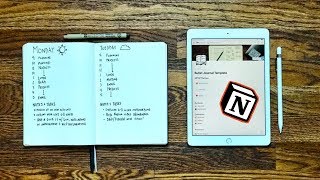
Matt Ragland walks through building a Bullet Journal in Notion, covering monthly and daily layouts, to-do checklists, and how to archive completed items. He shows the future log feature, collections like books and workouts, and Notion's cross-linking to connect pages and databases.
Chapters
Hi everyone, and welcome to another Bullet Journal productivity video. In this episode, I'm going to be showing you one of the most often requested videos and topics from the community, which is, can I create a Bullet Journal using a digital tool? And if that is the case, then what digital tool, app, service should I use? And I'm here to answer both of those questions for you today in great detail. Detail, because the answer is, first, can I do it? Yes, absolutely. And second, what tool should I use? And to me, the answer is clear. It's Notion.
I'm going to show you how to use it.
I'm going to show you how everything works, and I think you're really going to enjoy it. Now, I will say, just as a preamble or a disclaimer, that I do think that the Bullet Journal with pen and paper, the notebook, is the best experience for bullet journaling, for focusing, for making sure that you don't get distracted. However, if you want to try, or if you want to only use a digital service tool app like Notion for your bullet journal, then I'm going to show you exactly how I would set it up. Let's go ahead and jump into Notion and see how you can create a digital bullet journal inside of this tool.
Okay friends, here we are inside of Notion. It's my favorite digital tool for organizing and planning and getting work done. What I'm going to show you is how to set up this Bullet Journal template that I've created. It's simple, it's minimal, it's not fussy and cross-linking with a bunch of different things that are going to confuse you. I'm going to show you how to set everything up.
All right?
So, I will go through each section of this, but I want to start with the section that I believe is the most important for a Bullet Journal, which is the month, week, daily templates. And the way that I do this, and again, I'm gonna give you the entire template for this, make sure you check out the links below. There are also going to be additional Notion emails and resources going out. So if you want that, make sure you sign up at the landing page below. I believe it's just going to be mattreagland.com/notion, and you can find out a lot more there. Right here, we're going to start with this monthly layout and just click into June 2019. That's the current month. And I set this up really simply. Okay, and so this is the weekly agenda with the current, the current week. So Monday, Tuesday through, through the weekend. The way that I lay this out, now this is maybe a little bit different than what you might think of for a bullet journal, and it's just something different with a digital tool, is that you can see what I do for the bullets here, for the bullet block. Notion calls everything blocks. For the bullet block, that's what I use for notes, and then for actual to-dos, I will use a to-do checklist. Now Ryder talks about in the Bullet Journal Manifesto and also in the Bullet Journal Method that he considers, like, drawing the square to be too time-consuming and a little messy. I don't necessarily disagree with him on that, but when you're talking about a digital tool, it's just a difference between, like, making a bullet and making a to-do, a to-do list item, a checkbox. Then that's what I would prefer, just to use the checkbox. The way that I do this is so as I'm getting— you've seen me in my regular analog bullet journal videos that I have a miscellaneous, like, to-do list, and then I put those into the daily log. And that's pretty much what I'm doing here. And so what I'm doing is that I'm adding in my to-dos here in the specific list, whether that's Podia, where I work, home and family, Freed and Bound. That's what I'm kind of calling my, my business outside, outside of YouTube. I'll get into everything right here and then miscellaneous tasks. So that's the way that I decide, like, these are the, these are the notes, these are the tasks that I have for each section of my life. These are the 4 main ones, and then I put those into the week right here. I have this in the general, the general, uh, Freedom Bound list here.. But what I'm, what I can do is as I start to work on it, I'm just going to drag it up. So it's Friday right now. I'm just going to drag it up and now I'm going to click on it to check it. And these are a couple of things that I have to do for work. And I can just keep going through on this every single day. I come in and say like, okay, what does the week look like ahead? What are the things I have to do and where can I fit these in? So I really love this aspect of Notion. There's a lot of things that you can do inside of it, but this is the, This is the main daily— this is the main daily, uh, weekly layout that I have. Now you can see that I have this little June 2019 archive. What I do at the end, like Friday, Saturday, Sunday, is that I clear out all of the old stuff from the week. So I just go ahead and drop these in. I could also just delete them if I want. If you are on the free plan of Notion, which you can do everything you want, I think it just has a 1,000 block limit. So if that is you, instead of dragging these into archive, you could also just click to select them and hit delete or select several at a time and hit delete. But since I have a paid account, which is honestly, I think it's like $4 or $5 a month, and if you use my referral link, it'll give you $10 of credit. So basically 2 months on the paid plan and you have unlimited number of blocks. You don't have to worry about any of that stuff. The other thing that you can do, and we'll, I'll give you a quick look at the future log real quick, is that you can also link to other pages and events inside of Notion. And the reason I love this, and we'll especially get into it when we talk about collections here in a few minutes, is when I click here, I'm going to see the date and the category. And if you look up, you'll see that this is actually something that's in the future log. So if we go back in here, this is just the June. So you know about the monthly layout now. Now I'm going to come in back to the main Bullet Journal page and scroll down. This is the future log. Okay, now with the future log, you can see on the 22nd, the 29th, and the 30th, my wife is working. And so when I click here, what I can do— so I'm going to categorize this Home and Family— I can see this, I can link to it directly, but I can also like click up here, and I can copy the link, and then I can come into June 2019 where I just was, and that's where this is coming from. So I can go ahead and add another block, pop that link in, and then link to page. So it's the same thing, same thing right there. All right, so coming back in now, I want to talk to you about the future log. And the reason that I really like the future log in a tool like Notion is because I am so bad at using it in my actual bullet journal notebook in the Baren Figg or the Leuchtturm. Terrible at it, not good. I just, I just write everything in my monthly or weekly layout. I don't really use a future log, and part of that is because I find it really difficult to reference. In Notion, it's really, really simple and something that I love. I mainly just use this for events and not necessarily for tasks. I keep all the tasks in the monthly log, but if I say I'm going camping, I went to the Craft and Commerce event and spoke there, which went awesome, by the way. Thank you for all the thoughts and prayers and support and kind emails that you sent. Independence Day here in the US, and then other things that we have coming up. So we have a vacation coming up, and then down in August, and their backpacking trip, Blog Society's conference, and then football starts. So these are all things that are really, really good for the for the future log that I really kind of struggled with and still do, that is something that I can use the future log for that's much, much better for me. Just click on today to come back. Now, the other thing that you could do if you wanted to, I may not do this as much again with the future log, but I could say take something that I needed, that I had a task for, and drag it up and just drop it into June.. Okay, so it's not here anymore. And that's why, again, I kind of use the future log here just for dates of events and like important things to remember. Tasks pretty much all go into the monthly, weekly, daily log here. But then you can see, come on down, it's here, and I will have to like drag it over one more time, and I could put it in right here if I wanted to. But again, it's not really something that I'm going to do or worry about, but it is something that you could do if you find a way to make that useful. And you can see that I have the same link right here for that outline document already inside of the weekly, monthly layout. Last piece here that I want to show you here in the Bullet Journal is the collection section. And what I really like about this is that cross-linking ability that Notion allows. You can see I already have sections for, say, Spark File, Books, Productivity Bridge, that's second version of that course I was telling you about, and then Workouts is actually embedded here in Matt's workspace. For these collections, because it's something that I've already been building inside of Notion, something that would be easy for you to build as well, are these pages. Again, you can put them in your Bullet Journal, you can have them as independent pages over here. So, let's say I wanted to add in the writing page, then all I would do is click here to add a block, and then it would be, again, link to page, and then I would just be able to find it right here. So, really easy to do. And just so you know, when you remove this, it's just a link, it's not the entire page. So, when I delete this, you can see it's still available right over here. So, I really love this ability of Notion to cross-link. Again, don't get too overwhelmed by it, but I really love this ability of Notion to cross-link between different pages and databases that you have set up in other places. Really, really valuable. That's everything in the Bullet Journal. A couple other extra things you can see, I also have my themes here at the top. And so, focus on relationships, create and ship 3 versions of a productivity course, and become more technically proficient at work. This just keeps the at the top, high of mind for me. And I showed you how to make these independent pages. You could also do this for these instead of having the callout section or the callout block. You could also just create a, like, relationship, you know, whatever it is, uh, page. That way you can have ongoing notes and links. Like, my wife and I over here in Raglan Family have, like, our meal plan and different, like, notes from our family meeting., which could be a podcast topic if we, if we continue on that path. I know there are going to be a lot of questions about Notion. And so what I want to emphasize to you is if you want, if this is something that looks interesting to you, make sure you sign up for the email list that's going to be connected to this, to these Notion tips, because I have more that I can share with you. I'm going to get off this circle thing now and we will do an outro.
With an expanded screen. You can see what I really love about Notion is its flexibility. Connect different pages and databases in a homepage, the way you can link across to different things, and the way you really can build a custom layout for whatever you want to do with a bullet journal, with a books collection, with your exercise, with your meal planning. Any of those things are really excellent inside of Notion. So I hope you enjoyed this video. Remember that I do, I do think that the notebook, pen, paper is the way to go for bullet journaling, but if you want to try out Notion and a digital bullet journal system, I think this is totally the way to go. But even with that in mind, just remember something that we've talked about a lot on the channel is take the things that I give you, or you learn from myself or other people, and kind of make it into your own system so that it really feels good to you and fits the life you have and the life that you want to lead. Don't forget that you can use this bullet journal template that I've created in your own Notion account by clicking the link below. If you don't have a Notion account yet, you can use my referral link to set up your account and get $10 or 2 months of premium credit. But again, there's still a free plan that you can use basically forever just by deleting blocks like I mentioned in the video. And also, if you do really like Notion and you want to learn more about it, I'm going to be sending out a few more emails over the next couple of weeks that give you some additional tips on how to set up your Notion account and maybe an extra video or two that's going to be private or unlisted just for the people that are interested in that, because It doesn't, like overall, it doesn't really fit the vibe of my channel to just give you like more screencasts. But for those of you that are interested, I definitely want to deliver that to you. And so it can be a nice little bonus for you. All right everyone, I've got a few more videos coming out over the next few weeks. And so I'll be excited to share them with you and talk about OKRs. We're going to do another time tracking challenge. So make sure if you like this video, give it a thumbs up and subscribe if you're new here. There's going to be a lot more coming about productivity, about analog, analog methods to focus on the people, projects, and purpose that matter the most to you. All right, have a great day, and I'll see you next time.
Bye.
More from Matt


Journal reading 📖 Reflectjons on how I’m living & how it aligns with the vision I have for my life.

You don’t have to listen to me. But you do have to be intentional about the systems in your life.