Designing User Experience in Sketch App & Invision
Matt Ragland designs ConvertKit's onboarding flow in Sketch and InVision, building wireframes with symbols and screenshots, then syncing to InVision to add hotspots and prototype different user paths like migration and new website signup.
Chapters
Hey everyone, welcome back.
Thank you for joining me here this week.
I'm going to jump right into it because I spent a little bit more time screencasting and showing you exactly how I'm building and putting together the mockups for the first in-app experience that I'm helping at with ConvertKit. And as you know, a lot of you, if you've been with me for a little while, you know some of the onboarding videos that I've worked on and some of the things that I've done to help new customers have a great experience at ConvertKit. But this is the first time that I've been able to help build something directly within the app. So you're going to see how I'm using Sketch and Envision to put together the mockups and some of the workflows and prototypes for like letting people see how they can go through ConvertKit and how we're building that experience for them for the first time. So let's go ahead and dive into the workflow.
So here's my first go inside of Sketch. And it's been really fun to put all of these different wireframes together and mock everything up in terms of how things will look inside of ConvertKit. And to be completely honest, I don't know how much of this will actually be what I'm putting down here. We have a bunch of talented designers and product people at ConvertKit, but it has been really fun to lay things out and look at what the workflows might be and how we can move people from place to place and make sure that they're getting the information they need as they begin to be onboarded. So here inside of Sketch, the way that I've started this out, and again, this is my very first project inside of Sketch, and so the way this starts out is that you have these different pages, and I've got a, just a basic one set up right here that was kind of the initial survey mockups, and then we have the onboarding progressive page. And as you'll see, I kind of laid everything out here based on what a workflow might be. So there's a couple of different paths that people can go down as they come into ConvertKit. We'll talk about that in just a second. I started all these by setting up an artboard, and when you create the artboard, just going with a desktop HD, so that 1440 width, and then I just started laying in symbols and icons and even just like really basic rectangles. So let's go right right in here. This is an initial survey that people will see when they want to sign up for ConvertKit. And so you can say, let's start with a few key pieces of information that will help customize your account experience. And these are all again, just circles and text. And I'll show you in just a second where that connects into Envision and how that's set up. So you can see we've got a progress bar down here. These are icons that Charlie, our designer, Charlie Marie, which you know, mocked up, or not mocked up, just created. And so got those down there. And then getting some more into how ConvertKit itself looks and what I've done in here. So a lot of this is just screenshots. I don't know, to be totally honest, I know I'm going to find a better workflow for how to do this inside of Sketch. But for right now, a lot of the things that you'll see, like this is just a screenshot that I did make an object out of. And I did that just when I dropped it in, you can like say for this, and I probably made this enough. Yeah, I could create a symbol for this right here, and then it would show up in my symbol library. So yeah, I've already done that. Let's pop back into Progressive. So just making some different changes here. And a lot of this, let me show you kind of the, what this one looks like in terms of automation, because this is where it's just a lot of layering. And like I said, I know I'm going to find a better way to do this, but let's see, let me show you how I, yeah, so this is already locked in. But yeah, I'm just dropping in some different things and there's a lot of layering that goes on, probably more than I would like to do and is necessary to do inside of Sketch, but that's how I've created it and you can see some of these other things like a different share page that people can have and this is just how it'll lay out in ConvertKit. Oh, let me show you this one. This is one that there's for, for better or for worse, there's a lot of layering that goes in here. And I think it, you know, probably a better way to do it inside of Sketch. Like, I have no idea what to do with slice right here. I haven't made any vectors or used the pencil at all. So interested in the comments if you're watching this, like, maybe give me, give me some tips on what that would be used for. And I know I need to watch some more YouTube videos on it. But like this right here, you'll see, let's come back into Customize Content, open up this So you can see there's just a lot of like, there was like, there I just put a rectangle over that and filled it in with a color so that you couldn't see it anymore. And then that's where I put the ConvertKit form. And some more, here's another. Yeah, so that's just a rectangle to kind of give it that look, which is just consistent with other ConvertKit design. The reason that I put a probably put maybe more effort into the look than I needed to, given that it's probably going to change. And like I said, there are like true designers that are going to be making it look the way that it eventually needs to. But the way that I, the way that I think about this, the way that I think about this is like, if I can make an extra like 10 to 20% effort to make it look much better, then I'm going to go ahead and do that. And that's what this is right here. For example, though, like down here at like this page, ready to add subscribers, to make this look the way that I would feel like I really want it to look would take me like just as long as it took or longer just to drop this in. So I'm getting the same idea across just by doing this here. And it would have taken a lot more time to really mock it up and design it the way that I would think about, especially when our designers are probably going to make changes on top of that. Same thing right here. This is kind of a modal, a modal mockup in terms of what a knowledge base article popup could look like. You can see it's kind of, it's kind of janky up here. Like that's just, you know, it's a hard edge where it should be a rounded edge. And again, like I can drop this in here, a 10, there's not much of a 10% change for me right here. And making it look way, way better requires way more effort than just getting the idea across. Same thing down here with these subscriber tabs. You know, I would want them to maybe look more like actual tabs instead of buttons. But we know this is, and we're gonna, we'll make comments in Envision to make sure that they get to where they need to be. And I'll just make a little notation about that. So again, like, there's not really a 10% option right here that's going to make it way better. And I guess even to backtrack on that a little bit, this is actually the 10 to 20% option, because not doing this just would have been a rectangle, would have just been a rectangle. Rectangle or even a rounded rectangle that didn't have any kind of fill color that didn't match these colors at all. So that was this, as you're seeing it, is the 10 to 20% improvement and making it a 100% improvement to get it way closer to what it might look like as an end result is something that would have taken me way more time. So that's just kind of how I'm thinking through the wireframing and designing process right now of, you know, what do I need to do to make things look as good as they can without putting in an inordinate amount of time into like refining and designing when that's not even going to be the part of the process that I'm a part of. So here's the Envision prototype that I have set up for the progressive in-app onboarding. Let's take a look and see how everything connects and comes over from Sketch. Again, this is the first prototype that I've built inside of Envision. I find it really easy to use. I like it very much.. And so let's go ahead and take a look. And all this again synced up directly through Craft, which was incredibly useful. So when people come in, again, this is a really basic initial screen. Dylan and Charlie are going to be making this look a lot prettier. But one of the things that I really like inside of Envision is this build mode. So we're just going to click on this and I can create these hotspots to basically say when people click on this area, it can take them to any other prototype screen that I have set up. You can see them all right here. I like how it has the thumbnail to the left. You can also do a few other things. I've used external URLs in a couple places, but mostly just taken people through the prototype screens right here. So I really like that. Let's go ahead and click out of it. And again, I'm just keeping this really simple. I need to change this one out because it's an old— let me go ahead and delete this one. And so you can see right here, you know, what email tool were you using before ConvertKit? There's different options right here. And what we're doing is we're using some of this information to help the customer figure out how to best set up ConvertKit. And so when we know they're migrating, how many subscribers are you bringing in? I use some social proof up here. And then this is another path that people can go through and bring up build mode right here, what this will do, let's go ahead and click on when they enter in, I need to, we need to kind of work on this a little bit. But when they just as a prototype though, let's just say create a hotspot here, link to the destination of migration, create account. Okay. And let's go back right here. So this, I'm just going to put a hotspot all over this one. Because what's going to happen is once people select their number of subscribers, it's just going to auto-advance them to the next screen. So we're going to go from, let's see, yep, just this right here. So this one, brand new, what I want them to go through to right here is if they do not have a website yet, let's create one right here separately. And now when someone clicks on this, it's going to be no website. So let me just show you what this would look like. Now, if they click on this, it's going to go to create your account. Actually, that actually does need to go to a different screen. But if they click on this, then it's going to just say, hey, we'll take care of that. Let's just start with introductions. My name is Matt, blah, blah, blah. You can see also that the progress bar is filling up. It's just a few questions, but it gives people a good sense of what they're— how far along they are. And now we actually need to do here instead, yeah, create account, uh, platform. So here, if they do click on this, it's going to say, great, which website platform are you using? Because if right back here, if they don't have a website yet, then yeah, that's kind of a non-starter at the moment. But if they do have a website, then we can ask, you know, what kind of platform are you using, haven't picked, or other. And then they'll just go right through to— let's go ahead, do another build here for a hotspot. And for this one, it's going to be, uh, create account, new user. So this is just the survey, and that's how creating a couple of the hotspots. And then you'll see different things here. In fact, I'm, I'm excited about this. So this is for, this is for a new user, again, like a totally new and a newbie user. And when they click on this now, like, okay, I've created my account, I'm going to take them directly into customizing their content. So to know that once you click on create account right here, you know, let's just say wherever everything's filled out, and then all of a sudden you see— I mean, it's not going to have Nathan's face there, but I'm going to fill in This right here is going to be their name, and we can hardcode that. I'm guessing Dylan, we can hardcode that. And then it's not going to be their name unless we can grab something from— it's not going to be their face. We can grab something from Gravatar and actually, and obviously give them the opportunity to upload their own headshot or whatever. So this is what we would take them to right away, and I think that's a really great initial experience to just be able to say like, okay, here we go, here's your form, let's go ahead and share it. We've got a couple options. We can say need more options. This right here, there needs to be be— we're going to add one in for just a straight link to make that a little easier too. But you can see here, like, what I've been able to set up inside of Envision. Let's go ahead and look at build mode one more time that I've got a hotspot template set up right here. And these just show up on the— because we've got the, you know, the object right here, the menu stays the same. So I can click around here, these green ones just always show up the same way. But I can say, let's go into automations. We can come back to forms and that'll take people back through settings, subscribers. Now here, I kind of showed you this back in Sketch as well, but this is where just getting the idea across because other people on the team are going to be better at creating this workflow or creating the final design than I am. But when we click on this right here, actually, let's go ahead and add one more hot spot for import from Mailchimp. And because I did create a screen here, so let's just find it. Here we go. And click. There we go. Easy, easy. So these are where the buttons are showing up again. So, and I added some extra text in here. You can kind of see— let's go back over to— uh, there's not— let me go ahead and create a a new hotspot here. So this needs to go to, uh, subscriber import, and this one needs to go to, uh, where is it? Oh, actually it's the wrong one. So this one Actually needs to go to CSV import right there. And let me go ahead and apply that hotspot. There we go. So you can see that goes in right there because the, the menu is the same across the entire prototype. So let's pop out of build mode. And now you can see right here, when I click on this, these all show up. Click on this, it's just the one. And I need to add in maybe another template or just a couple of options up here so that when they click on this, they can get, get back to MailChimp. But you get get the gist of the idea. And again, just a few things that I've really enjoyed about this. Again, I can, in a fake mock-up, a video modal right here. Um, same thing, I can go back, create, click on this, and then now I've got this, got this built-in automation. And you really can see now, it doesn't— you can probably do it inside of Envision, but I don't know how to do it yet, or I haven't taken the time to figure it out. But to really make it reflect that, um, slide-out animation that you get actually inside of ConvertKit. But again, this is a prototype for us. It's not the actual experience down to the finest details like that. But you can see right here, newsletter form. So it's that same thing that we have. I can click on view, go back there. So that is one thing I'll say. You, you probably just noticed that it will only go like screen to screen if you're hitting the back button. So like right here, I'm gonna— if I click on view and I was trying to hit back, it wouldn't like take me back right back right to here. It would take me to the previous screen, whichever screen that I'm jumping to. Let's come back in here, and then same thing, like just a couple of mockups. On giving people information inside of the sequence so they don't have to leave the, so they don't have to leave the onboarding, they don't have to leave the app in order to get the information that they need.
All right everyone, thank you so much for watching. I have two quick asks for you.
Number one, if you're watching this and you know how to use Sketch, you know how to use Envision, and you're watching me go through this and you're like, gosh, why didn't I do this, or it's so much easier if you do that, please leave a comment below.
Let me know what you would do instead and any other resources or people that are worth following and learning from.
I'd love to hear that and really appreciate it.
And secondly, if you've enjoyed these videos, if you enjoyed this video, give it a thumbs up. It really helps people find it and just grow organically on YouTube. And also, if you really like it, please hit subscribe. I want to try and get to 1,000 subscribers by the end of 2017. I have about 4.5 weeks to do that. And yeah, your subscription really helps. Thanks so much for watching this, and I'll see you next time.
Bye.
More from Matt
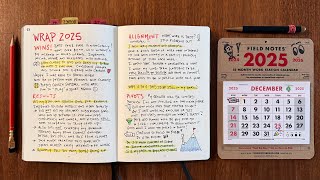

Journal reading 📖 Reflectjons on how I’m living & how it aligns with the vision I have for my life.
You don’t have to listen to me. But you do have to be intentional about the systems in your life.