I didn't think a Bullet Journal could work in this app
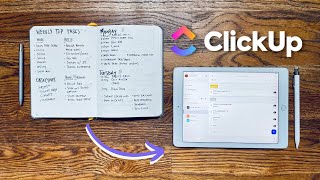
In this instructional video, Matt Ragland demonstrates how to adapt the analog Bullet Journal Method to the digital project management platform ClickUp. He begins by creating a dedicated ClickUp space named "Bullet Journal" and walks through setting up a master task list that captures all tasks, mirroring the rapid‑logging page of a traditional bullet journal. He shows how to assign due dates, view tasks in calendar and duration modes, and use ClickUp's status system (To‑Do, On Hold, Completed) to replicate bullet‑journal signifiers. Matt then explains how ClickUp spaces function as "collections" for larger projects—using examples like YouTube video ideas and course launches—allowing users to organize tasks into thematic groups. He demonstrates adding subtasks, managing completed items, and leveraging the platform’s ability to add a task to multiple lists without duplication, ensuring consistent status updates across contexts. Throughout, he emphasizes respecting the constraints of software while preserving the bullet‑journal mindset, encourages viewers to experiment, and invites questions for future tutorials on integrating the method with other apps.
Chapters
Hi everyone, my name is Matt and welcome back to the channel. I'm going to show you in this video how I would implement and integrate the Bullet Journal method into this new app that I'm using called ClickUp. In case you missed it, make sure you check out the project sprint video that I did in ClickUp a couple of weeks ago. You can find it linked in the end screen and in the description below. I'm going to show you 3 features of the Bullet Journal that correspond nicely with features in ClickUp, and those are lists, collections, and due dates. I'm also going to show you a little bit about how you could create a weekly gap inside of ClickUp. But remember, what we're doing here is we have to obey the rules of what ClickUp wants to do. And there are some ways to work around and implement and integrate the gap and wrap method with what we want to do in ClickUp. ClickUp, but just keep in mind there are rules in software that you have to follow. There are not rules on the blank page, and there is a beauty and a curse to both of those things. They are both helpful and harmful or overwhelming depending on how you look at it. But I'm going to show you how to do all of this in ClickUp. I think you're really going to enjoy it. It's something I've been working with my team on, and I'm excited to show you more videos about how to use it. The first thing that I actually want you to do is create a new space inside of ClickUp, and this space we're just going to name bullet bullet journal. You'll click through next, do all the standard stuff. Don't worry about customizing anything right now. Again, we want to do something that is very basic that helps you be more comfortable in the tool and helps you make progress. And then you can learn what kind of features you like as you go on. So now I'm in my bullet journal space in ClickUp. And remember, what ClickUp really excels at is making lists. So the first thing that I'm going to do, and this is a tip that I give to anyone who's even starting an analog bullet journal for the first time is to just start to make a master task list. So just write down literally everything that you can think of that you have to do. Don't worry about what project or collection it's a part of. Don't worry about any of that. You'll be able to categorize and make different lists as you go on. But let's just make a master task list inside of ClickUp. Now I've already started to add in some of the tasks that I have. I'm going to show you how to categorize these in just a moment. All you have to do is click on Task. You can even just hit the key button on your keyboard. It will pop up in this window right here where you can say in the master task list, I'm going to type in the task name right here, which would be to write a proposal for JW. JW, if you know who you are, shout out to you. There are other things that I can do. Again, I'm not going to go really deep on how to use ClickUp in this one. Check out the project sprint video that I did a couple of weeks ago again. But what we're going to do is I can just hover over this. I'm going to click on create task and bada-bing, it pops in right here. So I'm going to assign myself to that. This is just my, my ClickUp space. I'm not collaborating with anyone right now in this, but I, as I start to add in collaborators or contractors, I can see them in right here.. So, I can create as many tasks as I need to. So, Task 1, Task 2, Task 3, and this is just like you're writing down the tasks that you have to do inside of your Bullet Journal. And the other thing that I want you to think about is adding a due date for these tasks. So, I've moved my video back over, but all you do is hover over right here and say I want to have this done by Friday. You can see the calendar pops up. It's really easy to do. What this helps me to see is obviously when are things due and how much time do I have to do them. One thing that I want to pop in and show you real quick is that there are additional views for your tasks inside of ClickUp, and I really like this part of it. Now, for me, this is just for tasks. I don't use ClickUp right now for appointments or anything like that. I still am just using Google Calendar. But if I click right up here, then I'm going to see these are all the due dates for the tasks that I have. One other cool thing that I really like is if I click in right here, this proposal for JW, it's due on Friday, but I can also click up here and look at the duration of the time that I have to work on it. So let's just say the start date is going to be today and is due by Friday. Now if I go back out to my calendar view, I can see that this is all across 3 days. That doesn't mean I'm working on it every day, but this might just be something that I'm looking at to say, okay, I need to make sure that I'm protecting time for this. This is the window of time that I have protected to make sure this gets done. Let's go back to our task list for now. And remember, what we're doing here is not trying to learn everything about ClickUp. What we're trying to do here is look at how can we integrate the Bullet Journal method into ClickUp software. If you're wondering what I mean by the Bullet Journal methodology and mindset, you know, literally the book Bullet Journal Method by Ryder Carroll is what I'm talking about with this. And what this book helps you understand really is the methodology, the mindset behind the Bullet Journal. And so it's definitely worth reading. And anytime I start to implement integrate, if you will, the Bullet Journal method into a piece of software. This book has really helped me keep clear guidelines and boundaries around what I'm doing so that I'm still using the Bullet Journal from a methodology standpoint, even if it's implemented into a piece of software. One of the other cool things that you can do in ClickUp is add in subtasks. So you can see this little right-facing arrow. If I click on this, you're going to see that I have some subtasks added in for this strategy doc. So I have— I'm going to add in a couple more, add in just one more, send to for review. And I've actually, if you go through, I've done all of this so far that I have to do right now. So I'm going to click here to save, and then I'm just going to start going through this and I can say, okay, this is complete. This is not a real task. So I'm just going to go ahead and say complete. And then I can click on this for the entire task. So I can have a task and the related subtasks below it. I really like that. By default, it will hide all your completed tasks. But I could click here and I can see these are the things that are completed. You can even see I outlined and completed the video that you're seeing right now. So pretty meta about that. The other status that I have right here is for On Hold. So, if it's something that is a to-do, maybe I've started on it, but it's on hold for right now, what I'm going to do is just click on this and add the On Hold status, and you can see that it gets its own group up at the top of the page. So far, I've showed you how to set up your master Bullet Journal space and how to use the task management statuses to create a master task list inside of ClickUp that is comparative to the way that you may have used the Bullet Journal Method in the past. The other thing that I wanted to show you in ClickUp in terms of implementing the Bullet Journal Method is collections. So to be honest, I've never been great at creating and maintaining collections inside of the Bullet Journal. I never know where to put them or how many pages I'm so supposed to protect or what I'm actually going to put in there that isn't just another list of tasks to do.. And so oftentimes my collections more end up being in software. That's where they have like project homes. And this is a bigger question, a bigger video, a separate video about like, what do I put into a digital tool versus what do I put into an analog tool like the Bullet Journal? But one of the things that I like here in ClickUp is the ability to create spaces that basically act as collections for your different projects or ideas. And so you can see that for this area of my life that is obviously YouTube, I have a space— think in Bullet Journal terms, collection— for YouTube. So these are ideas for different YouTube videos. This is like different types of B-roll that need to be shot. There are like all these ideas that I'm putting together, and this isn't a board, but let's come back into the list. See, like, these are videos that have been published. These are the ones that are editing. These are ones that are ideas. So these are just, again, a master task list or a master video idea list grouped by status, statuses, stat— stat— I definitely leave this in, but this is just a list of things that I need to be doing that I want to be doing. So this is— think of it again, like my YouTube space in ClickUp is the equivalent of if I just had a collection of YouTube ideas and tasks in the Bullet Journal. Now it's much more flexible, and I'm working with collaborators. I can edit and research much easier in software. So that's why something like ClickUp works so well for something like this. But I will, you know, say that when it comes down to, hey, today is the day to shoot this video, I am still writing down in my Bullet Journal, this is the day to shoot this video. So let's recap the two main parts of this video and how you're going to implement the Bullet Journal Method into software like ClickUp. First is to create that space that will serve as like your digital bullet journal in ClickUp and start to create that master task list right away. So these are to-do items. You can have an on hold status and you can have a completed status. Those are really the only three that I would worry about right now. Again, don't make this more complicated than it needs to be while you're first getting set up. But I'm just basically making a lot of lists. If I want to start to organize these lists into different collections, let's start another space. So I have a space for YouTube videos. I have a space for courses that I'm putting together and clients that I'm working with. So this is how I see the implementation of a methodology like the Bullet Journal into ClickUp as a software tool. Focus on the list, define the statuses if you want, add in due dates and deadlines, add in durations in the calendar if you want, like I showed you. Then as you start to develop new projects, as you need to create new spaces, i.e., collections in the Bullet Journal language, that's exactly what ClickUp is really great for. The last thing that I want to show you in ClickUp is something that doesn't quite stand out, but is a really useful feature that you will find helpful., and that is your ability to add tasks from one list to another without duplicating them. So let's say I really want to use this master task list in my Bullet Journal space as the master task list. So I don't necessarily need to go through, like, every list to see what's top of the lineup. But let's say here in the 1K courses launch that one of the things that I need to do is create a webinar for the launch. So in create webinar for a launch, what I want to do is I'm going to hover on— I'm going to click on these three dots and then add to another list. I'm going to add it to the Bullet Journal master task list. Point. Never know how to point. It still stays in the launch list for 1K courses, but if I come over here to Bullet Journal in the master task list, you can that it shows up here as well. And in the little tooltip text, you can see that it says this task is in multiple lists. So now if I go to create the webinar for the launch and it's done, I can click that, it finishes, I can come back in here to 1K Courses, click on the launch, I want to show closed, it shows as closed in the primary list that it was in. So you can see all these different ones. So let's go ahead and hide these again. But I find this to be really useful and helpful because that way I'm not duplicating the different tasks in different lists and not getting confused about where was the original task home or space. ClickUp takes care of all of that because it just allows you to add it without duplicating it. Thank you so much for watching this implementation video of how you can use the Bullet Journal method and mindset when you're using a piece of software like ClickUp. Again, I've really enjoyed using ClickUp to work with my team the last couple of months. If you have any questions about how to use it or maybe some differences with other pieces of software, make sure you ask in the comments below. One of the ways that I always make my best videos and the ones that I know are serving you is when you comment and let me know, like, hey, tell me about this feature. I saw that you could do this, or could you explain more of those things? There are things that I'm still learning about ClickUp, and I enjoy learning things, but I especially love learning things with the purpose of being able to share the answers with you in a way that I know is helpful. Keep an eye out for some more app tutorials that are going to be coming about how to integrate and implement the Bullet Journal method with different apps that I've been using over the years. I think you'll find one that works best for you, but if you're interested in ClickUp, I highly recommend it. You can sign up for a free account. Everything that I've shown you in this video, in the project sprint video, is a part of the free plan that you can sign up for. So there's a link in the description below. Let me know if you have any questions, and I'll see you in the next video.
More from Matt






Journal reading 📖 Reflectjons on how I’m living & how it aligns with the vision I have for my life.

You don’t have to listen to me. But you do have to be intentional about the systems in your life.