Plan Your Most Productive Week Ever [with Notion Template]
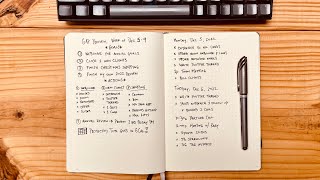
Matt Ragland's GAP method breaks weekly planning into three parts: one main goal, actionable to-dos, and two-hour protected focus blocks. He walks through a simple Notion template using only basic blocks, showing how stacking successful weeks builds momentum toward bigger projects.
Chapters
My path to success in the goals that I set and the projects that I take on is paved with a really simple system. I've actually already done a couple of videos about it. It's called the GAP method, but it's all based in this belief that I have that the best way to have a really productive year, to have a really productive quarter, is just to have a really productive week. What I love about the timeline of a week is it's enough time to get something significant done or to make progress on a goal that you have. But it's also not such a long amount of time that even if you fall behind or you don't have a great week or just life happens, you can still catch up and you haven't lost that much time. Having a really productive week and stacking one productive week on top of another is the surest path that I have found to creating a productive year. What I'm going to show you in this video is a Notion template that I put together for my GAP method. Now, if you've seen the other videos that I've made in the Bullet Journal about The gap and wrap methods. It's essentially showing you how to plan a productive week by specifying this is the goal that I have. These are the action tasks that I need to do. And then this is the time that I'm going to protect in order to make sure that I'm working on those actions so that inevitably I am achieving my goal. So I'm excited to share this video with you. I just want to let you know before we get into the template tutorial. That there is a link to duplicate the template into your own Notion account. So look in the description below if you want to pause this real quick and get it set up or duplicate it over and then follow along with me. Please do that. Make sure you come back. We're going to go through a step-by-step tutorial of how to use this Notion template. It's really simple, especially if you're not familiar with Notion. But even if you are, I think you'll appreciate the simplicity of it. This is what I need to do. This is the time that I'm going to do it. And this is how I can achieve what really matters to me. So keep an eye out for another video about this and some other ways that you can create relational databases and calendars inside of Notion using the GAP method. So just shrunk it down, focusing on the simple part, and then we'll have a more like complicated but also more powerful Notion template coming out soon. Okay, here we go. Here's my Notion template for the GAP weekly planning system. This simple method is really useful if you're not used to using Notion, if you're not comfortable with it, because This only uses normal Notion blocks. It doesn't use any databases, doesn't use any relation. It doesn't connect to any other databases. So this video, really simple, going to break everything down for you, give you some of the behind the scenes and thinking of how GAP works and why it can be the thing that drives your most productive week ever. Your productive year really can start with having a productive week and getting in that rhythm of I have a goal, here are the actions that are a part of it, and this is how I'm going to protect time. This is when I'm going to protect time to get those things done. If you want to get the whole system for having your most productive week ever and how to work on time blocking and project management and generating your ideas and protecting yourself from distractions and focusing on the work that you have, make sure you click here to check out more about the Most Productive Week Ever course. So lots of additional videos, lessons, templates, planners here. Check it out. The way that you do this from a very simple perspective, defining, okay, what are the dates that we're actually working on? And so I'm going to say goals from November 1st to November 5th. So that's a Monday to a Friday. And if you're not used to seeing how you can add dates in line, this for Notion, all you have to do is hit that symbol on your keyboard, and then you can literally just type in November 1st. So now I have my dates and I can just look at this and know. The next thing that I'm going to do is I'm going to make really clear with this callout block, this is my goal for the week. This is my number 1 goal. I could also, you know, come over here, say goal number 2. I could have as many goals as I want. What I have found with many of the students and clients that I've worked with is having 1, 2, 3 at the most main goals for the week are usually what people can focus on with all of the other kind of day-to-day work that goes on, recurring tasks, meetings, protected focus time to work on a goal that matters to you. 1, 2, maybe 3 is about all that most people can handle. So I'm going to just do this for 1 goal, and it's the same process for any number of additional goals that you want to add. But I'm going to define this right here. So make a new plan for the Productivity Mastermind. That is the G in the GAP. And then the A is for the actions. I'm just going to use the to-do block in Notion, and you're going to have them already because you're using this template, but you can add more just by clicking on that plus and then see to-do list right here. The other thing that I can do, nice Notion keyboard shortcut, is if I just type in left bracket, right bracket, hit start, it creates the to-do right there. I'm going to go down the list and add in all of the actions that I need to take in order to achieve my goal. The next part of GAP is the P. And that is when I say I'm going to protect the time to get the work done. So I'm going to say this is 2 hours on not next Tuesday, but we're going to say Tuesday, November 2nd. And then I have a fallback. I'm going to say I have a fallback block of time to work on it the following day on November 3rd. So I'm going to say fallback hour. And that's just if I didn't get as much done or I didn't actually complete it in the initial time that I protected. I have some extra time that I'm using as fallback later in the week, just in case. This is it. Okay. I'm saying, this is my goal. These are the actions. And this is the time that I'm protecting to get those actions done so that just by the nature of accomplishing those action tasks, I'm going to achieve my goal at the end of the week. Okay. The only thing to make note of here in Notion, especially this simple way that we're doing it. Is when I say I'm protecting 2 hours here on November 2nd, that doesn't mean at all that it's actually going into my calendar. So what I'm going to do instead, you can also just put it into your bullet journal, is I'm coming into this week of November 1st through the 5th, and I'm going to block out those 2 hours here on Tuesday, November 2nd. So here I have 2 hours, November 2nd, and then once I've done that, check, no big deal, just so that I know that it's there. All right. And then I could also say my fallback time is going to be from 2 to 3. I have my gap focus blocked off, and then I have my fallback time right here. The reason that I want to make this template and the reason that I feel so strongly about this system of focusing on the week instead of the quarter or even the year itself I do think that it's useful to look at the quarter from a perspective of what do I need to do that's going to take several weeks of effort of knocking off milestones or smaller goals. That's where the gap comes into play. And so even if you have a goal that you think is going to take you 6, 8, 12 weeks or more, it's really helpful to break those larger goals down into weekly milestones or sub-goals that then you can focus your gap plan each week, have a really productive week on that sub-goal so that by the end of the 6, 8, 12-week window, you have naturally achieved your larger goal because you've consistently been stacking wins and accomplishing smaller goals that inevitably lead to your success with the larger goal over the quarter. In the next video that I put out about this, just to break it down a little bit, but in the next video, I'm going to show you this calendar method for doing everything. And basically what we're going to do to give you a little preview is we're going to take a similar path, but we're going to use this calendar database instead of just the block breakdown. And what this allows us to do is an ability to look at the calendar instead of putting in those dates. And it also creates an automatic archive. Of this goal took me this amount of time to actually get done. Okay. So that's what you can look for in the next video in this series of Notion templates for the GAP weekly planning system. Quick reminder before we go that there is a link in the description to this Notion template. You can also get a complete system for having your most productive week ever. That includes tips on time management, add larger big picture goal setting for stacking productive weeks into a really productive quarter using QMWD. There are some other Notion templates in there and a bunch of live calls that I've done with other students and members who have gone through the Most Productive Week Ever framework using GAAP, RAP, Notion, Bullet Journal, all those different things. So make sure you check that out in the description below. Keep in mind, I'm also going to do a calendar database version of this in the coming days, weeks. So make sure you check that out. Keep an eye out for it, and I'll see you in the next video. Thanks so much.
More from Matt






Journal reading 📖 Reflectjons on how I’m living & how it aligns with the vision I have for my life.

You don’t have to listen to me. But you do have to be intentional about the systems in your life.