So you want to start a side hustle?
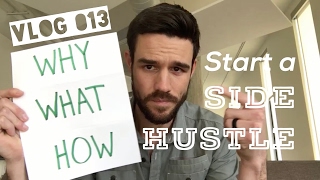
Matt Ragland shows how to build a website for a side hustle in under 48 hours using Squarespace. He covers the pre-launch questions (why, niche, format), walks through template setup, adding pages and a ConvertKit signup form, and customizing SEO. Squarespace costs $12 to $18 a month.
Chapters
So you want to start a side gig? Is that, that it? All right, I've got the tools for you. Okay, lighting is much better here. I would think about this in a few different ways because there are some really important questions that you should answer before you get into this. Number 1: Why do you want to start a side hustle? Getting really clear on this and also talking with any other loved ones in your life— maybe it's a spouse, house, anything like that. Get clear about why you want to do this. Number 2: What is your side hustle about? And this is important too, because it's important to pick something, alright? It's important to pick a topic that, you know, resonates with you and potential readers. You can ask family and friends about this, you can do some early type of surveying, but I would get really clear about what it's going to be about. And it's okay to pick one thing. I spent years struggling with this, and my side hustle didn't start to take off until I got really clear about one, you know, one topic that for me being sketchnoting and not several divergent topics. The last one is how. How are you gonna go about it? Do you want it to be a straight vlog? Do you want to sell products? Do you want to have a podcast? Do you want to do any of those things? What we're going to talk about today is creating a side hustle and creating your minimum viable website. Alright, so I'm gonna show you how to set this up in a couple of days. You can do this over a weekend and have everything ready to go, and it's gonna be something that is very achievable for you within 48 hours. Just remember this: why are you doing this? What are you talking about? And how are you gonna go about it? Why? How? What? Okay. I don't know how well you can see this. Glare is more than I thought it would be. We're going to talk about Squarespace. Okay, enough of that. I'm going to tell you how to set up a Squarespace website. To me, Squarespace, you can get started on it really quickly. You don't have to configure a bunch of stuff like you do on WordPress. You do have to pay a little bit more upfront, but to me, the ease, the simplicity, the design, the themes, the, you know, sheer speed with which you can get started is all worth it. So that's what we're going to dive into. Okay. All right. So here we are at Squarespace and we're just going to come over here and click on Get Started. What's nice about this, I think, is I'm actually going through this first, first time, same thing that you would. So some of the things that I might get stuck on, you might get stuck on. It'll be a nice little onboarding experience for us all to get set up with this. But let's go ahead and just grab— let's just say I want to use this one. So let's go ahead and select it. We're going to start with Bedford. I don't need to preview, so let's go ahead and add, add all my information in. All right, gonna agree, sign up, and create the site. Ta-da! Only took like 3 minutes. I'm just kidding. Let's go ahead and save this. All right, so let's see, let's click down here and see what we got. Uh, don't— you don't need any of that. So what I can do here, I'm guessing, is I just start changing this. So like we were talking about in the blog post, you can see that we've got Home, About, News, Read Me, Take Action. Okay, so you can see right here, now I'm in— now I'm finally into the blog section. So we've got News, that's great. Let's see if I can change this. Let's click on right here. Okay, so navigation title News, just gonna call it The Blog. And page title is just going to be Blog. So I can change any of this up. I can add more description text. This is going to help with SEO, so I would fill this out. We're going to call this /blog. I don't worry about, you know, I don't want to password protect it. I could set this as a home page, but I'm just going to save all of it right now. And let's go ahead and our post title, test. Thank you. Right here, let's get some lorem ipsum. Save it. So some of this I'm going to get rid of. Just going to delete this page. I could change any of this up if I wanted to. Big thing, let's go ahead and move this up. So I want to move the blog up so I can see Home, Blog, About, Read Me. I don't know what Read Me is. I'm going to get rid of that. Take Action. I— what I want, what I want to have happen here is it go to something. Let's go to the page Okay, yeah, what I would want to do here is I want to make this kind of like my call to action. So not donate or spread the word, but like for a course or for a content upgrade that I had. So for Sketchnotes, I do have a free course right now. It's right here. So I would want to make kind of this more here. I'm going to need to change up— and this is all demo content, but I would need to change up the image here. But I could do, I could do all that. Let's go to settings, just do create. Let's call it free course, page title free course, free course, free course. Let's do free, free-course. And save. Let's change it again and see— to Learn Sketchnotes. And what I would do here instead— so let's come on down. Got it. What I do here is right up top I'm going to add a block, and this is where I want to work with ConvertKit. I would click on a code block, and where it says Hello World down here, this is where I'm going to put this. And it won't show, so let's preview it. Well, from what I understand Let's go ahead and try this real quick. Let's log out. Now let's log back in and see if it'll let us render this time. All right, let's click up on free course, remember. And there we go. Okay, so don't know why you had to do that, seems a little odd, but you can see that it's showing right here just like we would expect. Okay, so really easy to do. That is 100% something that you can— I mean, I've done this, and let's check. 10 minutes. So I would have to do some more hacking around on this, but this is, this is all stuff that you can set up. So we've set this up. It, it's going to vary from theme to theme what you have to do, but, you know, click on banner here. I can change the image. I can change the settings. With what I really like about Squarespace is that basically with enough clicks and say clicking on like, what does this edit button do and what does this settings button do, you can get to the point that you want to be to get this set up. And Yeah, I think you could do it in, you know, one, like maybe one good late night or early morning, or maybe just as a weekend project. So let's see, let's, uh, let's try and find— let's go back here to Home. Let's see if we can change the theme. Design, Template. Okay, so it's not Templates, Theme. So Install New Template. There we go. Let's load them. And let's see, so I was, I was leaning towards art and design, so let's click on that. And let's change it to— I really like this one, have some good images. So let's do with Start with Tutor. Installation successful. Let's— so now we're previewing. That's— oh, I do like this one. So this is one of the really nice things about Squarespace, you know, this is, this is all ready to roll now. So let's set this as the live template. We're going to enable. So Bedford's down there. Okay, so sign up to our newsletter. What you'd have to actually do here with ConvertKit— let's take a look at this. This is really useful to check out, uh, footer content. So let's come down here. So here in newsletter So right now this is only for Mailchimp or Google Drive Sheet. So what can we do here instead? First, let's trash this editing footer content. We're going to come down here, remember, to code, and let's bring up same thing. And there it is. Okay, so might want to— just because it's the way that the content blocks are set up. Let's, let's see here if we can delete this one to the side. You can see this one that the ConvertKit code is in is now full length, so I just had to delete that. Okay, so let's go ahead and save. I would probably stick with this one. I like it. It's an awesome site. I would change this because that is not me, but this really— I really like Squarespace. I don't actually use it at the time. I'm going to get my wife set up on this. And if I was to start over, you know, from scratch, side hustling, side gigging, just like all of you are, then I would actually start with Squarespace because it does have everything that you need embedded on it if you don't need a ton of customization and you don't mind it costing a little bit more. Let's look at what it would cost to upgrade. We're talking about $12 a month. That's really not bad at all. $18 a month still, you know, billed annually. I wouldn't— yeah, hey, that's, that's a pretty good price because you do get some— I think you do get, yeah, fully integrated e-commerce 2% transaction fee. That's not bad at all. So I would check that out. There's also full commerce plans right here. All right everyone, the last thing that I want to show you here is connecting your domain to Squarespace. So let's come down to Settings and then Domains. Let's click on Get a Domain. Let's say you're starting with this brand new, and I'm just going to type in our new kid-focused side project, convertkids.com. We're going to add it, and then I would proceed to sketch to proceed to checkout and buy it. I'm going to stop there. And if it's one that I already own, try a couple of ways because I have a couple of domains that I would want to try. So let's look at this one, and it really just depends on who you've purchased the domain through. So let's check this out. Okay, it says it isn't a registered domain, but if you see that, click on this instead. I want to connect a domain. Let's try again. Okay, so you can see that I've already— I have purchased this through Hover, so I just go through and connect the domain, and that's all I would have to do. So check on both of those. The final, final last thing, and this will show up after you've connected your domain, is your email. Just click on email right here, and you see it's going to ask you to connect a domain, but then you can get the G Suite by Google and you'll be all set. All right everyone, that's all you have to do to connect your domain and email inside of Squarespace. So again, I really like Squarespace because it's pretty straightforward. It's easy to use. You don't necessarily have to know any code for it. You know, any time— any type of code is usually a little helpful, just knowing where to copy and paste things like I showed you with the ConvertKit, with the ConvertKit form. But it's pretty straightforward, and I'm just the kind of person who likes to click and learn things. And with Squarespace, you can get pretty much anywhere that you want to go with the right number of clicks and just kind of poking around and seeing what's possible. All right, hope you enjoyed this. Hope it was helpful for you, and please reach out to us with any questions because I love helping people like you get started with ConvertKit and making your business thrive. All right, peace.
More from Matt





Journal reading 📖 Reflectjons on how I’m living & how it aligns with the vision I have for my life.

You don’t have to listen to me. But you do have to be intentional about the systems in your life.