Cristian (tech support/sales/consulting) compares automation features in Jobber’s CRM interface. He shows Jobber’s Settings → Emails and Text Messages area, notes Jobber has about 16 default automations and only four push-notification types, and highlights limitations: limited customization of templates (can't add photos or change format) and limited control over automation logic (mostly template edits). He also notes some automations allow configurable runtimes (days before/after) and that Jobber provides a preview and easy toggle between email/text.
Chapters
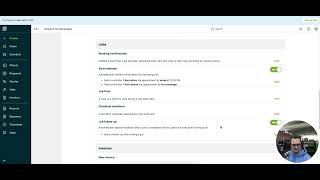
What's up guys? Cristian here from tech support, sales and consulting. Today we're going to do another comparison video between Jobber and Copilot and our topic is going to be automations. So I'm within Jobber right now and I'm under their settings, emails and text messages page and here at the top essentially their email replies and notifications as you see or other serums or what you've seen maybe called push notifications. When I click this edit button you're going to see there's about 16 different automations, default automations they have set up.
Without the ability to customize your own or maybe edit to like further into the actual sub actions or runtimes that maybe you'd like to do so for these as well and we'll get into that. So for your push notifications there's only four different.
Items within the software that you're going to be getting notified on. Would be nice to have more options especially if you have the two way texting reminders or whatever the case is.
Let's scroll down requests some of these assessment reminders or maybe like the quote follow up visit reminder. Some of these more important automations give you the ability to have a different run time, you know, before and after how many days which is definitely nice. The ability to have this preview on the right hand side to know what it looks like as well before sending out. Also very nice. And you can see here to kind of toggle back and forth from text message to email. Very easy to do so but the problem is that you're not able to really fully customize this. Maybe put your any photos on this, maybe pretty it up, change the format. You're only really able to kind of, you know, plug in different, you know, names or information or hide different things that you would like to put on the actual automation itself. So um, not too much and even when you're talking about the automation side to this, you're not really controlling too much of the automation side of this. You're just controlling the actual template itself. Right. So the power of the automation isn't being enhanced in any shape or form. So we'll cancel that out and then you'll save it and then that's about it. So about 16 different options. As you can see here, requesting a card on file is definitely helpful.
When you're, when you're, when you're switch, switching over, you're new to the CRM, what have you and trying to get some cards on file, it's easier than asking Some really nice features here, very easy to to learn itself. It's just very simple. And then when you actually look at a client.
We'll edit this client as well. You'll see the only four options like I said, only like to see whether you had the push notifications at the top. On the settings screen you have about four different options that you can choose from, right? Very minimal options for Automations in general. On Copilot side, we definitely believe we can go up to bat with almost any CRM when it comes to our automations. And even at our very lowest level, subscribing level, our solo, our free subscriber level, you have about 60 automations open to you as a user and here they all are here under our marketing and Automations tab. And as you can see, it's just a click of a button to be able to kind of see what these look like. You can add the preview option on this side, you can even hide columns and you'll see this throughout our whole entire CRM software to be able to hide columns to make things look more simplistic rather than having a bunch of numbers maybe you don't want to use for your workflow. Very nice, very clean and a lot of options in terms of the customization side to your automations and your communication with your users based off of service or what level that customer is to you, how valuable they are to you. Being able to create from scratch is nice as well. So you pull up, we'll put a name on this automation so you can remember it within that massive list. Add different triggers to this. Very unique things too like to DOS meetings, even the ability to remind yourself about a job interview that you have coming. Just, just full one stop shop for communication. That's what we want here at Copilot. Going into, you can check out your texts, your emails, what have you as well. I'm going into a customer side of things. We'll click on a customer, we'll go up at the top side, click Automations and here we see the same exact page except for all the adjustments and things and customizing that you're going to be doing here is all going to be specific to this customer. So like I said, if you have this customer here, Peggy, who maybe owns multiple properties and has multiple reoccurring services on that property, maybe you're going to want to have a little bit higher level of communication with Peggy, right? So we'll set up some, you know, sequence automations or whatever in specific just to her, our sequence automations since I brought up it's going to be refined and coming out this next week from our developers. This will allow your imagination to kind of run how deep you'd like to with the communication of your your clients. Being able to set up multiple triggers, multiple actions, multiple run times and different things. This is going to get very complex. I definitely recommend you guys check out Copilot University as we continue to innovate our automations. There's some really cool videos there from our head tech support guy Stephen who kind of breaks things down, shows you the functions and how to set things up. I really hope you gu enjoyed this video. I look forward to helping you out soon.