Copilot CRM vs Service Autopilot CRM: Client portal & Dispatch board
Christian from Copilot tech support and Mike Andes compare two CRM systems for service businesses, focusing on their client portals and dispatch boards. Copilot emphasizes customizable client portals and real-time job tracking, while Service Autopilot offers integrated scheduling and automated dispatch workflows.
Chapters
What's up, everybody? This is Christian from Copilot tech support, sales, and consulting. Today we're going to be doing another comparison video between Copilot CRM and Service Autopilot. And what we're going to be talking about is a few different things. This comparison video is a little bit more intimate for us. We've been using Service Autopilot through Augusta for quite a while. I'll let Mike kind of take over.
Yeah, cool. So I want to talk about the client portal. Let's start off with that one. And. And I'm just going to show you what it looks like in Copilot and then what it looks like in Service Autopilot. So inside of Copilot, there's a couple ways we can do it. First and foremost, let's go to the settings, and we can essentially very quickly give a client widget login for our customers. Now, what's cool about having the URL is you can hide this behind a button, you can hide this behind a link, you can hide this behind just a menu on your website. And it's not complicated in terms of integrating into your site, so your design. But then whatever you. In terms of your URL, it's going to look something like this in terms of what pops up. Obviously it's not going to say Copilot, and it's not going to say Copilot business name. It's going to say your business name and your logo. That's just what we're using on this specific test account here. So let me just go back. Let me drop this down. There you go. Cool. All right, so let me jump back now into the actual settings of Copilot and let's look at how the actual client portal looks to the customer. And one of the things that we really like about Copilot is the fact that it doesn't take a lot of jumping through hoops for the cut client to get set up inside of the client portal. And so we've showed how they can log in using that URL, but you can really quickly see that what the customer is going to see on their end on the client board just by clicking here from their client profile, see exactly what they're seeing. So when a customer calls in to the office, it's not like, okay, like, what are you seeing right now? You can literally just click on their client portal link and see exactly what they're seeing. And furthermore, this link right here at the top will take them directly to their client portal. So for whatever reason, if they can't log in and they forget something. You can just send them this link and it'll immediately take them inside the client portal as well as all the estimates and invoices don't require login, it'll get them into their client portal automatically. So from here they can see all their invoices, estimates, payments, any documents before and after pictures also can go inside of this profile. You can see there's none on this account specifically. They can also make a work request directly from your their client portal. So there's no forms you need to create anything like that. They can create a new request, submit this information, and this goes directly into Copilot. So you're able to immediately see exactly what that work request is.
Yeah, that's cool. So essentially it becomes way more efficient so people don't have to be in contact with their customers. They can essentially just make their workflow more efficient with the communication between their customers. That's cool. What does that look like for Service Auto?
Cool. So let's jump into Service Autopilot here real quick. And so inside of Service Autopilot, it's a little bit tricky in terms of just getting what the client is going to see and as well as just the whole login experience. Right. So if I jump into a client here for real quick and jump into one of these test accounts.
Jump in here, the challenging part is like being able to see what the client is seeing on their end. And furthermore, it requires a registration for them on the portal, which typically means answering three to five security questions. There's a lot more hoops to jump through in terms of setting up that account. And then furthermore, I can't change the username or the password for that if the client is having a problem. Whereas inside of Copilot, if I jump back into Copilot, the actual customer side of things, if they have a Once they, they set up their client portal, you will be able to see their password and their username and be able to change that if needs be. So for example, right here, the email, you just literally put their email in here automatically and you can change their password and you can make it where they don't require the login if that' person's just having problems with their password and they're calling in. Whereas it's just very difficult inside of service all sometimes from an office perspective, when a customer is calling in, they're having trouble logging because of the five security questions or the different layers of trying to find where to put the card on file and so not only do in Service Autopilot, we struggle to put ACH on file. They're starting to roll it out and I look forward to being able to have that as a capability inside of Service Autopilot. But for now, inside of Service Auto or inside of Copilot, it's really simple to be able to add a, not only a credit card but also a ach. And so if someone was wanting to, you know, see all of their stuff here, that's great, but also just go to my profile. From here they can very easily add either a bank account or a credit card on file. Now the only requirement we have is that they do have a login. So they would need to say, okay, yes, I want to log in. And as soon as they do that, that then allows them to be able to add a credit card on file. And then they'd be like, okay, I'm going to go ahead and add my email. Let's go ahead and add in stephenopilotcrm.com as soon as we add that email and that becomes their login. And now they're able to then add in their credit card or their ACH information directly from this account and they can be able to change their password and all of this very, very simply. So if I just wanted to say, okay, go copilot 2468. Oops, didn't misspell that. So I as the client can very easily change these things and be able to secure my account as much as I want without having to jump through five different hoops just to be able to add in bank account or ach. And it's very, very simple to do that from the client portal.
Yeah, that's very efficient, especially for those, like you were saying, who are very tech savvy. You'll be able to kind of access that in a quick manner and be able to do those actions for them as well. Well, let's take a look at like a dispatch board then and what that looks like for someone who's maybe operating from there.
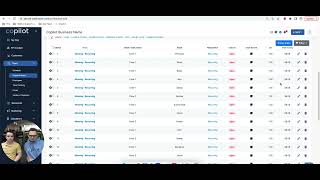
Okay, so let's take a look at Copilot real quick. So this is something that we are constantly changing, upgrading and evolving. Let's go ahead and look at what it currently looks like in terms of the dispatch board. And so from here we have the routes page inside the dispatch board. And this is where from a map perspective, you're going to be able to see everything that is on a given route and right here and all the different stops. So if I scroll down, I can see all the different stops on Here. And this is something that's pretty similar in terms of Service autopilot and copilot in terms of the overall just look and feel of it. One thing that a couple things that we've done inside of Copilot different is floating this map. But let me really quickly just show you what the dispatch board is going to look like inside of Service Opera. They're pretty similar in terms of what the overall feel of it. You can see the visit is a list down below and if you click show map then you see this up top. Our goal is really to strip away a lot of the what we feel is excess buttons and different places to click and just kind of overwhelming for a lot of people. Especially people are new to reduce the learning curve. And the one thing that's really important, like you can't see here though is if you have like a couple hundred, three, 400 visits in a day, like we have at some of our locations, you can be five, six pages down looking at visits. And then to go back and see the map, you have to scroll all the way the top. Whereas one thing that's really nice is inside of Copilot I can be able to just float this map so that as I do scroll down, it just stays right at the top. So I can still deal with the map and I can still use the ability to do group selection very simply without having to worry about, you know, losing this map. And again, as same thing is very similar in that as soon as I select this, it then immediately selects all of these visits on the dispatch board. One thing that we also really wanted to make sure we have on the dispatch board for Copilot is the ability to be able multi select. One of the things that's a little bit annoying inside of service Autopilot we found is when you're trying to go through things, you have to select every single checkbox. There's no way to multi select outside of using the map. And the map is great, but there's definitely times you want to just select a list of things. And so if I bounce back into service or copilot, I can click here, hold the shift button, click down here and it selects everything in between. This isn't really a big deal until you have a larger organization where you're putting out 10, 15, 20 trucks a day and you really want to be efficient at just, just like, like it is so annoying to have to clicking through every single one of these over and over every single day. So those are a couple of little bit of differences. That are in between Copilot and Service all. But there's a lot of similarities. For example, the visit notes being able to be right here, it's very similar. If you bounce over to Service Autopilot, it's very similar to this right here. Again, we're just trying to simplify inside of Copilot. And so if you look at even just the visit notes, you know, the difference is like it's one pop up, it's very simple versus Dispatch board on Source Autopilot. Although it looks similar, there's a lot more complexity in terms of job notes, add job notes notes to client invoice. We just try to simplify it. And that means that sometimes you might lose a little bit of functionality, but the goal here is simplification so you actually use the features instead of it being so encumbering and overwhelming by having so many buttons and options to click on. Especially from the dispatch word, which in our opinion is one of the strongest things that Service all part has is their dispatch words. Very, very good.
Yeah, it almost just looks like they have too much information there. It's very, you know, hard on the eye visually. Even just when you're going back and forth between Copilot and Service Autopilot, I definitely feel like it's not as overwhelming. And I see that they definitely have some of these categories in the columns in here, like budgeted hours and some of the things that these other CRMs don't have. And it looks like this is very complex and could eventually make a very nice workflow.
Especially for just learning the workflow. Right. Like there's power users like ourselves inside of Service Allpad that have learned all the buttons and where everything's at. It's really that initial startup and getting things rolling. So I think it's kind of a good kind of overview of the client portal and the dispatch board. I will go into some other ones, but hopefully that's helpful. And definitely check out, you know, book a call with Christian here and see if Copilot might be a good fit for you. And if you use Service Autopilot, you can see if the pros and the cons are switching now or waiting a little bit longer before other features are inside of Copilot. That's it, let's go.