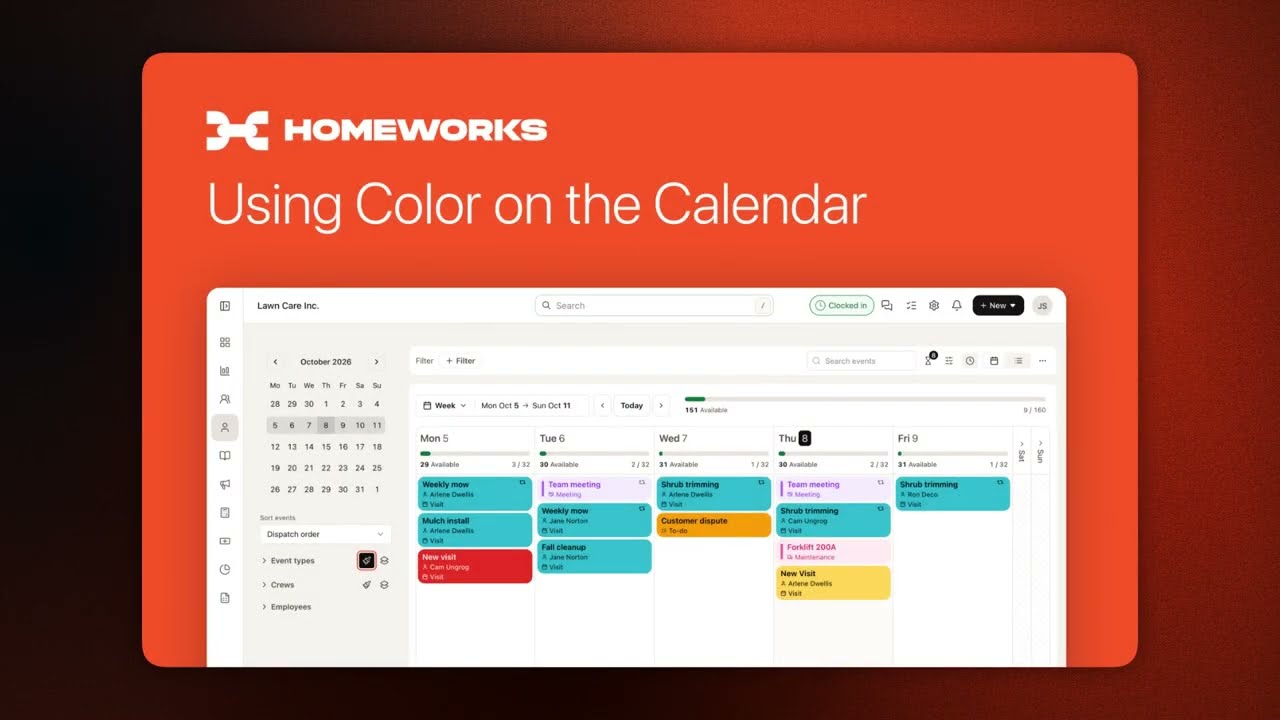
Learn to enable Budgeted Hours and Employee Capacity in your calendar to track workload against capacity. Budgeted hours are summed from event items and services, then distributed across multi-day jobs and assignees. Set Daily and Weekly Capacity for each employee, and tap the capacity bar to see detailed breakdowns by employee, crew, and event type.
Chapters
Budgeted hours and employee capacity on the calendar. Knowing what's on the schedule is one thing. Knowing whether your team can handle it is another. Budgeted hours and employee capacity brings both together, so you can see how booked up your team is and make smarter scheduling choices. First, let's turn it on. Find the toggle in the calendar's view settings. Once it's on, your daily cells and weekly headers show scheduled hours alongside your team's capacity. Nothing about your schedule changes, you're just adding visibility. While you're there, you can also choose whether budgeted hours show on the individual job cards. Toggle that from the Event Details menu anytime. Before these numbers make sense, here's where they come from. The calendar pulls budgeted hours from the items and services on each event, and they add up automatically. A 2-hour mow and a 1-hour treatment equals equals 3 budgeted hours for that visit. For jobs that span more than 1 day, here's how the math works. Hours are spread evenly across the days covered. A 6-hour job over 3 days adds 2 hours to each day, not all 6 up front. When multiple employees are assigned, hours are split between them too. A 4-hour job with 2 assignees equals 2 hours each. Now that the hours are flowing in, here's what the calendar is telling you. Every day cell shows budgeted hours versus employee capacity. When they're close, your day is nearly full. When there's a gap, you have time and more room. The week header gives you the same view across the full week. To dig deeper into any day, tap the capacity bar. You'll get a breakdown across 3 tabs: by employee— who's stretched and who has room— by crew— how each team is loaded for the day— and by type— how hours break down across event types. Speaking of crews, here's how they fit in. Each crew's total is built from its members' hours. If an employee is on 2 crews, they appear in both, so adding the crew totals together won't provide a company-wide number. The figure at the top of the day cell is always your accurate all-up total. Employees without a crew still count there, they just won't appear in the Crew tab. To make sure these numbers are as accurate as possible, start with your team settings. Go to Team, Employees, open employee's profile and set 2 fields. Daily Capacity: this is billable hours they can work in a day. Weekly Capacity: This is their weekly maximum. The calendar uses whichever limit is lower. For example, an employee with 8 hours daily and 40 hours weekly stays at 8 hours a day. But set their weekly cap to 32 hours and the calendar treats them as a 6.4-hour day, not 8. If you set an employee weekly capacity at 0, only the daily caps will apply. Set it once and the calendar handles the rest. If something changes on the day, you can adjust that on the fly. If someone calls in sick, open the employee breakdown on the day cell and adjust their capacity for that day only. No need to touch their profile. We're continuing to build on this and make the capacity planning even more useful. If you have ideas, run into something confusing, or want to see something else work differently, We'd love to hear from you. Thanks!