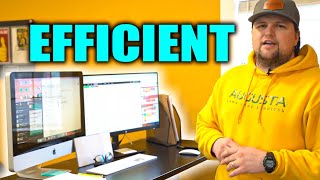
Short YouTube walkthrough (uploaded Jan 12, 2021) in which Lee from Augusta of Whatcom County describes a streamlined, minimal desk setup optimized for efficiency. Key hardware: MacBooks and an HP dual monitor (purchased on Amazon for about $130) to permit simultaneous views—WhatsApp team chat, email, and a Service Autopilot CRM—plus TeamUp for scheduling. Physical organization: notebook/highlighter/Sharpie, small whiteboard for short-term scheduling, and clipboards for gate codes and current projects; minimal printed filing. Video closes with a call to subscribe and comment about viewers' setups.
Questions this video answers
January 12, 2021
Service Autopilot CRM
TeamUp
WhatsApp
MacBooks (Apple products) and an HP dual monitor
Chapters
What's up everybody? It's Lee with Augusta of Whatcom County. And today we're going to get into an efficient computer setup.
All right, so here at Augusta, you guys know one thing that we are all about is efficiency. So we have streamlined our desk setups. That's myself, Liz Brandon, the office assistant here locally, as well as everyone at command center. Very minimal desk designs with efficiency in mind. So we're just gonna jump right in. First thing we're gonna be using, we here in Augusta, we like Mac products, Apple products, so we have MacBooks. They all interface really well as well. We went ahead and purchased dual monitor systems. This is an HP dual monitor. I think we got it on Amazon for like 130 bucks. But great. Crystal clear HD monitor, very wide field of view. So we can have a lot of information on here. If you're an office manager, if you're managing your guys out in the field, you need as much information in front of you at all times. So with these two screens, I can keep up a nice full visual of my WhatsApp team chat and all the guys communicating with me, my project managers. I can have majority of this screen dedicated to email communicating with clients and vendors all day. Top left corner. I keep pertinent documents, estimator templates, reseller's, permits, email signatures, different things I'm using throughout the day. Still quickly accessible there. Majority of this screen is going to be our service autopilot CRM. That's what we're using to dispatch jobs, sell jobs and invoice clients. And then finally we have room for our Team up app, which we use for scheduling and making sure jobs are being done efficiently. Once again, very minimal setup. All over here we have notebook, highlighter, Sharpie pen, keyboard, mouse and cell phone notes. Anything that's pertinent that I need to get to, just write it down real quick. If I'm in the middle of another activity or, or another issue with a client or issue with a crew, I just write down something else that might be happening. I'll get to that in five minutes. I keep a small whiteboard with me as well. That's how I get the schedule going for the next day. So this is kind of my scratch paper whiteboard where I mess around with the schedule for the next day or two. And then over here, very simple, very minimal. I don't have a huge file folder. There's no file folder under the desk. Simply just using clipboards with pertinent information. One of these is just going to be like gate codes. For some of the neighborhoods, passwords, different things like that. And this one is for current projects I'm working on. So here we're doing updating our contracts for 2021. Once again, minimal. That's the only information I need. I don't need file folders of invoices, old estimates printed off emails. We don't need that. If this video helped you guys out, what I want you to do is like subscribe to the YouTube channel. Mike Andy's comment below. What you think about our setups. What computers are you using? Are you going to get a second screen? Because your business is grow and you need to be able to see all that information for the day. Leave a comment below, let us know, guys.