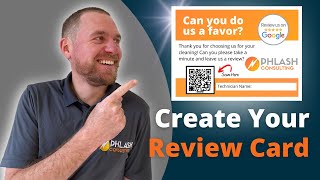
Phil Risher walks through converting your Google Business Profile review link into a QR code and embedding it in a Canva card design. Use qr-code-generator.com to create the code, import it into Canva, add your logo and "scan here" text, then print or save it as a background for your team to share with customers.
Chapters
This video I'm going to give you a step by step tutorial on how to make a card that looks like this with a QR code that you can give to your technicians or staple to your invoices or to your service contracts or whatever to get more Google Reviews. When they scan that QR code, it's going to go to your Google Business Profile and it's going to allow people to leave you a review. So let's get right into this. All right, the first thing you're going to want to do is go to your Google Business Profile and so you can just go on Google to your Google Business profile. You can just type in your Google your name and if you're not able to get to this part, what you can do is go to google.com business and then you can sign in or Manage now and it's going to pull up a list and then you can go directly to your business. If you're not able to get to this point, if you don't even have one, then this is not the video for you. You need to figure out how to set up Google Business Profile. That way you can start getting reviews. If you are not sure, you can go to Manage now and when you click on Manage now, what it's going to do is, is it's going to allow you to go here and add a business and you can go through this process and add a business. It's going to see if you're in there and it's going to add you to their account. So once you get your Google Business Profile, you're going to go to read reviews, you're going to go to get more reviews and you're going to click on this review link. This is your custom review link. So you're going to test it out. Just open a new tab and test it and it's going to pull up right here. Perfect. All good. We can leave a five star review and post it. That's going to go straight to our account. This is what we want. All right, so once we get this, we're going to open up this, which is QR code generator.com and I'll put the links down to this stuff in the description and we're going to go here and if you see it creates this QR code. So if we scan this QR code, it's going to open up that link that we just went to, we're going to download this and while this is downloading, we're going to open up Canva and we're going to go to create a design and we're going to type in here business card. Perfect. That's the size that we want. Cool. And so we can do a couple things. We can scroll through here. These are premium ones. If you don't pay for, you just pick a free one. But basically, we're going to take this. We're going to go here, we're going to add this. We could add our logo or something else. Then we're going to go here, we're going to add a arrow. We're going to go like this. All right, we're going to make that arrow red, let's say perfect. And then we're going to just flip this. All right, cool. So something like that. And then you can go and say scan here. Cool. Something like that. With your logo, obviously you can make it look, you know, a lot nicer. How we make these cards says like, can you do us a favor? Thank you for choosing us logo, all that kind of stuff. But once you get to this point, all you have to do is just go here. You can either print them out or you can download them into PDF, print or whatever and send them to a printer. But that is how you turn your review URL into a QR code, which then allows you to create a simple card of some sort to get reviews. One other way that you can use this QR code is if your texts have iPads. You can literally just take this QR code and maybe make a simple thing and just save it as their background on their iPad and. And then that way they can just show the customer their iPad and they scan the QR code and go and leave them review. Cool. If this was helpful for you, drop a like and be sure to subscribe. We post content about growing local service businesses and we'll see you in the next video.