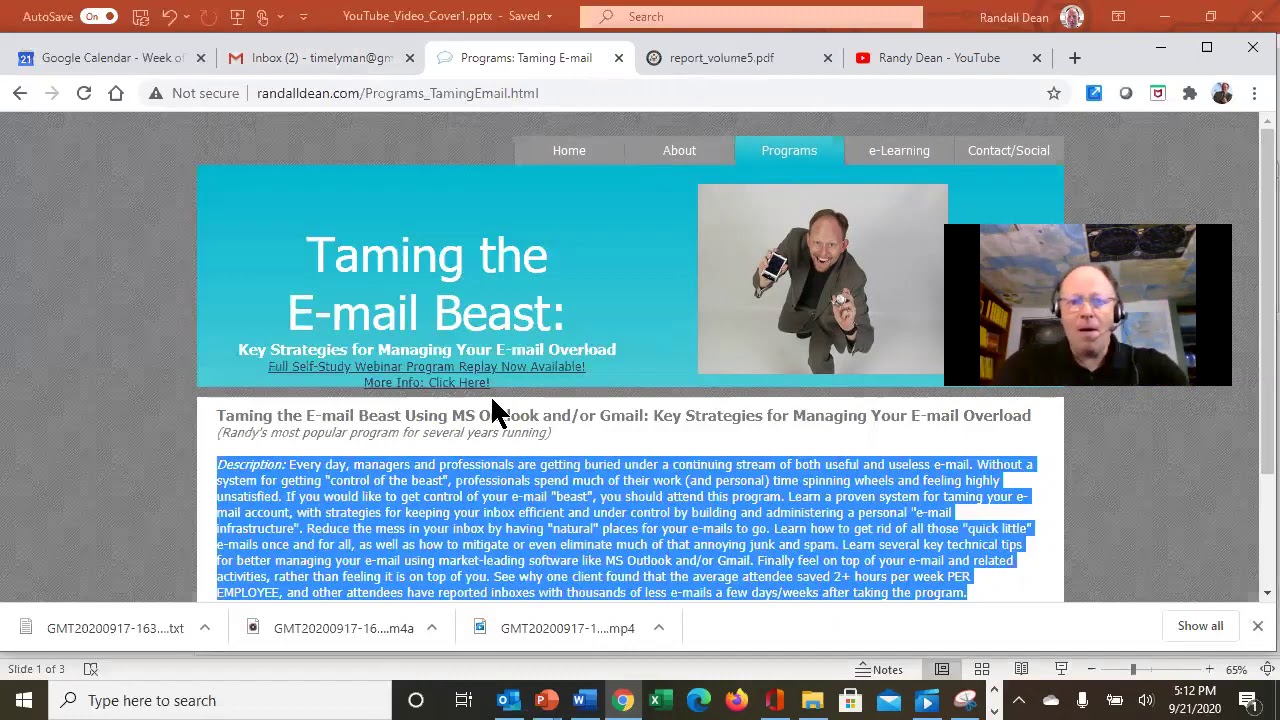
Randy Dean shows how to drag browser tabs and app windows side-by-side on a single monitor to speed up copy-paste, email, and contact lookups. A few seconds saved per task adds up to days of productivity over a year.
Chapters
All right, hi everybody. Uh, hope you're having a good day. I actually want to put together a super quick video for you on a multitasking tech tip that I'm pretty sure almost no one thinks of using. So let's get in, and, and the first example I want to give you is just let's say you wanted to take information, say from this web page right here, and move it over to this Word document. Did you know that you've already missed an opportunity to be more productive and more efficient? And let me show you why. You could take this web page, which is this icon for the Chrome browser at the bottom, and scoot it over so it's right next to the Word document. And anytime you're doing multitasking, just consider the— how easy it would be to, you know, take something. You know, let's do a quick Ctrl+C. And the button right next to it, Ctrl+V. And so you're moving back and forth. They're right here next to each other. See how that can help? Now wait a minute. Let's take this one step further. Let's go out to that Chrome browser again. And what I'd like to do, I'm going to resize this just a bit so it's not quite crashing into my Zoom controls at the top. Let's say I wanted to do the same thing right here, and this time I want to send an email. So I'm going to hit Compose, and then I'm here. Wait a minute, what if I did this? Drag it over so it's right next to email. Now, of course, with both of these examples, if you've got a second monitor like I do, instead of doing the tab pulls and the icon pulls, you could take the content from one and put it on one screen and the content from the other and put it on the second screen. But if you're doing this in a situation where you don't have the dual monitor, moving these tabs close to each other makes it as easy as this: click, click, and click. As a matter of fact, watch this. This is sort of cool. Let's go out to Microsoft Outlook. Take a look at this: email, calendar, contacts, tasks, notes. But let's say you're working in your contact database to send a few emails out. You can grab people and drag it over next to Mail. And then you can just go right back and forth. There's a lot of these capabilities inside these tools. And so I just wanted to share with you that you have this ability to sort of redesign the landscaping on your screen and where your icons are, where your tabs are. It may be where certain functions are within specific programs, like I just showed you in Microsoft Outlook. Because that makes it super easy for you to get to the thing you're working on without having to keep scrolling across the screen. Now, it's going to save you a few seconds every time, but if you're doing a lot of multitasking on a single screen environment, that little tip might give you days of extra productivity each year. All right, so with that, I am going to, uh, go back into the presentation here. Shift-Function-F5, that's the keystroke to go from presentation management to presentation performance mode. And, um, I just want to let you know I do have a Patreon page now. I'm starting to build out more YouTube videos. Check it out if you get a chance. Uh, some really good bonus gifts for both individuals and organizations. And with that, I'd like to say thank you for your time and attention today. Uh, once again, my name is Randy Dean. If you'd like to find out more about what I do, um, including options for online full-length streaming programs, go to randy@randalldean.com. Uh, of course, if you like this video, please, uh, like and share and maybe subscribe if you haven't already. And if you'd like to get a whole series of little productivity PDF tip sheets, uh, on topics like time management, email management, Outlook and Google usage, smartphone tablet usage, etc., Um, send me a quick email, randy@randalldean.com. Just put YouTube PDF in the subject line. And with that, have fun multitasking.