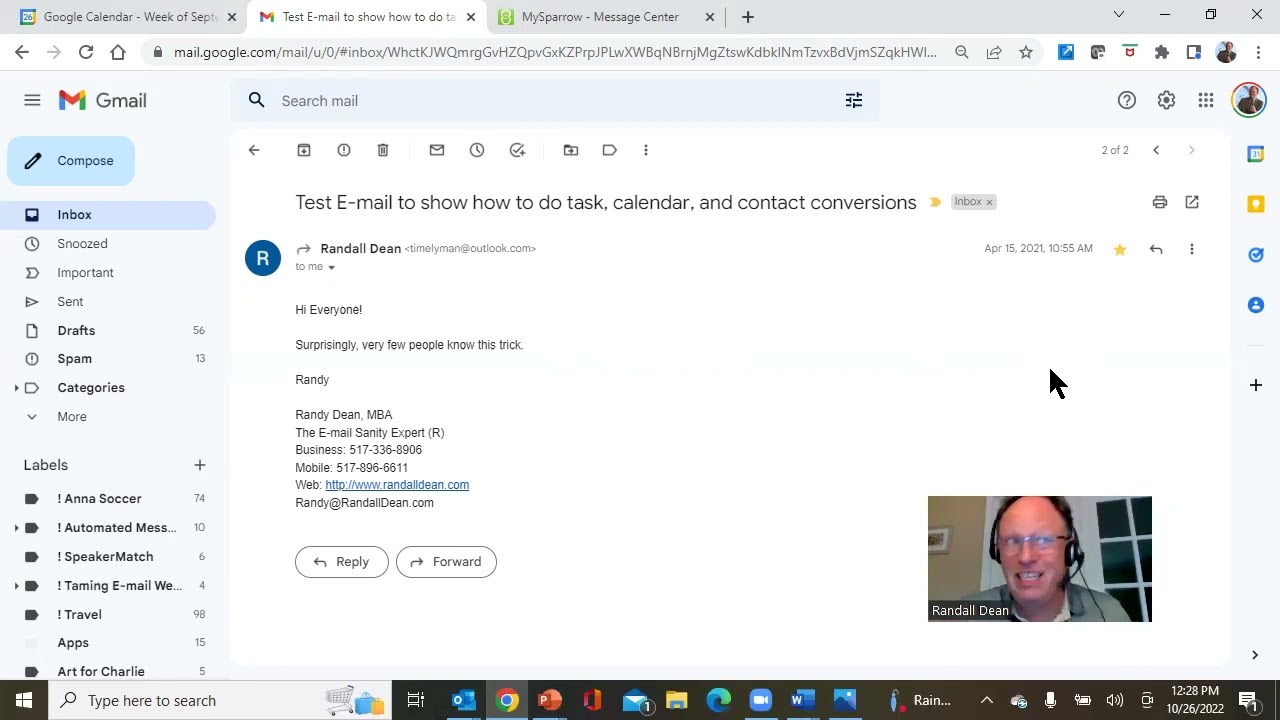
In this 10‑minute tutorial, Randy Dean – the “Email Sanity Expert” – explains why Gmail’s labels and folders are essentially the same feature and how that design eliminates a common source of inbox confusion. He walks viewers through the Gmail UI, showing that creating a label automatically creates a matching folder view and vice‑versa. Dean contrasts this with traditional email clients like Microsoft Outlook, which force a single‑folder placement for each message, often leading to messy inboxes. He demonstrates a workflow where an email that belongs to multiple projects is tagged with several labels, then archived, allowing the message to appear in all relevant “folders” without duplication. Dean emphasizes the cloud‑based flexibility of Gmail, encourages users to rethink folders versus labels, and ends with a brief promotion of his website, a free PDF resource, and an upcoming mini‑guide e‑book for Outlook and Gmail users.
Chapters
Hi everybody, Randy Dean, Email Sanity Expert here. And hey, if you're a Gmail user, I'm hoping I might be able to clear up a whole bunch of confusion for you potentially. Let's go into Gmail. Notice the title of this video: Are Gmail's labels and folders the same thing? Yes, it is genius. Let me show you why. All right, let's go into my Gmail. And what I want to show you is this. You, you probably have noticed this when you're working in Gmail. If you click the little checkbox here and/or if you open the email, you have these two buttons: Labels, Move To, and it's the icon for a folder. Now here's the interesting thing about this though. If you open up the labels, let's take a look and see what I've got in here. I'm going to make myself a little bit smaller, uh, so that I'm not blocking the screen demos. There we go, that's good. And what you'll see is Anna Soccer Automated Messages Speaker Match Taming Email Webinar. Interesting. And if you click over here to the folders, you will see Anna Sacher Automated Messages Speaker Match Taming Email Webinar. Hmm. Now here's the really interesting thing, and you can try it and see if I'm right. Hit Create New, make a new folder, or go to Labels, hit Create New, make a new label, and then go to your folders or labels. Whichever one you weren't in, and you will now see either a new folder because you made the new label, or a new label because you made the new folder. Hehe. You see why this might be a little confusing and genius? Let me explain why. Now, I have to remind you, before using this, I had used what I would call more linear programs. This is sort of a circular file cabinet. I know other people have called the circular file cabinet the trash can, but I want you to understand what I mean when I say this. You don't have to choose which folder you want to put stuff in. And have you ever had an email that could go into 3 or 4 or 5 folders? You know, it's related to the main project you're working on, it's related to the main client you're working for, you got a vendor involved. One of your coworkers is involved. I mean, and it could go into any of those folders. Well, in a tool like Microsoft Outlook and many of the other programs, they force you to choose one of those folders. And then you'll have some fear putting it away because you're afraid you might not be able to find it later. And that's how people, some people end up with a really messy inbox. Let me show you what's cool about Labels and folders in Gmail. If it clearly goes into one folder, just use the folder button and move it into the folder, and then it will leave your inbox and be in that folder. But if it could go into multiple folders, click on labels. Anna Sacher, automated messages, speaker match, taming email webinar. Hit apply. It just labeled all of them, but notice that it's also got inbox. Interesting. It's got all 4 of those labels. But see this little button right here? Archive. If I hit that button right now, this one email leaves the inbox and you can find it in any of these 4 folders. Brilliant. They don't make you choose. You can label it to everything it's related to and then hit archive. And then one email can be in 4 different places and now you'll find it when you need it. I think it's brilliant. It, like I said, it was a head-scratcher, but I looked at it for a while and went, man, that actually is really, really cool. If you're like a heavy Outlook user and you're watching this, It sort of would be like if they took the categories and merged it with the folders. That's basically what they've done here. And because of the power of the cloud, it's no problem doing this. So, you know, change your thinking about what a folder is and what a label is if you're a Gmail user, because yes, they are the same. Yes, they are a little bit different, I guess. But you can now use this greatly to your advantage to be able to put your stuff everywhere it should be. Not just one place, it can go every place it should be without making additional multiple copies, and you'll be able to find it better when you need it later. Let's end this one. So once again, my name is Randy Dean. I am known as the Email Sanity Expert. Let's go big size on this, uh, and, um, I'd like to just thank you for your time related to watching these videos. If you'd like to learn more about me, go to my website, randalldean.com. And if you're liking these videos, please like and subscribe. I will tell you something interesting. This video is going to be part of a new mini book e-guide that I'm building. And here's the interesting thing about that. I'm going to probably make it so you can get this as a YouTube viewer at no cost. Now that is coming soon. It's not quite ready yet. So send me an email, randy@randalldean.com, and put YouTube PDF in the subject line. I will send you the PDFs I've been sending out to people for a while, but that will also get you on the distribution list for when this new mini guide ebook comes out, including more tips for both Outlook and Gmail users. Thanks everybody. Talk to you soon.