Live @ 9 Taming E-mail Tips & Tricks with Kim Hickey of the Automotive Training Institute
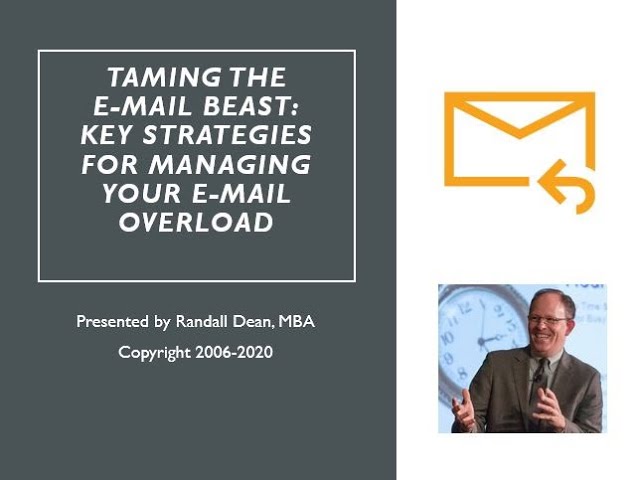
Randall F. Dean shares a system for email overload: professionals spend 2-6 hours daily on email but get almost no training. His method is simple: handle emails under a minute immediately, convert longer ones to tasks, or delete. He walks through Outlook and Gmail features to automate the work.
Chapters
Good morning, everybody. This is Kim Hickey here. Time for your daily Live at Nine briefing. It is the 7/22/20 edition. I cannot believe where the time is going. Super, super excited today to have our special guest, Mr. Randall F. Dean. He is an expert in many things. He has an MBA. He has all of the websites I've sent to you, and I dropped his website, his LinkedIn, and other contact information into the post for this morning. I think you guys probably have watched some of the promo videos that I dropped earlier this week to get him going. And he is going to help us get some sanity and take back some of control over our email and all of that. So I don't want to waste another second speaking so that I can give Randy all the time. Please type in any questions. Randy's looking forward to them. And Randy, without further ado, welcome. Welcome to Live at Nine and joining API and all our members.
It's wonderful being here. Are you okay if I open up the presentation in the background?
Absolutely.
All right, let's do a share screen real quick. And as you can see, just if you can confirm that you're seeing my presentation deck on the front of the screen, that'd be great. Awesome. Well, hi everybody. As Kim said, my name is Randy Dean. I have actually been leading and teaching programs on time management, email management, related use of technology, for about 30 years now and professionally for almost, for more than 16 years. So as you can see, I'm sort of that persona that you're seeing on the screen right now. I'm a little bit over the top. And I did want to share with all of you that I'm probably going to give you too many tips this morning. So I hope that you enjoy the tips, but don't feel like you got to take everything in. What I'm really hoping to do is give you a few essential tips on how to keep your inbox under control, because I know a whole lot of people have problems with their inbox. And to make many of you hate me and establish my credibility right off the bat, let's, uh, let's go in here and pop out to my Microsoft Outlook real quick, and let's pop into my inbox. Who's jealous? As you can see, that's for real too. Almost every day, at least once a day, I get my inbox all the way down to zero. If you're wondering about these two messages that are in here, I left those in here on purpose so I'd have something to show you today. And to give a number of you some motivation to get your inbox looking sort of like this, did you know, little tip, almost no Outlook users can use the tip I'm about to share. Did you know that if you get a big open white space here on your screen in your inbox where there's no emails, you can put your mouse in here, double-click, and open a new email? See why nobody can use that tip? Nobody has that white space in their inbox. Okay, that's funny, but I'm gonna show you how you might be able to get there. And for you to know, You can see my Google account, Gmail, just as bad. So let's get in and talk about what's going on with your email here real quick. First thing I'd like to do is, by the way, little PowerPoint tip. Whoa, wait, we're going off script here. If you're in PowerPoint management mode, as you can see on the screen where you sort of see your slide layouts and everything like that, did you know that you can quickly do a Shift+Fn+F5, killer keystroke combo, and jump right into presentation mode. So put that one down if you're doing presentations regularly, because that saves you from having to do all that mouse work. Now, what's sort of fun is when I do my live onstage programs— obviously haven't been doing that a little bit with the, with the virus recently— but when I do my live onstage programs, I like to ask a question to the audience right here. And the question is real simple: how many hours per day does the average professional email user spend simply reading, responding to, and administering their emails. Kim, since you're right there, how many hours a day do you think that might be?
Uh, 4.
4, good answer. That's a pretty normal answer. Actually, the usual range I get for a lot of the audiences I speak to is somewhere between 3 and 6. I did have a woman in Orlando a few months ago answer, and I quote, 12. So some people are doing very heavy amounts of email. The actual average is a little bit more than 2 hours per day. And, um, so when you think about it, the typical average person's doing anywhere from maybe 25 to 50% of a typical workday just working on their inbox. Sounds about right, right? But then here's the kicker. I do a following question, and here's the interesting question that I do following this, and I've been asking this question for more than 15 years now. How many of you prior to today's program have had a formal strategic level email management course? And for 15 years I've been asking that question. Major conferences, events, workshops, company trainings, university sessions. Consistently, I'm getting about a 1 to 3% return. So think about this, a tool that takes anywhere from 25 to 50% of your typical workday, only 1 to 3% of it training on how to use it and use it well. As a matter of fact, most people tell me basically the way that they work with email is, hey, we use Outlook. Good luck to you. Hey, here's Gmail, have fun. That's the way most people learn how to use their email, which has been very good for yours truly, by the way. But which means, how did you learn to use your email? You learned how to use it on your own. And what that means is you've probably picked up a couple good habits, but then you've got 2 or 3 potentially really bad habits. So let's dive in and try to fix some of those bad habits right now. Here's the 2 key ways your email owns you, and I'm going to actually argue right at the end there's even a third. There's a third way your email owns you, but I'm going to save that one for the end of the program. Number 1, you're just checking your email way too much. And let me explain to you what I mean by this. Average person is checking their email somewhere around 15 times a day professionally, but they're— more than 20% are checking 20 or more times per day. And when you think about that, I've got people tell me they're checking every few minutes. Now, when you do the math on that, I mean, basically you're just constantly distracted by your inbox. Now, the other thing that you're doing that is really killing your productivity is not only are you checking your email all the time— we're going to talk about that one in just a second— you're reading the same messages over and over and over again, doing nothing with them. As a matter of fact, can I show you why many of you are making that critical mistake? Let's do that right now. Let's pop back out. Let's go back into my Microsoft Outlook. Here's what I see people do with their typical average email. I'm gonna move our heads down here, and what I'm gonna do is this. Take a look at this. You get this new email, you open it up, you read it a little bit, you go, you know what, I don't have time for this one right now, I'm gonna mark it unread, and you close it. Or, you know what, no, no, no, I'll put a flag on it. That's what most people do. They unread and flag. Kim, do you use unread or flags? She's nodding. She doesn't even want to admit she's using the unreads and flags. So you hit the unread, you hit the flag. Think about what you just guaranteed you have to do again later. You got to read it again.
Well, when you say it like that, Randy—
yeah, it's percolating in your head right now, isn't it? Yeah, I can see, I can see the wheel spinning because think about what you just did. You guaranteed you got to read it again. And again, but can I share with you the dark, devious, ugly side of both unreads and flags? Here's the dark, devious, ugly side. Invariably, they're going to also start stacking up in your inbox on you when you're doing that, aren't they? And at some point, you see this little gray line here at the bottom of your Outlook? See that little gray line right there? At some point, the emails will fall below that line where they will never be seen or acted upon ever again. Until, until the person that's trying to email you sends you yet another email going, hey, why didn't you get this done? Which starts it all over again. It's insidious. I don't use either of those tools, and I do not use the related stars in Gmail. Neither one. I don't use them. And the reason I don't use them is because it does just that— they make you look at them again and again. But would you be really interested to know that both Outlook and Google Gmail have an option which is just about as fast as doing the unread flags or stars, but will greatly reduce the number of times you look at each and every message? Would that be interesting? And gives you more focus, less distraction, more prioritization. Sound good? We're going to show you because it's built right in and almost nobody knows it's out there. So let's get back to the presentation though, because I wanted to first talk to you though about that first thing. Why are you checking your email so much? So let's go back and talk about that for a quick second. And let me see, I think I did my Shift+F5. There we go. Let's talk about this. I call that blinging. Now why is it— why do I call it blinging? Has nothing to do with modern contemporary hip-hop culture. Okay, what I'm talking about—
I like all about the shiny stuff. Yes, all right.
Well, I'm talking about the different kind of bling. I want definition number 2 in the dictionary. You know what that is? Okay, it's that little sound that your phone or your computer makes when something new comes in.
Bling!
And you look, like you said, it's shiny. You look, something new just came in. So I'm looking, right? Or you could call it the squirrel. Squirrel, squirrel, squirrel. And so here's the thing, you're looking all the time. But now, I don't want to make you feel bad about this, but before, before I get into sharing why I see people doing this a lot and what you can do to solve it, I wanted to share with you an interesting little thing. Institute of Psychiatry at the University of London did a study a few years ago where they found that the average professional worker that is constantly checking email, voicemail, text messages, and IM— if they're constantly looking at those data feeds coming in all day long and they're getting a pretty heavy flow of feeds coming in throughout the day, which is frankly— I just described a whole lot of working professionals. Average person that does that has a 10-point drop to their short-term IQ. 10 points, which is roughly equivalent to missing an entire night's sleep. No kidding. It scrambles your brains because you never have a chance to focus and you can't get your train of thought on track. Now, I don't want to make you feel bad about this though, because listen to this, I get why you're doing it. Every now and then you receive a really important or really urgent message, or possibly a message from a person, client, customer, vendor, boss that really matters, an important person. So you're checking all the time to see if it's one of those. But let me ask you this: what percentage of the total inflow that you're receiving from those different input streams is a really critical, really important, and/or really important person type message? Most people tell me it's 20% or less. So the vast majority of emails that you're receiving do not meet the important criteria, but you're looking all the time to see if it is one of those items just so you don't miss it. Sound familiar? Did you know that both Outlook and Gmail can help you on this one? Check this out. So I'm going to jump in. I want you to resist this temptation. We're going to give you a strategy for doing something a little bit different here. So I'm going to pop out. I want to go into my Microsoft Outlook. Now you notice I got this email from this Randy Dean guy, and I'd like to really know when this Randy Dean guy sends me a message because frankly, It's a tad bit odd to send yourself emails. So watch what I'm going to do. I'm going to hit a right-click on this message. Now, whoa, look at all those options, Outlook users. Let's go through these real quick. First, copy. That means you can actually put a copy in more than one folder. Quick print, self-explanatory. Here's your reply, forward, and just stop using reply all. Just stop it. Stop.
Please, please, please say that one more time.
Stop using reply all. By the way, you want to know my favorite reply all email? I love this one. You set up the email, you send it out to the large group of people, somebody hits reply all to the entire message stream and says, thanks. Um, okay, uh, by the way, did you know that you can actually stop reply all? It's really easy. If you're about to send out to a really large group of people, put your name and email in the to field. Put all other recipients in the BCC field. That way, if somebody tries to hit Reply All, it only goes to the names in the To and the CC field, not the entire distribution list. And if you want to be really snarky, don't put your name and email To field, put your favorite co-worker's name in the To field. That's funny. Okay, um, let's keep rolling. Hold on, uh, Mark is red and flags. You're not going to use those anymore. You're not going to use the on reds and flags. This is sort of cool if you're an Outlook user. If— now what's interesting, Gmail users, Outlook has this thing it's had for years called Categories, but it's actually really similar to the Labels function in my— in Gmail. And what you can do is you can actually categorize not just your emails, Outlook users, but even your calendar items, contacts, notes. You know, so what you do is you just come down here to All Categories, it brings up the list, and then wherever you have one of these color codes— and so it said, say, in red, green, blue— you just click on the item, hit Rename, and you can name your for your projects, clients, customers, vendors, co-workers. So you can add tags to your emails. It's pretty cool. Um, but, uh, we'll talk about that maybe, and when it comes to filing, in a minute. Uh, right-click. Let's take a look at this, uh, Find Related. Now check this out. You can view by messages in the conversation, meaning by related items with the same subject line, or messages from that particular person. And it will search your Outlook files to find all of these related messages. And if you put those categories on it, you can actually search by the category, which means by the label. Um, I have a YouTube video about Quick Steps, which is very similar to rules, which is what I'm going to cover here in a minute. So I have a YouTube video about rules and Quick Steps, so you Outlook users can go check that out. But let's talk about this one down here called Ignore. This is the bomb.com. Let me tell you what you use this one for. You ever get that message that says the following? Hey everybody, Betty's birthday today. Make sure you wish her a happy day. So you send your little note to Betty and say, Betty, hope you have the bestest of days. Eat some cake for me. And then you spend the rest of your day putting everyone else's reply to that same set of email into your trash can. No, after you send your reply to Betty, you go back to the original, right-click, hit ignore. Now all following replies will go right into your trash can. Booyah! That's a time saver. Uh, but now let's talk about this. I want to reduce distraction. Right-click, Rules, Create Rule. This brings up your rule management tool in Microsoft Outlook. So that was a right-click, Rule, Create Rule. I want to know when this Randy Dean guy sends me a message, so I'm going to click on Randy Dean right here, and I'm going to set it up so that whenever I get a message from this Randy Dean guy, I get a pop-up on my screen. That's Display New Item Alert, and I'm going to even play a different sound. Whoa, wait, what? Yeah, look, I can change the sound. Now here's the bling sound. Listen, did you hear that, Kim? Did that come through? Oh, it didn't come through. It's the boom, you know, the little Windows notifier sound. But check this out, you can go browse your computer, and what you can do is browse your PC, search either all files or all media files, and what I want you to search for are .wav, .wav sound files. Now what will happen is that you'll get up a whole list when you do the search, and it has a little sampling button like this right here where you can even sample what those sounds are. Those are all the little dummy alert sounds that they've installed in Windows to tell you when something is happening on your computer. Here's the beauty: you can take one of those sounds and replace the sound that was there before for that particular person. So you know what you just did? You just basically made a new ringtone for your emails. That's cool. And get this, how many of you do a ringtone for certain callers? Probably quite a few. And did you know that most of the text messaging apps that are now available for iPhone and Android allow you to change the sound for certain people's texting streams, text messages? You see what I'm doing in all of my major input streams? Email, Voice, text. I'm setting up special notifiers and ringtones on all three so that way I know when it's one of my most important people, which means I don't have to look at everything right now. See that? Now that means you gain control over your stream. It's not running you. But wait, there's more. Hold on, look at this. I'm going to turn these off because I want to show you something you can also do by what's in the subject line of the email. Now let's go to advanced. See, if you go into advanced, take a look at this. It could be by if it's from this Randy Dean guy, it could be if it has this in the subject line, if it has specific words in the header. Now let's talk about that one. What if you talk to your entire work group or team and said, hey, listen, I'm trying to reduce general distraction from email and inputs. If you send me an email that's either critical or urgent, please use those two words, either critical or urgent, because then you could set up a rule that says when it's critical or urgent, those ones will have the pop-up or the special sound. See, so if you can get everybody on your team to do that same little courtesy for each other, then you don't have to look at every brand new email right now coming in from your team, but you can look at the really important ones right away if you need to. Now you gotta have a chat. Because if you tell your team members that, there's going to be somebody on your team invariably that wants to put critical or urgent on every darn email they send. And if everything's critical or urgent, nothing's critical and urgent. Remember that. Okay, now here's the other one. Look at this, marked as important. Look, you can actually take this one, and what that means is if you say marked as importance, watch this, you can actually click on here, and if it's marked high importance, those ones can make a special sound too. Or pop-up. So what you can do is you can basically sort of tell Outlook which messages you really want and see quickly, and then everything else can go onto a regimen. Now before we do that though, I know we got some Gmail people out here. Does Gmail have a comparable equivalent to what I just showed here? Actually it does. Take a look at this. If you pop up here under your settings in Gmail— oh, they changed it, they just changed it. I love it. That's pretty cool. Um, what I want to do is, uh, see all settings. That's brand new. I might have to make a new YouTube video. They used— you used to come right to this screen, but they have a new quick settings tab. So every time I see them do something new, I make a new YouTube video. Check out my YouTube channel, by the way. Just search Randall F. Dean. But take a look at this. If you come into here and you come over to filters and blocked addresses You can create a new filter. Now this is going to look really similar to what I just showed you. Watch this. Create new filter. If it's from— okay, now let's put in Randy. Oh, there it is, randy@randalldean.com. That's me, right? What I want to do now is create a filter. Now watch the background. That just loaded up all the emails from this Randy Dean guy that are in my, in my Gmail. But now here's my next step. Always mark important. So emails from Randy Dean, always mark important. Create filter. So the filter's been created. If it's from here, Randy Dean, mark it important. Now watch this. This is what's cool. That's step 1. Here's step 2. Go to the General tab in your settings, page down to where it says Desktop Notifications. Important mail on. See what I just did? I'm telling Gmail who's important, and those emails will pop. Not everything, just the ones that are important. So I basically have a way to tell both Outlook and Gmail who my most important people are, which means I don't have to look at everything right now. Now, what am I going to do with everything else? Well, here's what I'm going to do with everything else. I'm going to follow the Taming Email decision tree on a time-based regimen. Wait a minute, what? Here's what I mean. Time-based regimen. You got your important and critical and urgent emails and other inputs popping. They're popping. You don't have to look at everything right now because most of the stuff you're receiving isn't that critically important right now, right? So what I want you to do with everything else is get on some sort of a time-based regimen. Now, when I say time-based regimen, I don't know what regimen you should be on. That depends on the nature of your work. If you're in an intensive, quick-service, customer-service type position where people expect very fast response, you need to have a shorter regimen. You might still be checking your email every 15 to 30 minutes through the day because that's what you have to do at your job. Now, some of you hear that and go, whoa, every 15 minutes, that's way too distracting. I need to focus on my projects and my clients a little bit more deeply. Well, then you stretch it out. Maybe you go to an hour, maybe you go to 90 minutes. I know some people that only check their email 3, 4 times a day. By the way, if you only check your email 3, 4 times a day, you might want to let everybody you work closely with know that, because I promise you there's a whole lot of people out there that use email basically like instant messenger. And can you see the car crash that's going to happen if you got somebody that's only checking email 3, 4 times a day and somebody who's using email like instant messenger?. But if they know that that's their strategy, the person that's only checking email 3, 4 times a day says, hey, you got something critical, urgent, pick up the phone, call me. That's easy, right? So I don't care what regimen you get on, but when you get on a regimen, here's what I want you to do. Notice this. Now, I've been following this strategy for about 30 years. I learned the basis of this strategy from a guy named David Allen who wrote the book Getting Things Done, you know. So if you want to go off the deep end, that'd be a little recommendation for you. But basically sort of walks you through the process of what you do every time an email comes in. And if you follow this process, you know how I said you're reading your emails over and over? You're going to stop that right here. Here's how you stop that. New email comes in. If you open it, you just made a deal with yourself. I cannot stop looking at this email until I know what I need to do with it next. You need to make a decision. So if you're taking notes, receive new email, right over here, decide. Make a decision. By the way, if you're too busy to be able to even open an email and make a decision, might I argue that maybe you're too busy to even be looking at your email right now? If the house is burning down around you, why are you checking your new messages? Um, now I did have somebody say, hey, but Randy, what if I'm checking my message to see if it tells me how to put out the fire? Okay, I get that. You can check your email and other inputs when you're dealing with a crisis, but here's what I want you to do in crisis mode. It's not what you see on the screen. If you're in a crisis mode, if you're fighting some active fire in your life, here's what I want you to do when you open up email, voicemail, text. Scan the username, scan the subject line, scan the phone numbers. Go down to the item directly related to the active fire that's burning right now and put out the fire. Don't get caught by anything else, you're gonna get burned. This is what you do when the fires are out, which is if you're going to open up a new email, what are you going to do, Kim? Can't stop looking until— what are you going to do?
Decide what you're doing with it.
Yeah, you got to make a decision. Now doesn't that sound sort of logical, by the way? Oh, so I should, should read an email until I know what I need to do with it. Now here's the little wrinkle that's sort of cool. Like I said, this is where David Allen kicks in. What he taught me years and years ago was, well, if that thing takes you a couple minutes or less, don't keep it for later, just do it. Get it done. And when you think about it, there's a ton of inherent logic right here. First thing, if you're not keeping the quick little stuff moving and you're getting quite a bit of stuff coming in, might it not just stack up and bury you over time? I mean, just think about that. I mean, how many of you are buried with a whole bunch of little stuff? My diagnosis is you're probably not keeping the quick stuff moving, you know. So if you see something quick, you just got to get yourself mentally trained. That's quick, do it now. Just keep it moving. Don't become the log.
Yeah, go ahead, Kim. Mark Cox says he reads his emails 15 minutes in the morning, lunch, and before he leaves.
Ah, yeah, and that's fantastic. The only, like I said, the only advice I might give Mark is to make sure everyone on his team knows that. And the reason is, is because sometimes something really critical or urgent might come through and that person might have to wait 2 or 3 hours for a reply. And if that's the case, then they should pick up the phone, right? And they'll know that if they know that's how he's doing it, which is— I think it's a wonderful strategy if you can get away with it. I just think you want to make sure that the other people on your team know it. Um, but so we run into something quick, get it done. Here's the way to remember this one. Let's go to Ohio. Ohio, only handle it once. Don't keep quick stuff for later. Let's just think about this. Something takes you 30 seconds or less, a minute or less. By the time you've looked at it 3 times before doing it, you just doubled how long it takes. How many of you have the time to double your work? That's what you're doing when you're keeping quick little items for later. You're doubling your work. I'm pointing at you. That looks sort of cool. Um, okay, so little zoom effect there. Uh, now watch this. Uh, what if it takes more than a couple minutes? Well, then it should probably go on to whatever task list you're using, or maybe— write this down in your notes— or maybe your calendar. Now here's what's really cool. This is the kicker here. This is the big tip. I should show Kim— I showed you a little bit of this the other day when we were doing the prep test run. Um, here's where this thing all ties together, and this is the bomb. Okay, watch this. I'm gonna jump out here. I'm going to go into my Outlook. I got this test email from this Randall F. Dean guy, but really my actual task for being here with Kim today on the program is to, uh, offer to everyone that's here today a whole series of little bonus productivity PDFs where I give additional tips on time management, email management, project and team management, smartphone and tablet usage, Many of those little 2 to 4 page PDF files even have links through to my YouTube channel where you can see a lot of the tips in today's program a second or third time. Sound pretty good? I'm going to get those to Kim so she can share them to everybody who's on today's program. Okay. So you can have—
make sure that y'all email me, k@getautotraining.net. Look at them adding to my emails to share Randy's. Yeah.
So, and so, and if you see this from any other resource, I don't know, maybe this video will end up getting to where other people see it. You can just email me at randy@randalldean.com. See, it's right here on the screen. Uh, and I'll do the same for you. Just say bonus PDFs. And, um, here's the thing though, that's my task. Notice the subject line does not match the task. Does the subject line of the email ever match the project, person, client, or task it's related to? Typically not. Can you, can you do everybody— yeah, can you do everybody in your world a little bit of a favor here and try to make better subject lines? You know, tell them why they're getting it, what they're doing with it, when they need to respond, you know, what project it's related to, you know, things like that in the subject line can be really helpful. Um, but now watch this. Watch what I'm gonna do with this email. I'm going to left-click on this email, Outlook users, hold the click, drag it down to Tasks, drop it. That's a drag and drop in Microsoft Outlook, and it just popped open a new task window based off of the email. But now watch this. I need to actually change what the subject line is. Send PDFs Kim, look at that. Due date, I'll probably get it to you later this morning. Priority, high. Category, oh, now watch this, uh, client prospect and marketing PR. How long did that take?
I have to tell you that since you showed me this the other day, I've been using it on every— and it's been a real game changer for me.
Now what's interesting is, now here's where there's a breakdown though sometimes. You do this, now you've got to make the effort to actually use your task list. That's, that's the game changer, you know, because a lot of people have trained themselves to basically use their inbox as their de facto yet very dirty file cabinet and their de facto yet very dirty task list because they're marking things unread and flagging stuff without clear instruction. If you're doing this step, you got to be willing to actually go over to where it says tasks or the icon for tasks on your screen and look at your task list once your inbox is clear. That's how this whole thing works. But now notice though, I want to show you a couple things. It only took you a few seconds. And by the way, do you have to do this in Outlook? I don't care what task list you use. You do your sticky note, your sheet of paper, your planner, your task app on your phone. I don't care where you make it a task. Just make it a task so it's not— it doesn't need to stay in your inbox. Make sense? Although I do like the Outlook option because look, very quickly I could say the date I want to handle it, the priority. I can tag it with those labels we talked about. But look what's down here, killer, the text of the message. So I've got— I've identified the task in the message and I have the text of the message inside the task. Do I need that in my inbox anymore? I'm gonna argue probably not. But now I know some of you right now are thinking, okay, major problem. I see a major problem right here. If I do what this guy just said, I won't have the email in my inbox, but I probably won't look at my task list too, and I'm gonna miss things. You think of that? Are you worried about that? Watch close. Reminder, save and close. Boom. If you don't trust yourself when you switch to this system, when you create those tasks, setting a reminder on the task for it to come find you when it's time for you to take that action, and that way you don't have to even remember to go look at your task list. Your task list will come find you, and then you can do what pretty much everybody in America does. One of these things pops up, snooze. We'll see that one again in 5 minutes. But wait, there's more. Maybe I should block time on my calendar to send Kim those PDFs. Left-click, hold the click, drag it down to Calendar, drop it. That pops up a new calendar item window. Of course, I need to change the subject line once again. Send PDFs Kim. Location: Home Office, East Lansing, Michigan. Beautiful day today. Heard we're gonna have some thunderstorms. And, uh, let's see, category: Client Prospect. How long did that take? Oh wait, that's the same. But in what, 15 seconds, I made a calendar item. You know what though, I might want to invite Kim and the other followers to this meeting I just created. Invite. Look at that, in like 20 seconds I can take an item that was in my email, turn it into a calendar item on my calendar, which I can then immediately flip into a meeting request. Oh, but wait, there's more. Look at this. The text of the message once again is right down here in the bottom of the meeting invitation now. So I can put a cover note. Hey everybody, look at this message we just got from our key client. We need to have a meeting about this later this afternoon.
Cool.
But wait, if you're using the Microsoft 365 conduit and you're sharing your calendars across, before you even hit send for the meeting later today, You can pop up here to Scheduling Assistant and start typing in their names and emails to see if they're even available at that time.
Not bad.
Now I'm not going to actually put this on my calendar because it's already on my task list. That would be redundant. But I got one more for you. Let's not save the changes. I'd like to get this Randall F. Dean guy into my contact database. That way I'll never forget who I am. Left-click, hold the click, drag it down to People, drop it. By the way, if you've got the icons on the screen in the corner, it works the same way. You can drag it to the icons, it'll still work. Take a look at this— that created a new contact item and it auto-populates both name and email. I don't even need to type those in. But if you take a look over here in the notes related to the contact, it's got the text of the message. And wait, let's check— oh cool, he's got a signature! Let me grab that job title right there, pick that and move it to Job title. Let me grab that phone number right there, pick that up and move that to phone. Let me grab that mobile number right there and pick that up and move that to mobile. How long did that take? Did I type a letter? Did you notice I didn't even do a cut and paste right there? I just did what they call an end-click drag over and move. A what? Watch close. Click on the end of the item that you want to select, drag over until it's fully highlighted. Once it's fully highlighted, release the click, which allows you then pick it up and move it to where it belongs. It's called then click, drag over, and move. Now once you master that little strategy, save you a couple seconds every time versus cut and paste or copy and paste. But did you know that that doesn't just work in Outlook? That works in the entire Microsoft Office suite— Word, Excel, PowerPoint. It even works in Gmail and Google Docs. No joke. So in any of those tools, you have a little piece of text or data in the wrong place in your document or file, simply highlight it, grab it, pick it up, move it. That'll save you a couple people on this call today. Probably just got 2 or 3 extra days this year right there, right there. That's 2, 3 days. Now let's see what happens when I hit Save and Close. Checks the database to make sure I'm not creating duplicates. That way I don't have to have duplicates in my database. So in this case, I already got what I need. I'm going to cancel out and close it. See why my Outlook inbox is so clear? Wait a minute, we got Gmail users on here. Let's go back to Gmail. Let's go back to my inbox. All right, so here we are in my inbox. Now I want to show you a little something, Gmail users. You may not have noticed this. Now look, wait, let's look at Outlook real quick one more time. Email, calendar, contacts, tasks, notes. And by the way, if you're wondering how I got the words on the screen, this is super simple. Just click on these three dots down here, go to navigation options, turn on compact navigation, hit OK, and it'll switch it to the icons. Now when I do my programs, I like to leave it on the words because it's it's a little easier for people to see what I'm doing. But that's how I did that. But email, calendar, contacts, task notes— remember that. Let's go to Google. Let's go to Gmail. Did you notice that they've added these little buttons on the side on your full Gmail screen when you're using the Chrome browser? So right here, Google Tasks. Right here, Google Keep, which is their equivalent to OneNote. And right here is Google Calendar. And what's cool about the Google Calendar is if you click this It'll bring up a little side window of your calendar for today, but then you can click this little widget right here to make it full screen, and you'll get a full screen view of your Google Calendar. Pretty cool. Now here's the other thing. Wait a minute, it's missing one. Where's Contacts? See this thing up here? I call it the Google Rubik because it looks a bit like a Rubik's Cube. Click this thing open, and right there's Google Contacts, and you can open up a full page contact management tool right in there. Pretty cool. So you've got access to all these things. Now, now watch this. So what we did earlier, let me just show you something. I like to leave a little task widget window with my task list over here in Google. And now watch, test email. Watch what I can do. I'm going to click on this email, hold the click. It works the same! And I just created a new task right here. It is. Now watch, I can come down here and edit just like I did before. Send Kim PDF. Due date, I'll add in the date and time of today. Okay, and then I can go back, and now it's going to edit and change that. And there it is right there. That's the same process. But wait, what if I want to add it to my calendar? Ah, well, if you want to add it to your calendar— now let's try this. I keep trying this, wondering if they're going to activate it. It's still not working. Okay, never mind. Um, I keep hoping that they're going to make drag and drop so you can drag into the calendar window over here, but it's not working yet. Uh, but watch this, it's real simple. Just open the message and up at the top, three little dots, click on this. I wish they put the word more because I think a lot of people never even click on this because they don't know there's stuff in there. Just put the word more. Um, create event, and that will create a new Google Calendar item based off the email. Oh, and wait, there's one more for you. I'm going to switch to a different email because I know I'm already in my Google database. I got this one from a person that actually does local aeration of your lawns. Um, and watch this. I'm going to just put my mouse over the person's name and leave it there for a second. Add to Contacts. So as you can see, Google users, you can very quickly and easily convert your emails to Tasks, Calendar, and Contacts too. And that's why my inbox in both places is so clean. See, my inbox in both Outlook and Gmail is clean because— I want you to think this through— I've got alerts and alarms set up for really important messages, really important people. I can look at those ones right away if I need to. I do a regimen for everything else. You know, for me, I'd say a typical day, maybe every hour to 90 minutes, I check my inbox because I do have a customer service component to the business I'm running, doing these programs for people. When I do that customer service, you know, regimen, I'm doing this thing, which means if I look at an email, I got to make a decision. If it's quick, I'm going to handle it right now. If it takes more than a couple minutes, I'm going to add it to my task list or my calendar. And then here's the piece where it all finally ties together. And once I've either got it done or got it on my task list or got it on my calendar, it's not staying in my inbox anymore. Then it's going to either get filed into an appropriate subfolder archive location, or it's going to be deleted. Now, if you're a Gmail user, what you do— you might do there is label it and then archive it. Then it leaves the inbox. Why is it critical to get these messages out of the inbox once you either have it done or on your task list or on your calendar? Because if you leave it in your inbox once you've got it done, or on your task list or your calendar, you're probably going to read it again later when you don't even need to because you can't remember if you got it done or not. And that is a pure form waste of time. Now you're probably saying, well, how do I structure my files and folders? I don't have enough time to do that on this short call today, but I want to tell you, I made 3 new YouTube videos a while ago, um, and I want you to listen to this because this might solve some of your problems. Video number 1: How do I set up my folders? Do I make a whole series of complicated folders and drop-down folders and folders inside of folders for every project and client and customer and vendor and coworker? Well, yeah, you could do that. Or do I make a really simple structure, just a couple folders, maybe even just one folder, done for now? You could do that. Think about that. Think about this. You could make— you could put every email into a single folder called done for now. But if it's been labeled, then you can search by label and you don't need folders. I talk about both options in that video, and you can figure out where your best strategy is. I imagine most people are going to do a bit of a hybrid where they have their most important projects, clients, folders, and then everything else goes into sort of a general folder with labels so you can search.
Cool.
Video number 2, how do I clean up my really messy email inbox so I don't have to spend weeks cleaning up my really messy email inbox? And I talk about ways to really speed that process up so it doesn't take a ton of time. And hey, if you got a messy office, I have a related video on how to clean up the mess of your stacks, piles, and clutter in your office using the same basic strategy. So let's get rid of your junk. Hoarders beware. So, so if you're— if that— if any of those hit your sort of problem spots, go check out those videos. And, uh, I'd recommend subscribing because I'm actually going to be posting a new video because what's interesting, Microsoft Outlook just moved search. Search used to be right here, they moved it up here. And I'm going to make a new video about the changes to search. And as you can see, when I did, uh, Google earlier That's brand new too. So I got to build a video about this for my Gmail users. Actually, I'm sort of happy that they keep changing things because that means I can make more videos, which is fun. Um, so let's get back to this though. So that's why my inbox is so clean. I'm just doing this all day long. And, and now you're probably saying, well, wait, what are you doing in between? I'm getting stuff done. I'm working on stuff. You know, if I'm not dealing with a critical urgent message and I've done my email processing strategy on my regimen, in between, if I don't have a meeting, I'm working on stuff. I'm working on my task list. See how that works? Work on your task list if there's nothing on your calendar until it's time to go to your next meeting or answer your emails again. It's pretty easy. So what do you think about that, Kim? Does that sound—
does that make it sound so Simple.
It's, uh, now it is simple, but it isn't necessarily easy at the start. This is a skill. This is a new strategy. This is a new habit. It's a new behavior, and you got to really work to train yourself. It's really easy to fall back into the old habit of marking them unread, flagging them, keeping them for later, leaving them stacked up in your inbox, all those kinds of things. But here's the thing that I want you to think about. Well, sorry, my calendar is going crazy. Uh, here's the kind of thing that, um, I want you to think about. If you can go from the average person, which looks at each and every email 3 to 7 times— that's the statistic— the average person looks at each and every email they receive 3 to 7 times before either taking an action or adding it on their calendar task list. 3 to 7 times each and every email. Think about how much time you would save over a year if you went from 3 to 7, which is average, down to once, maybe twice max. How much time would that give you back? That's what I'm trying to teach people to do here is follow a system.
It's pretty remarkable because we, we work with our technicians at our shops and our shop owners on productivity, you know, for outside the shop, inside the shop, all of it, but You know, to really break down, as you just gave that example of how many minutes for each email, how many emails you get a day. I mean, so often when we have our weekly calls with our, our shop member, our shop owners, they, you know, they didn't complete a task or they didn't do an action item because they were too busy. And holy cow, you gave us so much time back here already that it's pretty incredible.
Now I will tell you, you could take the same basic system that's right here And you could use the apps on your phone if you're doing most of your email on your phone and not on your computer. You could still follow the same process. You have your email app, you have a task app, you have access to your calendar. You could still do that, you know, and you could maybe use a little copy and paste function to copy the necessary information out of your email into your task app or into your calendar item. Um, and you know, the apps for both Outlook and the Google Suite for iPhone and Android are solid, so You know, you don't necessarily have to be doing this on a computer to be able to do it. You can still do this from your phone. And what's interesting is, let's say you're sort of moving back and forth. You mentioned shop owners. I can see a lot of people like that that are spending some time on their computer but then a lot of time out on the shop floor. If you're dealing with that, then what you could do is, if you've got the related apps from either Microsoft 365 or the Google Suite on your phone, those apps sync beautifully with Outlook or the Google Suite I showed you on Chrome here. So you can set it up so that you're basically able to follow this strategy regardless of whether a computer is in front of you or not. It's pretty cool.
Yeah, so I, I have a question for you. Um, yeah, is there an easy way to set up a group if you have a bunch, like an email with a bunch of people in there?
You know, I actually, like, 7 or 8 years ago, I made a video about setting up group distribution lists. It is pretty easy. I need to redo the video. So I'm going to do that because they changed the location of how to do it. And I noticed that just recently. So you know what I'm going to do right now? Watch this, everybody. I'm going to go into Outlook. I'm going to go into my task list. And I'm going to create a new task. Create group distribution list video. I'm going to make a video for both. And I'll put something together. I'll try to actually maybe work on that later this week. Priority high, category YouTube. There we go. So I'm gonna build a new tutorial tip. So those of you that are interested in that option, take a look, because like I said, I have one out there, but it's several years old, and I think they've changed how you do it in terms of location and strategy. And this is a pretty common question. I do have one more thing though I want to share that I can show you right now. Notice this little box, 3 minutes or less. Wait a minute, before I forget, all of you that have feverishly written down this slide right here in this strategy, do me a favor. You're going to hate me right now. Cross out the words taming email. Cross out the words taming email at the top of this and write in these 3 words instead, please. All office inputs. All office Inputs, because I want you to think about this. Does it just have to be email you manage this way, or could you also manage your voicemail, snail mail, documents, e-documents, faxes, text messages, stacks, piles, and clutter using the same basic decision tree? So regardless of format, if you're going to look at it, you're going to decide if it's quick, you're going to handle it. If it's not quick, it goes on to your task list or calendar, then you put it away or you throw it away. I see that you want to get rid of your mess. There's your way to get rid of your mess pretty well, although the video gives you even better tips. Um, but wait, there's more. What about this? Wouldn't it be nice if I could flip this box over so it doesn't just help me with stuff coming in, but it might actually speed up some stuff I'm sending out too? Oh, interesting. For instance, how many ever been typing a message, you've been typing it for a few minutes, you're about ready to hit send, you say to yourself There's some good writing. That is the most excellent business composition right there. Then you say to yourself, but you know what, I've answered this question before. Same darn thing keeps popping up over and over again. So where do most of you go to find it so you don't have to retype it? Kim, where do you go to find that message so you don't have to retype it?
In my sent folder.
Yeah, everybody does their sent folder. And you think I am so smart, it's only gonna take me 3 to 5 minutes to find the last time I sent that thing. Reasonably smart. Some of you that are even smarter go, no, Randy, soon as I send one I might need to send again later, I immediately open my Sent folder because it's right at the top. I just sent it. And if I use Outlook, I will then pick it up out of my Sent folder and move it over to my Drafts folder. Hmm, why would you do that? I'm gonna tell you why. I'll show you why. Let's pop out of here. Let's go into my mailbox. Let's go to my sent folder, which looks like some of your inboxes. Good luck finding something in here fast. Oh my, that's crazy. I'm never going to find something fast in here. But look at my drafts folder, it's only 18 total items. I bet you I could clean out a few. 18, what's that, a page, page and a half, including this one right here, which is what I send to my YouTube people. Now look at this, I've set this whole thing up. It's an email that I sent to this person, but look down here, look down here, it's got the text, the message, and it's got the attachments. All I need to do is hit forward. If I hit forward now, it's going to give me this goofy forwarding header, but I can quickly come down here and get rid of this, take that out and put in, hi Kim, thank you for the request. How long did that take? See what I did? I took an email I already sent with attachments. I turned it into a template for future emails with all of the information that I need inside. I do have a typo in there, so I'm gonna get rid of that and fix that. All right, now take a look at that. There that is. Now I'm gonna save this email in the background because I'm actually gonna send this email right here to you, Kim, so you can send it out to all of the people on today's program. Okay. So this email has those attachments that I was talking about right here. Here's my bonus productivity PDFs. So when we get done with the session, I will actually forward this on to you. But I want you to think about this. I sent this message before. It had the information I needed. I sent it, and then I moved it into my, my drafts folder, because in my drafts folder I can find it much faster than I can find it in my sent folder, and it keeps all of the attachments. So I don't have to go find the attachments every time.
So Randy, when you do that and you forward it, it still keeps the draft in there? Because I, I've tried that before and I thought that it takes it out of there once you send it.
Now see, this— what's interesting, a lot of people go, Randy, when you send a draft message, it's gone. But do you see what I'm doing? I'm not sending a draft. What am I doing? I'm forwarding an already sent message.
Okay.
And if I use forward, I can use it over and over and over again ad nauseam. See, because— and the— and that message will still stay in there. I'm just moving it into my Drafts folder because it's easier to find quickly. That's the whole reason it's there. But wait, there's more. What if you have an email that doesn't have all these attachments? It just got basic text, maybe a web link or two, an image or two? Well, then you could do something even better. Let's close this. I'm actually going to leave it in the background so I can actually use it for later. I will send this to you as soon as the program's over so you can share with people. But Randy, what if I've got a message that's just basically standard, um, you know, text, web link or two? How many of you have a signature for your email? I know everybody pretty much does. How many of you have more than 3? More than 3 signatures. Why would you have more than 3 signatures? Easiest way to get the signature tool in Microsoft Outlook, in my strong opinion, open a new email. Because when you open a new email under either the Message tab or the Insert tab, there's a big button for signatures. And inside of that button, you can click it— wait, what? What is this guy doing? But if I go all the way to the bottom and I click on the Word signatures like I did earlier with rules, it pops up my signatures wizard, where I can now edit the signatures I've already created over time to improve the quality of my outgoing communications over time, as well as create new signatures whenever I see the need for one. And you can see I'm a tad bit crazy about my signatures tool. Some might say certifiably so. I say crazy like a fox. Let me show you why. I have the same basic signature that many of you have. It's right here. It's called Randy Standard. Now notice this, the Randy Standard. Did you notice that I can actually put a picture in my signatures now? It doesn't have to be your face. You can go out and grab your logo off your website using the snipping tool and drop it in there, and then you can have a logo-based signature with your company logo right there. And then below that, basic contact information and some shameless self-promotion. See that? Now, did you notice that when I opened the new email in Outlook, did you notice this? It dropped that signature in. This signature is what dropped into that new email because I've set up this signature for all new messages. Okay, so if I hit new email, boom, that pops in. And this is really cool. Everybody on today's program will appreciate this. I'm looking at you 3 times. 1, 2, 3. See, that's funny. Okay, uh, but that has nothing to do with the program. Let's get back to work here. Uh, let's say you and I are trading emails, okay? And, um, every time I reply, you get my face, you get my contact information, you get my online e-learning tools, you get my social media networks. You get annoyed by half a novel every time. Take a look at this one. Randy Short Reply. Name, tagline, mobile, website, LinkedIn. I'm gonna probably add YouTube on the bottom of this too. Um, this is the one I send to all replies and forwards. So I have a much longer signature for brand new messages I'm creating, a much shorter signature for replies and forwards because that assumes we've already been having a conversation. Those two signatures are probably 95% of what I send out, one of those two. So you're probably going, what the heck are the rest of these in here for? Here's why. This is what I do for a living. I, you know, obviously with the pandemic everything's crazy, but before this, all the lockdown started in late March, I was speaking at 75 to 100 client events all around the United States, Canada, and Europe every year. Um, right now I'm doing mostly webinars because of the pandemic, but I'm sure that once we get things hopefully under control at some point, I'll be back out on the road doing this again. And if I'm doing my job well, 2, 3, 4 times a week, somebody sends the following message: Hey Randy, saw you at the conference, saw you at the event, saw you at the workshop. I think our people could benefit. How do we make that happen? Take a look at this signature right here. Info request. Wait a minute. I've seen people do that with their signature before. That's not even over the top. That's just plain rude. That's just rude to have a signature that long. It's not a signature. It's an automated response letter. Want me to show you how it works? I'm going to cancel out of here, pop up to Signature, go down to Info Request, click on that. That overwrites and replaces the signature that was previously there. Now I'm going to do that end click, drag over and move. That way I don't have to think of subject lines. And let's fix the top of the message so it's ready to send. Dear Kim, how long did that take? Get the word signature out of your head, Outlook users. Replace it with automated response tool. Now I have a related video out on my YouTube channel that shows you not only how to do the Drafts folder for messages with attachments, signatures like I just showed you here, but there's another feature called Quick Parts, and I show you how to make that thing work too. It's under the Insert tab, and take a look at Quick Parts. Perfect for little blurbs.
Boom!
I have a standard PC laptop that can hook into a projector, blah blah blah blah blah. I'll show you how to set that one up too. Wait a minute, Gmail users, I don't want to make you feel left out. Let me show you something here. If you're in Gmail, you can go into your settings. You can go to See All Settings. This is new, like I said, by the way. When you go into See All Settings, you can go into Advanced right here. See Advanced at the top? Click on Advanced. And what you're going to see is a whole series of things that they've set up that you could basically turn on. I recommend you read through all of these because some of these might be quite good. The one that I've enabled is called Templates. I turned it on. Let me show you why. This is pretty cool. I'm going to hit Compose. I brought up a new email message in Gmail. Once again, down here in the bottom corner— wish they used the word more— see those three dots? Most people probably have never even clicked on that. Click on More, go up to Templates, which are now enabled. Insert Standard Info Request. Boom. That's the same. Templates in Gmail works exactly the same as using multiple signatures in Microsoft Outlook, and you can set it up so that you can speed up your email processing on both. Which means when you think about it, a whole lot more of your things fit that box. Wow. Which means you can handle a lot more of your messages right now. You don't have to save them for later to deal with them. You can just get them done and over time improve the quality of your communications too. I'm out of time. Wait, one last tip, one last tip. I'm gonna jump way down here to the bottom. Um, I can get you this deck though. Um, I'll get you this as a handouts deck because there's a few other tips that are in here, Kim. So I'll include this, and then I got a couple quick questions before you— sure, but I got, I got one last thing. How many of you getting spam? Spam? Okay, if you're an Outlook user and you get that spammy junky looking message in your inbox, do not open it. Don't open it if you've got $53 million in the Bank of Nigeria waiting for you. You do not need to open that message. Here's what you do. Single left click on the message. Click on it to select it. Let's show you. Click, it's selected. Hold down the Shift key, hit Delete. That does a permanent delete. What that means is it doesn't even go into your trash can. It's gone. That's what I do with spammy looking messages. I don't even try to block them because most of the time the really bad spammers, they're not using the same email address over and over again anyway. Although if you do see that they are the same person over and over again, those rules I showed you earlier, you can set up a rule to block them. Okay, now wait, if you're using Gmail, you do something a little bit different. You get something spammy in Gmail, it's real simple. Just go to your inbox. If you get something spammy in your inbox, click on it and then hit the stop sign here at the top. That tells Google that that is a likely spammy message. It'll remove it out of your inbox and put it into your spam folder or delete it. But if enough other users report the same message using the same stop sign, Google will know that that sender is a spammer and shut it down. Oh yeah. All right, so I'm out of time now. Let's go to those questions. And then what I'm going to do is, um, put up my contact information here in the background if any of you want to get in touch with me. Like I said, if you want to get those bonus PDFs I'll send them to Kim for everybody who's on the call so she can send that out today. But for those of you that want, you can actually get this information. I'll make that a little bit bigger for you.
Well, you know, in the interest of me being more productive and having time to process my emails, I'm okay if they want to just email you directly and ask for the bonus stuff and—
Bonus PDFs. All right. Yeah, you can do that. Bonus PDFs to randy@randalldean.com and I'll get you that information. And you can learn a little bit about more about some of the other programs that I lead too. And let's get to those questions, Kim.
Okay, so if somebody gets an email from like an organization every day giving tips or ideas, how should they handle that? And should they categorize it, or what should, what should they do with it?
Well, what's interesting is if it's just a general information email with, you know, like you said, tips or like an e-newsletter, things like that, that aren't critically important for you to manage, uh, and read, but it has information that you might want to read. One of the things you can do in rules in Outlook is actually set it up so that it'll auto-file into a folder. So the email comes in, it doesn't even come into your inbox, it automatically files into your e-newsletter folder. So you can put an email, a folder that says to read or something, and just Yeah, you could do, you could do like a generic to read, or you could even do something specific for that particular e-newsletter or email feed, and you could just have them automatically go right into that folder. And that way, you know, what you might want to do though, if you're doing that, you might want to maybe block a little 15-minute block on your calendar at some point during the week to actually go do that, because otherwise you'll just never see them again. So But, you know, that's what I typically do with repeating emails. You know what's interesting? One of my— a lot of my university clients have these things called Pcards. It's their purchasing card, credit card that they use to do purchasing. They get daily updates of their Pcard balance, noise the heck out of them. I showed them how to set up it, they had the words Pcard whatever as part of the subject line. You can actually take just that piece of the subject line and set up a rule so that those automatically file into your PCard balance folder. So, you know, always look for opportunities like that when it's got information that might be nice to have handy but you don't need it in your inbox. Just set them up so they can actually auto-file right out of there.
Perfect. And then on the automatic or the replies that you set up for like a standard reply, do you have to click on that for every reply, or can you spend a second on that again on the Microsoft.
Okay, so say that again. Are you trying to automate the auto-replies? Yeah, that what you just said?
So yeah, do you have to click on it every time, or how, how did you pick which one that it knew which one to auto-reply again?
Oh yeah, yeah, you do it every time. So basically, like I said, um, I've got a whole series let's make a new email. I've got a whole series of signatures, but I know what each one of these is for. So like, here's another one. Somebody signs up for my e-newsletter, Timely Tips. I just click on that and, hi name, I have you down for this issue. Did you get the issue that just went out? Here's the link. Got it. So, so I, I know what all, you know, and the thing is, is if you're using your signatures tool like I am for automated response, you're gonna get real good at knowing what signatures you've created because you're gonna be using these all the time throughout the day. It's just, it's like, it's like, you know, it'll become second nature to you.
All right, I think that— I don't see any more questions, so you did a really good job explaining all of this stuff, and I'm, I'm excited. You know, one of the things I just wanted to share, you had showed me how to drop the email on to my calendar and create an appointment. And then I have a Zoom interface on my Microsoft Outlook, so I can create a Zoom meeting right from that appointment. But it is so nice having all the details in there because I— it's kind of embarrassing, but I have to tell you, a couple of times that I've had meetings scheduled because they were scheduled a month out or 2 months out, I saw it on my schedule. I'm like, what the heck is this meeting about? I couldn't even You know, so having all the details, it's just wonderful.
Yeah, and actually, you know, that's one of the things I love about, you know, doing the conversion from the email is that you'll still have the text of the email in there. But, you know, I guess one little final tip is when you're booking a calendar event for the future, uh, that maybe was based off of a conversation, you could just open up a blank calendar event while you're having that count— that conversation and take notes. You could take notes in the notes field of the calendar event that's just sitting on your screen while you're having that phone call. So that way, when it's over and you need to book the next meeting, you've got the notes from your previous phone call or meeting right there. Idea.
Great tip, love it. Well, thank you so much, Jeff. And Cheryl Burrows says great information, thank you. And, um, everybody else just said thank you and good morning and all that good stuff. So Thank you for sharing your time with us today. This is just fantastic. And I can speak for myself, I really needed it and the things you showed me the other day. So everybody have a wonderful day. Be safe out there. Make good choices. And tomorrow we're going to continue on with some time management things with Coach Rick Johnson and Tom Ringel. They're going to talk to you about some time management tomorrow. And then Leanne will be back on Friday. To continue her leadership series and about accountability and all of that. So thank you again so much, Randy. Don't forget to email Randy for the bonus information. And Randy, I'll look for your email for— so that I have it too, and then I can attach this PowerPoint to, to when we upload it. So thank you so much for joining us. Bye, everybody.
More from Randall

This simple #ADHD #hack might end your #tasklist paralysis called #executivedysfuntion #productivity

Have #ADHD? Do you make a daily #tasklist ? This might help. #tasks #productivity #procrastination

Found too many cool Petoskey Stones and “Greens” on vacation. Had to do something!


Another free #pallet project: I built a heavy duty #ladder stand for #housepainting

Quick Windows Tip: Organizing Multiple Windows on One Monitor or Screen for Faster Multi-Tasking!

Classic Outlook (New Screen): Converting an Email to Task, Calendar, or Contact Using Drag & Drop

Email Sanity Expert Tests SaneBox: Is This AI Email Tool Worth It? Might be for overloaded inbox!

Taming the Outlook Email Beast: 3 Flexible Learning Paths to Master Your Inbox (Video Course Intro)

#workspace #productivity multiscreen setup #email #calendar #pdf #outlook #gmail #microsoft #google
