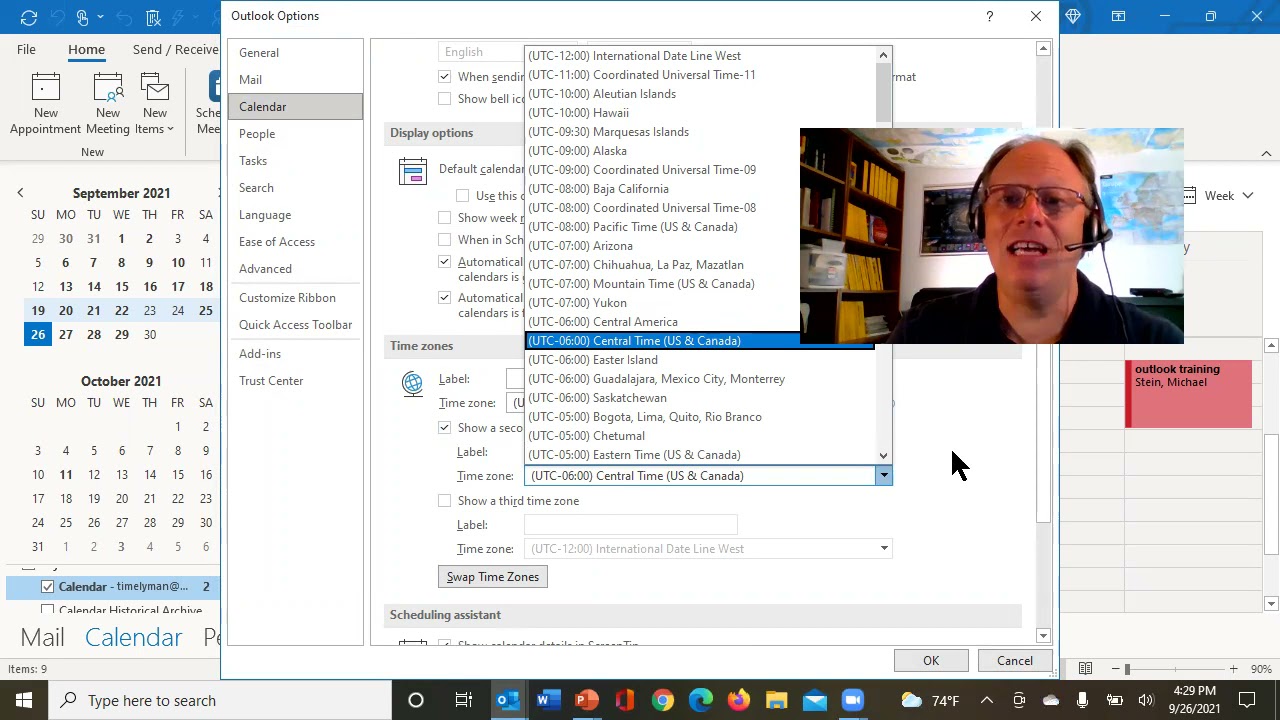
Randall F. Dean shows how to display multiple time zones in Outlook's calendar view. Go to File, Options, Calendar, then enable "Show a Second Time Zone" and pick your zones. Useful if you work across regions.
Chapters
Hey everybody, Randall F. Dean, Email Sanity Expert here. Uh, if you watched earlier this week, I loaded up two new microlearning videos, which are videos that basically take about 2 minutes and you learn one thing. Uh, if you look at my subscriber count here on my YouTube channel, you'll see I'm rapidly approaching another subscriber milestone, 4,000 subscribers, which is super cool. And to celebrate that, what I'm going to try to do is make 40 of these microlearning videos. And so this is video number 3 in the series, uh, how you can show— easily show a second time zone in your Outlook calendar. So let's pop in and show you how easy this is. I'm going to pop out of here and go into my Outlook calendar. There you go. As you see, it's showing my standard time zone here in East Lansing, Michigan. But all I need to do if I want to see a second time zone is pop up here to the File tab, upper left corner of your Outlook screen. I'm down to Options and go to Calendar. And under Calendar Options, if you page down just a little bit, right here, Show a Second Time Zone. And notice that I've already set it up for Central, but you can actually adjust and set it to pretty much any time zone on planet Earth. And you can give it the name that you want it to be when you see it on your calendar. Notice that you could even do a third time zone if you want it. I'm going to hit OK. Let's see what this does. And boom, there it is, Central. So notice that here I am in Eastern time, but I can see that it's an hour earlier than Central time. Yay! Probably super useful if you're doing work with international firms over and across oceans. So just something to think about, but it could just help remind you that when you're calling people in other offices, what time it is there too. Hope you found this microlearning tip super helpful. Uh, once again, I am Randy Dean, the email sanity expert, and that's me there looking more professional. Uh, and I'd like to thank you for your time today. If you'd like to learn more about me, go check out my website, randaldean.com. And if you want to get a whole series of PDF tip sheets on time management, email management, Outlook usage, Google usage, smartphone tablet usage, better managing your distractions, Send me an email, randy@randalldean.com, put YouTube PDF in the subject line, and I'll send you way too much information. Thanks.