Microsoft Outlook: How to use the Categories (Labels!) in All FIVE Primary Outlook Functions!
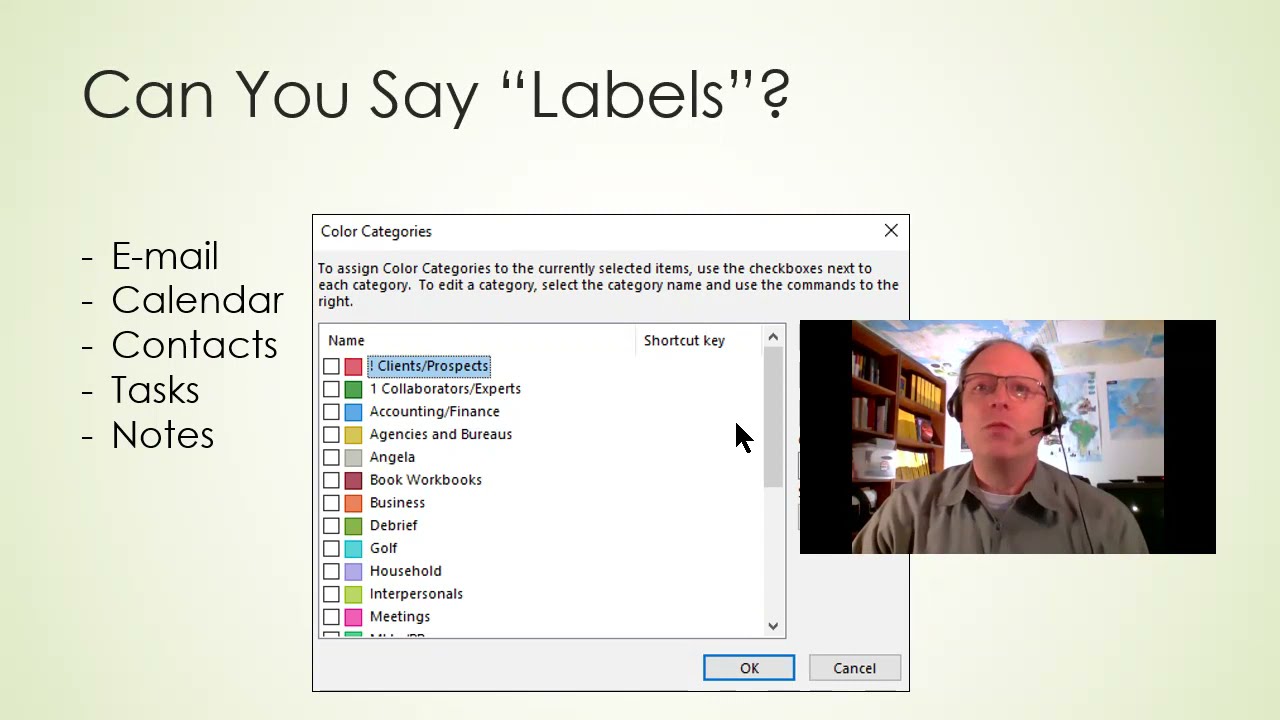
Randall F. Dean shows how to use Categories (labels) across Outlook's five main areas: Email, Calendar, Contacts, Tasks, and Notes. Tag items with multiple categories instead of forcing them into folders, drag categories between item types, and search across everything at once. Deleting a category removes it everywhere.
Chapters
All right. Hi everybody, Randall F. Dean here, email sanity expert. And I wanted today to dive into a feature that's in Microsoft Outlook that I think a lot of people are underutilizing and could get a lot more out of, which are these things called the categories. Uh, and if you've seen this before and you're not really sure how you can integrate that into how you're using your Outlook, this is the video you've been waiting for. So let's dive into this thing. And the easiest way for me to describe what these things are— can you just say labels? Actually, in a lot of ways, I wish they called these labels instead of categories, because I think it would make it easier for people to maybe understand what they really are. So let's dive in and do a little work in this. I want to pop into my Microsoft Outlook. And one of the things that I want to share with you is that you'll see that in a lot of the different functions, The categories are prominent. They're, they're there and they're available. And what you can do is click any place you see this little categorize icon and come down here to all categories. And when you click on all categories, it's going to bring up your category wizard, which then allows you to basically take these things which most people have as red category, green category, blue category, tan category, purple category, And you can rename them. See right here, you just click on it and then you can hit Rename and it gives you the option to rename it. And if you look at what I have done, look what I've done with my categories. They are my key projects, my key sub-projects, my key clients, my key customers, my key vendors, my key co-workers, my key activities, my key events. I even have a couple personal ones in here if you're going to use your Outlook to do a little bit of your personal stuff. And the beauty of this is that you can customize them to work for you, for your most important stuff. They're unique to you. So when you create these, these are your labels, and then you can use these labels across all 5 of the Outlook functions in several very useful ways. Let's talk about the useful ways you can use these across all 5 of the functions. And as you can see One of the things that I'm doing is I'm saying that you can use them in email, calendar, contacts, tasks, notes. Let's dive into that and talk about it. And for me to do this, one of the things I'm going to do right here is I am going to stop my video so you can sort of watch what I'm doing on the screen a little bit better. So let's dive into this and talk about this a little bit. I'm going to now pop right back into my email, and when I go into my email, I want to show you something here first. Notice that this email right here I've already categorized. It's got 3 little marks under the Categories column. Now let's open it up and see what those 3 marks are. Angela, which is somebody that is one of my better business partners. Marketing PR, which is, uh, one of the main projects it's on, but it's also related to my clients and prospects. So in a way, almost tagging it a little bit for like CRM. Now what I can do is I can come up here once again, the Categorize button, In this open email, what I can now do is if I want to change this at all, I could add business, but I could take away client prospect. And now if I close the email, that change is now notified here. Now it's sort of nice because as you can see, you can label your emails with multiple labels. Now why is that important? Well, Well, here's the thing. Have you ever had an email that you were done doing what you needed to do with it right now? Meaning you either got it done or at least you got it on your task list or your calendar. By the way, I have other videos about that on my channel. Check those out. But you're done with it for now. So you sort of want to file it, put it away, save it for later. But then you run into this problem. The email that I'm dealing with right here, it's related to the main project I'm working on, the subproject I'm working on, one of my key clients. It's for them. And I've got a vendor involved with it. Coworker Bill's involved too. What folder do I put it in? You know what I see a lot of people do? They don't put it in a folder. They leave it in their inbox, cluttering up their inbox because they can't make a decision on what folder to put in. With categories, you don't really have to make that decision because you can put it in everything it's related to. And if there's something missing, you can make the new category the way I showed you by clicking on this and going to all categories. Now the beauty of that is that means you don't have to make that hard decision about putting something away. And I did another video about the recent changes to the search tool, which you can see right up here at the top. There's the new search bar. They changed it. It used to be down here, now it's up here. It's basically the same, but go check out the video. I'll give you the link in the comments below. But one of the interesting things about this is, take a look at this. So let's say you tag the email with multiple labels, categories. Come up here to Search now, and let's say you go later to find the email. It's not in the folder you thought you put it in, so you click on Search to find it, and then you click over here to the far right and sort of the gray top bar. Now notice they've got this, this search bar right here that they— that's the dropdown. But look over here. If you just click over here, you get your old search panel including search by categories. And notice this, if you search all Outlook items by categories, you can find your email, which means you can put your email away. I think this is one of the critical things that will allow people to better clean up their mailbox, is by being able to label their emails before filing their emails to help them find those same emails later. You're not going to be likely to put something away if you don't think you can find it easily. This helps immensely with that. This is one of the reasons my inbox looks like this. Now, the other thing that's really cool about this though— there's more right here in the email. Watch this. Now, if I take the same email and I do a right-click on it— now, I actually have a whole other video about all of the right-click options that are right here. One of the right-click options is right here, categorize, which means you can add categories here also. But this is the thing that I really wanted to show you, which is cool. There are a couple below is Find Related. Now notice what Find Related gives you. All messages in this conversation, meaning it's based on— it's basically doing a search based off the subject line of the email, finding all emails basically with the same subject line. All messages from the sender, same person. But look down here, if you have labeled that email That label now gives you the option to search by that same category for other emails with that same label. So you don't even need to go up here and do a search. You can just right-click, come down here, and hit Find Related, all messages with Angela. It's that easy. Pretty cool. But wait, now there's even more. Uh, by the way, I did another video. I'll leave the link in the comments below about how you can quickly and easily convert emails into task Calendar and contact items in Microsoft Outlook. Watch this. This is sort of the shortcut to it. I'm not gonna do as deep as I did in that video. That's in the comments below. But here's how you make a task. You do a left click, you hold the click. I'm holding the click on my mouse right now. Drag it down to Tasks, the word or the icon, drop it. That creates a brand new task. And I could change the subject line so I know what it is. Show everyone how to turn email into task. That's great. Thanks for that, Randy. But what I wanted to show you is right here. Look, when I do a drag and drop to create a task from an email, if that email has already been labeled, the labels come over to the task. Now remember, these labels are unique to you, but they're not unique to the functions. And when I say that, what I mean is this: you've got email, calendar, contacts, tasks, and notes. Those categories that you're setting up in your email will also work in the calendar, also in the contacts, also in the notes. Now, one interesting little side note about that, um, sometimes there's certain categories you don't use maybe in your calendar, but you do use them in your task list. If you're working on your categories list, don't delete a category you know you use in your calendar because you don't use it in your task list, because then it disappears from all of your functions. See, they cross across all the functions. So you want to keep all of the categories you're using anywhere in your Outlook. So that's a little watch out. But the beauty of this is that if you do the drag and drop operation, it brings it right over into the task that you have. Now what's interesting is I'm going to come back to how I'm using categories and tasks a little bit later. Let me show you something else that's pretty cool. I'm going to close this. I'm not going to save these changes. I'm going to now make a calendar item based off of the email. Left-click, hold the click, drag it to Calendar, drop it. Notice once again, same thing, brings the labels over. But now here's something that's really interesting. I am going to actually save this meeting on my calendar right now, and I want to show you something sort of cool. So I'm going to hit save and close. Now I'm going to open up my calendar. Now if I open up my calendar and move out of the way, this is what I wanted to show you. Take a look at this. That item that I just created, that's how you can color code items in your calendar. Now notice I've got a client prospect thing that was up here. I am going to simply right-click on this, categorize that client prospect. This is— was a doctor's appointment. Which is personal. And if I move this one over here, this was also a client prospect thing, but it was related to one of my streaming programs. So I'm going to come in here and label that one streaming programs. And what I wanted to show you is that's how easy it is to color code your calendar. Just use your categories to color code your calendar. However, here's the other thing. Notice that this one has all 3 labels. Once again, you can come up here to search, click on the search field, click over here. You can search your calendar by categories also. Have you ever had to go back and find something 6 months ago but you don't know exactly when it was 6 months ago? If you knew you were labeling all of your calendar items with the proper labels, a la categories, guess what? It's going it's going to be a lot easier to go right back and find that calendar item using your search tool. See, I think that one of the best things about labeling— there's two really good things about labeling. One is it's going to really help you with cleaning up your emails and putting them away. The second thing though that it can do is that it can also basically allow you to, um, you know, when you're thinking about this, it can allow you to find stuff when you need to find it by utilizing the search tool that much better. Okay, so just keep that in mind. Now let's go one step further. I mentioned people and contacts. Let's go back to my mailbox again. I want to do one more of these for you. I'm going to create a new contact for this Randall F. Dean guy. Why not? Let's do this. Left-click, hold the click, drag it down to People, drop it. That creates a brand new contact. Notice it auto-populates. Watch the other video about this drag and drop because I show you a really slick way to fully populate this thing very quickly. But what I wanted to show you is right here, it also once again allows you— it brings those labels right over and you can add more labels. But the beauty of this is that once again you can do search in your categories by label, which is by category. Which means if you have them labeled properly, you can get to those contacts that you need to find that much more quickly. In essence, you can sort of actually organize it. And actually, let me show you something here in a second. In my task list, in my notes, I believe you could do the same thing with your contacts to help make your contacts that much better organized too. So let's get out of here. I'm going to close this and go back into my task list. Now let's go into Tasks. Here's my task list. I actually did some recent videos, one's a little bit older, all about the Today view. I'll put that in the comments. That's my preferred primary view in the task list. Right now I have it on the Next 7 Days view, which is sort of a nice view too. It shows today and 6 days into the future. You can see what's sort of what's going on. But what I wanted to show you is that notice that I've got a column here for categories. So if I labeled my tasks when I created my tasks, I can see which projects, clients, customers, vendors, co-workers, activities, events, sub-projects these tasks are related to right there on the screen in this standard view of the next 7 days. However, this is a time-based view based on today and moving into the future. There's another view in here called Active, and I want to show you what I'm doing that's a little bit different in this Active view. This is all tasks that have not been marked complete. That's what the Active view gives you. And look what I've done in here in the Active view. Let me move myself out of the way a little bit. I have actually sorted my tasks by category. Now, how did I do that? It's real simple. I just did a right-click up here on the top bar Arrange by categories. Now if you do that, the beauty is that instead of seeing my task list based by date, I can see my task list based by project, subproject, client, customer, vendor, coworker. So, so I have two different ways to look at my task list. I have the what's going to happen today and into the future view, time-based view of my task list, and this is my project activity event person-based view of the task list. And I can go into any one of these and see the task list for those items. Really like that capability. Now, what— here's the other interesting thing I mentioned about how you can go backward in your calendar using your labels as an easy way to search and find stuff. You can do the same thing with your completed tasks. Hey, look at that calendar! Watch this, I'm going to go to Completed, and this is the standard view. It usually shows you what you got done today, and then earlier dates. But watch this, just like I did earlier, I can right-click, Arrange By, Categories. And what happens is then the task list does something pretty unique. It will then take your task list and allow you— you just collapse these bars to see what you've got done by different projects. So project, client, person, customer, vendor, coworker, activity, event. You can really use this as a way to see how you did stuff, when stuff got done, for your specific most important items and people. So this is a really powerful tool, but you got to remember to label these things when you create them. Label the emails, label the tasks, label the calendar items. Here's my little reminder about my snooze. I'll dismiss that. Label your contacts, because by doing that I know it takes a few seconds to add those labels and create those labels, but at the back end, it's going to save you so much more time. Oh wait, there's one more. We haven't talked about notes yet. Now I actually did a whole other video about notes in OneNote, you know, the actual OneNote app down here in your Microsoft 365 account. But as part of that OneNote, uh, video, which I'll put a link in the comments below once again, As part of that link to that OneNote video, I talk about how these notes in Outlook, you can actually see them in the OneNote app on your phone, as well as right here if I go up here to the Windows icon and this thing called Sticky Notes. So you can actually see the notes that you created in your Microsoft Outlook notes in the Sticky Notes on your desktop, as well as in the Sticky Notes area in the OneNote app on your iPhone or Android. Notice once again what I'm doing with my notes. I actually did a whole video about all the things you can do with your OneNote app in terms of getting yourself organized. A lot of those came from originally me doing these in Outlook like 20 years ago. These are a lot of the things, but what I've done is once again right-click, arrange by categories, and then I can have them all categorized, including things like my shopping lists. They're all together because they've all got the same label. It's really that simple, and it's a powerful tool, but it's one that I said I, I have seen over and over being underutilized. And so now I hope this gives you some ideas on how you can not only create these labels and manage these labels, but even better, uh, how you can effectively start to really utilize these labels as a much more powerful tool for managing your information in all of the different areas in your Microsoft Outlook. All right, so I hope you enjoyed this video. Once again, I am Randy Dean, the Email Sanity Expert, covering myself up in the background. Thank you for your time. If you like this video, please consider subscribing to the channel, give it a thumbs up. And, you know, also if you'd like to get more information about what I do, go out to my website. I actually just posted a link to a new live webinar I'm going to be hosting in early April. So if you're interested, go check that out if you'd like to take a longer full-length program. Um, the other thing that I wanted to mention is that if you'd like to get some additional bonus tips, I have a whole series of PDF tip sheets on time management, email management, Outlook usage, Google and Gmail usage, smartphone, tablet usage, etc. If you'd like to get access to those bonus sheets, send me an email randy@randalldean.com. And just put YouTube PDF in the subject line, and I'll send you a whole bunch more information to allow you to continue your learning and professional and personal development activities. And with that, I'm going to say thank you for your time today. Hope you found this one very useful. Bye now.
More from Randall

This simple #ADHD #hack might end your #tasklist paralysis called #executivedysfuntion #productivity

Have #ADHD? Do you make a daily #tasklist ? This might help. #tasks #productivity #procrastination

Found too many cool Petoskey Stones and “Greens” on vacation. Had to do something!


Another free #pallet project: I built a heavy duty #ladder stand for #housepainting

Quick Windows Tip: Organizing Multiple Windows on One Monitor or Screen for Faster Multi-Tasking!

Classic Outlook (New Screen): Converting an Email to Task, Calendar, or Contact Using Drag & Drop

Email Sanity Expert Tests SaneBox: Is This AI Email Tool Worth It? Might be for overloaded inbox!

Taming the Outlook Email Beast: 3 Flexible Learning Paths to Master Your Inbox (Video Course Intro)

#workspace #productivity multiscreen setup #email #calendar #pdf #outlook #gmail #microsoft #google
