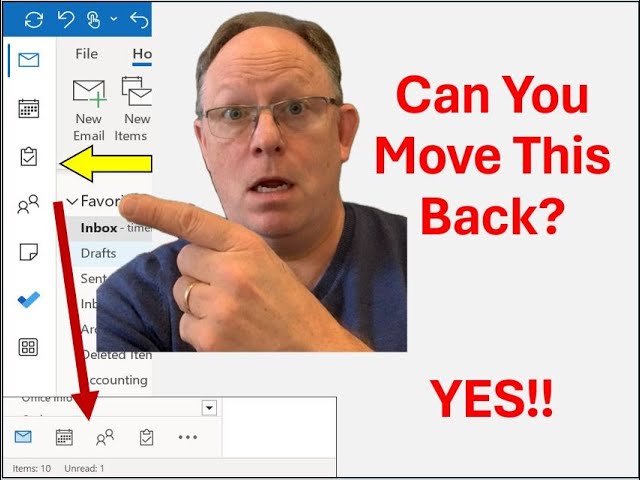
This content was created by Randall F. Dean. This content was uploaded by Randall F. Dean. This is a YouTube microlearning/tutorial video titled "New Microlearning Video: Moving the Outlook Functions Bar Back to the Bottom!" (created 2023-12-18). A single presenter, Randall F. Dean (who also refers to himself as Randy Dean), the "Email Sanity Expert," demonstrates step-by-step how to move Outlook's Functions Bar between the upper-left and bottom-left (File → Options → Advanced → toggle "Show Apps in Outlook" and restart Outlook). He notes extra features available when the bar is upper-left, points out the ellipsis menu for notes/folders/shortcuts, and provides contact information and a link to his website and downloadable PDF tip sheets.
Chapters
Hi everybody, Randall F. Dean, Email Sanity Expert here. And hey, um, this is going to be a super quick video. This has been one of the more common questions I've been getting ever since Microsoft moved the functions bar from the bottom left to the upper left. Yes, you can move it back. So let's show you how to do that. I'm going to pop out here into my Outlook. And it's a two-step process. So you'll notice right now my Functions Bar, I've moved back to the bottom. All you need to do is come up here to the File tab, come down here to Options, and go to Advanced. In Advanced, you will see this new little checkbox, Show Apps in Outlook. Now, if you select this and you hit OK, it's going to say you must restart your computer. Let me make myself a little smaller so you can see this. I'm going to hit OK and then I'm going to restart the computer. Not computer, the Outlook. That would end the video. Then let's reopen Outlook and watch what happens here. It's thinking for a second, but let it reload. Here it comes. Now my functions are back. Now what's interesting is I'm going to connect the following video because I think you might still want them up here because there's some extra features if you have them up here, that you don't really have when they're on the bottom. But watch for that video at the end. It'll be the video on the end screen of this video. But if you really, really, really prefer to move them back, once again, all you have to do is come up here to File, Options, and now deselect the checkbox which requires restarting Outlook. Hit OK and close your Outlook and Reopen your Outlook, give it a second to think. The apps are back at the bottom, see? So that's how you do it. It's that simple. Just simply, um, go into your settings and you can either have them upper left or lower left, your preference. One last thing, notice that you got the ellipses down here. I always say whenever you see the three dots, click. Here's where you go to find your notes, uh, set up and open your folders, uh, maybe create some shortcuts. So, uh, go take a look at that also, uh, if you do move them back. But, um, just wanted to show you, you can get them back to where they were before. Microsoft moved your cheese, but you can put it back. All right, let's finish up this video. Uh, once again, I am Randy Dean, the Email Sanity Expert. And if you'd like to learn a little bit more about what it is that I do, go check out my website, randaldean.com. If you'd like to get my whole series of productivity PDF tip sheets with lots of tips on Outlook, Gmail, Google, smartphone, tablets, and apps, et cetera, send me an email, randy@randaldean.com. Just put YouTube PDF in the subject line and I'll send that on to you. Hope you found this one useful. Thanks everybody. Bye now.