New Taming E-mail Beast E-Guide Video Tour: Something NEW for My Clients and Live Programs in 2020!
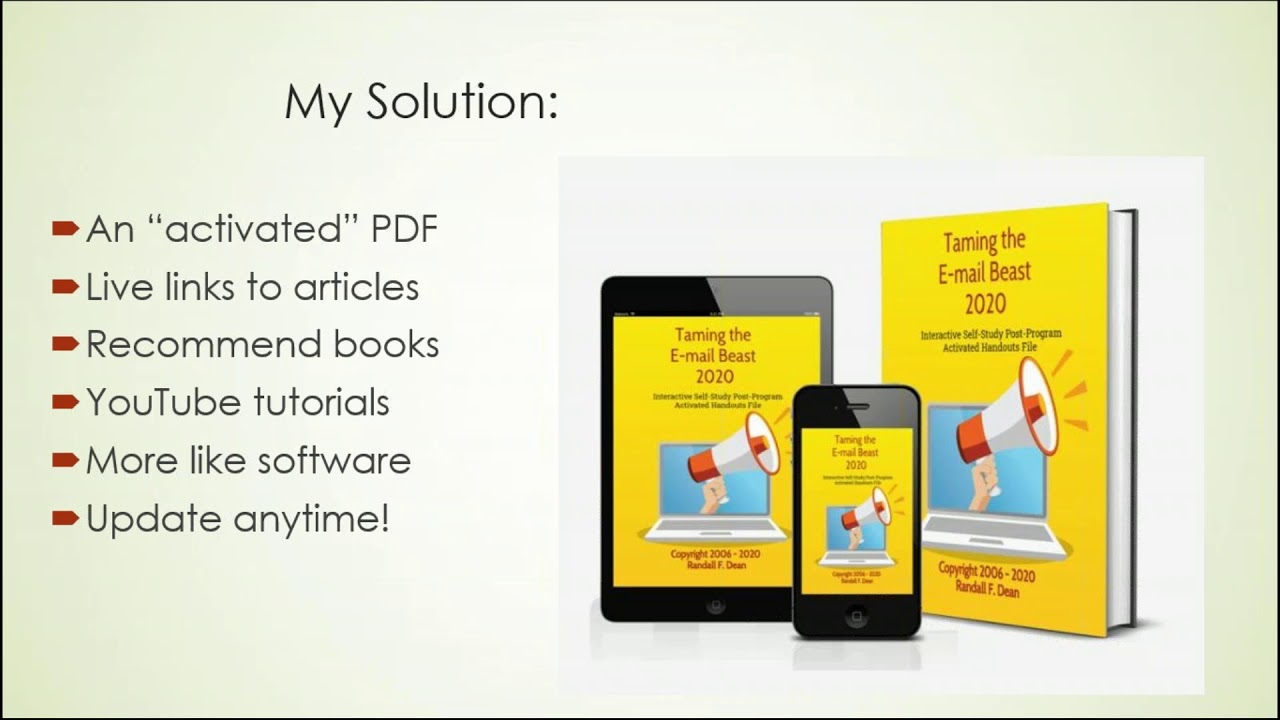
Randy Dean, the Email Sanity Expert, created an activated PDF format that updates continuously and embeds links to YouTube, articles, and slide decks. It works on any device with simple Adobe shortcuts and turns training guides into interactive self-study tools. He's already released two updates in three weeks and plans guides for Outlook, Smartphone Success, and Google Suite.
Chapters
Alright, good morning everybody. Hi, this is Randy Dean, the Email Sanity Expert, and I want to share with you something exciting and new that I'm going to be doing now for my new client events in 2020 and beyond. As you can see on the front screen, I've identified sort of an interesting little situation with my business and my content that has caused me some issues in terms of how to best publish my materials. And so what I've done here, which is I think a little bit unique is I realized that with the fact that I'm sharing so many tech tips and strategies using software and how fast software is now changing, especially in this day and age of the cloud and both the Google Suite and Office 365, the second that something gets printed, it's obsolete. It's just no longer relevant. And things are changing so fast that it's making it really hard to do anything in a traditional publishing model. Additionally, if you do publish you publish through a traditional publisher, they can sometimes hold your content hostage, basically, for up to 2 years. And then even if you want to distribute it to the people that are going to benefit most, they're going to require royalty payments for every single thing that you do. Which I just find a little bit unwieldy because I sort of like to follow the freeware model and get stuff out to people. Additionally, you know, a print book Links don't work in a print book. It's clunky. You can't give people links to interesting additional articles. You can't give links to YouTube tutorials. You can't give them links to other resources they may find useful. It's just a clunky experience. I've tried to make it work in the past, but it's never easy for the person reading the book. It requires a lot of extra work. And finally, this is just basically the way I teach my programs. The most common thing people tell me when I get done is, my gosh, you just shared so much. "how am I going to remember all of this?" You know, and I do like to give a lot of information in my programs, but I also understand that for some people that are in my programs, it's kind of hard for them to keep up, especially if they're not really savvy computer users in and of themselves. And so I've been sort of bouncing my mind around, how can I get it so that people can see my presentation and then after the presentation be able to really embrace the strategies and techniques that come in and master those new skills? And, and so with this, I I found a piece of software late last year that allows me to create what I call an activated PDF file. Now, it's an electronic PDF, and what I can do is I can actually send it out to people after my program, and then they're not going to print this thing. They're going to keep it in electronic format and run through the PDF as they want to do a self-study following attending one of my live programs or webinars. Now, what's neat about the activated PDF model is I can give hot links to 5 articles, both by myself and by other thought leaders, on additional content that may be relevant for the discussion point within the session. I can give links to books that I recommend. I can also, of course, and this is critically important, I can also give them links to my YouTube tutorials that are specifically related to the techniques that they learned during my session. And what's interesting is you may have noticed I did several new YouTube videos this month as I was building this video, and the reason is is because I built this new guide and I realized, oh geez, I need to make 2 or 3 new videos to make this even more robust. And those videos that I just created are going to go right into the next version of this model. It's almost like the software model. And when I say the software model, you know, the cloud-based software model means you put out an update, and as you put out the update, you're sort of watching what happens with that update. And as a developer, you can change the code and fix things or add in new features and then release a new update. You can't do that with a book. Not easy. But you can certainly do that with an online PDF model. And that's sort of what I've put together here. And I've already done 2 revisions to this guide. I just released it 2 weeks ago. I've already done 2 revisions, and this weekend I'm going to be doing a 3rd revision, adding in several new videos and changing some of the copy. So this is the beauty of this. Let's go take a test drive and I'll show you what I mean. I'm gonna pop out into my Adobe Acrobat Reader. And I want to show you something sort of cool here. This is a little Adobe tip for you. So when I opened up the file, it brings it into the normal Adobe screen. But watch this. If you do a screen— a keystroke combo Ctrl+H, watch what happens. Whoops! There we go. Sorry about that little delay. I think what happened was it was still on my webinar manager, but this is what happens when you do a Ctrl+H. It goes from normal model to— take a look at this— it's now in a read mode. And now I want to show you something else. Do Ctrl+-. And if you do Ctrl+H and Ctrl+-, you can basically get this thing just like a book. It's a book on your screen. Here's the other thing. Of course, you could use this on your tablet, and you could even read this very nicely on your phone. And that sort of brings up some interesting opportunities. Let's say you've got a single laptop computer at your work desk, you don't have a second screen, you could have your tablet or your phone right next to your computer and you could be going through the studies and then actually being able to, you know, try some of these things on your live computer in your live software. So that's sort of cool. Remember, that was Ctrl+H to go to read mode and then Ctrl+ and Ctrl+ to change the size of the screen. But now what I want to do is I'm going to page down a little bit and I want to show you a couple things. One, I mean, obviously it's, it's, it's Pretty attractive. It's nicely formatted. Here's the first point I want to show you. One, I can bring in the actual slides from my Live OnStage session. And so by bringing in these slides, what that means is that it's going to follow along for the people that attended the session. They're going to get into the booklet and they're going to go, "Oh yeah, this is what he was talking about up on stage. I remember this." But then here's what's different. I'm actually bringing in follow-up questions and making it almost like a self-study experience. So people can actually go through some of this stuff and ask themselves, "Wait, how is this relevant to me?" Is this part of my situation or issue depending on the content that he had? So that's the first little thing. But now let's go a little bit deeper here. I can bring in quotes from thought leaders and things like that. I can also bring in some of my graphics. So like here's one of my little slides that talks about how you get this done. But now here's the kicker. One, like I said, it's got some artwork. I can give some additional information. But this is what I really want to show you right here. One, Notice, here's a link to a book that I strongly recommend. So now I'm going to click that link. Look what it does. It automatically launches you right out there to the Amazon webpage where you can go find information about this book. Now let's go back to the PDF again here real quick. So when we go back to the PDF though, so I can keep rolling. Let's see, notice what else I can do. YouTube tutorial video, how to convert your email into task and calendar items. Launch that. And it takes you right to the YouTube channel and it starts to launch the actual video. So this is super cool because it means that you can do real-time analysis and learning. And the beauty of the YouTube model that I love is the fact that as you're watching the video, you know, I move a little bit fast. Hit pause. Oh, that was cool. How do you do that? Well, I'm going to hit pause. I'm going to try this right now. Then I'll keep playing the video until I master this technique. So really what this is designed to do is allow people to master these techniques after they attend the live session. And because I'm not running this through a publisher, I found the software, I'm building these guides on my own. That means I can distribute them without having to worry about royalty payments to a publisher, which means that this is something new that I can do for my clients starting right now. My clients, my program attendees, they're getting this. I've already been distributing this to 2 or 3 of the big conference events and client events events that I've been working on this year. And I, like I said, I'm about to do the third update to this. It's been out for 3 weeks. You can't do that in the traditional model. And so what I'm going to do is start making this available for all new client events and bookings, all new webinar programs that I'm doing. And of course, I've got one right now here, as you can see, for my Taming the Email Beast live program. But my plan is to make these for all of my programs, uh, and probably the next ones I'm going to be doing are my Optimizing Your Outlook, which is the deeper version on how to use Outlook for time and productivity management, client management. I'm going to be doing my Smartphone Success program into a guide, which is how to better utilize your smartphones and tablets. And you see why you need something that can be immediately updatable if you're doing a program on smartphones and apps. And, and then I'm going to do one on my time management using the Google Suite program. So all of these are going to have affiliated guides just like what I showed you here on the screen. And the goal is to make them available so that right when the session session is done, I'm going to give people download instructions on how they can go get this right off my database and have this as a take-home, as a super value-added tool once my session is over. And I think it just sort of changes the game on this. My long-term plan is maybe to even take this out and find other authors and experts and show them how to build similar guides for their content. But right now, my focus moving forward is just to do this for me so I can build these programs out and give this value to my clients and customers. And so with that, watch this shift function F5. That's how you can launch right into PowerPoint mode. I want to say thank you for your time. I hope you're as excited about this as I am. If you'd like to learn more about me and my different programs, please go visit my website randalldean.com. If you like my videos on YouTube— now notice the YouTube videos are now fully integrated with these new program guides. The guides will lead to YouTube and YouTube might lead to the guides. If you like this video, go ahead and subscribe. And you know, I have other PDFs too. If you'd like to just get some really good information on time management, email management, how to better use Outlook or the Google Suite, how to get more out of your smartphones and tablets, send me an email at randy@randalldean.com and put YouTube PDF in the subject line and I'll get you some bonus PDF information and I'll probably give you a link to where you can go find this guide, maybe for a little discount off my website. So with that, I hope that you enjoyed today's video and I hope you enjoyed this exciting new information. Thank you.
More from Randall

This simple #ADHD #hack might end your #tasklist paralysis called #executivedysfuntion #productivity

Have #ADHD? Do you make a daily #tasklist ? This might help. #tasks #productivity #procrastination

Found too many cool Petoskey Stones and “Greens” on vacation. Had to do something!


Another free #pallet project: I built a heavy duty #ladder stand for #housepainting

Quick Windows Tip: Organizing Multiple Windows on One Monitor or Screen for Faster Multi-Tasking!

Classic Outlook (New Screen): Converting an Email to Task, Calendar, or Contact Using Drag & Drop

Email Sanity Expert Tests SaneBox: Is This AI Email Tool Worth It? Might be for overloaded inbox!

Taming the Outlook Email Beast: 3 Flexible Learning Paths to Master Your Inbox (Video Course Intro)

#workspace #productivity multiscreen setup #email #calendar #pdf #outlook #gmail #microsoft #google
