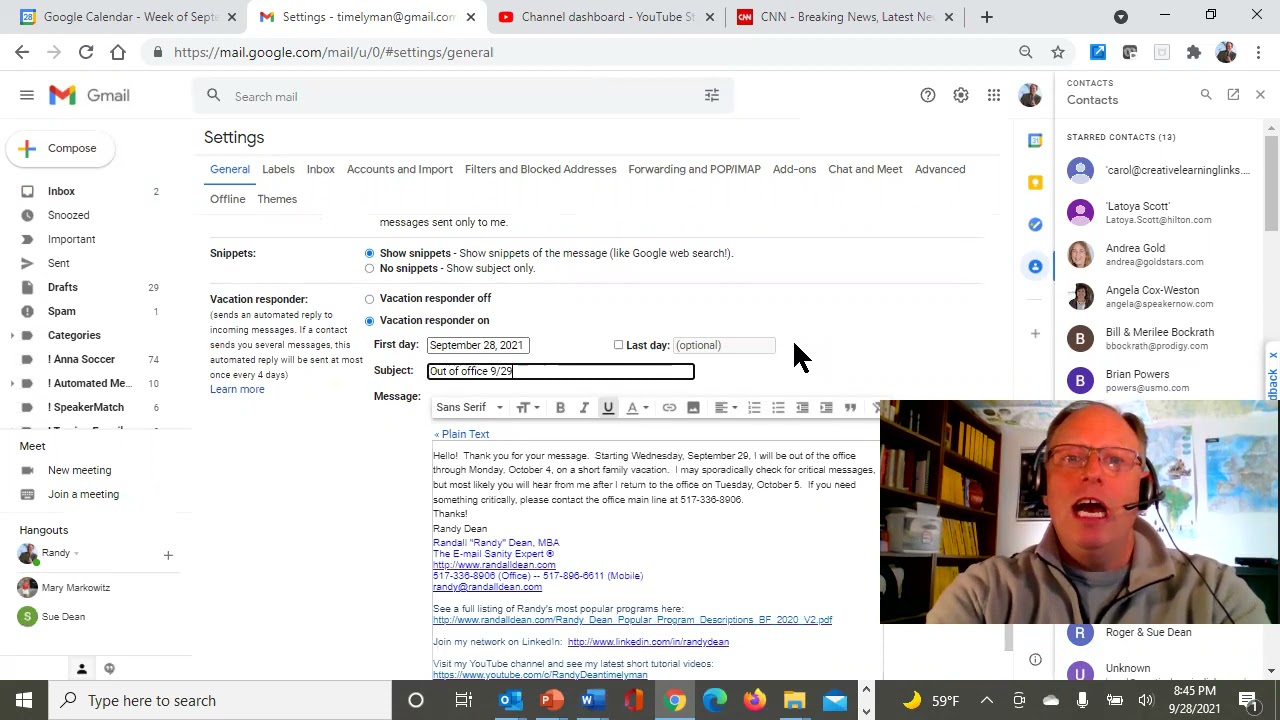
This content was created by Randall F. Dean. This content was uploaded by Randall F. Dean. This is a YouTube microlearning video titled "Next Microlearning Video: Setting up Gmail Out of Office Autoreply" (created 2021-09-29) featuring Randall F. Dean (who introduces himself as Randy Dean, the "Email Sanity Expert") giving a solo, step-by-step tutorial on how to set up Gmail's Vacation Responder/out-of-office auto-reply. The presenter demonstrates navigating Gmail settings, using template text (and copying in a signature), configuring start/end dates and recipient scope, and notes Gmail only sends the autoresponse once every four days. He also promotes related productivity PDF guides and provides contact information (randy@randalldean.com) and a call to like/subscribe.
Chapters
All right, hi everybody, Randy Dean, Email Sanity Expert here. Hey, I just did a video about how to set up your out of office auto reply in Microsoft Outlook, so I figured it would only be fair if I made the exact same video for all of my Gmail viewers. So it's super easy, watch this. Just go into your Gmail and inside your inbox you'll come up here to the settings gear Click on that and then you'll have the quick settings panel. But I recommend you just click on the button, see all settings. That takes you back to the settings that we used to have a couple years ago, the, you know, the top panels. And then click on the General tab if it's not already selected. And here all you do— let me move myself out of the way a little bit— is just page all the way down to the very bottom, because at the very bottom you'll see Vacation Responder. And what you can do is then turn it on. But let me show you my little trick I showed in the last session. You could obviously do this in Google Docs Docs too. Why not consider making a template document for these in your Word or Google Docs? I made this one template document right here. And if you take a look, here's my vacation one. You know, it says, hello, thank you for your message. I'll be out of the office from then to then. Here's how you can get ahold of somebody. And what's interesting is I also took one of my standard signatures and I actually put it right there with the template because now I can highlight that, do a Control— whoops, hold on, let me highlight that again. Do a Ctrl+C, and now go back to that panel in Google and then come down here and do Ctrl+V. And now that we've got this, I can then put in the subject line, "Out of office 9/29 to 10/4." I'm not really going to be out of the office, but I'm going to put this in. And notice this, you can actually have first day of today, or you can even set it for Tomorrow and last day, take a look at this, 10/4. That hard, it's not hard. But wait, I got one more little bonus idea. Don't go away yet because wait a minute, let's turn that off and let's select all this text. Hold on, I'm going to do a Ctrl+A, which is a select all, and I'm going to delete all that because wait, what about this option? What if you're just going to have a really busy, crazy day in the office with lots of meetings Here's, here's a second template. Notice each time, by the way, I'm telling myself to fix the date. Wednesday, September 29th, I'll be leading several client sessions. Most likely I'll get back to you by the following day. Bring that one in, do Ctrl+V, and then what you could do is come up here and just change this to lots of meetings on 9/29. And what you can do then is first day and last day, make that 9:29. Awesome. Easy peasy. Notice that down here you could say you only want to go to the people that are actually in your contact list, and then you hit save changes. One little interesting thing about the Google autoresponder I notice is right here. Notice that if somebody keeps emailing you even though you— they've gotten your out of office, they're only going to get that response once every 4 days. That'll teach them. So, all right, with that, I'm going to end this. Let's go back to the actual presentation. And, uh, if you like these videos, uh, I'm once again Randall F. Dean, the Email Sanity Expert. You can learn more about me out on my website. If you like the video, please consider giving it a like, consider subscribing to the channel, and, um, make comments if you have other ideas you'd like to share. Uh, the other thing is I've got a whole series of productivity PDF sheets on time management, email management, Outlook usage, Gmail and Google Workspace usage, smartphone tablet usage, managing distractions, etc. Send me an email, randy@randalldean.com, put YouTube PDF in the subject line, and I'll send you a whole bunch of stuff for your own self-study. Thanks everybody.