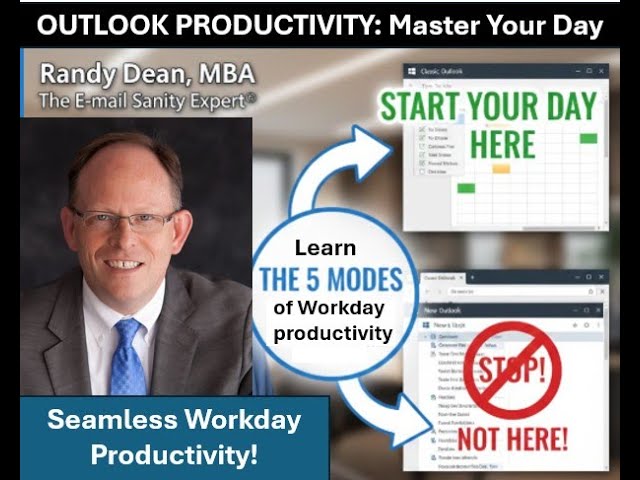
In this 16‑minute excerpt from his Microsoft Mastery video series, Randall F. Dean walks viewers through a detailed, end‑to‑end routine for managing a workday with Outlook and Microsoft To Do. He begins by emphasizing a calendar‑first, task‑list‑second start‑of‑day, showing how to set up a focused list of projects, activities, and constraints in both Classic Outlook and the newer web version. He then introduces an inbox‑triage decision tree: read each new item, act immediately if it takes ≤3 minutes, otherwise convert it into a task or calendar entry, label it, and file it. This triage is extended to all incoming inputs (voicemail, fax, IM, etc.). Dean discusses optimal email‑checking cadences based on role, defines several work “modes” (processing, get‑things‑done, meeting, crisis), and recommends a dual‑screen layout (calendar on one screen, task list on the other) with phone reminders for meetings. At day’s end he shows how to mark tasks complete, review what was unfinished, and roll items over to the next day. He concludes by previewing a forthcoming module on aligning daily planning with higher‑level personal and professional goals.
Chapters
Hi everyone. Randall F. Dean here. Hey, as you know, I have been working and making slow but steady progress on my new Microsoft Mastery video series. And as part of this, I've been going through the video editing process Almost done with the Outlook video now, but I came across this snippet in the third video, which is the final Outlook video in the series. And I just thought, wow, you know, this sort of lays out some of the best content that I could put together on how to maybe manage and work your workday more seamlessly, more focused, a bit less distracted but able to handle the unexpected. And so I hope you really like this. I think, um, it's like about a 16-minute snippet of the video, and it just gives you a feel for what I'm trying to do with this. The nice thing about the format of what I'm doing here is that it gives me the time to elaborate more deeply on topics that a lot of times when I'm doing my public sessions, and especially speaking at conferences in the shorter sessions, I just don't have the time to dive in as deep. Where the video picks up, I have just finished discussing how I recommend you start your workday not in your email, but in your calendar for a couple minutes and your task list. And I go through the process in both the classic Outlook as well as for new and web Outlook users. Of how I would recommend doing it in each version of the software so that you're in the right mindset to now go into your email and other inputs. And so that's where the video picks up. And so I hope you find this useful. I feel like it's some of my best knowledge work, so enjoy. See what I did there? I didn't procrastinate, I prioritized. And right here is where I want you to be 3 to 5 minutes into your day through your calendar and creating a tight, focused task list that reflects your key projects, activities, events, people, but also acknowledges your time constraints of that day. Because that means you got to plan. Now you got, you got your time set up and you've got your task set up and you Yeah, you could have this on two screens. So you've got Calendar on one screen, Task List on the other. And now, now, what's it time for? More coffee, because you're about to get into your email. All right, but I wanted to show you all these bells and whistles in both versions, um, to allow you to see that you could use both to do either/or and any of them to do either/or. They have comparable views. I really do like this view in Classic Outlook better because of the way I can do these columns and the— I can do more on the priority. I just like it better. But if somebody said you can't use this anymore, this is no longer a thing, I could totally make this work. This would work. See, it went to 9. I'm not kidding. I was talking. All right. But this is where I want you to be 3 to 5 minutes into your day. And now, when you go into your inbox and do the inbox triage strategy that we've covered ad nauseam in the first 2 videos. By the way, if this is the first time you are doing this program, you decided to move this up to video number 1 and you're going to do the Taming Email afterward. I'll bring this up just in case. You know, here's the thing that we covered extensively in that program. And so, you know, we'll just remind you now, you're going to go into your email. And when you go into your email, what I want you to do, new email comes in, you got to read it until you know what you need to do next. If it's 3 minutes or less, try to do it now. Only handle it once. Longer than a couple minutes, turn it into a task or calendar item, which is covered how you can do that using this drag and drop thing to the left in Classic and to the right under the My Day view. And new and web. And then before maybe you put it into a folder, you add some labels to those emails to make it easier to find them in search. And if you don't have a good folder to put it in, make one, put it there. Yeah, this is the decision tree. And not only are you going to do your emails this way, you're also going to try to triage all of your new inputs: email, voicemail, snail mail, documents, e-documents, faxes, text messages, IM, stacks, files, clutter. All that. You're gonna do that next, assuming you're not going to a meeting right now. Okay? And remember, like we said, all things will be adjustable and movable. If you got a first thing meeting, then you do this after the meeting. Right? You know, maybe you've got a first thing meeting that starts at 8:15. You got there at 8, you got your coffee by 8:03, you're into your Outlook. You've done your calendar review. You've set up your task list. You've had a chance to open the email and do a quick glance to see any big angry dogs barking. And then you grab your coffee and go to your meeting. But then when you come back from the meeting, You do this and you might spend the next 30, 45, 60 minutes at that start of the day, depending on whether it's a Monday or Friday, going through all those new inputs that have come in overnight. But here's going to be the difference from what you're doing now. Remember, right now what you're probably doing is taking a lot of those new things. I don't have time for this. Mark it on red flag. No, you're not doing that anymore. You're instead dealing with the quick ones, making the longer ones part of your task list and calendar, not just for your email, but for all inputs, voicemail, snail mail, et cetera. And like I said, that might be the next 30, 45, 60 minutes, but you are going to spend that time anyway going through all that stuff. But here's the big difference. Now you're only going to be looking at those inputs once, maybe twice. Whereas before, if you're like most people, you're looking at them 3 to 7 times each. How much time is that going to save you over a year? And because you have gone through the drill of looking at your calendar and your task list, you now have a frame of reference before you dive in to all these new inputs that have come in overnight. And so you'll be able to better assess, is this just my normal average squirrel or is this a big angry dog? And sometimes the big angry dog will be in there and you will give all of your focus to get that dog to stop barking. Right? Yeah, right. That's what you'll do. But here's where it's big difference. If you've been opening your inbox first instead, You're giving, I'm betting, a few squirrels big angry dog status. And that's how you find yourself working on the wrong things at the wrong time and not working on the things you really need to when you should. But if you can get into this drill at the start of your day, starting in Calendar, followed by a little review and tightening of your task list before you dive into all these inputs, That means you give yourself the opportunity to better assess those new inputs and prioritize them accordingly if they're not quick and gone. So, you should have a big wave of output during that first of the day where you're doing all your little 30-second replies and forwards, right? I mean, just get them done. Get that stuff gone so you don't ever have to look at it again and then prioritize what's left. Now, coming out of this, what you're going to probably do is go quickly and check your calendar. And if you're— there's no meeting, you don't have a meeting coming up right now, then because you know your inbox is under control, you've handled all the new inputs that have come in from overnight. 30, 45, 60 minutes into your day, you go to that task list. Now remember this, the task list will now probably be bigger because you just went through all those inputs and you probably added a few things for today. And now you might be stressed again because, oh shoot, now it's too long again. What do you do? Reprocrastinate. What is that a word? Reprocrastinate, the procrastination strategy for procrastinators. No, here's what I mean. You've added to it. It went from 9 to 14 too long again. We'll go through and do one more review and maybe redate a few more and get it back down to reasonable for today. And then get to work. It's time to get to work now. And work on that task list until it's time to either A, go to your next meeting or appointment, B, go check your inbox again to see if anything new's come in in 30, 45, 60 minutes, an hour, 2 hours, whatever. Whatever you decide is the right amount of time between when you last looked at your email and when you need to look at it again to be appropriately responsive, which is a bit different than immediately responsive, which I was talking about in the previous videos. I think if you're immediately responsive to everything, it's going to be really hard to get your work done if you're getting a lot of inputs coming in. So you got to figure out sort of that fine balance. How long can I go And it's going to depend on your job. I mean, if you're intensive frontline customer service, your, your regimen time might only be like every 15 minutes. You know, you'll take little, little breaks throughout the day when you're not doing email to get some work done. If you're on the other end of the spectrum and you're a heavy project manager expected to do deep-focused strategic project management type work of any level, Well, you probably should only be checking your email 3, 4 times a day. Maybe not even that. See, it's going to depend on the nature of your work, but whatever regimen you get on, you follow the strategy. When you go in, if it's new, you read it till you know what you need to do. If it's quick, you do it now. If it's not quick, it goes on to your task list or your calendar, add some labels, put it away, or get rid of it. And you're going to be doing that throughout the day. This is your processing mode, your input processing mode. When you're working out of your task list, you're in your get important things done mode, use my time best mode. When you're in, of course, your meetings, you're in good fellow employee contributor meeting mode. You write that one down. And then of course there's crisis mode when the big angry dog starts barking. And if you remember in the last session, we showed you how to set it up so that when you get an email from that party, you'll hopefully get a pop-up and a special sound depending on which version you're using. Um, so that way you don't have to feel like you have to check everything right now to see if it's from that really important person right now. And so that way you can stick to your regimen for most things, but you can still be very responsive to your most important, most critical people and items if necessary and needed. And so you're going to be moving throughout the day, working in all of these modes. You start a day, coffee, calendar, task list, then more coffee, go through all of your email and inputs following the decision tree. Then assuming there's no meeting, re-procrastinate your task list one more time to get it tight for today. That means reprioritize, by the way, reprioritize. And then get to work on that task list until it's time to go to next meeting. Get back and work on your emails again because it's been a while. Or deal with the crisis du jour that has popped up right now. And remember, when the crisis pops up, full focus on crisis. Put out the fire, stop the flood. But you're going to be moving seamlessly and hopefully somewhat effortlessly when you get throughout— through all these modes. But you want to just have the mindset ready to be able to best take advantage of when it's either email and input processing mode and/or get things done on my task list mode or calendar mode. Because remember, one other thing, you might be leaving appointments with yourself, which is why I so strongly love— let's open a new window— having calendar on one screen Let's pick this up and drag it to screen 2, and Task List on one screen. Because when I've got this set up on two screens, I'm basically setting myself up so that, like, if I did put a task on my calendar, block some time for a specific larger, more important thing, I'm not going to forget about it because I've got them both right there. Also be less likely to miss the meeting, although I hope that you're turning on your reminders as we showed in the calendar segment so that you know when something new is about to happen. And I do a double backup. I got my phone with me too. When I've got my phone with me, you know what that means? That means that both the computer screen and the phone will give me the beep beep beep. Meeting in 15 minutes. Snooze for 5. Meeting in 10 minutes. Snooze for another 5. Meeting in 5 minutes. Better get over there. You know the drill. And so just putting this all together gives you your flow of a workday. And then maybe at the end of the day, you'll come to your task list and you'll look at it. Let's close this calendar. Let's go back to full screen mode on the task list. Hopefully what you can do then is at the end of the day, you're probably going to have a few of these marked complete. And by the way, I didn't show you that. Let me show you something. Let's say I got this one done. I can come up here, hit mark complete. I can also, I believe, click this little checkbox to mark complete. Either one works, and you can also mark it complete from inside the task. Okay, I want to unmark those as complete because they're not actually done yet, but they will show as complete if they were done today. But when you get to tomorrow, because they were done today, they are no longer going to show in this view. They will show in the completed items view in both this version of Outlook and new web Outlook, Microsoft To Do. Okay, so you can sort of, you know, see what you've got done. You're probably gonna— if you're like— if it's like most days, at least for me, there's probably 2 or 3 things I didn't get to because you just run out of day and time and energy. Last thing you do, move them to tomorrow, so that way when you come in tomorrow, they're waiting for you. That's the drill. That is how you do a day. And with that, it's now time for more coffee. No, is he gonna make that joke this whole time? Yeah, probably. Um, here's the thing. That is a pretty good strategy on how to stay seamlessly productive with all of your competing inputs and emergencies and interruptions and meetings, etc. I think it's pretty good, solid way to sort of just be seamlessly ready for whatever hits you. And now what's going to be next is a discussion on how to move beyond just day-to-day management, productivity, efficiency focus and into looking at your higher-level goals, both professional, personal, your bigger strategy and projects, activities, events, and how to make sure those are also incorporated into your daily and weekly planning processes. So hope you enjoyed this and you see sort of what I'm trying to do here with this program series. Watch for more news soon. Like I said, the Outlook videos are just about completed, and then I'm going to be moving into the other 365 apps. So you can learn more here.