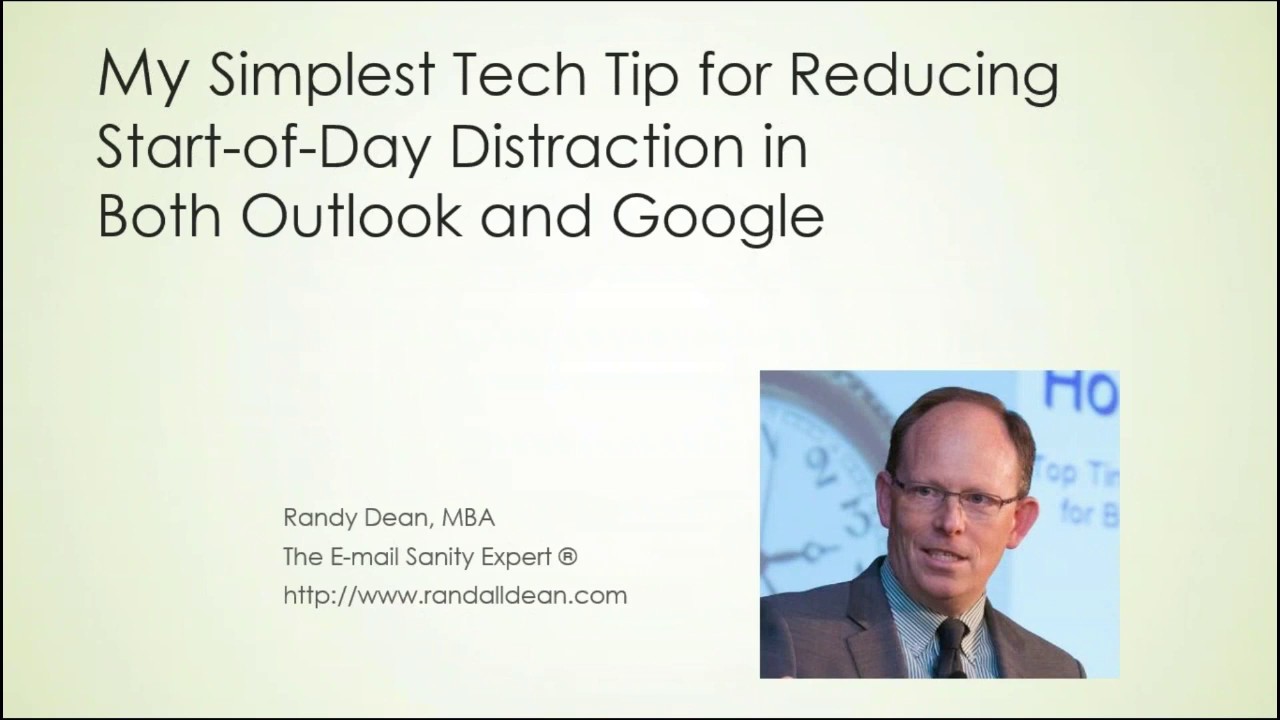
Randy Dean shows how to stop opening email first thing in the morning by setting Outlook to open to Calendar instead of Inbox, and Chrome to launch Google Calendar on startup. Review your calendar and make a task list before checking email.
Chapters
All right, hello everyone and welcome to today's new YouTube video. What I want to cover today is actually my simplest tip for reducing start of day distraction in both Outlook and Google. Once again, my name is Randy Dean. I'm popularly known as the Email Sanity Expert, leading and teaching programs all across the United States, North America, and even occasionally Europe on time, project, people, email and distraction management utilizing tools like Outlook, Gmail, Google Suite, and even your smartphones and tablets. And what's interesting is, as I said, I do these programs all over everywhere, speaking at conference events, workshops, webinars. And one of the things that I've noticed when I'm doing these programs is that 90%+ of office-based working professionals start their day by grabbing a cup of coffee and opening up their email. And what I always tell people is, when you start your day in your email, what are you really doing? Think about what you're doing when you open your email first. I'll tell you what you're doing. Squirrel! You're opening the door and letting all the squirrels in, aren't you? And by the way, do you know how crazy hard it is to get a picture like that? But here's the thing, you open up your email, of course you're going to get distracted by your emails. There is a really simple thing that you can do, remarkably simple, in both Outlook and Gmail that can greatly reduce your distraction by your email. Let me show you. I'm gonna pop out. It's the simplest tip. Let's go into my Outlook first. Let's go— jealous of my inbox? Watch my other videos to figure out how to do this. But go up to the File tab, Outlook users, up here in the upper left corner. See where I'm pointing? Click on your File tab, come down to Options, and then what I'd like you to do is click on Advanced. Okay? And when you click on Advanced, I wanna show you a little something here. When you can page down to right here, Outlook Start and Exit, Start Outlook in this folder, hit Browse, and you can open up and change it to Calendar. See, if you switch this to Calendar and hit OK, now when you open your Outlook, it will not open to your email. It will open to your calendar first, which means rather than starting your day focused on inputs and frankly squirrels, you'll start your day focused on your time, your committed events and meetings, and your most valuable asset, your calendar and your time. So that's a really simple switch. Now I want to show you something else that's interesting. So, so I'm showing you this in Outlook. I'm going to hit OK, and now what's going to happen is from this point forward, when I open up my Outlook, it's going to jump to Calendar, not Inbox. But now wait a minute, I know I've got a number of Gmail users out on today's program, so let me close my browser. I want to show you something in Google. I am now going to open my Chrome browser. It's actually opening up right into my Google Calendar. See, it's building it right now. It's actually bringing in the information and launching my Google Calendar. How did I do this? And up here, notice that you can play around with your screen settings when you're in here. And what I want to do is come up here to Google Controls, uh, for the Chrome browser. And I'm going to click on Google Controls, and I want to come down to my settings. And I want to show you something here. First thing that you want to do is if you have an active Gmail account, you can come right here into your settings and set this up to sync with your active Gmail account. Now that's step 1. Now if you do this naturally, what's going to happen is whenever you launch your Chrome browser, you're going to basically be logged into your Google suite of tools right off the bat. So you want to go in and get this set up. But then here's the trick. Notice this. Now you page way down on the screen. Let's keep going, let's keep going, let's keep going. On startup open a specific set of pages. Notice I've got this set up to Calendar. Now let me show you how you can do this if you haven't done this first. What you do is go into Chrome, open up your Calendar, just come up here and do a quick little Ctrl+C, which is a copy. So I highlighted that and hit copy. Now what I want to do is come down here and hit add new page, and then what I can do is just do a Ctrl+V, which is a paste, and then hit add. And if I do that, that's how I set this up so that I can launch my Chrome right into the calendar. I've got it set up in both Outlook and Google, both, that the first thing I see every day is my calendar and my time, not my email nor the standard opening front page on my browser, which often gives me links to crazy news articles and information about celebrities as well as advertisements. Do you see, do you see the problem? If you have it, leave it so that you open up in that form, you're very likely to let the squirrels take over. And so this simple little strategy, remember, once again, let's do this real quick. File, Options, Advanced, for you Outlook users, start Outlook in Calendar. Just hit Browse and select your calendar from the dropdown. And once again, in the Chrome browser, it's as easy as coming up here to three dots, Settings, make sure that your Chrome is configured to your Gmail account, and then page down here and tell it to open it up by your calendar. And if you can do that simple little setup, that changes the way you start your day. And, and what I want to do, let's, let's let's talk about this real quick here. What I would like to do is, um, share with you— I'm not quite ready to end this— here's what I recommend you do at the start of your day. Start your day in your calendar. Then don't open your email once you look at your calendar. Look at your calendar today, maybe as much as a week or so into the future. Look for open blocks of time where you might be able to, um, you know, Block some time for your most important projects. And then what I'd like you to do is build a task list for today. Now, I've got videos on task management in both Outlook and Google. I'll try to give you some links to those below. But what I really want you to do is start your day in your calendar and your task list your first 3 to 5 minutes before you then open your email. Because now what's going to happen is that you are going to lift your focus up to a higher level and put your email and other input streams into context prior to diving into those inputs. So once you jump into the inputs, you will already know what's going on with your time, and you'll already have a plan for how you want to work and manage your day, thus keeping the squirrels at bay. All right, I think it's time for me to end this thing. I hope that this tip is highly useful. I'd like to thank you for your time. Uh, once again, if you'd like to learn more about me and my programs, my name is Randy Dean, popularly known as the Email Sanity Expert. Uh, you can find out more about me on my website, randalldean.com. You can even see, uh, right on the front page, open up a 15-minute little demo video of when I'm doing one of my live presentations. Also, if you like my video, please subscribe. I'm going to be posting a lot more of these tips here this year, and I already have quite a few tips that are available out on my YouTube channel right now. And, um, if you'd like to get some bonus PDFs, I actually have a whole series little bonus PDF tip sheets, some of which link through to my other YouTube videos, uh, in electronic PDF form. If you'd like to get those, just send me an email, randy@randalldean.com, put YouTube PDF in the subject line. And with that, I am going to say we are done. Thank you for your time today.