The Apps to Set Up Your Smart Phone or Tablet as a Full Remote Office (with Captions!)
Randall F. Dean shows how to turn a smartphone or tablet into a remote office using two productivity suites: Microsoft 365 (Outlook, Word, OneDrive) and Google Workspace (Gmail, Docs, Drive). He walks through essential apps for scanning, PDFs, video calls, and file management, then explains how to organize them into focused panels so you can work from anywhere.
Chapters
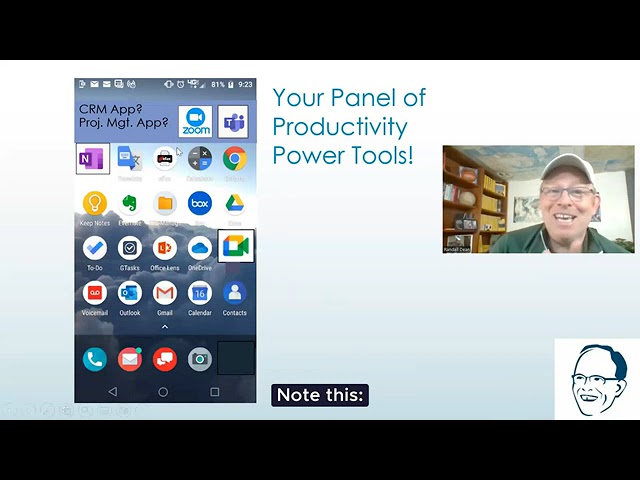
Hi everybody, Randall F. Dean, Email Sanity Expert here, taking a little break from watching some basketball this weekend. My brackets are busted. How about yours? But wanted to go back and last weekend I did a really quick YouTube Short video, 60 seconds about how I set up my phone as a remote office. Thought I would go back to that exact same topic, re-record it, but with a little bit more detail and a little bit slower. I'll put the 60-second version in the comments below so you can watch it if you'd like. But let's dive in and talk about this whole content topic of turning your phone into a true remote office. And yes, of course, might even be better on a tablet. So let's dive in and take a look at this. So what I've done is I've created what I call my panel of power productivity tools. And I recommend that everybody consider building a panel like this because if you have a panel of power tools that sort of replicates the tools and devices you would be regularly using in a fully functional office, then you can go to that panel whenever you're away from the office and do pretty much everything you can do in your workspace. And so let's sort of talk about, you know, what I've got here. Now, obviously, I've got my phone and my voicemail. I actually purchased the visual voicemail service from Verizon, which allows me to not only listen to my voicemails, but I can actually hear them and read them. Yeah, I can get a text message of the copy of the message and actually I can forward that on to say, like an actual text message or document or email. Think about that when you're leaving messages. Now, down here, of course, I have my regular text messaging. There's my camera, which does also allow me to do video filming. Right here is my Outlook app. Now let's talk about 365 users and the Microsoft tools. This one app right here, the Outlook app, actually gives you access to your Microsoft email, your Microsoft calendar, and your Microsoft contacts using the little image of, say, like a magnifying glass down in the middle. So you can actually get access to all three of those primary functions in your Outlook. Now, if you come up here, there's Microsoft To Do, which is Microsoft's preferred app for 365 users to get access to their Outlook task list. But it actually enables you to access that task list across different functions within the Microsoft tool suite, including tools like Planner and possibly Teams. Right up here is the OneNote app, which gives you access to your entire OneNote series of notebooks and all of your related notes. One interesting thing about that, I actually did a pretty detailed tutorial on how to use OneNote. I'm going to put the link to that video in the comments below also. If you'd like to see that. But one thing I'd like to share, Outlook allows you to take notes. Also, there is a notes function in Outlook. For a while there, it was hard to get those notes on your iPhone and Android devices. But now with the OneNote app, if as long as you're syncing through 365, you can open the sticky notes function within the OneNote app and get access to all of your Outlook notes, which means email, calendar, contacts, tasks, notes. All 5 of the major functions in Outlook right there. Now, hold on a second though. We've got Google users, people using Google Workspace and Gmail. Well, of course, there's my Gmail app, Google Calendar app, Google Contacts. You might want to get the new Google Tasks app and Google Keep, which is basically Google's version of OneNote. And both of these apps not only allow you to build, you know, basically notebooks with all of your different notes in different categories, but also allows you to share notes with other people, which is really handy if you're doing any kind of collaborative work and you want people to be able to access, see, and maybe even make edit to some of those notes. Now, so email, calendar, contacts, tasks, notes for Google users. Now hold on a second, let's take a look at what else I've got here. There's OneDrive for my Microsoft users. Which gives me access to my entire set of documents and files that have been saved onto my OneDrive account. Now you'll notice you don't see Word, Excel, and PowerPoint on this screen, but I do have them on the device. And the reason they're not on this screen is that if you open the OneDrive app and then you go to, say, a Word, Excel, or PowerPoint document, and you open it, it will reference the app for Word, Excel, or PowerPoint as needed right then and there inside the app. And it'll open up, you know, the phone version or tablet version of Word, Excel, and PowerPoint. Now related to that right here is the Google Drive app, which does basically the same thing for Docs, Sheets, and Slides. Yes, those are hiding in the background too. The other one that's hiding in the background is Adobe Acrobat Reader. And the reason is, is that with these, a lot of times you don't even need to use Adobe to open and read a PDF. Both of these files usually allow you to have that, but I do like to have it on board in case there's a document that somehow comes in that doesn't launch via OneDrive or Google Drive. Now, related to that, let's talk about virtual meeting tools. There's Google Meet, there's Microsoft Teams, and there's Zoom. I'd recommend, you know, depending on which ones you're using for your company, you could install one or more of these to allow this. With my business, I have clients that use all three. So I actually have all three on here as well as GoTo because that's actually what I'm using for my business. Now, interesting little thing here though, something to think about in terms of your productivity panels. I'm showing you both the Outlook suite and the Google suite of tools. You might not need both of these in your work office if you're not using both of these for your work stuff. Stuff, although interesting little counterpoint. If you are a Microsoft user, you could utilize the Google Suite, the Google Workspace, that Google Suite of tools with all your productivity tools for all your personal stuff, thus separating your work and your personal data streams. Not a bad idea. Now, now let's get down to brass tacks here. Notice this, I have the standard calculator app that is basically installed on almost every smartphone, and I move that up to my front screen, and you'd be shocked how often I use this thing. I also have access to a third-party fax tool which allows me to send and receive faxes. And get this, it allows me to use PDFs past the COVID page. So all I have to do is have the document in PDF form. That becomes the pages of the fax following the COVID page, which I can create using the app. Now, since we're talking about PDFs, let's jump down here and look at this app called Office Lens. Office Lens is an app by Microsoft and it's for free. And listen to what it does. It allows you to use the camera on your phone to take pictures of documents when you're out in the field. And what it does is really slick. If you put the document in front of the camera, it will actually have a sensor that will, you know, estimate what is the document in front of the camera. It'll actually give you a little sizing box. When it's correct, you just hit the camera button. It takes the picture. But listen to this, it can automatically convert it to PDF and it can allow you to make multiple page PDFs if you don't hit the commit button. Instead, you hit the plus button so you can make multi-page PDFs from multi-page documents right on your phone, like a scanner and PDF creation utility. Now, what's interesting is there's two other apps that will allow you to do the same thing. The Google Drive app will allow you to do that if you listen closely, open up and use the camera within the Google Drive app. And then after you take the picture, you have to go to the picture and print that to PDF using your PDF print utility. And then there's a third tool for those of you that would prefer to try it. It's called Adobe Scan by Adobe Corporation, which does the same basic thing as Office Lens. Take the picture, convert it automatically into PDF. So in essence, you can turn your phone into a real-time scanner and PDF creation utility using any of these 3 apps or tools. And notice up here, I also have Google Translate, which I think is one of the best, uh, apps that's out there on the market. It allows you very quickly and easily to get a pretty good translation of anything that either you hear or that you see, which can be super useful depending on what it is that you're trying to do. And I even have the standard little file manager app because now, no, you know, you'll say, well, why do you have file manager if you have OneDrive and Google Drive? Here's why. It's real simple. This shows me all of the files that are specifically saved locally on the phone. These show me all the files that are saved to the cloud. And so it's sort of nice to be able to see both of those levels. Now, some of the things that are on the phone are probably also on the cloud too, but it's really nice to be able to get in and see what's actually on the device. And then one last thing, of course, you got your, you got your browser and I love the Chrome browser because when you use the Chrome browser and you open it up, if you don't have any tabs open, it automatically takes you to the Google search, which you can use voice to text to do your search. So now let's go back a little bit and take a look at this panel a little bit higher level. You know what this is? This is an office. It is a fully functional office. I've got my telephone, I've got my voicemail, I've got my text messaging, I've got my camera and video, I've got my email, calendar, and contacts, tasks, and notes for Microsoft. I've got my email, calendar, contacts, tasks, Notes for Google. I've got my cloud storage, which is basically my remote hard drive with all my documents or files, and I can access Word, Excel, and PowerPoint, or Docs, Sheets, and Slides. I can also access PDF files. I have my scanner, which allows me to both scan and create PDFs. And of course, there's a couple other options for this that'll allow you to do this. I've got my fax machine, I've got my calculator, I've got my web browser, I've got my virtual meeting tools, and I've got my Google Translate. Translate. And hey, while I'm talking about it, you know, you can use Microsoft Teams for a lot more than just video meetings and chat. I actually have some tutorials about how you can set up teams within teams and do project and activity and event management and collaboration utilizing this really cool tool also. And all of that on a single panel. Now notice I put up here in the corner, maybe you want to get your CRM app, maybe you want your project management app. Either of those could be a possibility too that you could add up to this panel. But wait, now there's more. Then what you want to consider in your next level is do you want other panels or groups, maybe a shopping app or set of apps, both online shopping and in-store shopping if you're using any of the delivery services like Instacart, travel apps, reference apps. Now, I want to share something. I said panels or groups. You could make each one of these their own panel, or what you could do is you could have a single panel off to the side where you group them all together by picking up apps and dropping them on top of each other to create a group, give it a name. You could have all your shopping apps in a single group, all your travel apps in a single group, all your reference apps in a single group, making special note of news, weather, and maybe investing, because I know people use those a lot. You could have a panel or a group for all of your social tools that you actually and actively use. Panel for content media. Yeah, you can have games here. Put a Wordle and Words with Friends and whatever else it is that you like. You could have a panel or group for that. Just make sure that these ones, the content media and social, are not on your primary panel, because if you put them on your primary panel, then you're not focusing. You're doing the opposite of focusing. That's how you set up a phone or a tablet that allows you to get work done. And if you're smart and you have a tablet, you will set it up almost exactly like your phone because then when you move from one to the other, it's seamless. And one big reason to consider a tablet, big reason, are you doing spreadsheets out in the field? Because you ever done a spreadsheet on a phone? Get the tablet if you're doing spreadsheets. All right. And so with that, I'm going to say I'm done with this one. If you enjoyed this video and you found it useful, please give it a like, subscribe, share it with somebody else. You can learn more about me and my programs. I actually do a full program on smartphone and tablet success as one of my programs, but obviously have a lot more. Go out to my website, randalldean.com. I have a whole series of productivity PDF tip sheets on time, email, project, and tech management. If you're interested, send me an email, randy@randalldean.com, and I'll get you those YouTube PDFs. Um, uh, just by putting the word YouTube PDF in the subject line. And with that, thank you. Go watch some basketball like I'm about to go do. Bye now.
More from Randall

This simple #ADHD #hack might end your #tasklist paralysis called #executivedysfuntion #productivity

Have #ADHD? Do you make a daily #tasklist ? This might help. #tasks #productivity #procrastination

Found too many cool Petoskey Stones and “Greens” on vacation. Had to do something!


Another free #pallet project: I built a heavy duty #ladder stand for #housepainting

Quick Windows Tip: Organizing Multiple Windows on One Monitor or Screen for Faster Multi-Tasking!

Classic Outlook (New Screen): Converting an Email to Task, Calendar, or Contact Using Drag & Drop

Email Sanity Expert Tests SaneBox: Is This AI Email Tool Worth It? Might be for overloaded inbox!

Taming the Outlook Email Beast: 3 Flexible Learning Paths to Master Your Inbox (Video Course Intro)

#workspace #productivity multiscreen setup #email #calendar #pdf #outlook #gmail #microsoft #google
