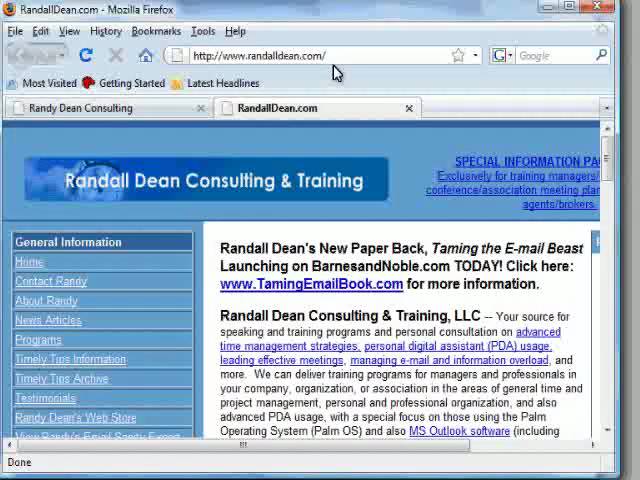
Randy Dean shows Firefox shortcuts to speed up browsing: Ctrl+T for new tabs, Ctrl+Enter to complete domains, Alt+Left/Right Arrow to navigate back and forward, Ctrl+W to close tabs.
Chapters
Hi, I'm Randy Dean, the Totally Obsessed Time Management Guy and Email Sanity Expert, and author of the recent Amazon email bestseller, Taming the Email Beast. Today I'd like to share with you a few tips on how you can actually zoom around your web browser utilizing the, um, very handy capability of some keystroke combos. And when you utilize these keystroke combos, they will help you really start flying around that web browser and allowing you to, uh, effectively get the pages the way you'd like to. So let's right now jump out and open up my Email Sanity Expert website on my Firefox browser. And what I'm gonna do here is, uh, let's say I wanna open up my other website at the same time. I'm gonna actually open up a tab, and rather than going up to File, Open Tab, I'm gonna come down here and actually use the keystroke combo Ctrl+Tab. T. By doing Ctrl+T, what happens is that I can actually launch a brand new tab here. And if I'd like to even speed this up even more, now I'm going to type in my website address. But instead of typing in the www., you know, website address name dot com, I'm going to instead just type in the name of the web address, the web domain, Randall F. Dean. And then I'm going to hit Ctrl+Enter. By doing Ctrl+Enter, you'll see that it actually types in for me the www and the .com, which is very handy. Now let's say I wanted to get a piece of information off of this website link, TameenEmailBook.com, on this new tab. I'm going to click that link. It's going to load up the page, obviously. Now what I can do here is once I'm to this page, if I'd like to go back to the previous page, I can use Alt+Left Arrow. And Alt+Left Arrow takes me back. Of course, Alt+Right Arrow jumps me forward. Now that I've got this capability, let's say I've got the information that I needed off of this second tab, and I just wanted to close the tab to go back to the previous page. Now I can use the keystroke combo Ctrl+W, and that brings me back to the original website that I was on. So as you can see, in a quick review, Ctrl+T opens a new tab. Ctrl+Enter allows you to basically put in the name of the website you're going to without having to bother with www.com, and Alt+Left Arrow takes you back, Alt+Right Arrow brings you forward, and Ctrl+W closes that tab. Thank you for taking the time to watch today's video. Um, if you would like to learn more about me and the programs that I lead, please take a look at my website, randalldean.com, and/or visit my other website, emailsanityexpert.com. If you'd like to learn a little bit more about my recent Amazon.com email bestseller, Taming the Email Beast, visit http://www.tamingemailbook.com. And when you go to tamingemailbook.com, you'll see some very nice extra bonuses if you're interested in that book. Thank you for your time today.