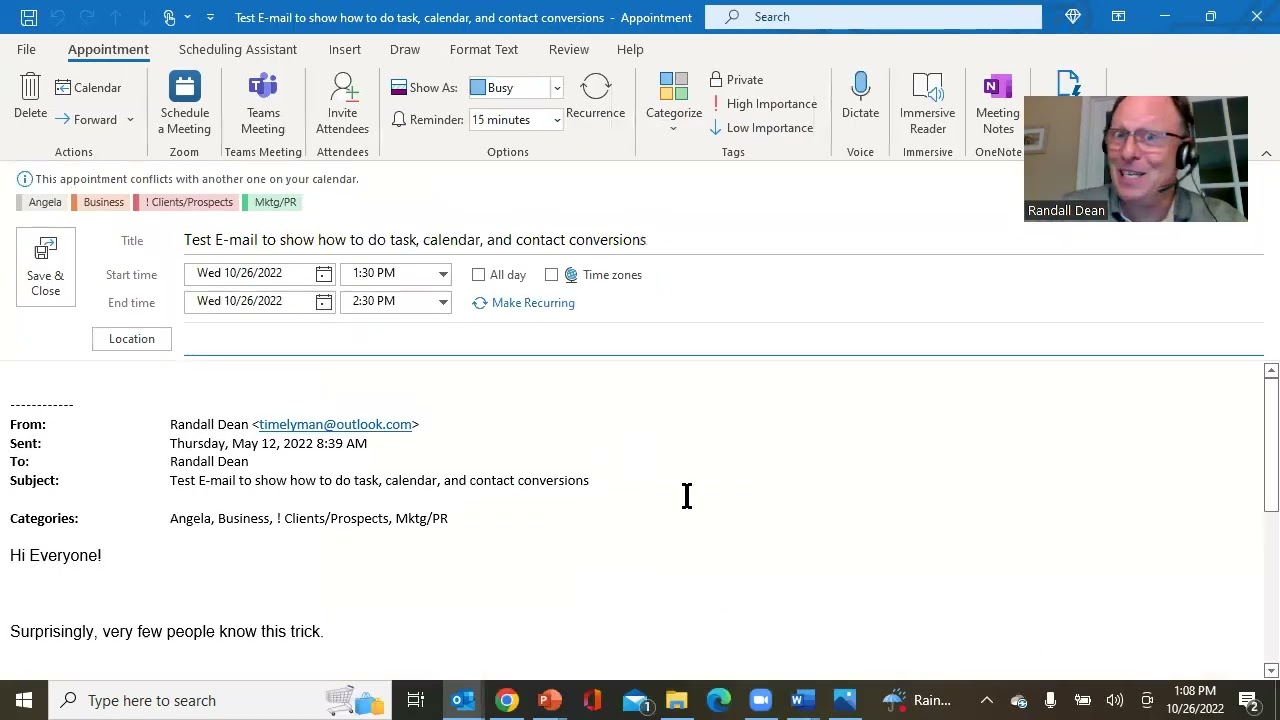
Randy Dean shows how to drag emails into Outlook Tasks, Calendar events, and Contacts. He covers setting due dates and priorities on tasks, adding attendees to calendar invites, and pulling contact info from email text. Attachments stay accessible when you convert emails this way.
Chapters
Hi everybody, Randy Dean, Email Sanity Expert here. Hey, this is one of my more popular tips and I actually did a video on this, I think like 5 or 6 years ago, but I'm actually in the process of building a new ebook that I want to include this video in. So I thought it was probably a good idea to make an updated version because, you know, 5, 6 years. Software will look different. And I'll tell you more about that ebook at the end of this video recording. But this is a video for my Outlook users, just showing them how you can easily and quickly convert emails into Outlook task, calendar, and contact items. And if you've ever been to any of my Taming Email programs, you'll know that in those programs I very regularly talk about sort of this little slide right here. Let me move myself out of the way so I can make this work a little bit better for you. As you can see, I tell people, you get a new email, if you're gonna open it, make a decision of what you need to do next. If the thing you need to do next takes you a couple minutes or less, do those ones right now. Don't keep quick stuff for later. And then longer ones, I tell people, put it on your task list or maybe your calendar. Because once you either get it done or get it on your task list or get it on your calendar, Probably don't need it in your inbox anymore, which means you can either file or delete it. And if there's no good place to file it, well, you make one and you put it there. Hey, there you go. Taming email program in about 30 seconds. But let's go back to this longer than 3 minutes task list or calendar. Did you know Outlook can make this super easy? And I made a funny little video a couple of days ago about how people mark their emails unread. Or flag them when they're using Outlook. This is the option that I think is far superior. Let me show you what I mean. If you go into your Outlook, you have an email. If you have a specific task that you need to do, like share YouTube PDFs, hey, that's what I need to do with this email. Notice the subject line almost never tells you what you need to do. Watch what I can do, Outlook users. I can left-click on the email and I'm holding the click with my mouse so I can now drag it down to the task icon or word if you have the words on your screen. And then what I can do is come up here and say share YT videos. Due date, I could probably do that today. Priority high. How long did that take? See, just a few seconds. But here's the thing. I know that's a few seconds more than marking unread or flagging it, but can I show you why this is so much better? It's right here. You tell yourself exactly what you need to do and when you need to do it, which is far better than an email marked unread or flagged in your inbox. You've given yourself the information you need, and I've got other videos on Outlook task tools. Uh, I'll put a couple of those in the comments below. Which show you how you can actually see what you need to do on a single screen in the Task Manager in Outlook in a prioritized format. You don't even need to see all this stuff. But hey, wait a second though, if you do need to access what was going on in the email, look what's inside the task— the email. Hmm. So wait a minute, Randy, I've identified the task from the email and I have the text of the email inside the task. Task. I probably don't need that in my inbox anymore, do I? Exactly. Now, if you're worried about not ever seeing it again because you don't regularly use Outlook Tasks, watch close. Reminder, save and close, and give it a second. And there it is. Hey, my fellow security agent had to jump into the video today. Thank you for that. But notice what it does. A reminder pops up. Reminder. And thus you can do what pretty much everybody does when one of these pops in. Snooze. Okay, but here's the funny thing. If you don't trust yourself, make the task, turn on the reminder so that it pops up when you need to see it again later, but then it doesn't have to be in your inbox anymore. You can file it or delete it. Now I'm not going to do that with the email. Notice, by the way, that the email is still in the inbox even though I did create a task from it. I'm not going to do that with the email because I want to show you that you can also make a calendar item out of this too. Left-click, hold the click, drag it to calendar, drop it, and that makes a new calendar item. But wait a minute, share YT PDFs, if I can type. Time, tomorrow at, let's move it up to 3 o'clock. How long did that take? Hey, wait a second. You know what? I'd like to invite you to join me here in my home office from wherever you're at around planet Earth tomorrow at 3 for the meeting where I send you your PDFs. Probably not a good use for your gas money right now. But look at this. I can come up here and hit invite and add the emails for the people I'd like to invite tomorrow's meeting at 3. In like 30 seconds, I've taken an email, turned it into a calendar item with a clear title, and I can now invite other people to the meeting. But wait, there's more. Look, there's the text of the email again down in the bottom of the meeting invite, which means I can put a little cover note. Hey everybody, look at this email we just got from our client. We need to have a meeting by 3 o'clock tomorrow. 30 seconds. Oh wait, are you using Outlook in an office environment where you've got shared calendars with other people? Well, before you even hit send for the 3 o'clock, come up here to the scheduling assistant on top, type in other people's names and see if they're available tomorrow at 3 too. Pretty awesome. It's pretty awesome capability right here. Now I'm not gonna put this on my calendar because it's already on my task list. That would be redundant, but I got one more for you. Save changes? No, but look at this. Maybe I'd like to get this Randy Dean guy into my contact database. That way I'll never forget who I am. Watch this. Left-click, hold the click, drag it to People and drop it. That creates a brand new contact in Microsoft Outlook. And notice this, it also auto-populates both name and email. Don't even need to type those. And it brings in the text of the email that prompted me to create this new contact. Cool. And oh neat, look at this, he's got a signature. Let me grab that job title right there, pick that up, move that to job title. Let me grab that phone number right there, pick that up, move that to phone. Let me grab that mobile number right there, pick that up, move it to mobile. How long did that take? Did you notice I didn't even do a cut and paste right there? I did what I like to call an end click, drag over and move. Might want to pause and rewind when I show you this one more time. End click, drag over the text that you'd like to highlight, release the click so you can now pick it up and move it. Once you master that little tip, it'll save you a couple seconds over traditional cut and paste operation. To get this— that little tip I just showed you, that doesn't just work in Microsoft Outlook, that works in all of the Microsoft Office tools, Word, Excel, PowerPoint. It also works in Gmail and even Google Docs. Try it. Might even work on your web forms and your electronic tools and other stuff that you're using. Try it. It's cool. Okay, that's— and click, drag over, move one more time. Um, hey, but wait, let's try one more thing. Let me hit save and close. Checks the database to make sure I'm not creating duplicates. How about that? And he's already in there and the information looks good. So I'm just going to hit cancel and close this. Save changes? No. Do you now see why my inbox is so clean? But wait, there's one more thing I need to show you. Hey Randy, what if that email's got an attachment? Check this out. I have an email with an attachment right here. Watch what I'm going to do. I'm going, instead of doing a left-click, hold, drag and drop, oh, There's my snooze. I'll dismiss it this time. But here's the thing. Instead of doing a left-click, hold, drag, and drop, what if I did a right-click, hold, drag, and drop to Task or Calendar? Look at this. It gives you options to bring over the attachment. Now I'd say use caution with Move Here as Task with Attachment because the email will go away. The email becomes the task if you use that option. But if you use Copy Here as Task with Attachment, watch what happens. It brings up a version of the task where you can once again edit, share YT videos, right? Set due date, set priority. But here's what it does. It actually gives you an envelope with the email, which you can double-click and open to get to the email and all of the attachments. How cool is that? All right, so, and by the way, that exact same capability. Let me close this. Right-click, hold, drag and drop to calendar. Yeah, you can do that here too. Pretty cool. Yeah, I mean, that's pretty cool because what that means is you can actually drop a full version of that email into that calendar, which might become a meeting invite with all of the attachments. It's pretty awesome. And you now see why I'm recommending people not to mark them unread or flag them, but instead to calendar or task them. It's easy. And if you follow this and you just follow this consistently, that's how you get an empty inbox. All right. Major update. Let's finish this thing up. Hey, by the way, um, one little thing I want to share with you here. As I mentioned, I'm in process of rebuilding some of these videos on my channel, so you might see quite a bit of productivity from me here, uh, in the near future, because what I'm doing is I'm integrating them with a new learning tool I'm creating. It's basically a mini book e-guide or mini guide ebook This one's going to be on Taming the Email Beast, but I might be making more of these soon. And I normally offer people like a set of productivity PDF tip sheets when they watch my videos. Just send me an email, randy@randaldean.com, put YouTube PDF in the subject line. But if you do that right now, I will also get you the information about that mini book e-guide. I keep saying that the wrong way. Mini guide ebook. That's how I want to say it, uh, and, uh, information on how you might be able to get a copy at no cost. So send me that little thing from the video, and more information coming soon. Um, if you're watching this a little bit later on, there might have been a link in the video where you can just click and go get it. So take a look at that if that's in there too. Uh, with that, I'm going to say thanks everybody. Hope you enjoyed this one and found it useful. If you found it super useful, share it with your coworkers, and we'll see you again out here in YouTube land soon. Bye now.