
Microsoft Outlook Classic Version: Home Screen Layout Customization Tips & Tools Email Calendar
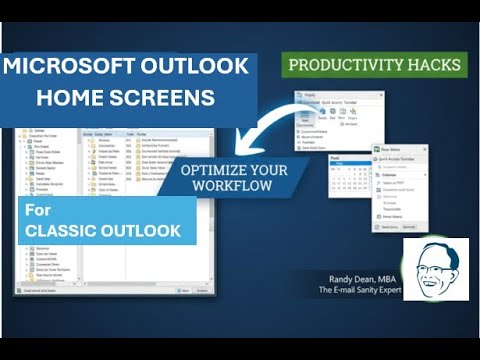
Randy Dean shows how to customize Outlook's Classic home screen to work faster. Pin your most-used Office apps, add commands to the Quick Access Toolbar, resize the folder pane, and use Peek to preview your calendar and tasks without leaving the inbox. Double-click white space to compose a new email.
Chapters
Hi everybody, Randy Dean here, email sanity expert. Hey, it's been a little bit of time since I've last done one of these. Sometimes I like to just make a video showing what I think are some of the better tools and ways to set up your home screens in tools like Outlook. And what I thought I'd do this time is, um, obviously there's been some screen changes recently in Classic Outlook. A little bit in new and web Outlook and even in Gmail. And so what I'm going to do is I'm going to make 3 videos, one for each group. This, this one right here is on classic Outlook, but I'm going to be making the other 2 right in order and try to post all 3 of them very quickly. So this is really seriously just one of those things where what I'd like to do is just go in and show you some stuff. And if you, you might know some of this already, but if you don't know some of these things, you're going to be able to find stuff a little bit faster, get your screen organized a little bit better, hopefully do things a little bit better and smarter. So let's try it right now. I'm going to pop into Classic. Here's my inbox, and let's just look at a few things here. Uh, first thing, notice I don't have the reading panel open in my inbox proper, but I do have the reading panel open in my subfolders. Let me explain why. Um, I actually really like to have the column headers like this, and one of the interesting things about Classic Outlook is that you can actually click on any item in one of these columns, then click on the top header and sort. So as you see, I just clicked on this and it sorted it in alpha order. And if I click it again, it'll do it the opposite way. But you can also do it by date. You can also do it by subject line. You can even do it by size. And this is one of those little tricks that when you can see all of your columns, you can do that quick sorting in classic Outlook. I don't think that's available in new and web. You'll probably have to do things like that with your filters when you do your screen setup. But this is really nice. It's one of the little inside features that I really like when it comes to this. Another thing that I want to point out to you is over here to the side, you have your functions. And if you don't see all these functions— email, calendar, classic Outlook tasks, people, notes, To Do and wait, how OneNote, Excel, Word, where'd those come from? Well, if you haven't looked yet, you got this thing called a waffle and inside the waffle you might have stuff hiding. And what's very likely is if you don't see these, let me show you why you don't see them. I'm going to come up here to OneNote, right-click and hit Unpin and it just left my sidebar. Where did it go? Well, of course it's right in here. And one of the things that's really nice about this capability since they've added this, moved these up here to the left, is that you can customize that sidebar with the tools you use most frequently. And let's say you find that, you know, you're several times a day, for whatever reason, going from email into PowerPoint. Well, well, look at this. Watch this. I can right-click on PowerPoint and pin it, and that moves it over here. And if I'm using it a whole bunch— whoops, Always helps when you stay in the program you're in. If you're using a whole bunch, right-click here and you can start moving it up so that it's up near the top and get these in the order that you like to have them. Um, by the way, when you're in any of these programs, you see one of these looks like a waffle, click on it because there's probably stuff hiding in there. All right, the other thing is wherever you see something like this, like a drop caret, This is your Quick Access Toolbar, but whenever you see something that looks like this, click on that too because there's stuff hiding in here. Now this one's interesting because this is basically a place where you can put stuff so that you can get to it quickly when you're in your classic Outlook. And so like, for example, I could turn on Reply. I could come in here and do Forward. I'm going to say, don't you dare do Reply All. You can actually even do like Print or Save As right in here if you'd like. And there's even a whole bunch more commands in here. I'd recommend going and taking a look. You know, there might be something in there that you find that you're always hunting for that you can actually just make it so it's part of your upper left part of your screen above your functions bar in classic Outlook. Now, saying that, I also want to point out this. See this little caret right here and see this little caret right here and see this little caret right here and right here. All of these are basically saying you can either close something or open something. Now notice, here's my favorites list. And by the way, if you have a folder that you're using all the time, all you have to do to get it up here into your favorites list is come down to the folder, right-click on it. Let's do that Done for Now folder. And then what you can do is hit Add to Favorites. That will move it up here to the top. And, um, Let's do that right now. Let's do Add to Favorites. But maybe you don't want junk mail up here. Actually, I do want junk mail up there. I'll tell you why in just a second, but I'll hit Remove from Favorites. The reason I want junk mail up there is every once in a while I'm getting a few things in there. You see, there was an email in there. Every once in a while, one of my client emails goes in there. And so by having the junk mail one up in my favorites, I can see if something has gone in there. And once or twice a day go in there and clear it out, but also look to see if I've got any emails that shouldn't be marked junk in my junk there. Okay, so now coming back to this, um, let's say though you want to really get into your folder directories. You can collapse favorites by using the caret, and then you can open up your folders, and you can even go to folders inside of folders and even deeper. So you can go pretty darn deep with your folder structure, but collapsing favorites gives you the option to see more deeply when you're into your folders. And if you want to even see more of your folders, I don't know if you know this, but you can actually come here and you got to get it just right to get that sizing bar. You could even make your folder list bigger if it's not showing all the words that you want to see, or smaller if you like it a little more compact. I'm going to re-show my favorites because that's sort of my normal screen default. But I also wanted to show you this character right here. Let's say you really just wanted to see inbox and you don't want to see all your folders. You could collapse this and notice what it's doing here. Now it's giving me on the side, it's showing me I got one thing in that inbox, one thing in sent, you know, a number of things in drafts. By the way, I do another video on that, on signatures and drafts for classic Outlook users. You might want to go check that one out because it actually shows how I'm saving time by putting stuff back into my drafts folder. Whoa, what? Okay, but coming back to this, let me show you what I mean here. Now the, now that this has been collapsed, I can also click it to show it again. And what's cool about that— see how this looks like a little pushpin? Wherever you see one of these, if you click on that, that makes that a semi-permanent view until the next time you collapse it again. So this is all stuff that allows you to sort of adjust the screen to make it the way you like it. Now notice right here there's a collapsed Carrot. This is for your toolbar. I like my toolbar in maximum mode because when I'm in different tabs at the top, I like to see all my tools. It's just a personal preference. I think it's much easier to find stuff if you have it where it's sort of hanging on the clipboard right in front of you. But some people like to make things a little cleaner. You can click this and go from classic to simplified. And now it looks like this. And actually, that's a little bit more similar to the default-looking view that you will have if you're, um, familiar with new and web Outlook. Usually when you go into new and web, this is sort of the way it looks default. If you hover over these, you can see what they are. But yet, you know, if you don't know what all these mean, you're going to be hovering a little bit to find what the tool is that you're trying to do. Um, notice it pop this up here and says, oh, this is, this is the commands that you use frequently. All right, cool. Thank you. Thank you for this, Outlook Simplified. By the way, wherever you see three dots, that means something's hiding too. And look, there's a whole bunch of things you can do inside of here. And if I want to go back, I just click this and go back to Classic Ribbon. And I go back to Classic Ribbon. Now I can see things sort of the way that I like. You know, let me show you one other thing that's really cool. This will give you maybe a little motivation to finally get your inbox clean. Classic Outlook users, funny little micro tip right here. Did you know that if you get a big open white space here in your inbox— white space in my inbox— literally, you get a white space in your inbox because you get things under control. You can put your mouse right here in this white space, double-click, and open a new email. You know why nobody uses that little trick? Nobody has white space in their inbox. That's funny. Okay, so I'm going to turn that off. Not save the changes because I want to show you one more essential thing. I've covered this in other videos in a little bit more depth. I'll do this real quick and then we can wrap this thing up a little bit. I wanted to just come up here and show you the peek. Here's what the peek is. You hover, and when you hover, it gives you a little peek at your calendar moving forward while you're in your inbox. And if I hover over tasks, I can go in and see my task list. If I hover over people, Look what it does. It doesn't open my contacts. It gives me the ability to search my contacts. Very handy. All right. The other thing I want to show you, if you haven't discovered this yet, I mean, there's a lot going on up here. It's this button right here, New Items. So notice I'm in my inbox, but what if I suddenly realize while I'm in my inbox, I need to make a calendar item and I don't want to have to go over here and open calendar. I'd prefer to stay in my, in my inbox. I can go to New Items and come in here and create a new appointment or meeting without having to leave my inbox or add a new contact or create a new task. See, it's not just create a new email. You can do a lot of other things too. Even a Teams meeting. You could launch that right here. Uh, so take a look inside of here. And if you're in Classic, this button's in most of the functions. Let's go check out my calendar real quick and see, there it is right there. You know, so you can get in and do a lot of different things inside of here. And by the way, since I'm in Calendar, once again, take a look. Collapse caret, expand caret, pushpin. Yay. All right. I'm coming back to Inbox though. I wanted to show you one more thing with the peek. I'm going to move myself right over here for this one. You can also even do this. You can right-click on a peek. And dock the peek. And look what that did. It's now bringing in a mini view of my calendar right here into my inbox. And hey, guess what? You can also do this. You could go into your calendar and then come down here over Tasks peek, do a right-click and dock that peek too. Now they do something a little funky. For some reason it's like into the future and then backward, but you can just quickly page down to get to your today task list. And so now think about this. So when you're in your inbox, you can see a little mini view of your calendar. And when you're in your calendar, you can see a little mini view of your task list. And I'm not even going to tell you this last little tip. Actually, I am. Did you know that you could even go up here, right-click, and open this in a whole new window to move it to Screen 2? So yes, what that means is you could have your email with your little mini calendar view on screen 1, your full screen calendar with your little task list view on screen 2, or if you get your inbox under control, you could close inbox, have task list open on one screen, calendar on the other. You can customize your screens to make them exactly what you would like them to be. All right. Whoa, that was a lot of stuff. So I hope you found that useful. Um, I'm going to make another video next for new and web Outlook users, followed by one for Gmail users where I sort of do the same thing all over again. One last little thing. Let's say I want to go back to my column headers. All I have to do is come over here and click that little X box. And now I'm back to my columns. My peak has been put away for now. All right, let's finish this one up. I'm going to pop into here. Let's go to my little final slide. And I will just say, hey, whoa, geez, it jumped forward. Let's move me up over here. And I'm just going to say, if you need to learn more about me and my programs, my name once again is Randy Dean. I'm known as the Email Sanity Expert. Go check out my website. I will also let you know that I do have some productivity PDF tip sheets, including a sheet that that has links to a lot of my other YouTube video tips. If you'd like to get that, send me an email, randy@randaldean.com. I'd be happy to get that out to you. The other option that you have is if you'd like to become part of my e-newsletter list, send me an email and say subscribe. It's no obligation. You can unsubscribe anytime, but I've got a deal right now where new subscribers can get a free copy of my ebook on Taming the Email Beast. So send me a quick note and I'd be happy to add you to that too. And of course, if you like these videos, like, subscribe, share. Helps me out with the channel. Thanks. Hope you had fun. Bye now.
More from Randy

This simple #ADHD #hack might end your #tasklist paralysis called #executivedysfuntion #productivity

Have #ADHD? Do you make a daily #tasklist ? This might help. #tasks #productivity #procrastination

Found too many cool Petoskey Stones and “Greens” on vacation. Had to do something!


Another free #pallet project: I built a heavy duty #ladder stand for #housepainting

Quick Windows Tip: Organizing Multiple Windows on One Monitor or Screen for Faster Multi-Tasking!

Classic Outlook (New Screen): Converting an Email to Task, Calendar, or Contact Using Drag & Drop

Email Sanity Expert Tests SaneBox: Is This AI Email Tool Worth It? Might be for overloaded inbox!


Taming the Outlook Email Beast: 3 Flexible Learning Paths to Master Your Inbox (Video Course Intro)

#workspace #productivity multiscreen setup #email #calendar #pdf #outlook #gmail #microsoft #google