
Microsoft Outlook: My Favorite Task View -- The "Today" Task List
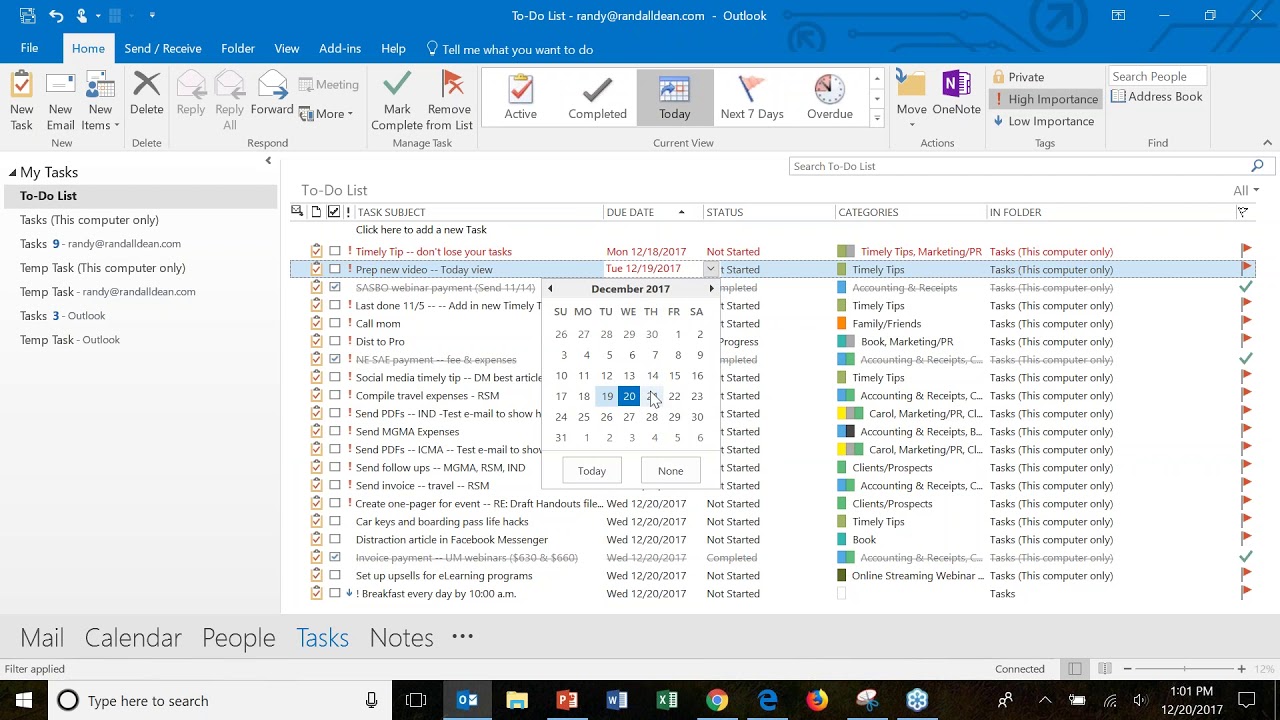
Randy Dean shows how to use Outlook's Today task view for daily planning. Tag tasks with multiple categories, add a priority column, and spend five minutes each morning aligning your task list with calendar availability to focus on what matters most.
Chapters
Alright, hello everyone. Welcome to today's video tip. Today I'd like to share with you my favorite task view in the Outlook task and email management system called the Today View. And I've updated this video. I believe I've done a feature on this in the past, but I've updated this video today for those of you that are using Outlook 2016. Although those of you that are still using Outlook 2013 or Outlook 2010, you'll still find this video very, very useful. I, once again, my name is Randy Dean. I am considered the email sanity expert, and I lead a ton of programs on better email management, better Outlook usage, better Gmail and Google Suite usage, and also the use of smartphones, tablets, and even managing your distractions. So now that you know who I am, let's get into today's program. And what I've done here, I've actually done a bit of a screenshot. And the reason I did a screenshot is I want to show you a few things before I go into the live Outlook Task Manager. I am going to go into the live Outlook Task Manager in a moment. This has been my favorite view in Microsoft Outlook's Task Manager tool since about Outlook 2010. That's when I first started using this view, was with the Outlook 2010 suite, but it was available also on 13, and this is of course Outlook 2016. And I have to tell you, this is the view that I use to help me plan and work my day. This gives me much more control over my projects, my activities, my events, my clients, my people, my time. And what it is that I'm trying to get done. And it works a lot better than trying to do this kind of stuff out of your inbox. So let's take a little bit more of a view of what this thing can do. The first thing I want to show you is that basically it only shows you today's tasks. And that's one of the key reasons I really like this view is it limits your focus. There's other views that will show you into the future. The Active View and the Next 7 Days View will show you into the future. Future. But a lot of times all that does for me is just get me distracted when I see too many tasks. And so this view, as you can see, it's just a single page of tasks that I'd like to get done today. The only exception to what I just said, notice these two at the top that are in red. These are tasks that I missed yesterday and the day before. And one thing I really love about this view, it moves them to the top in red so you can't possibly miss them. So if you've ever had something that was due the day before and you didn't get it done, it's going to be right there at the top in red waiting for you when you come in the following morning. So that's one of the reasons I really like this view. The other thing that I'm doing here is you'll notice that there's a categories column. And what I'm doing with the categories, I'm going to show you this a little bit more in detail when I go into the live view. But what I'm doing is whenever I create a task, I'm tagging it using categories into the project, subproject, client, event, activity it is related to, the person it might belong to. And so basically, think about what I've got here. I can see today's tasks, and I can see the projects, clients, customers, activities, events, and people those tasks are related to. And notice on several of these, they've got multiple tags. So I can put that one task in 2 or 3 different buckets and see all of those buckets on this one screen. So I can see everything this task is related to. Additionally, take a look at this. I can also add in a priority column. So I can not only see today's tasks by project, client, customer, event, activity, person, I can see it high to mid to low because notice that I'm also sorting by priority. And I'm going to show you how to do that in just a moment. And finally, the other thing I love about this view, check this out. I can see what I've already gotten done today. Notice I've had a couple things that have gotten done today, as you see. And here's the thing that I love about this. They show today, so I can see what I'm getting done as I'm working the day. And I've got a few things done already today, which is great. But by tomorrow, they disappear. They disappear at least off of this view. Now what's interesting is there's another view, which I'm going to show in a later video, where they don't disappear. You can see all of your items in the quick little hints right here called the Completed view. You can see what you've got done when you've got it done. So you don't lose these items once they're complete, but then they stop being on today. They just move off of the today view so that once again you can maintain and keep your focus. So this gives you a little bit of a feel as to what I'm doing with these items. So I think it's time, let's go live now. I'm going to jump out of here. Let's go into my Outlook and there it is again. Wow, isn't that amazing? But now we're working on the live Outlook screen. And what I want to show you here is how easy it is. Like, let's take this one. I'm doing this video right now. It's today, and I can redate this thing to today. That easy. See, now it moves down in here into this list from up here. Additionally, look at something else. I'm in progress on this. I can just click over here and change this thing to in progress, and in a few moments I can change it to completed because I'll have this video done. Now look what happens. It crosses out and becomes a crossed-out item. So it's really easy to redate items. It's really easy to change the status on items as long as you have these columns right here. Additionally, you can even take some of these items and quickly and easily change the priority from low to normal to high. So there's a lot of easy ways to do this stuff. Now let's say you want to tag one of these items. Notice I've got this one, breakfast every day by 10 AM. We'll talk about that more in a minute. All I have to do to do some fixes to this, I can double-click on that task from this list and it automatically pops this thing up onto the list. And notice what I want to do right here, which is sort of interesting. I'd like to categorize this in more than just Timely Tips. I can come in here into All Categories and take a look at this. I can add it into— I can— I don't want to delete it. I'm going to add it into Timely Tips, but I'd also like to add it into Marketing PR. And maybe I'd like to share this one with Carol on my team. And now if I hit OK, look at that. Now it's in all 3 of these groups. And then if I hit Save and Close, take a look at this. It added those additional categories on. So it's that easy. And like I said, you can take any one of these and double-click on it. That's how you open the task. To do more advanced stuff down here, you could leave yourself notes. So it really is a jumping point to go into individual tasks, but allow you to see all of your tasks in a group as you have them.. Now compare this to an email inbox. See, a lot of people try to do similar stuff in their inbox, but here's what they're doing with an inbox. They're marking stuff unread. They're putting little flags on their items. And then they're reading them again and again. But the problem with that is you can't really see priority. You can't see project. You can't see client. You can't see activity, not at least terribly well. It's a little bit tricky to get this kind of a view out of an inbox. And so what I'm also basically telling people is this is what I want you to work from. Instead of working out of your inbox all day, trying to figure out what you need to work on next, work out of something like this. But now I know a lot of people in there, my programs, they go, Randy Dean, that's still too much. There's a lot of stuff there. You are correct. Take a look at this. Watch some of the things that I can do here. First thing, you know what? I don't really need to get that done today. I can move that one over here to tomorrow. That's just an article I wanted to read out on the web. And then this is— I told you I was going to tell you about this one, Breakfast Every Day. That's just a reminder to myself to eat breakfast because most important meal of the day, I often forget to eat breakfast. So let me move this one also to tomorrow because I did already have my breakfast for today. And last thing, I'd like to set up these upsells for my e-learning programs. I got some e-learning programs. I'd like to build some combo programs at a discount for some people off my website. So I'm going to put that one out here also. And the last thing is the social media tip. I'll move that one too, also to tomorrow. So, wow, who just saw me procrastinate? Did you see that? Yeah. What I just did is the second thing I do every day at the start of the day. I went through my task list and here's what I did first. I compared it to my time on my calendar. First thing I try to do every day is look at my calendar to see how busy my day is, as well as how much time is available, because that gives me a feel for how many tasks I can reasonably expect to get done on that given day. That usually takes me a minute or two. Then I come to this Today View screen. By the way, notice you can get the Today View from the Current View at the top, or if you open up your Task Manager from the bottom down here, clicking on the word Tasks or the icon for Tasks, you can go to View, Change View, and also launch the Today View. Either way gets you here. But what I do is then I look at my today list of tasks, compare it to my time on my calendar for today, and then if it seems like it's a bit much, I just redate some of the items. And I showed you how to do the redate. It's just as simple as clicking on here and moving it to tomorrow, and then it disappears from today. I called it procrastination, but it's not really procrastination because what I just did is move the less important, less urgent items for today off of today Meaning I left myself with the more important, more urgent items for today. Which means I basically just prioritize my day. And take a look at this, high to mid. And if I wanted, I could change this one to low so that I could see my task high to mid to low. See how I just did that? And here's the thing that I want you to understand, something that's pretty interesting. This is a bit of an advanced tip that I want to share with you here. That's how I start my day. It's usually about my first 5 minutes of the day. Check my calendar, see how much time is blocked, see how much time is available, build a SMART project client customer-centered task list at the start of the day that matches my time for the day. And that's how I like to do my first 5 minutes before I even go check my email. I have a bunch of YouTube tips on email management, but before I even check my email, I wanna plan for my day. But now coming out of this, this is a bit of an advanced tip. This Priority column was standard in Outlook 2010, but when I upgraded to Outlook 13, and again when I upgraded to Outlook 2016, it disappeared. It was gone. Don't panic. Little bit of an advanced tip for you here. All you have to do if you want to change your headers up here at the top is just put your mouse right up here next to this top header, Task Subject. Do a right-click. That gives you some additional options, one of which is called Field Chooser. Click on that. These are all fields that you could add to your top control bar for this view. And all I had to do was page down to find priority, which was right here between owner and received. And then I can just pick it up, drag it over here and drop it, and it would add that into the top column, which is what exactly what I did. I added priority to the top column. But now let me show you what else I did. I didn't just add in priority. Then I came back up here, did a second right-click, Arrange By, and then I came over here to View Settings. That's a little bit different in Outlook 16. When you do this in Outlook 13 and earlier, you have View Settings as one of your options also by automatic. But I'm going to do Arrange By, View Settings, Sort Due Date Ascending. But wait, it's only today. Priority Descending. Ah, that's the key right there. Sort Priority Descending, because when you do that, that sorts them high to mid to low. And now I've got a solid plan for the day. And can I give you a bit of a crazy thought, crazy thought right here? What if you spent more of your work time each and every day on this screen than in your email inbox? Meaning as you're working your day, assuming that you've got your inbox pretty clear, you're working on the next most important task item, project, person, client, and not just the very next email that keeps popping in. Crazy thought right there. And as a matter of fact, let's finish this off with a really killer idea. Do you have a dual monitor at your workstation? Two screens instead of one? Check this out. I'm going to come over here to Calendar, do a right-click and open in a new window. Because look what this does. Now I could have on one screen my calendar and on another screen my task list tiling next to each other so that not only can I see my tasks for the day, I can see my time for the day. You just made yourself a productivity cockpit right there, and you can see exactly what it is you need to work on. By the way, notice which screen is not open right now— my inbox. And that's on purpose. All right, I think we should close this thing up. Let's go back to the PowerPoint here, and we'll go back to the slides here. So as a quick reminder, it only shows today's tasks. I'm using the categories for projects, clients, activities, events, people. I'm using the priority column to sort by priority, and I can see the items that are done for today, but they disappear tomorrow. All right, who am I again? I'd like to say thank you for your time. I'm Randy Dean, and I do a lot of this kind of stuff for a lot of clients. And if you'd like to, um, view the different kinds of programs that I have and even see some of my options for online e-learning and training, go check out my website randaldean.com. You can see the full list of programs by clicking on the Program tab, and you can see what some of those e-learning options are by clicking on the e-learning tab. If you'd like to get some more Outlook and Google tips, I'm planning to build a lot more videos this year. Just go ahead and subscribe to this channel. And if you'd like to get like a baker's dozen of little productivity articles, tip sheets on time management, email management, Outlook usage, Google usage, distraction management, and more, just send me an email at randy@randaldean.com and put YouTube PDF in the subject line. And then you're gonna get my automated email with a whole set of bonus productivity articles that you can use, keep, share with others to help them be more productive too. Thank you for your time.
More from Randy

This simple #ADHD #hack might end your #tasklist paralysis called #executivedysfuntion #productivity

Have #ADHD? Do you make a daily #tasklist ? This might help. #tasks #productivity #procrastination

Found too many cool Petoskey Stones and “Greens” on vacation. Had to do something!


Another free #pallet project: I built a heavy duty #ladder stand for #housepainting

Quick Windows Tip: Organizing Multiple Windows on One Monitor or Screen for Faster Multi-Tasking!

Classic Outlook (New Screen): Converting an Email to Task, Calendar, or Contact Using Drag & Drop

Email Sanity Expert Tests SaneBox: Is This AI Email Tool Worth It? Might be for overloaded inbox!


Taming the Outlook Email Beast: 3 Flexible Learning Paths to Master Your Inbox (Video Course Intro)

#workspace #productivity multiscreen setup #email #calendar #pdf #outlook #gmail #microsoft #google