Rowan Trollope demos importing 2,000 book descriptions into Redis VectorSets using a Next.js UI that auto-generates embeddings with CLIP or OpenAI, then filters results by language, rating, and vector similarity to find books about Mars.
Chapters
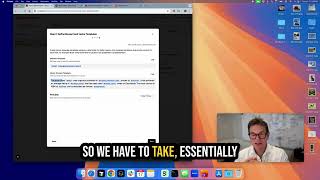
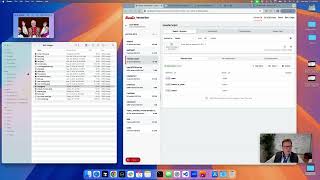
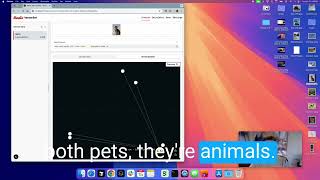
I'm Rowan Trollope. I work at Redis and I'm going to give you a demo of our upcoming VectorSets, new data type coming in Redis 8. And I'm gonna show you today how to get your data into Redis VectorSets really fast. And to do that, I'm gonna use our VectorSet browser that has a nice import feature. Of course, you can do this just by writing your own code, but for sample, for this demo, I'm gonna actually show you with a little UI we built to make that really easy. So this is gonna be quick video. First, I'm gonna run Redis. I've got that running here. There you go. Okay, so that's just running Redis locally. It's an empty Redis instance, so there's nothing on there. And then I'm also running, you can see here, I've cloned a Vectorsets browser repo and I'm running npm run dev on that. So this is Cursor and I'm just running that. So we've got both Redis VectorSets running locally, or Redis, a Redis server running locally with the new capability. And we have the VectorSets browser. Let's open it up. And that's when you run it by default, it's a Next.js app. It's gonna be on localhost:3000. So here we go. Now I'm gonna open the demo server that we just ran. It's running locally and I'm gonna get started. So this is a clean Redis instance. There's nothing on here yet, as you can see. Vector sets, any vector sets we create will be listed over here. Let's go ahead and create one. So I'm going to create one demo, choose an embedding model. So we support out of the box in the browser UI, a multimodal model, CLIP model, images, and then anything you can get on Ollama as well as all the OpenAI models. Ollama, for those of you who aren't using it, is a local embedding model and LLM hosting. Technology, so we can use that. And here's an embedding model that we're going to choose. Okay. And we're going to create the vector set. There we go. Nice and fast. We've got an empty vector set. So to get our data into this vector set, we're going to import some sample data. So I've downloaded some sample data CSVs off of Kaggle. And let's just go ahead and select one. I'm going to choose books. This is top 2,000 book descriptions, so it's not very much, very small. First thing this UI does is it evaluates the CSV and it uses an LLM to create an ideal vector embedding. So you can see that right here. So it's looked at the columns. We have title, we have original publication year, authors. In fact, if we just go look at that actual CSV, we can see what we're talking about. Here we go. Here, here's the CSV from the— that I downloaded. So it's got a lot of columns. So what has it got in there? So we've evaluated that in the UI and using an LLM and figured out that this is the best way to create a vector embedding. So we have to take, essentially combine the CSV data with this text so that the vector embedding knows what it's looking at. So the book title was originally published in this year, written by author, achieved an average rating of yada yada. So now we can, essentially when we type in, we've got all that additional context. And we can take a look at a preview here. So here's the first book, I guess the first row, The Hunger Games, book titled Hunger Games, blah blah blah. And probably the most important thing here is that it's included the description. So that we can search for books and do a vector similarity search against perhaps plot type, what's going on in the plot or what have you. Take a look at a few different samples. It looks pretty good. And this'll, this'll support any kind of data that any kind of CSV you throw at it. And then finally, we've got the element template. So vector sets require for each vector that you add an element name, which has to be unique. In this case, it's chosen title and original publication year. I think we might be a little better than that, 'cause this could overlap if you had two books in the same year with the same title. So we can maybe choose ISBN. Yeah, we've got ISBN 13. There we go. So now we've included the ISBN 13, which we know is unique, but we've also included title, which is gonna be a little nicer to use. All right, so let's go ahead and hit next. Next thing it's going to do is it's going to ask which of the columns do you want to encode and store as JSON data, metadata essentially, alongside the vector. And this is going to be used for filtering. So in our case, what we're going to choose would be useful here, I think, would be, let's say, the language, perhaps the rating, and what else would be useful to filter on? Something like, let's go with those two, language and rating. Pretty useful. Actually, you know what? I want to also choose, I want to also go with the year. Go with original publication year. I got to choose it again. Okay. So original publication year, language, and average rating. Done. Okay. Let's go ahead and start that import. What's happening now is the VectorSets browser is processing that CSV, each row. It's creating the vector embedding using the vector embedding engine that we chose. So while that goes, I can show you that. So it's using Ollama. If you aren't running Ollama, you can download it and just pick any embedding model that you want to download. You have to tell it which ones you want to have. They're obviously all different, lots of different settings there. So it's importing these now and we can go ahead and start working with it while it's working. So you can see here, just go ahead and start right away. And what you'll notice here now is we've taken, got the title, in this case the year, we actually put in ISBN, but I think we reset it during the process. Publication year, language code, and average rating are all here. So first and foremost, let's look, let's first start on the right-hand side and let's look at how we can filter. So like maybe I only want to look at English language books, so I can just type that in directly. Language code. There we go. Now we're just filtering down to English language books. Let's go ahead and show 100 books. There we go. These are your books. Maybe I want to also look at just top rated books. Say average rating greater than 4.5. And there we go. Now we've got English language books that are highly rated. Maybe we want only books that are new. Original publication year greater than 2000. And there we go. So we've got modern books in English there. Now we can combine that filter with a vector search. So we can say books about Mars. There we go. So now we've got books that are about Mars, which are in English and are highly rated and have a publication year greater than 2000. So recent. Let's go ahead and expand that out to 100. And there we've got it. I guess there aren't that many. So we've got, now these are all the books that are about Mars in English, highly rated since the year 2000. So that's an example of how we can get data into Redis really fast. Let's see if it's done. It's done. There we go. So we got the top 2,000 books and we can do these very complex queries. You can also do that, those queries in natural language. So we use an LLM here to actually generate the query syntax, which makes it a little bit easier. You can see that I just typed in English books and what it did is it generated the filter using The Redis syntax, which you can see here, language code equal. So that is the data importer, makes it really easy to get your data into Redis. Hope you have fun playing with VectorSets. Thank you.
More from Rowan
95% Prompt Cache Hit Rate: How LLM Cost Reduction Actually Works in Production


Office Hours with Guy: Building an external memory store with Redis CEO Rowan Trollope
Helpful Cost-Effective Customer Service Solutions for Every Industry With Rowan Trollope, CEO, Five9

Patrick Moorhead & Daniel Newman talk with Rowan Trollope, Five9 CEO for a Six Five INSIDER!