Redis CEO Rowan Trollope demos VectorSets, a new vector data type in Redis 8 that handles similarity searches in sub-millisecond speeds. The browser UI shows how to load vectors, search across text and images using CLIP and Ollama, and filter results with metadata on datasets like 5,688 books from Kaggle.
Chapters
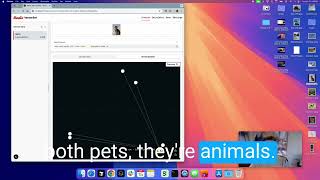
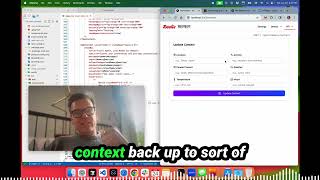
I'm Rowan Trollope. I'm the CEO of Redis, and today I'm gonna give you a demo of a new feature that's showing up in Redis version 8 called VectorSets. VectorSets are the brainchild of Salvatore Sanfilippo, who rejoined the company 6 months ago and has been working on our AI team to bring the first new data type in Redis that we've had in a very long time. Now, we've had a vector database in Redis for a couple of years as part of Redis Stack, It's the fastest vector database on the planet, as you would expect from Redis. And what we're releasing as part of Redis 8 is VectorSets, which is a lower-level API, but it's a really cool new way to work with vectors and build great and exciting applications. We're excited to see what you all come up with. I'm just gonna show you a few of the cool things you can do. And to do that, we have, we're gonna just have a couple things. We're gonna have the new Redis VectorSets module, which we're gonna load. That'll actually be. Built into Redis 8. So I'm gonna just go ahead and get that loaded right here. So I've got redis-server, this is actually 7.2.5, and the VectorSets module. So let's just go ahead and run that. You can see that's running there. And the second thing I'm gonna use for this demo is the VectorSets Browser, which is also available on GitHub, or will be, under redis/VectorSetsBrowser. And this is a convenient sort of developer tool Similar to RedisInsight, some of these capabilities will be integrated into RedisInsight, and this just gives you a native UI to be able to work with VectorSets, which is super helpful for a demo. And I'm going to show you that. So I have cloned the repo and I'm just going to go ahead and run that here. This is VectorSets Browser. So we have a local version of that running. And now I can open up my browser and I can just go to the localhost. So here we go. I'm going to choose the demo server that I just ran, which is running on port 6380. We can open that guy up and it's an empty Redis server. The new VectorSets API, everything starts with a V. Vadd to add a vector to a VectorSet. Vsim to search. And this user experience here that you're looking at, the VectorSets browser, will show you all the various commands that it uses. The other capability in this VectorSets browser is We've built in various embedding engines, including OpenAI, anything that's available on Ollama. So I also have Ollama running on this computer with a few different embedding models. It has a few built-in models as well using Transformers.js, and all that is just a convenience for the developer so that you can easily take your data, whether it's text or image, and embedding model that you have access to and convert that and work with it as a native experience. So let's go ahead and get started. I'm gonna create a new vector set from scratch here. Click here and, uh, just gonna call that demo. We're gonna choose all the defaults. And you can see again here, here's the command, the Redis command. Again, very simple, very native Redis. vaddemo values 512. That's the vector itself. So let's go ahead and create it. And of course, one of the benefits and beautiful things about vectorsets is they are really fast. So I'm gonna demonstrate a little bit of that speed, but also on the flexibility of vectorsets and how cool they are to work with. So, First thing you're gonna notice, here's my demo vector set, and on the right-hand side here, on this side of the screen, is the browser, and we have a bunch of different settings. I'm gonna take, show, sort of show you some of that stuff. First thing you're gonna notice is that this default embedding model that we chose is the CLIP model, which is running locally in the browser. And the CLIP model is an image and a text multimodal model. So we can upload images and we can upload text and it will Give us embeddings that are for text and image in the same vector space. And what is handy about that is you can search for images using text. You can upload pictures of a tank and then you can search tank and it'll find all the pictures of tanks. So I'm gonna add what I just said, which is some tanks. So here we have a, a tank, pretty distinctive. So let's add that. What you just saw there is I dropped it here and the VectorSet Browser UI created the vector embedding for it. and you can't see it here, but we're gonna take a look at it in a second. So let's go ahead and do that. Tank. And I'm gonna add that. And then I'm gonna add a few other vectors here that I think will be interesting to have as part of this demo. So let's go ahead and add some other machines, like some jets. Pretty handy. Let's add, let's add some animals just so we can get some, some differences in our vectors. So this is a cat. Let's add a dog. Okay. Should be cats and dogs should be somewhat similar given this. So let's find a dog. Here's a dog. Is that a dog? That's a dog. Okay. We had a dog. And let's also add a couple of sports pictures. So here's a picture of me wake surfing. Let's just call this surfing. And then we'll add one more. Which is— let's do a picture of some mountain climbing. That's some climbing picture. Okay, so what we now have in our vector set, you can see here, is 6 vectors: a tank, the Jets, cats, dogs, surfing, and climbing. And we can now do a couple of interesting things here. First, we can search by image. So this was the cat I added. I can search for a different cat. So I have a different cat here. Okay. And if we search by image, so what this is going to do, if I just drop this here, what'll happen is the Vectorset browser is just going to retrieve the embedding, the vector embedding for that cat. And it's just going to search against it doing the vsim command, which you can see right here. vsim demo values 512, et cetera. Okay. So we're going to pass that in. And hopefully it should find cat as the most similar item. The other cat. Let's see if it does it. There, it did it. And there you can see it found cat first. Took 1, 1.9 milliseconds. Here's the score, the similarity, 0.90. So pretty high similarity. Obviously these are two different cats, so they're not identical. If we were to put the original cat in, we should get a little higher score, 0.9991. So very high confidence. So that's an example. And also the other thing you can notice here when we search on these cats is cats and dogs come up as quite similar, tanks and jets a little less similar, and then climbing and surfing even less similar. To make that a little easier, and especially as you start to develop apps and look at building your own vector embeddings, you might want to visualize that in 2D. So let's go ahead and do that here. So what this is doing is just mapping the high-dimensional vector, which is 512 floats. Let's take a look at it. Copy that command here. So if I click here, it copies the actual command that it's using with Redis. It will just show you the actual command. So vsim demo, that's the name of the vector set. Then we're going to pass in 512 values, and here are the floats for the vector. And at the very end, we pass in with scores, so we want to get those similarity scores back from the HNSW algorithm. and we want to get 10. Okay. So you can control that as well. There's other settings, but this is the basics. So that's the command we issued to Redis. And what it has returned is the similar items. And here's the similarity scores. So what we've done in the UI is just map that into two dimensions. Okay. So we did a principal component analysis, do that. And what you'll see is that tanks and jets show up in the same sort of quadrant, obviously close. They're machines used for war, et cetera, et cetera. Dogs and cats, they're both pets. They're animals. They're very similar. And then these two. It's actually both pictures of me doing different activities. You can see those are similar. This little 2D visualization can help to let you see how things are similar or dissimilar. Now I wanna show you some other examples that are somewhat more real world. And to do that, I'm gonna open up the other server I have running, which I've already preloaded a bunch of different vector sets. And the way that I did that is I downloaded data off of Kaggle. So I'm just gonna remove this. VectorSet, which we don't need, and then we're going to go here. And so I've got some VectorSet data that I've imported from Kaggle. This one is top 1,000 movies. Obviously we're just showing the top 10 here. Of course, one of the benefits of Redis and VectorSets in particular is the speed. So we can type in 100 and boom, look at that, 1 millisecond and we got 100 nearest neighbors. This is really fast, and speed is important, as Manvinder, our head of PM, likes to say, because Speed and accuracy really go hand in hand. They're trade-offs. And so if you have high speed, you can get much better accuracy. And that's really important for some use cases. One of the things I wanna show you now is called attributes. So attributes are a JSON string that you can add to any vector. And I'll show you that. I skipped over it earlier, but if we go here, um, actually we can't do it here. Sorry, I'm not gonna do that. When you add vectors, you can pass in JSON. And that's what we have here. You can see there's an IMDb rating in addition to the element name and the score. So let's take a look at that for this particular vector set. This is a dataset, again, downloaded off of Kaggle, and it had all these in this piece of information. So what we did is we just took all that information when we imported it and we just pass all that in as JSON. So that's pretty helpful. We might want to look at the meta score. Maybe the genre or the length. So let's go ahead and take a look at those, or maybe the release year would be a good one too. There we go. So here you can see now we've got this additional data. What that's useful for is filtering. So now we can do deterministic filtering. So let's go to this one, and this is just, uh, this is actually 13,000 movies, many movies. And there we go, scary. So here's some scary movies. Okay, and what's been encoded in this, in these vectors is the description of these movies. Okay. So we took the synopsis and we took the title of the movie and a few other pieces of information. And that's the text that was used to embed, to create the embeddings. And so we can search kind of interesting things here and anything that essentially would be part of that synopsis. Funny movies. So let's do marriage. Maybe, maybe that might come up. So Confetti, Mike and Dave Need Wedding Dates. So I guess that's a funny movie about marriage. And it's got a similarity of 0.7422. So you get the idea here is that you can really embed a lot of that information. And then what happened when I typed that in, the SpectreSet browser converted this text into a vector embedding using whatever model we used. And then you can see that right here. We've got the ellipsis there because it's a big number, but that's what it did. And then it just did a vector similarity search against that. So that's one thing you can, uh, sort of see how we can very quickly find things, but now we might also want to do. Something with filtering. And filtering is where things become pretty interesting. So I'm going to switch here to a new vector set that we haven't showed you before called one more. This is— looks like books. Yeah, it's a books that we downloaded off of, again, Kaggle. It's got 5,688 books. It's got the book description, the synopsis, and a bunch of other stuff that's encoded there. Here we can do something interesting, which is like, hey, maybe I want to find classics, or let's say like, uh, thrillers. Let's say Let's see if that works. There we go. Okay. Memoirs of a Geisha, I guess that's a thriller. Dracula, that's certainly a thriller, but then I can also do some additional filtering here. So if we hit this filtering button and I can use Redis's native syntax language, native syntax. So this is vector set syntax, very nice and easy to understand. So you can see some examples here. If the year is greater than 1980, less than 1990, or a genre is action, rating is greater than 8, et cetera. Okay, so I can, I can do that here. So let's, let's just say I want only thrillers that are top rated. So I maybe I'm going to do greater than 4. So let's do.averageRating greater than 4. And there you go. So these are the top thrillers that have an average rating. You can see here it's showing what filter is currently active and you can make, you can do ANDs and ORs and anything essentially you can put in an if statement. Very simple and easy to understand filter query language. The other thing that we built into the Vectorset browser, just to make it easier for developers, is an AI helper tool, which allows you to not have to understand what the syntax is. And what this does is it takes the, all the information that it has about the attributes. So in this case, we have average rating, publication year, the number of ratings and language. There we go. Just to show them. And this will use AI to generate the syntax query for you. So maybe we can say published after 1990, and we can hit this button and it will generate the query. And let's see if it works. There we go. Original publication year greater than 1990. And then here you can see the command itself, vsim. Against this vector set name. In this case, we're doing a zero vector search filter with original publication year greater than 1990. So that's the command we're sending in. Again, all this did, this natural language thing here, is it just generated the query using the right syntax. So it's just a little bit of an extra helper feature to make it easier for devs. Let's go ahead here and you can see we've got a nice editor for that JSON, so you can add fields, you can edit the JSON directly if you want. So you can use this tool to create your vectors and add the JSON. So we're excited about what people are gonna build with VectorSets. Thank you very much.
More from Rowan

95% Prompt Cache Hit Rate: How LLM Cost Reduction Actually Works in Production


Office Hours with Guy: Building an external memory store with Redis CEO Rowan Trollope

Helpful Cost-Effective Customer Service Solutions for Every Industry With Rowan Trollope, CEO, Five9


Patrick Moorhead & Daniel Newman talk with Rowan Trollope, Five9 CEO for a Six Five INSIDER!