Ryan Maloney shows how to build an auto-animated character in Adobe Character Animator, from sketching in Animate to rigging and recording facial expressions with your webcam. The character's mouth shapes and blinks sync automatically to your voice, then export to After Effects or Premiere.
Chapters
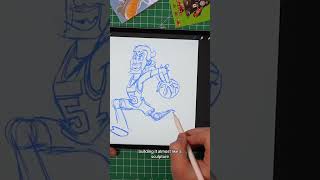
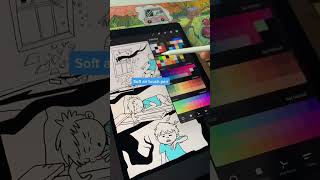
What's up, everyone? Today I'm building an auto-animated character rig of this character from Exploding Kittens. I'll show you how to draw the character, set it up, rig it up, and turn it into a character that can be recorded with the camera on your computer using your facial expressions and your voice. And since I don't want to get sued, I'm going to be creating my own version of Exploding Kittens. We'll call it Exploding Perros or Exploding Hot Dogs. I'm just winging this. I have no idea what I'm talking about. Really quick before we move on, this isn't going to be a smooth Disney animation. I use Adobe Character Animator for close-in shots where the character is just moving its head and moving its mouth a little bit, so it speeds up the production process. And you can do more complicated scenes in Animate or Toon Boom and blend it all together in After Effects. You've probably heard of Exploding Kittens. It was a hit game on Kickstarter. It's the brain secretion of Matthew Inman and some other game designers that I'll put their names here because I am sorry, I forgot. What I'm going to do is is research the character design, sketch the character, ink and color it. You can open that Photoshop in Adobe Character Animate, aim the camera at your face, and start recording scenes. No keyframes, no animations needed. All right, it's research time. Look at the lines on Exploding Kittens. When I was growing up, I would teach myself Adobe Flash, which is now Adobe Animate, and the brush had these non-perfect lines. Sometimes it would smooth it out, sometimes it would be uncontrollable. And Exploding Kittens I love the line work on this because it gives me that nostalgic vibes of old Adobe Flash. So I'm going to be using that same brush and drawing in Adobe Animate. First, I'm going to sketch my character. I think exploding hot dog, exploding perro. Maybe it's a dog in a bun with ears popping out the side of the bun. I think I'll go with that. And let's do a simple snout. Maybe it doesn't have arms. Maybe they're stuck inside the costume. Maybe it just has legs. And let's make the legs look just like Exploding Kittens so there's some consistency between the characters. Sketch done. I'm going to import this into Adobe Animate, add some lines and color. Before doing this, and other than subscribing, download the Photoshop template like I told you. Okay, geez, it's in the comments. Trust me, this will save you a lot of time. We're going to be pasting from Adobe Animate into Adobe Photoshop. You're going to need that file ready to go after this step. So I've imported my sketch into Adobe Animate. I'm going to create a different layer for each body part of this character. I'll design the eyes open. I'll design a blink layer on top of that. Arms, body, legs. Notice that all the parts are on separate layers. This way I can copy and paste them into Photoshop. Once we get the lines done, now it's time to color. Fill bucket. Boom, boom, boom. Character colored. All done. This is my exploding hot dog, or perro. Now let's rig this character up. Open the Photoshop file you downloaded from my comments in Adobe Character Animator. Once you open the Photoshop file, you're going to see perfectly named layers. Don't mess with those. Just paste your things in. We're going to rename each layer and delete those old ones. So I'm ready to do my stuff. But make sure we're naming and ordering things just like you see it in this Photoshop file. Now, in Adobe Animate, we're going to copy and paste into Photoshop. Copy, paste, copy, paste. Mouth, copy, paste. Mouth, mouth, mouth, mouth, mouth. Memorize these mouth shapes. You're going to be using them all the time when you work in Adobe Character Animator or Adobe Animate. Insert mouth shape sounds, and then I'll just say all these mouth shape sounds. Neutral, ah, dee, eee, f, luh, mm, oh, err, iss, uh, woo. And I think that's it. I'm going to paste in the eyes. I'm going to put blinks on top of that. And these are all going to be grouped in folders. Any time you see that plus, that's going to be something that moves around in Adobe Character Animate. When you're pasting things in, you might need to adjust the positions in the anchor points just to make sure that things pivot on the right hinge and move in and out and things don't go overlapping and eyes go waggly all over the place. Because we started with this Photoshop file, our character is now rigged. All we have to do is aim the camera at my ugly face and record. Please work. Hello, my name is Pedo Dog. I am not part of the Exploding Kittens family. I am a dog in a bun with tildes on the R's so I can explode like this. All right, you can see my character is all rigged up. I'm recording my face on the right-hand side of the screen, and you can see My character is moving to my voice on the left-hand side of the screen. Then all you do is hit this record button and you are recording individual scenes you can import into Adobe After Effects or Adobe Premiere to edit your cartoon. There are a lot of cool things you can do with Adobe Character Animator, like add in backgrounds that saves you a lot of time, but I like it to just do quick animation. Pro tip: I don't rely 100% on Adobe Character Animator. I like to blend together simple scenes with complicated scenes in Adobe Animate So that way people don't get suspicious and think you're extremely lazy. Don't be suspicious. Remember, the Photoshop file you need to work on this project is in the comments. And let me know what cartoon character would you like to see me auto-rig and auto-animate. Hint: I do a pretty wicked Peter Griffin. Oh, Peter, that's pathetic. Oh, thanks for watching.