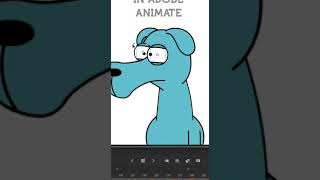
How to set up eye blinks in Adobe Animate
12 Apr 2024 · 1 min
0:39
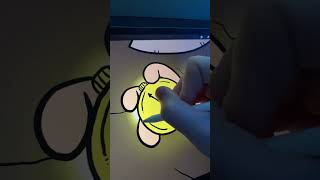
Ryan Maloney shows how to animate eye blinks in Adobe Animate by duplicating the eye white, converting it to a graphic symbol with three states (open, mid-blink, full-blink), then using keyframes set to 'Play Once' to generate smooth animation automatically.
Chapters
More from Ryan

youtube.com
Drawing Mr. Beast into a Beastly Baller trading card #art #drawing #tradingcards card
10mo ago


youtube.com
The first draft of my graphic novel #art #procreate #originacharacter #graphicnovel #drawing
1y ago

See all content