Sarah Maddack Peanut Butter Song Video Breakdown
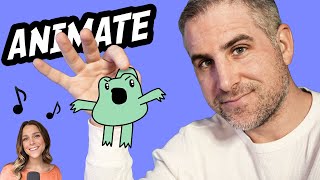
Ryan Maloney breaks down how he produced Sarah Maddox's "Peanut Butter Love Song" video using After Effects, Premiere, and Adobe Animate. He created three frog characters as lightweight vector files, animated them with auto-lip-sync and manual keyframes, and balanced comedic timing with production polish throughout.
Chapters
Alright, so today I'm going to be doing a file breakdown of Peanut Butter Love Song by Sarah Maddox, the TikTok— sorry, the YouTube star and TikTok star. I'm working in After Effects. I'm working in Adobe Premiere and using Adobe Media Encoder. And what else am I using? I drew the characters in Adobe Animate, so I'll show you a little bit of that. For the most part, I was working in After Effects. When it's live action video, I'd probably be working in Premiere a lot. I started there. I just like the export, the, like, the audio export settings in Premiere. Uh, it's, it's much easier to get good audio exported out of that. But in After Effects, I have more control over the keyframes and what happens with this film footage. So I chose to do the whole video in After Effects, you know, the, the live-action video on the bottom, and then put animated frogs on top of that. So that's what we're working with right now. This title frame is very simply a Photoshop file with this logo I created, and it's just two— it's, it's the same exact comp, the same exact Photoshop file. And a comp means composition. When you import a Photoshop file, you're gonna— it's gonna import as a comp, and then What I did here is I just made a mask, this jaggedy mask here. See how you can see it there? I can just drag these points and then duplicated it and inverted the mask. So you can see this little checkbox here, this inverted the mask. And then I just created, I'm gonna select both of these layers by Shift selecting, hitting U, and then you can see my keyframes here. These are my starting off positions and then I just open it up. Nothing fancy. Really nothing fancy at all. And then I decided to throw this frog in the corner. And we'll get to the Adobe Animate files in a second. I figured that this frog should be in the intro frame because it needed to be in the intro frame. It just felt weird not sort of teasing the frogs in here. Let's see if you can hear this. So I did a slow zoom here. I don't know if you can hear me over the music. I just thought the expression on her face was like these frogs are sort of driving her insane. Maybe she lives with the frogs, or they're just— they just always butt into everything she does. So I figured a really slow, like, Shining-type zoom out would would be kind of funny to start it off there, and it just builds a little, a little bit of tension, because then, and then it releases when we first show the frogs, and I put the frogs on this shelf. Now I think it's a good time to hop in Animate. Probably would have been professional of me to have this Animate file open. Here we are. Let's see if we can find that. Actually, that shelf is in a different file. Also not professional of me. And you can see how I, I name my files meticulously. Recover Frog 2 FLA. Uh, Adobe Animate crashed on me and then reopened this file and it was called Recover, so I never changed the file. And I was inspired by my file naming habits. Uh, the— in the early 2000s, I saw Homestar Runner and I thought It was really funny and really well done and really clean and professional. And then I watched a making of video where the creators were talking about how they don't name their layers. All of their files are all over the place. And I thought to myself, that's what I'm going to aim for. I don't need to have perfect file names. I just need to have a good product, like a good something that people like. So I don't worry too much about file naming and layer naming. Uh, yeah, I Now, layer naming isn't my thing. I'll do it when it comes to some mouth movements, but not going to happen in this main file here. So here I have my 3 frogs, and I created 1 file for all these 3 frogs, and each one of these frogs is a different, um, what do they call them in Adobe Animate? This is a graphic. It's basically a comp in After Effects. They should just call them comps. Adobe, change that. So now I have all my animations in here, and I just bring— I export this with a Command+Enter and export it as an SWF file. It's crazy that SWF files still exist. I mean, they've been around for 20 years. Nobody uses them on the internet, but for exporting to After Effects, they're amazing. They're just lightweight files. And they're basically like vector files, so it's, it's full resolution. So you can see these 3 characters here are 3 different— or it's, it's all the same Adobe Animate file, and I just duplicate this layer and create masks around each frog so I don't have to create 3 different Animate files and jump between all these, these files. I can just go in here, lay the music down, and then animate each one of these frogs And I only have one file, except I messed up and had to create that shelf file. So there's like, there's 3 or 4 beats in the song. The first one is the frog saying, "No more love songs." So I wanted to start that off pretty basic with just like, "No, no, no." And then I put a sign up in this guy's hand. This is like a, like a picketing sign. And then this, this thing, these should— yeah, these move. And that's just 2 frames. Oh no. Yeah, it's 2 frames past it. I just created this frame in this frame, then I just pasted all these frames in here so it loops. My animation style is just basic, like make sure it reads and it's on time. Like that's the most important thing to me. And then if it's smooth in between, that's great. But the smoothness and that perfect animation style, That's the icing on the cake to me. If you have time and budget to do that, I would go for that. But with simple characters, I just wanted simple animation and I really didn't want to overdo things here. Yeah, this frog down here, I just crossed his arms. It's just 2 frames and hold. Let's jump into these eyes real quick. Eyes are kind of interesting. Let's see, what did I do here? So I created all these frames of a blink, and then I duplicated that. So these are the same frames here, and then anytime I want to create a blink, all I do is create keyframes. And I have a shortcut on my keyboard, Command+E. I just select these, and then I go to the frame picker. No, I don't go to the frame picker. I lied. Well, first of all, I have it set to play a single frame. So inside of these, this eye, there's a whole nother timeline that if you let it loop, it will play that entire loop of frames. But here I have it set to play one frame so I can control it now. So if I go to frame 4, I'm going to get a full blink for 1, 2, 3 seconds, and then it's going to open. There's a couple ways to do eyes. You can create a little bit of a smoother blink. Let's see, I think on one of these guys I did— not this one, not this one either. I thought— oh yeah, I guess that's what I did. I didn't— I was going to motion tween it, but I just did a basic blink on here, and then I had the eye flip up a little bit for a little bit more animation. So if I want to do a full blink and have this smooth and Well, it's not that smooth, but smoother animation play. I would just create a frame here, keyframe here, let it play for 5 frames, and I would just set it to play once. So it's going to go whoop, right back. So watch this. Kind of interesting. So you can either just go boom and blink your eye like that and open it up, which works just as well as anything else. Or you can put a little bit of— put a little extra in there. Let me zoom in a little bit so you can see that. Mouths are very interesting in Adobe Animate. I really should have scripted this video because I'm just winging this, which I'm pretty proud that I've made it 10 minutes now. Wow. Okay. So all of these shapes are going to be the same on every single character. And I never— I've never remembered what these shapes are. They're set in Adobe Animate. It's neutral, A, D, E, F, L, M, O, R, S, uh, and wuh. These are all the mouth shapes to say any words you need. They're not exactly perfect, but this is— just go with it. Just trust me. It'll work. Just get them on time. Like, get the S's where they need to be, all the hard syllables, get them to where they need to be, and then fill in the mouths. And with certain cartoons, you don't need to have perfectly timed up mouth animations. They can be just opening and closing can even get the job done. Water break. To get these frames, I create this graphic, which is a comp. If I double-click in here, I just created all these. I'll select all these frames and I can convert them to blank keyframes. Then I can draw on each one here. Then when I double-click out of this— let me just undo that— when I tap here, I can assign each one of those frames to a different shape. So this lines up, and then this allows me to do auto lip syncing in Adobe Animate. Amazing time saver. I'd say it's about 60 to 70% accurate. You still need to go in and tweak some of the keyframes So watch this. See, it didn't originally get this S on the right audio mark, so I needed to go in and just Command+E, set a keyframe, tap here, and then I believe I did use the frame picker for this. So here's in this frame picker, you can break it out and move it over to the stage, and you can just select whatever mouth shape you want. Huge time saver. I grew up with Adobe Animate, which was Adobe Flash, not having any of these features. So as soon as they implemented them, I was super excited because I got all of my nights and weekends back. So, all right, we went over character, we went over eyes, mouth, the body. I didn't do— I don't think I did any body movement for any of these, but I did separate the body. So if I needed to, I could animate it, but I didn't need to because I just wanted very simple, simple body animation, simple mouth animation, and then I would slide them in in After Effects. So that's another thing you'll notice. None of these characters slide in in here. That's because they don't need to. I just export out this file and then in here in After Effects, let's slide these guys in. I'm setting my keyframes on this layer. You can see my position keyframes are set here. This is on stage, this is on stage, and then when I slide it out, that's going to be off stage. Now I also use the Animation Composer by, I believe it's Mr. Horse. This thing saves a ton of time. So when you have your layer selected, you can do a motion preset and select position, overshoot, and let's say we want to slide something to the right. We're going to hit out and it creates— let's just delete this— it creates this automatic animation that I don't have to do. Suspicious. See, it just flew off the screen. Where was I? Oh yeah, Animation Composer. I didn't use any of it in this video. I don't know why. I just want to get the timing perfect for the keyframes. That ended up working out okay because there were only 4 let's see, 1, 2, 3, 4, let's say 5 or 6 parts where these characters needed to animate in. So I figured I could just set the keyframes. It didn't, didn't take up much more time than using Animation Composer. Another thing with this, this video is it's really all about timing. I think Sarah's a pro at acting and getting her timing down. So I needed to get the zooms of the video down before I added any of this animation. So just really subtle things like zooming in here and holding and making sure that we're zoomed in close on the face. So when a comedy beat hits, we're going to zoom out. So I want to— it's also almost like a surprise. So this is sort of like our standard base scene where we're going to be for most of the video. And anytime the frogs come in, we zoom out, and it just becomes this normal, natural rhythm that you can play with to increase the comedy and increase the surprise. But you also build up like the familiarity with it, and then if you needed to, you could put like the shelf licking something off. Lick it off the shelf if you— That lick sound is created masterfully on my iPhone. Oh, and Sarah just texted. The video is crystal clear. Good. Solved that problem. I accidentally sent her a compressed version of the video and it didn't cut it. It was low resolution. I didn't even stop to check it out. I thought I had my settings in Adobe Media Encoder set to high, which let me show you that really quick. I always export out H.264 videos. I go down here and I, for a high resolution, I'll set my, the VBR pass to 2. I was set to 1 and it was way down here. These settings should really be at the top of Adobe Media Encoder because I always assume that it's just set to the best settings and it's not always. It's, it's sort of set to the best settings to make the smallest H.264 file size. All right, let's see where we are in this. So this last— there's a last animation Sarah threw in. I heard this sound, which is my— I think it's my slurping noise, might be somebody else's. And I thought, all right, well, I can't just leave these frogs on this screen with that slurping sound happening. Nobody's moving. So I went in and I just created 3 frames. 3 or— let's see how many frames. This is the slurping frog. All right, where's this? There's a slurp. 1. Let's analyze the animations. There's nothing crazy. 1, 2. And I drew all these. These are not shapes that I, that I moved around. 1, 2, 3, 4, and gone. I thought that's all that was needed. Very subtle. It's right before the end card slides in. Like, right before it. Like less— like a quarter of a second. Let's talk about the end card real quick. So I took Sarah's instrumental music from Hopped Into the Coffee— Into a Coffee Shop. I Hopped Into a Coffee Shop. I gotta get that right. And I thought it made like the perfect holding music. It's almost like— I mean, she probably— Now that I— This is so probably so obvious to her, but it almost sounds like coffee shop music in the background. I never realize that, but it's just good instrumental to keep up here instead of just quiet space at the end of the video. It's like comedy, levity. So it continues to go and hopefully it'll make people go and check out the next video. Let's see what else. So I was going to hop into Adobe Premiere, but I used it so little in this video. I may have done a little bit of coloring, but not much. I thought about coloring the video and sort of making the background a little bit more white instead of this color set from the light. But in the spirit of authenticity, I figured I would just keep that as it is and add the animations over top of it and see how it works, because I think overdoing your videos these days is— it's not the style. And I didn't want to make this look like a studio-produced film, so could have spent time on that, but I decided not to, and I think it worked out just fine. Let's see. Oh, here's— so this little character I threw in handcuffs. I think I just— yeah, I just have him wiggle. He just wiggles his handcuffs around., and you can, you can guess that that is also just a very simple animation. Figured he's crossing his arms in the first frame, so let's do like a very simple arm movement in the second one. I just— these are drawn here. Yeah, I mean, it's, it's, it's 2 or 3 keyframes here. It's 2 keyframes, but I mean, it's just so simple, but it draws a little bit of attention to it. Yeah, so what else do we need to talk about in this video? So the frog character design was inspired because it was Sarah's original idea to bring in frogs all along the bottom of the frame. And then as soon as I heard the song, my weird brain starts thinking, you can't just put regular frogs, not in police cars, in handcuffs, and a police outfit. Like, that needs to be in there. And you can't just set up one frame of something funny. You gotta, you gotta do other stuff, like somebody down on one knee almost proposing to a spoonful of peanut butter. Like, these are the, these are the common sense things you gotta— I, I'm like, yeah, that needs to be in the video. And I also didn't ask Sarah's permission to do any of this, so she was very cool, um, to let me do that. Because sometimes I'll take a shot at that and, uh, clients or people that I'm working with are like, yeah, it's not what we were going for. And then you gotta just, you gotta bow out and be like, all right, I'll go back to the original plan. But This, when I get that spark of excitement, I stick with it. And I thought that this was a frog holding two peanut butter— frog holding two knives with peanut butter would make the perfect thumbnail animation or thumbnail What am I talking about? Like, I can't talk today. The perfect thumbnail artwork. And then I brought it in here and I said, no, I'm actually going to draw its arms to be popping out of the jar with dripping peanut butter. This jar generated in AI, so it should be totally original. I mean, it has to be totally original. And then I changed some of the labeling. I didn't realize that this just says peanut butt. That should say peanut butter. It's kind of funny that way, so I'm going to leave it. And then I added frog approved in here. That's just an arced text layer. I hand drew this heart in Photoshop, and this font is all set up in Photoshop. It's Hobo font. It is on Adobe. Um, and then I did some coloring, uh, some YouTube coloring to, to Sarah to make it, uh, to add some contrast. And then I cropped her hand out of here because I believe, let's see, I don't know if I have the original. Yes, I do. The original actually looked like this. It was for, and I will cover up the, um, the brand in here that looks like it was for a brand sponsorship. So I took that and turned it into that. That was a fun one. That was fun. That's, that's how I think about things. I— sorry for no script in this. I hope it helped. Let me know if you want to see more of this. This will probably get 2 views and I'll say I'll never do that again, but it's kind of fun recording it. So I will see you in the next video. Thanks for watching.
More from Ryan
Drawing Mr. Beast into a Beastly Baller trading card #art #drawing #tradingcards card
The first draft of my graphic novel #art #procreate #originacharacter #graphicnovel #drawing