Episode 2: Gaga for Google CSE
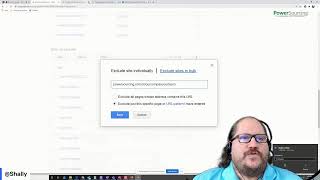
Shally Steckerl shows how to use refinements and labels in Google Custom Search Engines to filter results. She walks through commands like intitle, inurl, and site:edu, using LinkedIn as an example to find CPAs, Big Four firms, and specific page types. Refinements let you search 250 curated sites or the full Google index with precise control.
Chapters
Well, good afternoon and happy Friday, everybody. I hope you had a wonderful week. This is Shelly coming at you live on Shelly's Alley. I know you can't really see an alley right now, but that's quite all right. It's a virtual alley. Hopefully we'll, we'll do okay with that. Sorry about the noise in the background. You are hearing my, my guest here. His name is Marshall and he is a sweet little doggy. Well, he's 65 pounds, so he's not little, but he's definitely a sweet doggy that is staying with me over the long weekend because, um, his mommy and daddy are traveling and can't take him with them. So since we're staying home, we are watching over him today. So if you hear some pitter-pattering, he's very quiet except for he does have some claws and I've got some hardwood floors so you can hear it. But other than that, he's very, very quiet. So hopefully, this should not be a distraction. Today, we are talking about custom search engines and this is the second episode of custom search engines. We are going to do a deep dive on refinements. You might recall from last time, or the reboot of last time, or the recording of the reboot from last time, that we are going to do a separate episode on each of the important features. And in my opinion, this is, along with of course the websites that you search, really the second most important and most critical of the features. It's also definitely the most useful of the features. So let's jump into what this is all about, and I will share my PowerPoint presentation here. Hopefully that's coming through. No problem. Okay, great. So what are refinements or labels? Refinements and labels come in basically two different flavors, if you will, or two different ways of operating. No, it's not. Okay, there we go. Now it should be coming through. Okay, so if this is working— I'm still getting used to this whole having two cameras thing— if this is working, you should see the original one that we started working on that was just a very basic LinkedIn search. There you have it. Below here we have linkedin.com/pub and linkedin.com/in. Now if you wanted to be really meticulous, it's a good idea to get into the practice of adding the asterisk before and also the asterisk after because as we'll talk about in a minute, this is essentially part of a URL pattern and we wanna capture everything that's to the left and to the right of that. It's not required, but I do find sometimes the results are, they change a little bit, so this could be sometimes more accurate. Now one of the things that does change is when there is a subdomain. With LinkedIn, for example, you might know that there's www, then there's also, you know, top-level domains for countries, etc. So that's why using this will give you essentially international results, everything from www, which is theoretically just the United States, plus the other countries as well. If you wanted to limit this to only United States, you could do that by using the www and saving it that way. Keep in mind, this is not for international. This is going to limit it to mostly— not going to say only, but mostly— United States. And the asterisk is what's going to identify a pattern, or basically like a wildcard of anything to the right of that. We're going to come back to patterns after I cover a couple of other things. but you can see these are already labeled and the labels are the refinements. You find those in the search features right below setup on the left-hand side. You see search features across the top. There are 4— sorry, 5 tabs. The second one of those is a refinement. You can see the one that we created, which is the LinkedIn. We gave it a name and we said search only the sites with this label. And that's all we've done so far. So when we go to execute a search, which I'll do over here as an example, let's just do tax manager. I think I hit enter before I finished typing it, so try that again. Okay, you can see that it's bringing back profiles of individuals here, and there's a few other things that we can do to, you know, narrow things down, but they're all coming from www because that's what we specifically identified. Now if we go to the LinkedIn, this isn't going to change very much because we currently don't have any refinements added to this label, so it's very much still pretty much the same. We did facet the search or turn on faceted search, so it's going to show us that it comes from that particular label. This becomes more useful when you have more than one refinement. As we'll talk about in a little bit here. So let's discuss— actually, I'm going to go back to this little preview here, or, um, I don't know, search window, and show you one other thing. Let's say that you wanted to add something to the search to make it perhaps a little bit more accurate. Like, say you're doing a search for only people who are CPAs, for example. I'm just throwing that out there as an idea. You notice that the title of the page, the way that LinkedIn formats this, has the person's name, their essentially current position and company, and then of course the, you know, ever-present LinkedIn labeling. So this is Senior Tax Manager Trimble LinkedIn, International Tax Manager, Fortive, LinkedIn, etc. We can take advantage of that in a couple of different ways, but let's use CPA for now as an example. We can go into LinkedIn, or even better, let's create another one that's different, and we'll call this LinkedIn CPA. You can call these whatever you want. I found it's kind of difficult to edit them after the fact, so just give it a name that you know you can stick to and just stick to that. I usually kind of use camel case or things like that. So again, we'll do search only the sites with this label, but now we're going to add the command in title CPA, which is going to require that the word or phrase CPA be present in the HTML tag that is the title tag. So in title CPA and Save. Now this isn't going to do anything until we actually apply it to something, so we'll go back to LinkedIn. And you can actually also label the same website with multiple labels, so these can be included— these two websites can be included both in LinkedIn and in LinkedIn CPA. Now if we go over here and we put in Tax Manager and click on LinkedIn, it's still very similar to the other set of results, which is including all of them, but if we go to LinkedIn CPA, it immediately minimizes— not minimizes, shrinks down our results. So we have about 3 million. Don't put a lot of weight on this. This is a completely fabricated number, but the estimate still matters, and the estimate for this one is much smaller. Why? Because now we are forcing the inclusion of the phrase CPA in the title of the document. This is a way that you can, uh, do job title or company name searches right within the URL. So to carry this example one more step forward, we can create yet another refinement that is now going to be called, let's say, LinkedIn and Big Four. We don't need to turn on the facet refinement, but it's an interesting experiment to do that. Again, we're going to do in title, but now we're going to look for KPMG, or in title PwC, or in title Deloitte. Um, actually, let's just stick with those three right now. So technically, I guess that would be Big Three, but we can always add to this later. So I just want to stop here and show you what that looks like. Once again, we'll go to Tax Manager, and the CPA, we see all the ones that say CPA, but on the one that's Big Four, we see a different set of results. And now it's saying that there's none. I'm gonna have to go fix that and see what the problem might be. Oh right, because I didn't set the labels. That's what it is. There you go. So lesson learned, don't forget to apply your label, otherwise it's not going to work. So when you try something and you, and you see that, hey, there's no results, probably because you forgot to do something. In my case, that was what I forgot to do. So now we're looking at a subset that includes Deloitte. Looks like a lot of the— oh, there's PwC. I'm not seeing any KPMG, but they're in here. And that's how you can do companies. The same thing would apply for Tax Manager as well. You could easily modify that refinement that is CPA to, you know, include— it could be CPA or entitled tax manager or something like that. But keep in mind that you really can't use spaces here necessarily. Well, actually, it shouldn't be a big deal, so let me try that. So now it's going to be CPA or tax manager. Now we don't have to apply that because that's already been applied. So now let me not do a tax manager because that's what we're actually using. So let me do accounting and finance as an example, and we'll go to our Big Four. Here's the accounting and finance keywords applied to the Big Four companies, and here it is in the CPA with the Tax Manager. Oh, sorry, too many ads there. Okay, here we go. See, a lot of CPAs coming up. It's going to take me a second here to get to Tax Manager. It might be further down the list. So in order to just show you what I'm talking about, let me go ahead and remove the CPA, um, just temporarily so you can see what effect this is actually having. Again, a lot of ads are coming up here, so there we go. Did not seem to take it. Let me double-check and make sure I did it right. Okay, I did. And probably better for everybody's eyes and my sanity if I just open this up in a different window, so let me do— let accounting, finance, and LinkedIn CPA. There we go. I think that the reason the other one was showing up is because there's a lot, probably a lot more CPA than tax managers, and so those results were coming up at top. So now you see what happens when we use these different variations. Sorry about the jingling there. That jingling that you're hearing there, no doubt, is my buddy Marshall, who is taking care of one of his favorite hobbies, scratching himself. So there you have it. All right, so let's take a minute here and just recap. We're learning how to apply labels. Labels are the concept collection of websites. And then the refinements are the addition of keywords or commands, which can also be applied to labels, or it can be applied independently. For example, in the case of a search where you're using the label only to enforce a particular keyword or a particular string or command, but you aren't necessarily requiring it to be applied to any website or collection of websites. Taking a look at the PowerPoint slides here, bring that up, there we go. We have a few examples. One of them is one of my favorite techniques of all time because it's usually a pretty effective search for identifying people off the beaten path, so to speak, is captions. Because captions appear under images that may or may not be photos because they might be in HTML5, they might be in a PowerPoint, they might be in a PDF. Nonetheless, if the words left to right or L to R or there's other combinations as well, this is just a representative sampling, you can do top row, you can do in front or seated front or standing, etc. So these are all the kinds of things that you would see underneath, and sometimes rarely above, an image representing a group of people from an event or conference, and usually followed by, you know, pictured above, and it gives you the names and job titles and companies and so on. And I like that. So for me, this is a great example of appending some keywords to a refinement without necessarily applying it to a particular set of websites. So in our current search, which is limited to just LinkedIn, this won't really make much difference. So what I'm going to do is I'm going to search— sorry, I'm going to switch to another example. Let's go to the Where's my one source? This is the problem with being addicted to, um, CSEs is that I have a pretty big list and almost need like a catalog to figure out what's going on with all of these. All right, so here we go. We're, we're using another example. This is one of the examples that is shared, and what I want to show you here is how we apply a refinement that is not tied to a particular set of websites. Oh, I think I'm not sharing right now, so sorry about that. Let me grab that, and that should do it, I hope. So we switched to this other one. By the way, if you're wondering, it's basically the one that's called sourcing search engine, and it's in the list in the handouts. but not to make you too dizzy, we go to search features and we go to refinements. And here one of the first ones, or the first one really, is docs, which is essentially, um, what I, what I meant by that are Microsoft Docs. I probably should have labeled that MS Docs. What you can see here is in the URL I'm looking for the extension doc, docx, xls. It's a little bit of overkill. You, you probably don't need all of these, uh, but you know, I just wanted to kind of use this as a demo. So some of these are like EPS files and TIFF files and XPS and RAR and all that, uh, maybe kind of overdone, right? But it shows you— oh right, and the other thing is it's not searching only the sites with this label, it's searching everything. So when we go and apply that for a search like tax manager, check this out. Oh, don't check that. I didn't put the quotation marks. There we go. So when we go to Docs here, it should bring back basically extensions— or sorry, documents that have extensions that are one of those there. Now what I want to do here is I want to show you how we got to that. So I'm going to add a new one to this because I don't think I see picture. Oh, I do. I have captions in here. Okay, never mind. Let's go to that one. So captions, there it is. Okay, I already had that one in here. Great. This is a lot of results. It's applying the same Tax Manager phrase, but you can see that it's pulling up left to right, front row. Um, let's see what else. Front row, left to right, that's pretty common. It's including all the other ones, but you can see left to right is very, very common. Front row is also very common. And what are these? Well, these are pretty much just pictures of groups. It's coming from all over the place, and the faceted refinement is actually telling me which facet is being applied. For example, diversity or Facebook, et cetera. And as I said, these are basically pictures of groups of people. And right there, you can see Lizbeth Navarez, Senior Tax Manager at GHG. You got job title, you got name, you got company location. Perfect. It really doesn't get much better than that. I mean, sort of having a resume, but really, do you need a resume when you know that they're a senior tax manager, you know, and you know the company? So there you have it. With that, let me return to the PowerPoint. here, but I want to switch back to my other view. No, not that one, this one, and show you team. There's team, and here's what it does. It's looking for the word team in the title, or the URL. Technically, it's 3 words: team, people, or staff in the title or in the URL. And this works beautifully to find pages of like about us, about our team, our staff, and so on. So if I switch to that one, you can see here staff directory, our team, and so on. Now this is just 3 things. We've got team, staff, and I believe people was the other one. There are lots more So you can, you know, split this up. You can have a refinement that is for in title and another one that's for in URL, or you can try and combine it. You will run into a limit. There is a point at which you cannot type any more phrases, so you'll end up having to split these up at some point anyway if they get a little bit too big. And that's a good way to do it. Remember, these are priority to the sites with the label. These are not applied to any particular set of websites. And also, I probably forgot to tell you this, at the beginning, this particular search engine is searching only a list of, I don't know, only 250 websites. It is not searching the entire web, so it is already limited to some degree. If I turn this on, which you can always turn on and off, by turning it on, it's going to search all of the Google index, and that's where having a refinement like this is absolutely critical because otherwise you're going to end up getting a lot of junk. So let me show you what happens with this if I do the same search that we previously did for team on the entire web. I probably should reset this. Let me, uh, reset it here. There we go. So tax manager and team. Remember how we only had 8 before? That's because it's 8 of those 250-some-odd websites. Now it's all of Google, which is a lot more, but for me, this isn't as accurate because some of these are websites that don't have anything to do with the particular industry that I was targeting with that list of websites. So you can see how big an effect it immediately has. Let's go back to the refinements here. Edu is a really interesting one because essentially this is looking for only the websites that end in.edu, but there's another way to do this, which is to actually use the site command. So in this case, I'm searching only the sites. Let me actually turn on faceted refinement there so that when I do this, you'll see the results. Generic, I know, but, um, the results come up with the label EDU. Now if I did all results, I'm probably going to still get some EDU. Why? Because my list of websites include a lot of EDUs, and even though I'm searching quote unquote all the web, right now, all of those websites are being given priority because they are the websites that I specifically listed. So I will search those and also all the web. And that's what happens when you see. So let's go back to Teams here, or team, I should have called it Teams, and you see what's going on. That's pretty cool, right? With edu though, instead of looking for just universities, this is now focusing only on those websites. What I can also do is I can limit it to the top-level domain and include all universities. Let me create another one here and we'll just call this one, let's call it universities. Or uni. Any Australians out there? When I used to live in Australia, they called it uni, and I was like, uni what? Until I figured out they were talking about the university. Anyways, so we'll call this uni, and we're going to not search only the sites with a label, we're going to search everything, but we're going to add the command site:edu, which will then say to Google, only bring back results on that top-level domain And let's try systems engineer, manufacturing engineer, etc. So here's our team. You see what it's doing there. Here's our EDI that I previously provided, favoriting those, by the way, because we are doing open web. But we now also have the new Uni which is going to look only.edu domains, any.edu domain. Internationally, you might find.edus are also following a country code top-level domain, so it might be like.sg,.edu, or something like that. So you may want to take that in consideration when you're building this if you're doing international search. This is an example of a top-level domain. Going back to the slides. bring my screen once again here. And I'll show you if I have patterns in here. Let me see. I'm not sure I do. I might. Well, there's some here. This is what I was talking about with regard to patterns. But these are patterns that we already know about. This is a website. It's, you know, instagram.com and anything before it and anything after it. Um, what I was referring to in the advanced— let's see if— ah, here we go. Perfect. So I think I alluded to this last time, but I didn't cover it. These are patterns that don't include a particular domain. These are patterns that are at the top level of the domain. So I use this a lot to eliminate templates and samples and examples. So you don't get, you know, the, the kind of garbage content that is not an actual resume or an actual profile. You can also eliminate job postings. I use this to eliminate the company's pages on LinkedIn as well. So how do patterns work? Well, to do a pattern, to add a pattern, you can actually— it's pretty simple. You just need something that is part of the domain, and it needs to start with either the top-level domain— by that I mean, let's say.net, for example— or the domain itself, like, for example, um, powersourcing.com. The asterisk before it means that any subdomain would be included, or in the case of.com, this means that it's going to include basically everything that's.com. Use this to include, which would be the list of websites above, or exclude, which is the one that I'm in right now. So this would actually essentially exclude all.coms. If I executed this search, it would exclude all.coms. You can also use it though to go levels deep into a particular website. I'm just going to put something generic here like website.com and then asterisk, this is going to find anything at any level inside of the website. But if you knew, for example, like with LinkedIn, there is in, you can then use this to say only show me the pages that are in the in folder of the website. Or if it's excluded, don't show me any page that's in the in. That's what I did in the case of LinkedIn and company. So that was LinkedIn.com/company. So it eliminated everything that was after that, which would be all the companies. You can do the same thing with Pulse to eliminate our articles and so on. There's a few other ways that you can use patterns as well, and there's a handy-dandy little link here that'll take you to a page that explains it. Unfortunately, you really need to experiment quite a bit in order to suss out what what some of these patterns mean, but there's a dropdown here. It's kind of almost tucked away or hidden that if you expand will show you a little bit more information. It's kind of repeating what I said, but it also helps you with some actual examples, some generic examples. So here's what I was talking about, but then there's this other one, which is matching a particular word inside of the entire domain. This is useful for when you have something like Teams. So let's do asterisk.com forward slash and then asterisk team. This will bring back all.com websites that have the word team after it, but it will only apply to websites where the word team is somewhere in the first level of the folder. So let me give you a, an example. Let's say that this was powersourcing.com and I'm looking for team. It will only find pages that are, for example, our team, like that. If the page was in, um, let's say about and then /team, it would not pick this up. To do that, you would have to put about and then team here. So that's one thing you've got to be careful with. It's only going to apply to whatever level of the domain that you're actually putting it on. And that was something that tripped me up when I first started doing this. I was putting asterisk keyword and thought it was going to apply to everything. But there's good news. You can also match all the URLs with— that begin with something and have something else after it. So This would be useful in the case of like, say for example, LinkedIn in and then forward slash something else and asterisk and a keyword. I can see a few examples to where that would come in handy because remember we were talking about, let's see, do I have LinkedIn here? Yes, I do. Oh, maybe I don't. Oh, right, I think I deleted. That from here. Sorry for being super generic, but I just want to see if I can get— right, wrong one. Let me go back to a different one. Um, actually, let me stay here for a minute because I don't want to distract you from this. So what I'm explaining here is that in this case it would be something like, um, let's say company asterisk team. Now you're looking for the word team to be anywhere after the word company, again still in the same level. it's still not second level, third level, so pages that are in the second or third level will not come up. There's limiting here. This one's also a little bit confusing. It looks like you can match multiple levels, but actually it's matching both words. So in this case, you're asking for kites and fly both to appear in the URL. For my example here, it would be like this. That means that whatever is after the forward slash has to include company and team somewhere. Even if it's our company, our team, it would still come back, but it would not come back if it's in the in folder. Supposed to be our company, there we go, because it's not in the same level. And then finally, this is the one that I was telling you before, that's kind of all of the websites. So where do you— where can you use this? It becomes really useful to eliminate generic content. It also becomes really useful to include particular types of content, like for example, lists or directories. Think of doing a search where if you were on Google, it would be— you can't do this on Google, but if you could do it on Google, it would be the equivalent of using, for example, site: and then the website let's just say, um, well, GuideStar, actually, that's a good one. Listing of all the nonprofits and their officers. It's a pretty cool website. So be the equivalent of doing something like this, but then adding additional context after that. So you could drill down on a segment of it. So let me show you what happens when you look at GuideStar. There's a bunch of different— it's a very large website, so there's a bunch of different subdirectories like transparency, products, login, etc. One of those might be the list of profiles. Where's my site? There it is. So it'd be site GuideStar. It would be similar to being able to do something like this, inurl profile, but being able to apply it across your custom search engine or a multitude of different websites. So magnifying the, the power of it, it's still very useful. In this case, when I apply this, you can see I'm going to get back results of just the nonprofits themselves, but I'm also getting articles, which is an unintended consequence. And that's what I mean by you, you think you can do it, but you really can't. It would work exclusively with profile in the CSE, but out here it's giving me other stuff that's not just profiles. We could get to the point where we just added that, and the way to do that would be that you'd have to actually also add in title profile, and I think that might do it, but there's probably— yep, still some articles that get slipped in there. So, and here's collections and here's docs. So again, it's not as accurate as you would like. In a custom search engine though, you can tune it to exactly what you want, and you can also expand it to all websites that have a similar pattern. So that's patterns. Now we've talked about all of them. I hope that you enjoyed our presentation today and you spread the word about you know, what we're doing here and get people to sign up and join us. With that, I am going to— oh, that's a little confusing, sorry about that. There we go. I'm going to sign off for the weekend. Have a really, really good weekend and happy long weekend for those of you that have a holiday on Monday and you're going to be off. Hopefully you're doing something fun. I'm going to be hanging out with Marshall here. Say, say hi, Marshall. I'm going to make you You're famous, Marshall. Ah, they can't see you. Say hi. Look at that. There's Marshall. Marshall, there's at least 2 people that are gonna see you on the internet now. So you're famous. You're a celebrity. Do you have your own Instagram account? Yeah? Are you on Insta? He's a sweet puppy. All right, everybody, enough fun. Have a good weekend. Take care. Talk to you soon. Bye-bye.
More from Shally



Scaling Talent at Hypergrowth: Leadership, AI, and Hiring Excellence with Cindy Nicola







